How to Recover Router Password
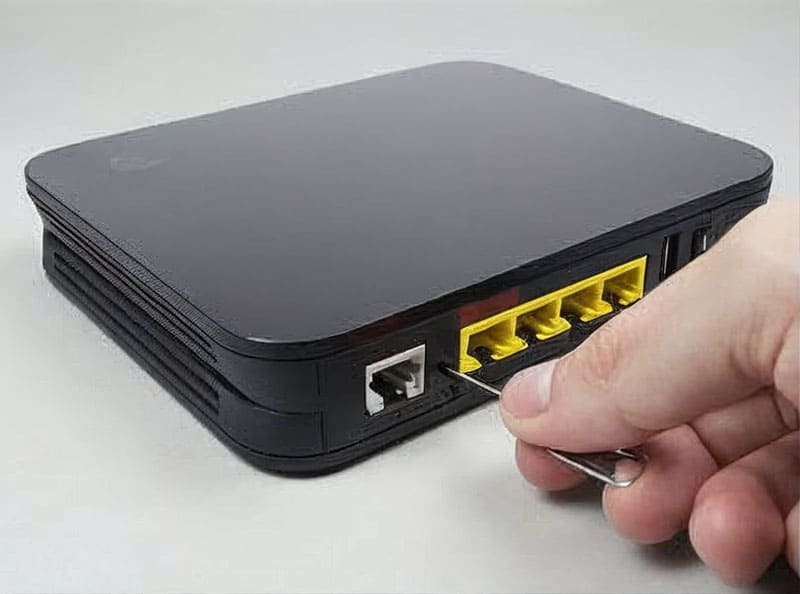
It’s easy to forget the password to your router; it isn’t something that is needed very often. Usually, the default details will be displayed on the back or bottom of the router itself, or you can look up the default credentials for your particular model online.
The issue gets more complicated, though, if you’ve previously changed the default login details for your own more secure ones and forgotten what those are. When this happens, you’ll need to perform a reset to discover how to recover router password.
This will fix the problem, but bear in mind that it will also erase any other customizations you’ve made to your network, such as SSID names for areas of your house or performance adjustments.
This guide will help you regain access to your router, with or without having to reset it.
Default IP Credentials
Your first remedy, and the easiest fix, is to try one of the frequently used default IP addresses to connect to your router, then attempt to access the router and settings using the default username and password.
If the details aren’t displayed on the router itself, you may still be able to access it via the router’s web interface using the default IP address and recover router password without reset. The most common IP addresses used by router brands such as TP-Link, Netgear, D-Link, and Linksys are:
- 192.168.1.1
- 192.168.0.1
Other frequently used IP addresses (though less common) are:
- 192.168.2.1
- 10.0.0.1
- 192.168.100.1
- 192.168.3.1
Default Login Credentials
Once you’ve been able to connect to the router via one of the common IP addresses, you’ll then need to try logging in using the factory default details. Commonly, the username and password will be “admin” and “admin.” If that’s the case (and you also didn’t previously change the details), then you will be in and able to proceed with whatever task you need to complete.
Factory Reset
If you’re unable to gain access via the above methods, it’s probably because you, or somebody else, changed the login details from the default ones but forgot what they were changed to. This is a common occurrence since it can be years before you actually need to log in for any reason; plenty of time in which to completely forget or misplace a written note.
Step 1. Locate the recessed reset or factory restore button. This is often a pinhole with a tiny button that can be pressed with a straightened paperclip.
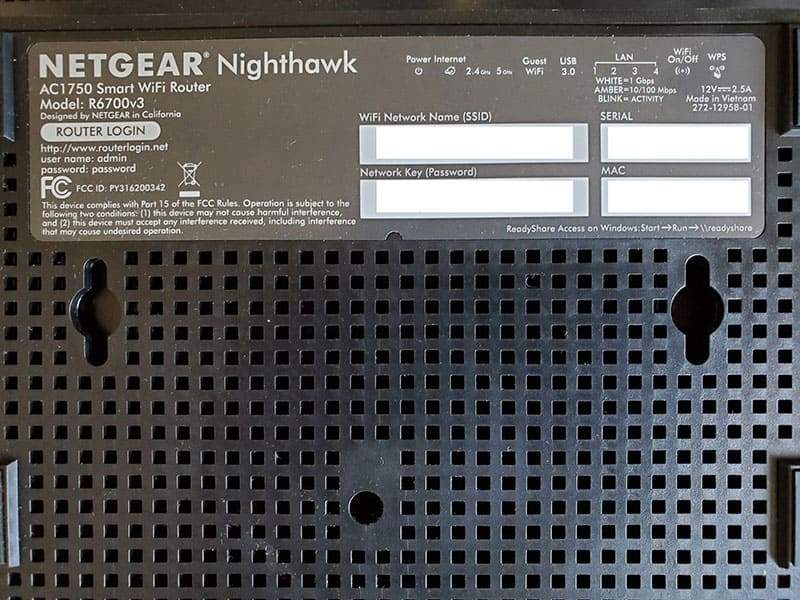
Step 2. Using the paperclip or similar tool, press and hold the reset button for the specified time of your particular router. It’s usually between 7 and 15 seconds, but you should be able to refer to the manual or search online to find that out.
Usually, what you’re looking for is an LED to start rapidly flashing, indicating you’ve held the button in for long enough to initiate the factory reset procedure.
30-30-30 Method
If you’re unable to find the details on how to reset your particular router, or the method suggested fails, many manufacturers recommend the “30-30-30” reset method:
Step 1. Hold the reset button down for 30 seconds.
Step 2. Unplug the router from the wall for 30 seconds.
Step 3. Reconnect the router to the power outlet while continuing to hold the reset button for 30 seconds.
Alternatively, users can try the “Power on/15-second hold” method if the 30-30-30 recent method only serves to send the device into the “Firmware Recovery Mode.”
All the Ways to Connect Your PC to Internet Without Wi-Fi or Ethernet
Read Next