My Headphones Are Plugged in But Speakers Still Play – How to Fix
While Windows generally automatically puts the most recently plugged in audio output device as the “default,” it’s not perfect, and you might see the issue “my headphones are plugged in but speakers still play” pop up occasionally on social media and tech forums.
Here’s what you need to know about the issue and how to solve it.
Fix 1: My Headphones Are Plugged in But Speakers Still Play: Fix Headphones or Connection
The most obvious issue if you’ve connected headphones via cable (or even through the Bluetooth dongle) is that there’s something wrong with the connection. There are a few different things you may need to check here:
- Check the headphones cable for kinks or bends, as it may indicate that the inner wire has been severed and doesn’t pass a signal.
- Switch the cable or dongle to a different port on the PC. For USB ports, the type of port generally shouldn’t matter, but try to use the newer USB 3 port. For headset ports, use the dedicated port on the back of the case (colored green and listed as “Line out” or with a speaker or headset icon).
- Connect the headphones to another device and check if they are detected properly. This can determine whether they actually work.
- If your headphones have both a dongle and a cable connection (common for wireless headsets), one might take precedence. You can’t connect them to different devices, and the dongle will usually not work if they’re both plugged into the same PC.
Fix 2: Update Drivers and Defaults to Fix Headphones Plugged in but no Sound
Windows frequently updates sound drivers, but plugging in new devices might cause it to try to download old drivers and mess things up. You can try to manually fetch the new drivers.
Step 1. Right-click on the volume control icon on the toolbar and select “Sound settings.”
Step 2. If you can’t find the headphones listed there, click on “Add device” for “Pair a new output device” then follow the instructions and choose the type of connection you’re using.
Step 3. Find the headphones in the device list and select “Check for driver updates” on the right.
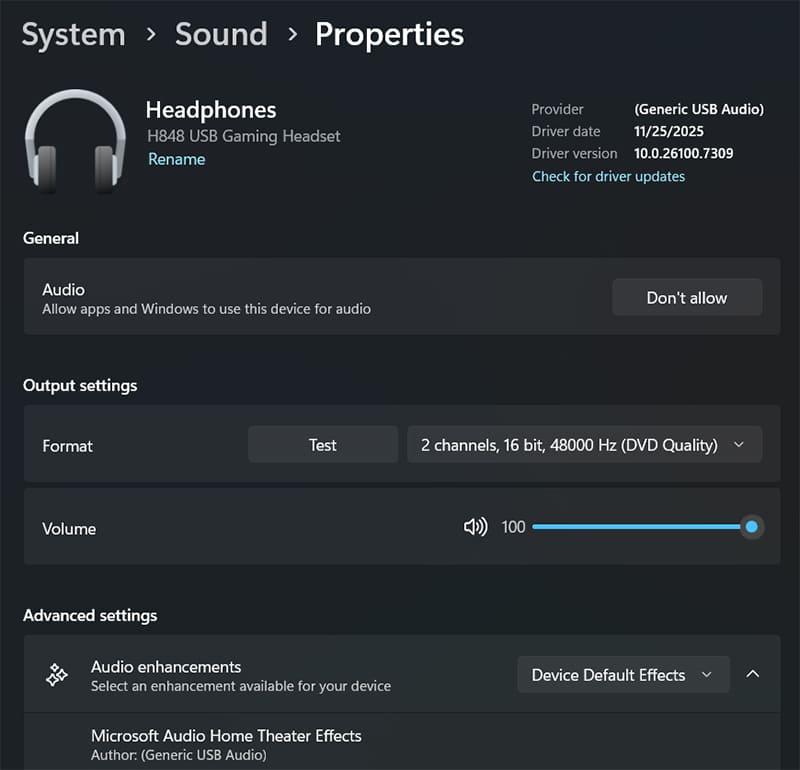
Step 4. Wait for the process to complete.
Step 5. Go to the volume controls on the toolbar and expand the “sound output” option (the button to the right of the volume control).
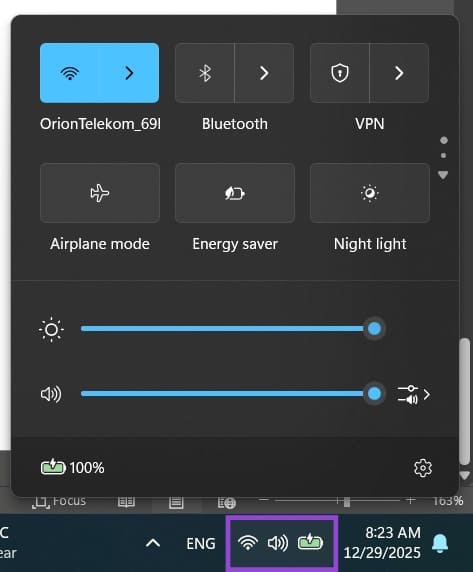
Step 6. Select the Headphones as the default output method.

If this doesn’t work, you may need to go to the Sound Control Panel.
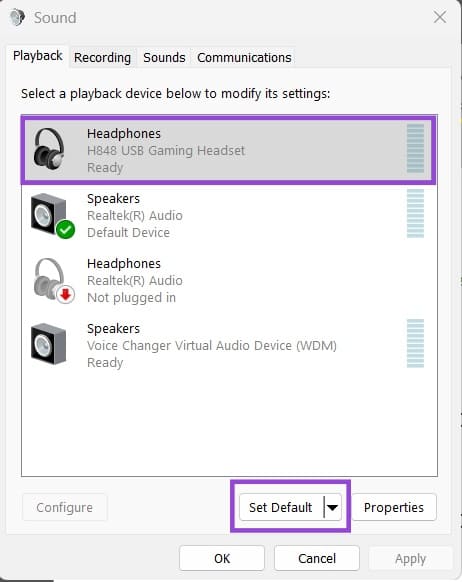
Step 7. Open the Control Panel (you can search for it via the search bar). Choose “Sound.”
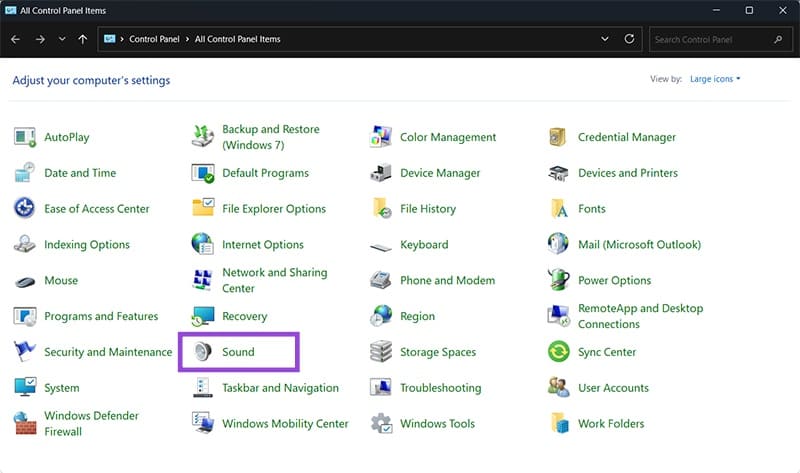
Step 8. Unplug the headphones and plug them back in. The device that appears in the list is the headphones.
Step 9. Click on the headphones and select “Set default” on the bottom, then click on “OK.”
Fix 3: Fix Speaker Plays instead of Headphones by Going into App Settings
Some apps like Discord can choose which output method to use regardless of the system’s default output settings. You’ll need to go into the specific app’s Settings menu, then change the sound output device to the headphones themselves or to the default as listed on the PC.
This will depend on the app itself but is usually in Sound settings.
Fix 4: Uninstall Realtek Drivers
Realtek is the “default” sound driver for Windows and the system is prompted to keep it up to date on every boot. You can force Windows to reinstall a clean version and update it by uninstalling the current one.
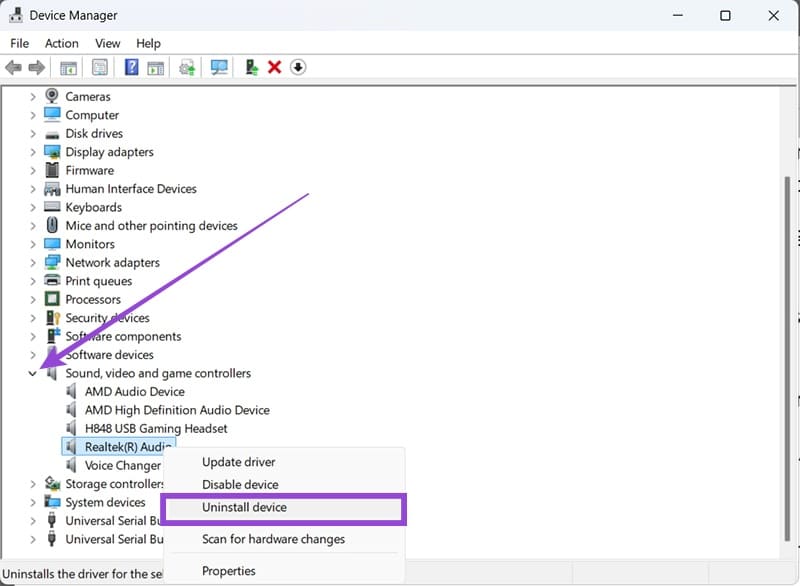
Step 1. Right-click on the Start icon and select “Device manager.”
Step 2. Expand the section “Sound, video and game controllers,” then select “Realtek(R) Audio).
Step 3. Right-click on it and select “Uninstall device.”
Step 4. Disconnect the headphones, restart your PC, then reconnect the headphones.
How Does a Steam Machine Compare to a Gaming PC
Read Next