What to Do When the Wi-Fi Keeps Disconnecting on PC
Losing your Wi-Fi connection frequently isn’t just annoying; it can seriously impact your productivity and workflow. There are several possible causes, but fortunately, most of the solutions are pretty simple to implement. Here’s what to do when the Wi-Fi keeps disconnecting on PC.
Check Your Wireless Environment
If your Wi-Fi has been disconnecting and then reconnecting for a while, the issue is likely within your Wi-Fi environment. Simple, non-technical solutions may be all that’s required to keep you connected constantly.
Move Closer to the Router
Wi-Fi signals weaken over distance, and your PC may simply be too far away from the router to establish a solid connection. If possible, try moving it closer and see if the issue resolves.
Check Router Connections
Check that all cables connected to your router are securely connected and working properly.
Remove Physical Interference
Wi-Fi signals are line of sight, so solid objects directly between your PC and the router could be interfering with your connection. This is especially true of objects made of metal. Try moving your PC, the router, or both, so that there’s an uninterrupted line of sight signal path between them.
Other devices that use similar frequencies to your Wi-Fi network, such as cordless phones, microwaves, and analog security devices, can also interfere with Wi-Fi connections. Try moving them or temporarily switching them off to see if the issue resolves.
Turn Off Other Devices
Too many devices connected to the same router can degrade connectivity on some or all of them. If you have multiple devices connected, try disconnecting them one at a time and see if your PC’s connectivity improves.
Remove Bandwidth Hogs
Other devices on your network or apps on your PC may be consuming much of your available bandwidth, causing the Wi-Fi connection on your PC to run slowly or disconnect.
- Try turning off smart TVs, wireless TV receivers, laptops, tablets, and phones connected to the same Wi-Fi network and see if your PC’s Wi-Fi connection improves.
- Close all the apps on your PC and see if your connection speed improves.
- If a particular app is causing your connectivity issues, you can:
- Check with the provider for updates or fixes.
- Uninstall and reinstall the application.
- Try an alternative application.
PC-Based Fixes
If the Wi-Fi environment is not the issue, and if your other devices are connecting to the same Wi-Fi network just fine, the next place to check for issues is on your PC. Try these fixes in order until the issue is resolved.
The Humble Restart
If the issue of disconnecting Wi-Fi is new, try restarting both your router and PC to resolve any temporary glitches.
Update the Wi-Fi Adapter Driver
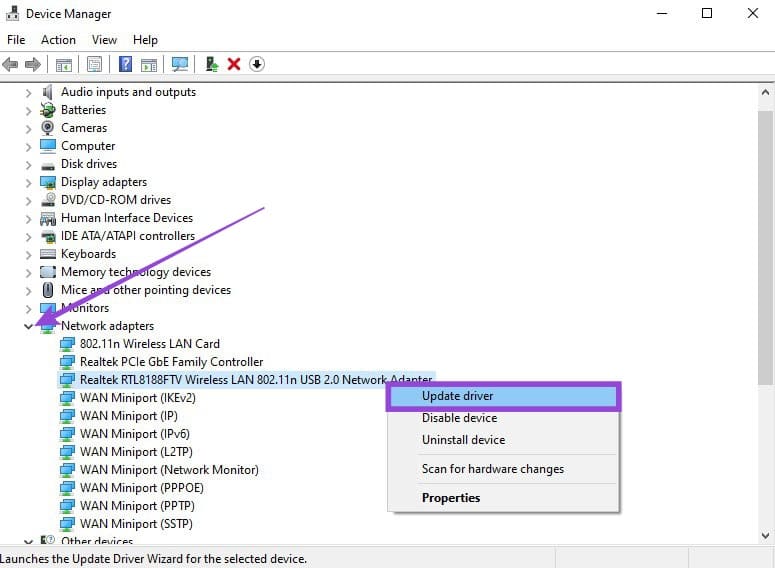
If the issue persists after restarting, try updating your Wi-Fi adapter driver via Device Manager.
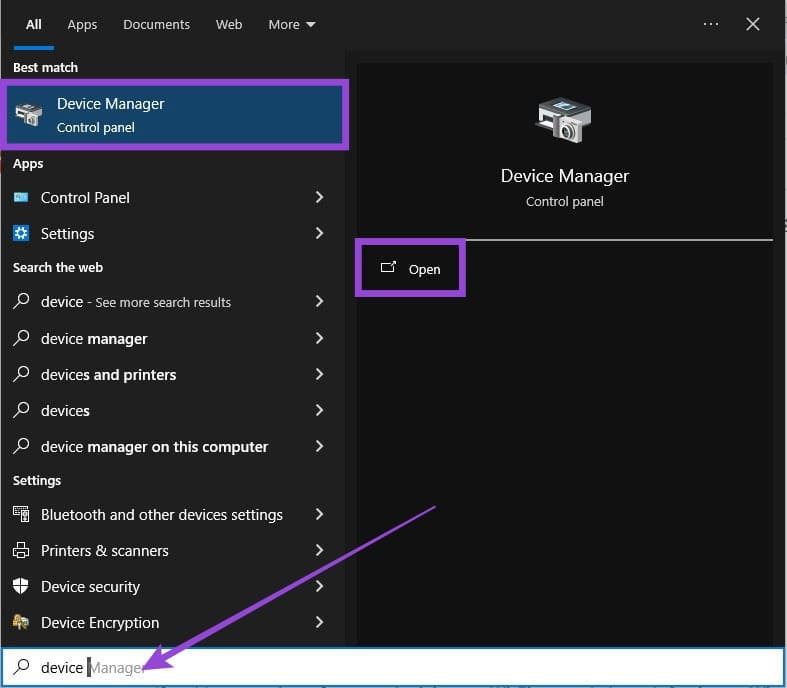
Step 1. Open Device Manager.
Step 2. Under Network Adapters, right-click on your Wi-Fi adapter and select Update Driver.
Disable Power-Saving Settings
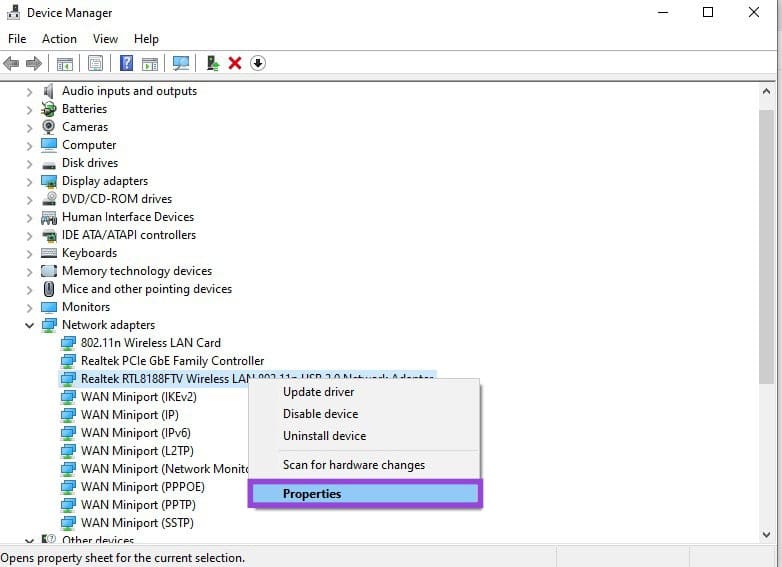
Step 1. Open Device Manager.
Step 2. Under Network adapters, right-click your Wi-Fi adapter and select Properties.
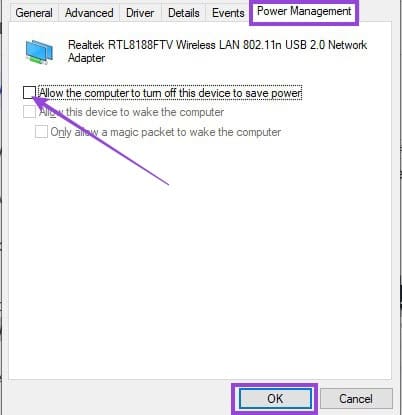
Step 3. In the Power Management tab, uncheck “Allow the computer to turn off this device to save power” and click OK.
Run the Network Troubleshooter
Step 1. Go to Settings > Update & Security > Troubleshoot > Additional troubleshooters > Network Adapter.
Step 2. Run the troubleshooter.
Reset the Network
Step 1. Go to Settings > Network & Internet > Advanced network settings > Network reset.
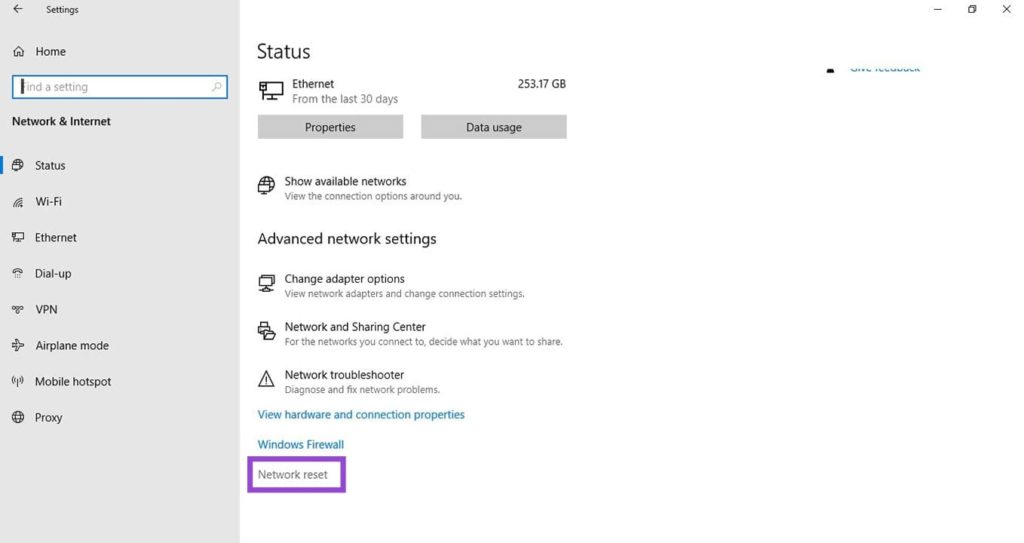
Step 2. Click Reset Now.
Quit and Rejoin the Network
Step 1. Go to Settings > Network & Internet > Wi-Fi > Manage known networks.
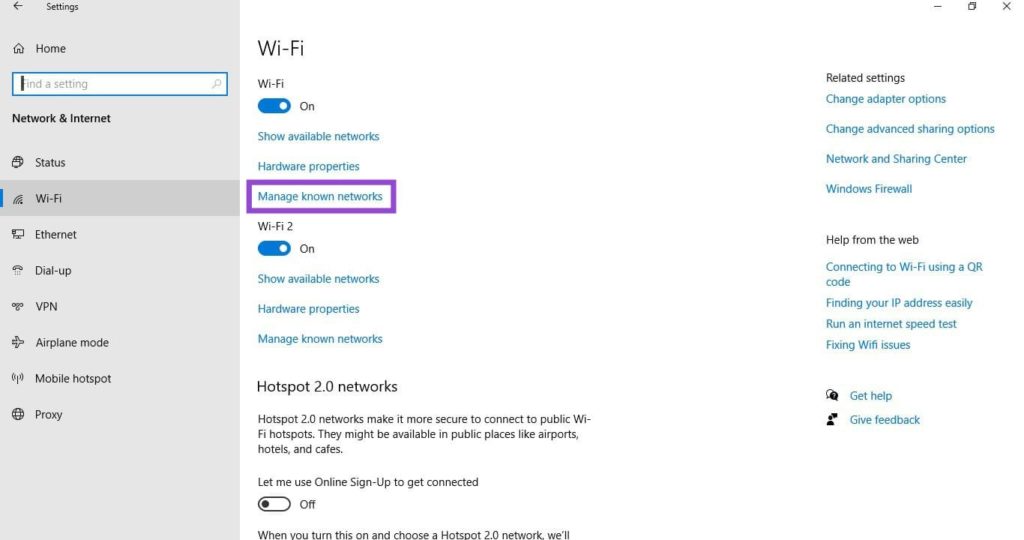
Step 2. Remove any networks in the list, and then rejoin them.
Reset the TCP/IP stack and DNS
Step 1. Open Command Prompt (type “cmd” into the Windows search box and select “Run as administrator” from the options.
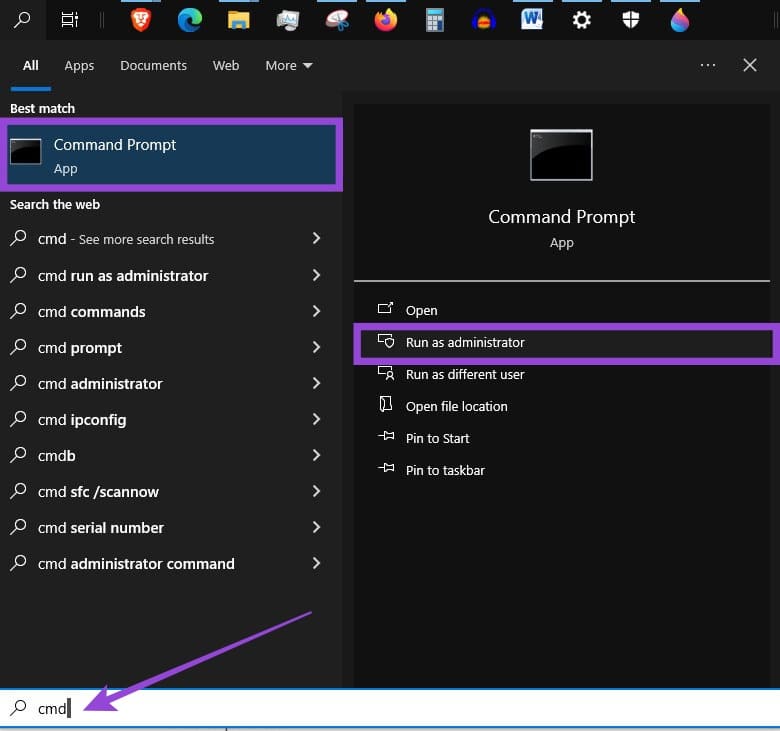
Step 2. Select “Yes” if you are prompted with a Windows User Account dialog.
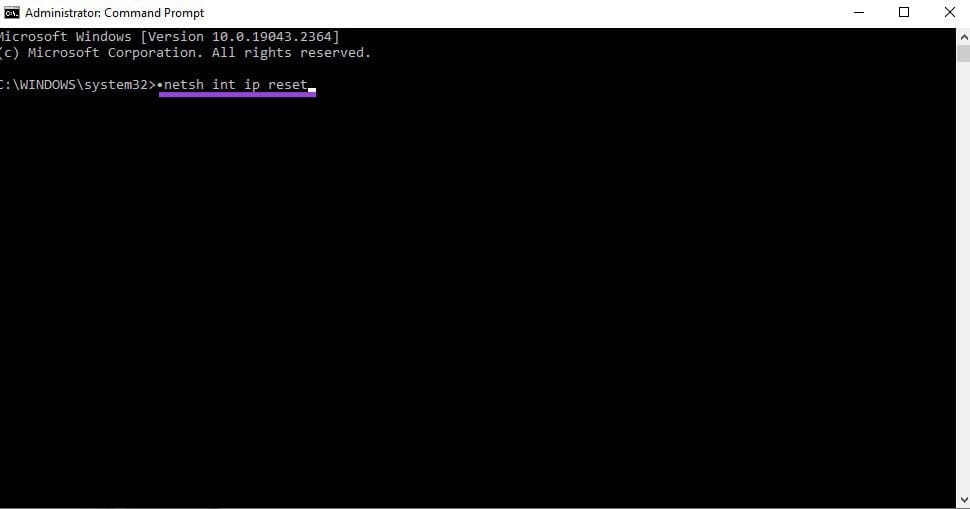
Step 3. Enter the following commands into Command Prompt, pressing Enter after each:
- netsh int ip reset
- netsh winsock reset
- ipconfig /release
- ipconfig /renew
- ipconfig /flushdns
- Close Command Prompt and restart the PC.
Final Considerations
If none of the above fixes resolved the issue, consider updating your router’s firmware, upgrading your router (especially if it is old), or using an Ethernet cable instead of Wi-Fi.