Steam Shows a Game as Uninstalled

Nothing is worse than going to boot up your favorite game only to find it’s showing as uninstalled in your Steam library. Luckily, there are a few fixes that can help you when Steam shows a game as uninstalled.
Why Does Steam Show a Game as Uninstalled?
The most common reason for a Steam game to show as uninstalled is, you guessed it, the game has accidentally been uninstalled. It’s surprisingly easy to accidentally uninstall a game or forget that you uninstalled it.
Another reason could be that the files are corrupted and can no longer be verified by Steam. This is especially common with external hard drives with Steam games installed on them.
It could also be that your game is installed on a different drive that is not currently connected to your PC or one that Steam currently does not have access to. All of these could cause your games to show as uninstalled in your library.
Steam Game Suddenly Uninstalled – How to Fix?
There are a few different ways you can fix when Steam shows a game as uninstalled in your library:
- Start the installation process to identify existing files
- Switching to the correct drive/directory
- Reinstall the game
Method 1: Start the Installation Process to Identify Existing Files
There are some instances where Steam no longer recognizes installed game files. This will cause the game to show up as uninstalled in your Steam library. To fix this, simply try and start the game by clicking the “Install” button. The installation process will begin, but it will first scan your existing files, validating them without actually requiring a full download or reinstalling.
This method only works if the game is in the proper directory with uncorrupted files. To make sure that your game is in the correct directory, navigate to C:Program Files (x86)Steamsteamappscommon.
Method 2: Switch to the Correct Drive/Directory
If you have multiple drives in your PC or an external drive where you install games, its possible that Steam may not have access to it for some reason. This issue is common with games installed outside of the Steam folder.
To add games from a different drive to the current Steam folder:
Step 1. Launch Steam and go to Steam > Settings > Downloads
Step 2. Click the Steam Library Folders button to open the Storage Manager.
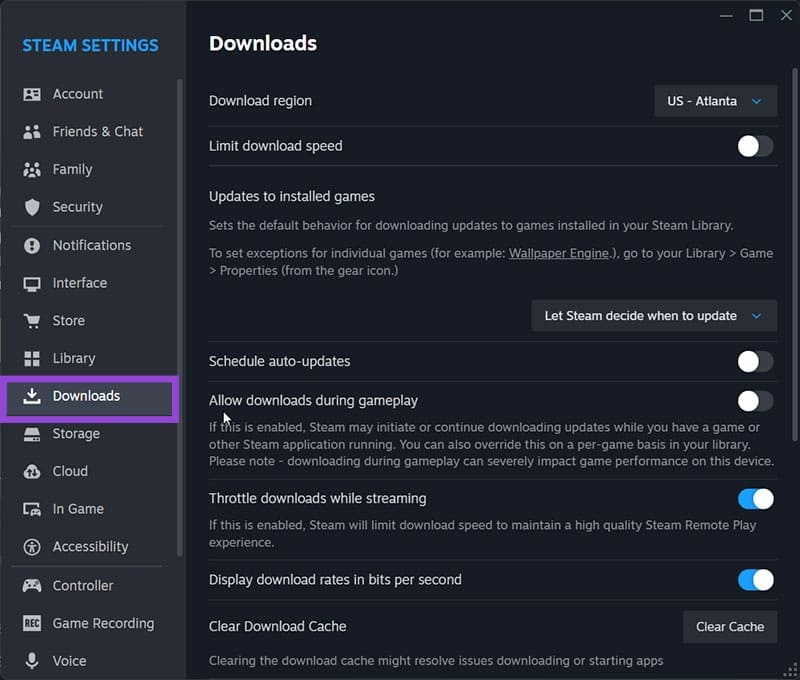
Step 3. Here you can manage your game installations and locations. Near the top of the Storage Manager, click the “+” button to add another folder of your installed games.
Once you have added the new library where the game is located, it should show as installed in your Steam library.
Method 3: Reinstall the Game
If all else fails, you should simply try reinstalling the game from scratch to a directory recognized by Steam. This is not the ideal solution when an installed game disappears from steam suddenly, so the options above should be tried before resorting to a full reinstall.

How to Install a New SSD in a Laptop
Read Next