Stuck in a BitLocker Recovery Loop? Here’s What to Do

There’s not much that can top the frustration of being locked out of your own PC, something you own. If BitLocker keeps asking you for your 48-digit recovery key, only to ask you once again on a restart, you’re no doubt looking for answers and fixes. In this article, we’ll help you with just that: how to fix a PC stuck in BitLocker loop.
Fixing a PC Stuck in BitLocker Loop
Below, we’ve got some fixes to help you deal with a stubborn BitLocker loop and hopefully get back into Windows. Let’s get started.
Check Your Key
It might seem obvious, but it’s important to ensure that the recovery key you’re entering is accurate. With 48 digits, there’s a lot of room for error. Check and double-check your recovery key to ensure it’s correct.
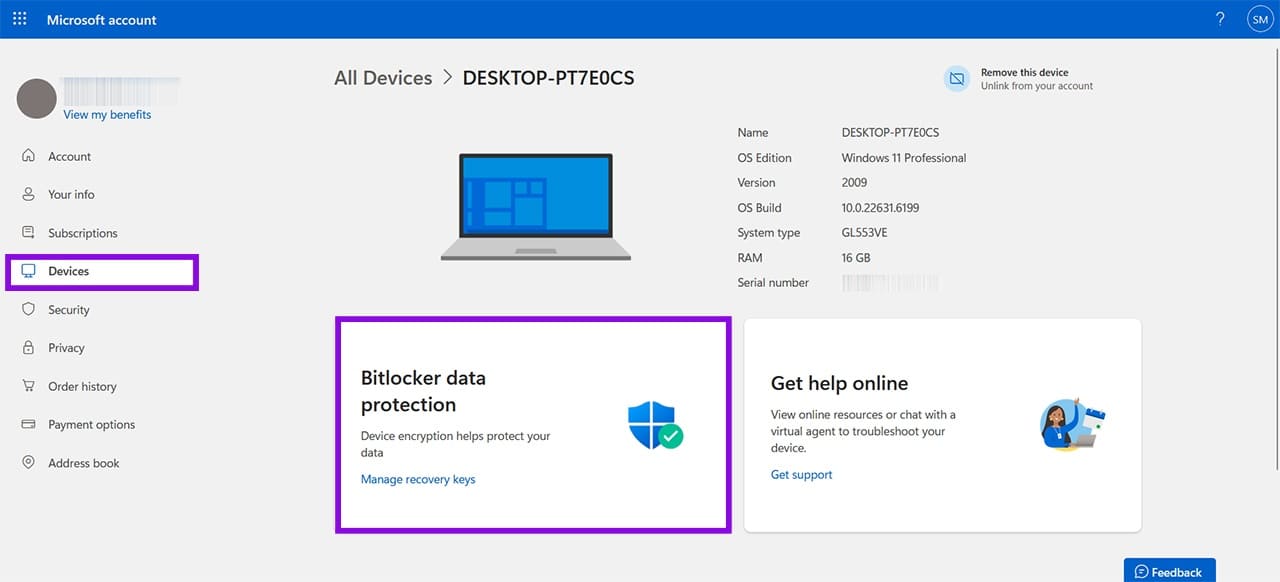
If you want to make doubly sure, sign in to your Microsoft account and verify the recovery key. You can find it at https://aka.ms/myrecoverykey.
Check the Status of BitLocker
There is a way to break out of the boot loop, and that’s the option to enter the Advanced Startup menu and troubleshoot. This should be your next course of action. Once there, you can use Command Prompt to check the status of things. Here’s what to do:
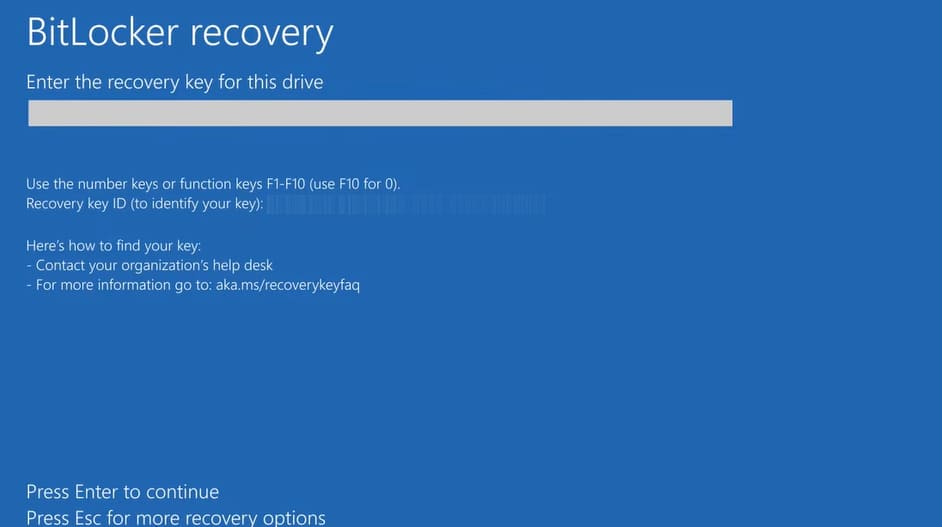
Step 1. On the initial BitLocker recovery screen, press (Esc) to bring up more recovery options.
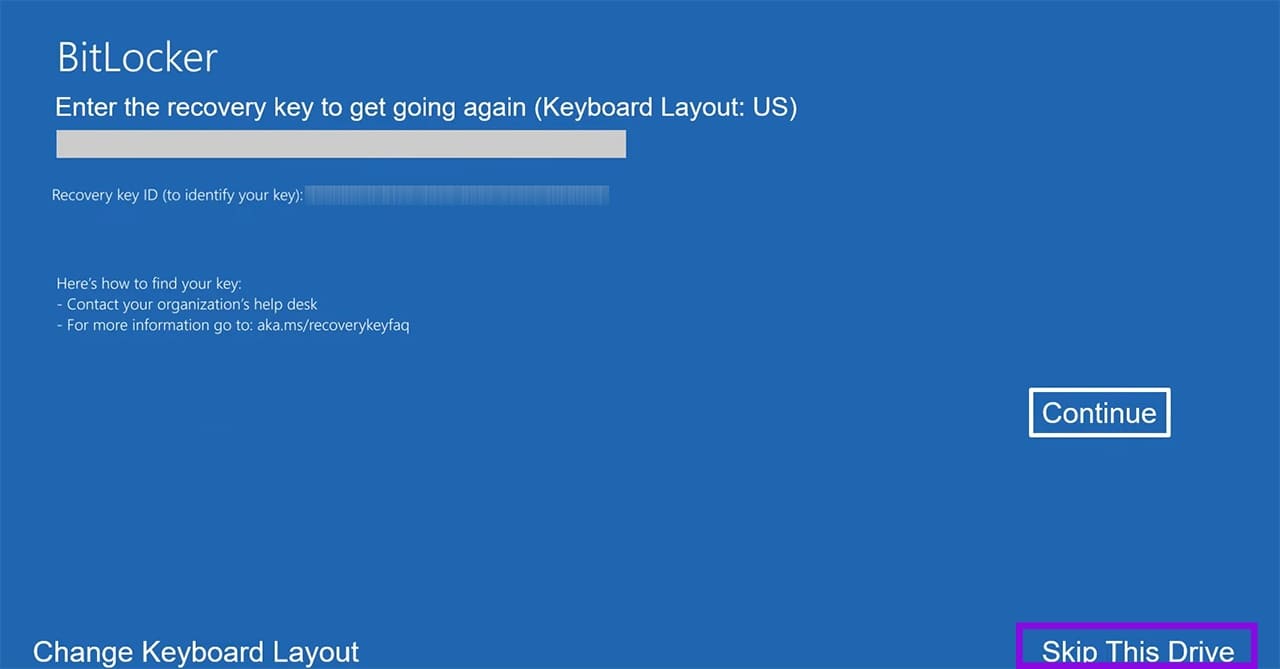
Step 2. On the next screen, you’ll see a second BitLocker way to enter your code. Click “Skip This Drive.”
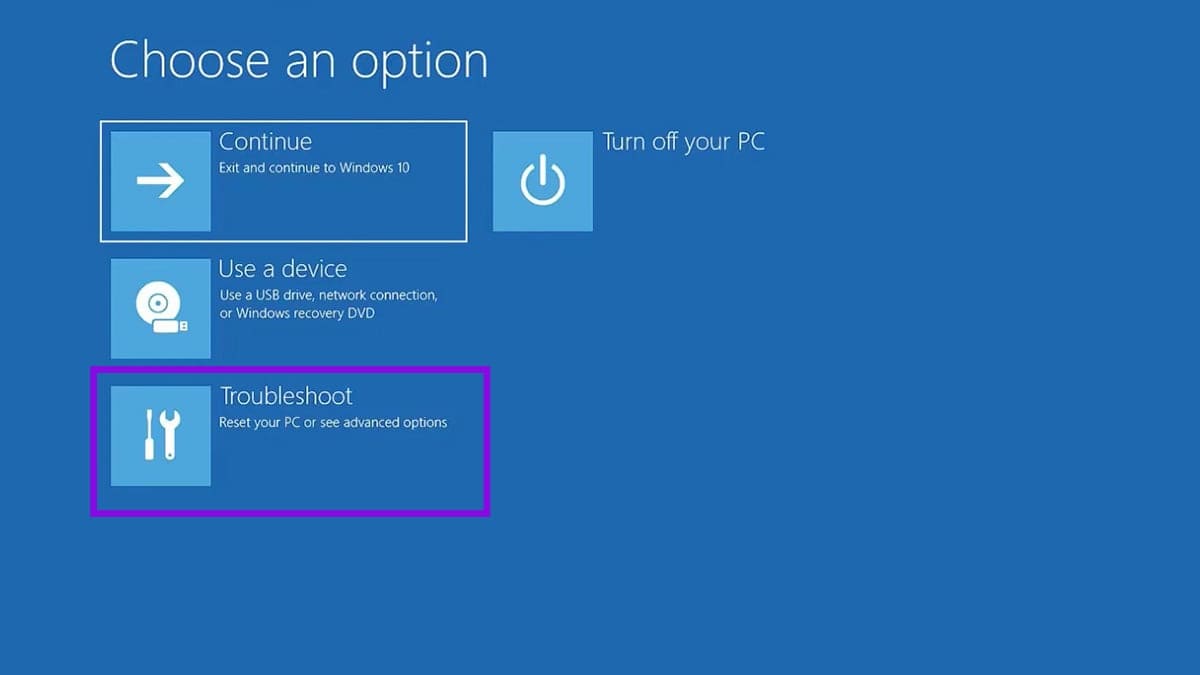
Step 3. You’ll be taken to the same menu as Advanced Startup. Click “Troubleshoot” to continue.
Step 4. Choose “Command Prompt” from the options.
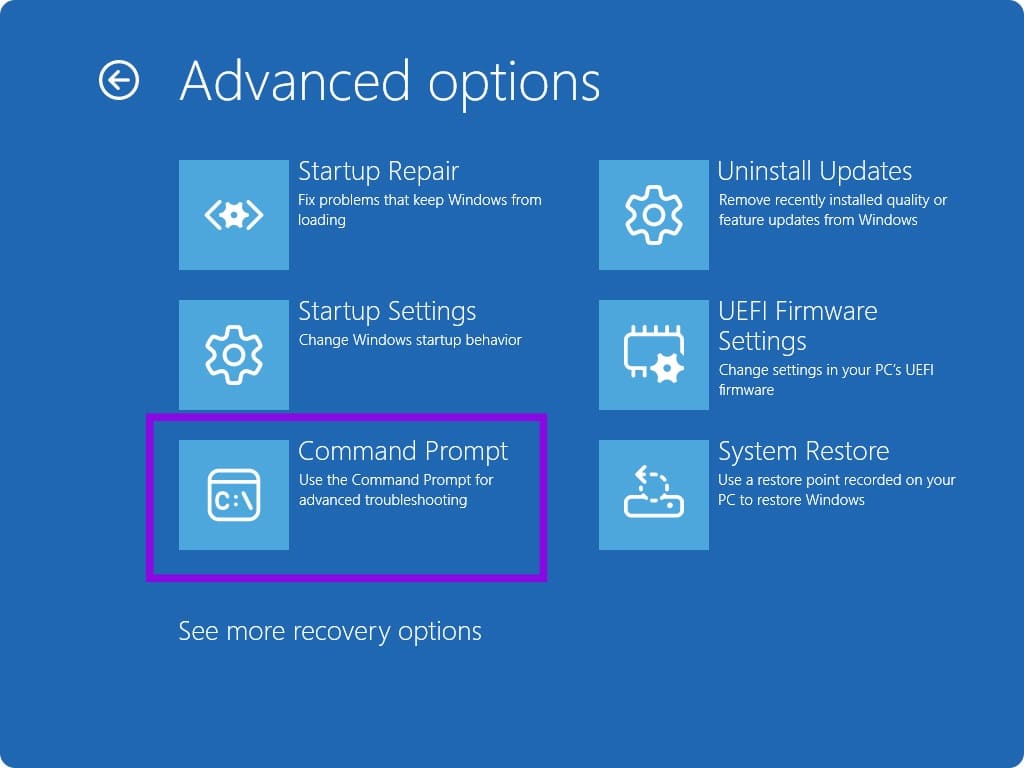
Step 5. In Command Prompt, enter the following to check the status of your drive: “Manage-bde -status c:” and hit “Enter.” “C” in this case is the disk that’s encrypted.
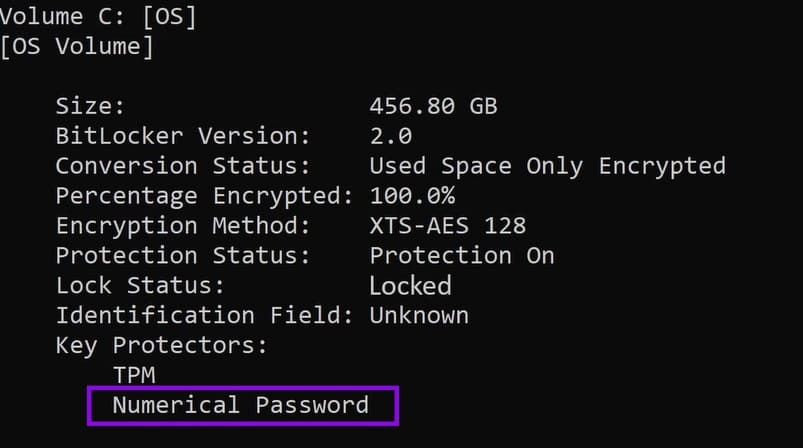
Step 6. You’ll see a report of your drive. You can also see what protection methods are in place. If the “numerical password” is listed, you can try unlocking the drive in Command Prompt.
Unlock the Drive via Command Prompt
If, for whatever reason, you’re stuck in the dreaded Windows BitLocker loop, entering your 48-digit key in Command Prompt can be a viable way to do so. Let’s continue from the steps above:
Step 1. In Command Prompt, type “Manage-bde -unlock c: -rp [your key]” before hitting “Enter.” Ensure that your key is properly hyphenated too.
Step 2. If the password checks out, you’ll receive a message that it was successful.
Disable BitLocker Protection and Reboot
Once the above step is completed successfully, you’ll be able to disable BitLocker so this loop doesn’t happen again. If the above step is unsuccessful, you can also try rebooting BitLocker and re-entering your key. Here’s how to do both:
Step 1. In Command Prompt, once your password is accepted, type “Manage-bde -protectors -disable c:” and hit Enter.

Step 2. If BitLocker protection is successfully suspended, you’ll get a message telling you so. Restart your machine, and it should boot up normally.
Step 3. If you are disabling BitLocker to re-enable it, then follow Step 1, and afterward type “Manage-bde -protectors -enable C:” and then hit “Enter.”
Step 4. Restart your machine, enter your code, and see if it’s accepted. If not, disable it again.
How to Create High-Quality AI Images for Commercial Use with Adobe Firefly
Read Next