What Graphics Card Do I Have? 4 Easy Ways to Check

If today’s question is, “I wonder what graphics I have,” you’ve come to the right place. Your graphics card, also known as the GPU or graphics processing unit, is responsible for how well your computer handles visual graphics. If it’s underpowered or out of date, you may experience distorted visuals or lagging animations.
We show you four quick and easy ways to check GPU model and type, so you know exactly what you’re running. Knowing how to check graphics card versions lets you know if you’ve got the performance for certain games and apps or if you may need to invest in an upgrade.
Check Graphics Card Version: Task Manager
Step 1. Access the Task Manager by pressing these keys simultaneously: CTRL, SHIFT, ESC.

Step 2. Click “Performance” on the left-hand menu.
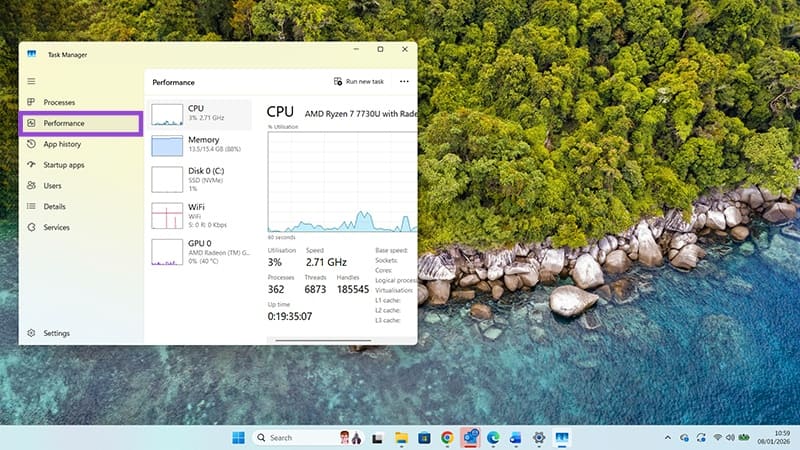
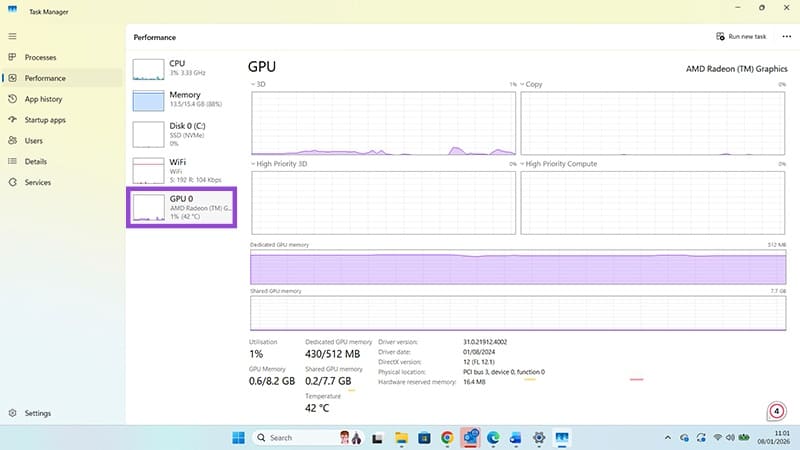
Step 3. Click on the box labeled GPU 0. Maximize the screen to see the full details of the graphics card’s make or model. In this instance, it’s an AMD Radeon GPU.
Access System Information to Check Graphics Card Version
Step 1. Press the Windows key and “R” together to open the “Run” box.
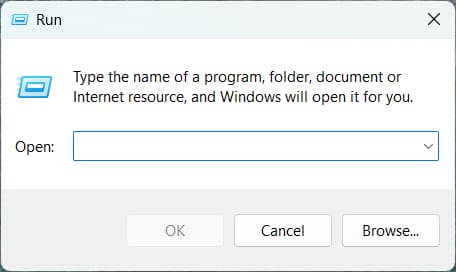
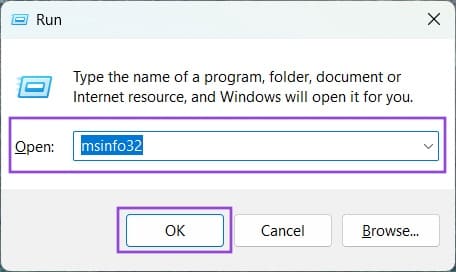
Step 2. Type in the box: msinfo32 and then press OK.
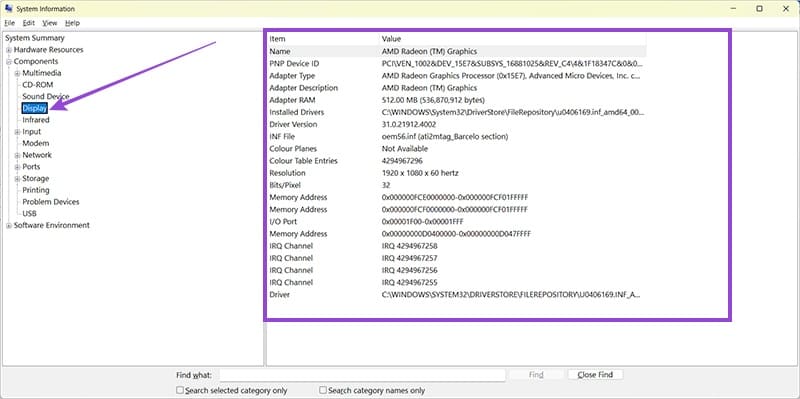
Step 3. You’ll now see a comprehensive list of all your system information. Click on “Components” in the left-hand menu.

Step 4. Click on “Display” to check GPU model, make, and even what drivers are installed and where.
Use Device Manager to Check GPU Model
Step 1. Press the Windows key and “X” to open the Power User Tasks menu. These are common tasks you may need if you’re the administrator of a Windows PC or laptop.
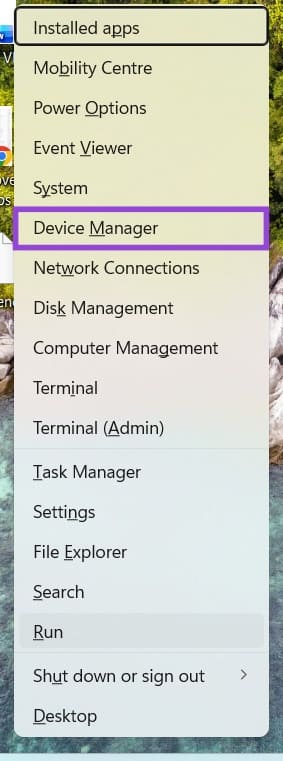
Step 2. Click on Device Manager.
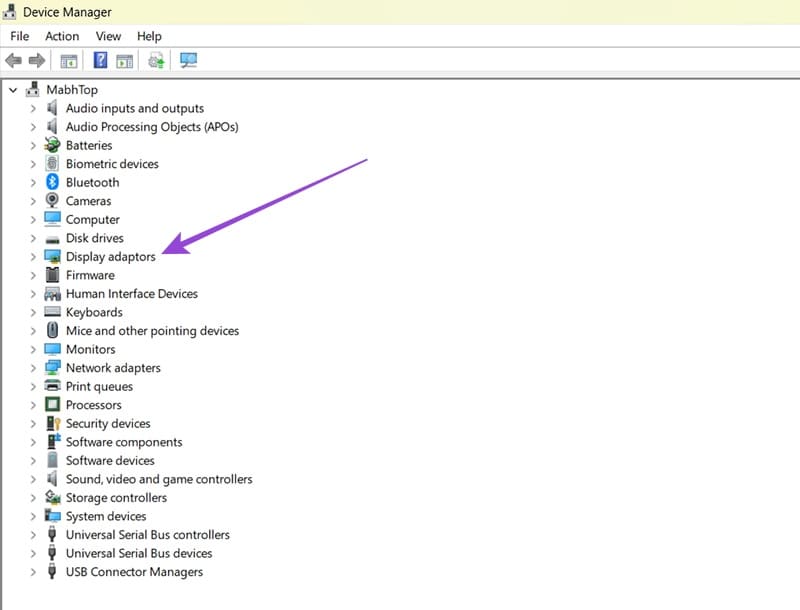
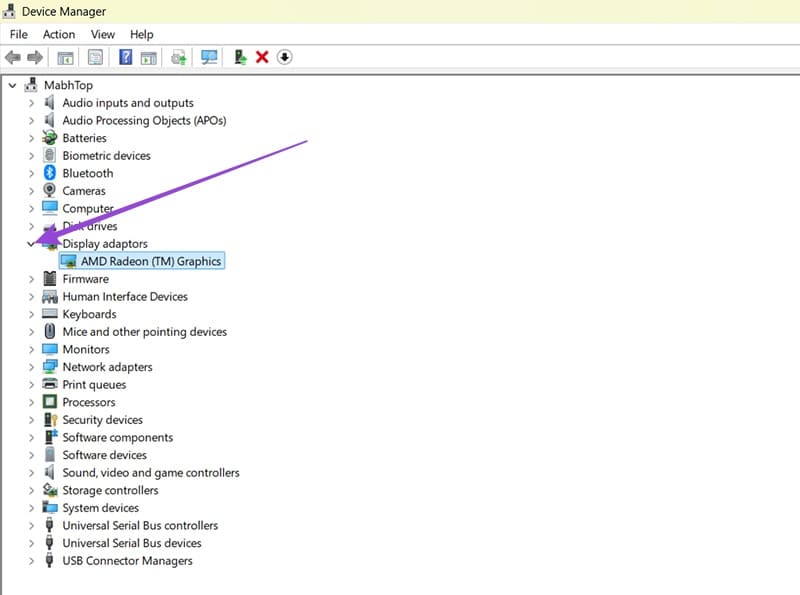
Step 3. Click the arrow next to “Display adaptors” to expand this section. Here you’ll be able to check your graphics card version.
Check GPU Model With the DxDiag Tool
Step 1. DxDiag stands for DirectX Diagnostic tool. It’s used for troubleshooting, but can also show the details of numerous components. To run the tool, open the Run window by pressing the Windows key and “R.”
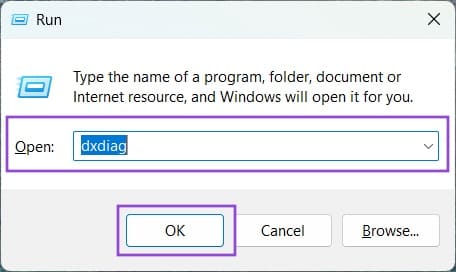
Step 2. Type “dxdiag” into the text box and press OK. You might see a pop-up asking if you want to connect to the internet to check if drivers are digitally signed. Click on “No” as you don’t need this function right now.
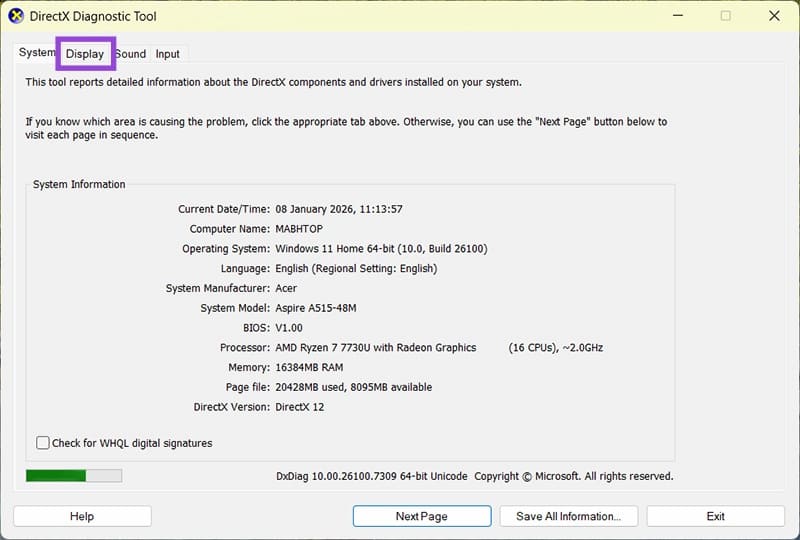
Step 3. A window will appear showing detailed system information. Click on “Display.”
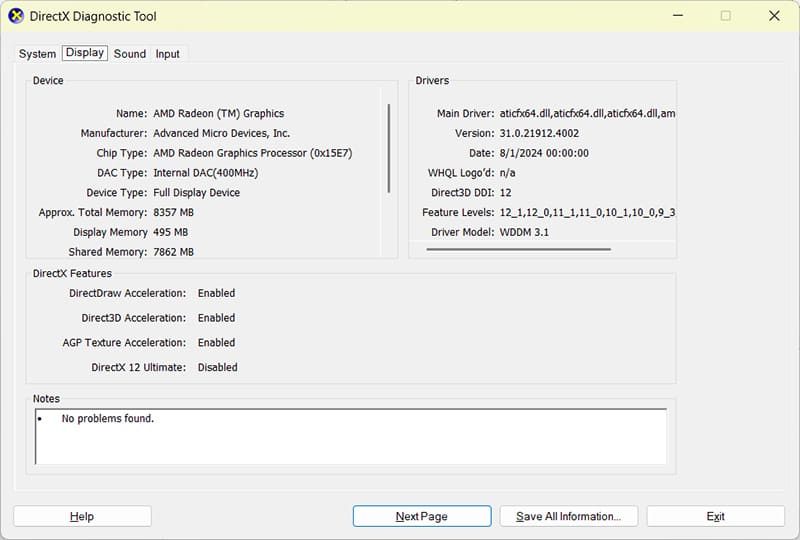
Step 4. You can now check graphics card versions, memory usage, and any issues noted by your operating system.
Tips for Mac users:
- Go to the Apple Menu and look for About This Mac, then click Graphics to check GPU model and manufacturer
- You can also check System Report, again, under About This Mac, and select Graphics/Displays
Getting to know all the details of your computer’s systems and components, like the GPU, helps you understand its capabilities and limitations.
How to Fix Wi-Fi Issues at Home
Read Next