How to Fix Wi-Fi Issues at Home
Using Wi-Fi has become so ubiquitous that the first thing you might ask when dropping by someone’s house is for their Wi-Fi password. But if you’re experiencing some of the common Wi-Fi issues, such as sudden network drops or download speed changes that are independent of your mobile device or PC, there are a few things you can do. Here’s what you need to know to fix Wi-Fi connection drops.
Fix 1 – Fixing Common Wi-Fi Issues on the Router
Typically, a Wi-Fi router will also have an Ethernet connection (or several) that can be used to connect directly to a desktop PC. If your network is stable when connected via cable, but you’re getting spotty Wi-Fi access, you may need to reset it.
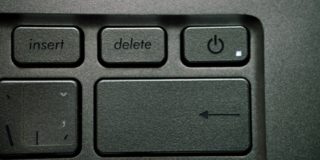
The reset button on the router is usually located somewhere on the back panel, or it may actually be the “On/Off” switch. You’ll need to press it for a few seconds until the lights on the router change from green to red or yellow, then back (depending on the model).
Note that manually resetting the router clears up the Wi-Fi settings to their default values. You can find the SSID (network name) and password on the back label.
Fix 2 – Change the Settings of Your Wi-Fi Adapter
For PCs, if you use a Wi-Fi adapter, it’s usually a separate (peripheral) dongle or add-on. However, modern PCs also have power-saving modes turned on by default, which can cut off power to unused peripherals. This can cause computers to lose Wi-Fi access if they haven’t used the connection for a while. But you can turn it off to maintain a slightly more stable signal.
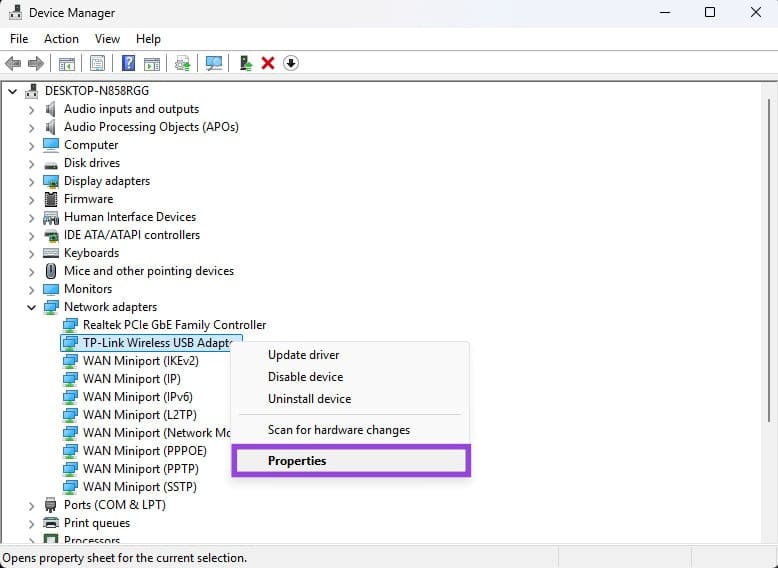
Step 1. Go to Device Manager (found by right-clicking on the “Start” icon).
Step 2. Expand the “Network adapter” section and find your Wi-Fi adapter.
Step 3. Right-click on the device and select “Properties.”
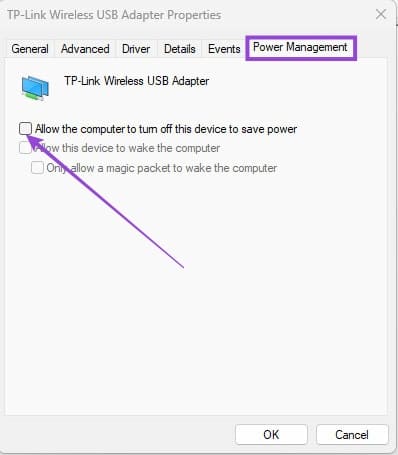
Step 4. Go to the “Power Management” tab and uncheck the first box (which should untick the rest).
Fix 3 – Stick to One Frequency Band to Fix Wi-Fi Connection Drops
Most modern routers emit two frequency bands for Wi-Fi: the slower, longer-range 2.4GHz, and the faster, lower-range 5GHz or 6GHz (which has a worse signal through walls). If you’ve set up your PC to connect to Wi-Fi from your router, it might be trying to switch between the two bands, which can cause a momentary loss of connection. Forgetting one could solve common Wi-Fi issues.
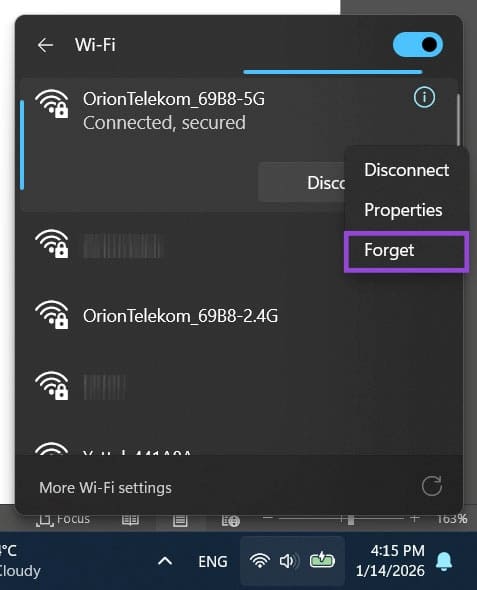
Step 1. Click on the Wi-Fi icon on your toolbar or the expanded settings.
Step 2. Expand the Wi-Fi selector and note the network you’re on. If you haven’t changed network names, the band will be listed at the end of the Wi-Fi name.
Step 3. Disconnect from your current network, connect to the network you want to remove, then right-click and select “Forget.” You can also do this from your phone through Wi-Fi Settings.
Fix 4 – Check for Device Compatibility
There are three different options when it comes to making sure a device can connect to a particular Wi-Fi:
- Some devices (particularly consoles) support older security protocols for Wi-Fi setups, such as WPA2 or WPA3 security, which needs to be set up through the WLAN settings through your browser (usually by going to 192.168.1.1 or similar IP and entering the admin credentials on the label).
- Make sure that the network isn’t set to “hidden.” This prevents new devices from seeing it to connect to, but users can manually input the SSID if they know it.
- Disable MAC filtering. This feature locks the network so it can be accessed by a particular list of unique devices (identified by the MAC address). If you want to keep the list, you need to manually add every new device that wants to connect to the network.
DXGI_ERROR_DEVICE_REMOVED: How to Fix DirectX Crashes in Battlefield 6
Read Next