DXGI_ERROR_DEVICE_REMOVED: How to Fix DirectX Crashes in Battlefield 6
The “DXGI Error: Device Removed” notification usually shows up just before your game crashes and sends you back to the desktop, and there’s seemingly nothing wrong. Due to the issue being relatively nonspecific (it’s as if your graphics card suddenly fell out of your PC), you’ll need to use a few workarounds to solve this Battlefield 6 DirectX crash.
Fix 1 – Recheck and Update Drivers
While the game’s been out for a few months now, graphics software developers are still ironing out some kinks when it comes to specific drivers, cards, and settings configurations of Battlefield 6. Changing these will depend on the exact graphics card you have and what software you use (such as AMD Adrenalin).
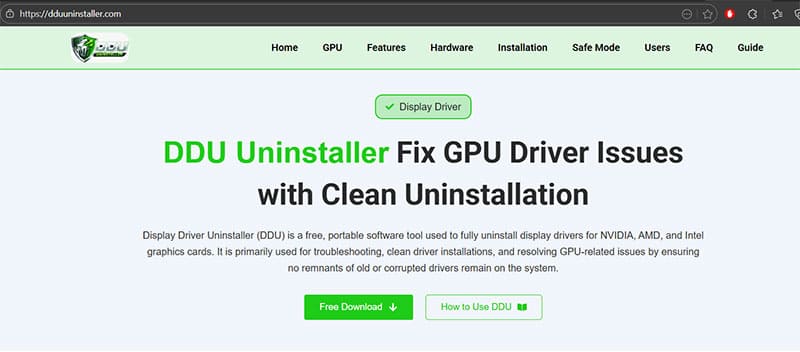
Step 1. Use your graphics software to update the driver to its most recent version. Alternatively, read through the patch notes that mention which driver works best for Battlefield 6.
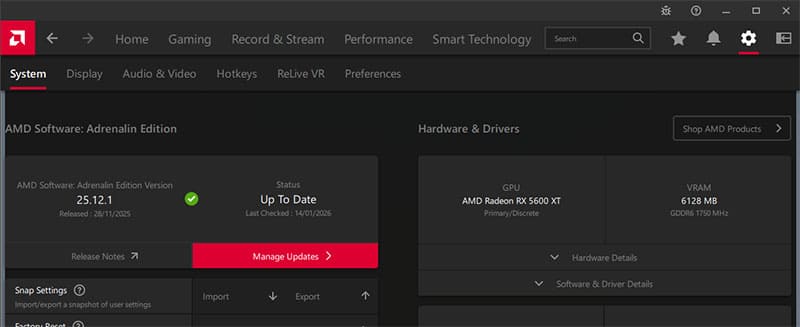
Step 2. If you’re still experiencing issues, use the Display Driver Uninstaller third-party utility. It’s a lightweight program that completely removes your graphics display drivers (resetting you to the integrated graphics until you reinstall).
Step 3. Go to Windows Update and make sure you have the latest updates.
Step 4. Restart your PC.
Fix 2 – Verify Game Files
In some cases, the game’s graphics cache can become corrupted and use up more resources than intended, which leads to the “DXGI error: device removed” code. You can force the game client to recheck its files.
Step 1. Open the gaming portal where you have Battlefield installed (Steam or EA App).
Step 2. For Steam, right-click on the game, then select “Properties,” go to the “Installed Files” tab, and choose “Verify integrity of game files.” For EA, right-click on the game, select “Manage,” and go to “Repair.”

Step 3. Go to Documents and find the Battlefield 6 folder there (it could be in “My Games”). Remove the “config” and “cache” folders from it.
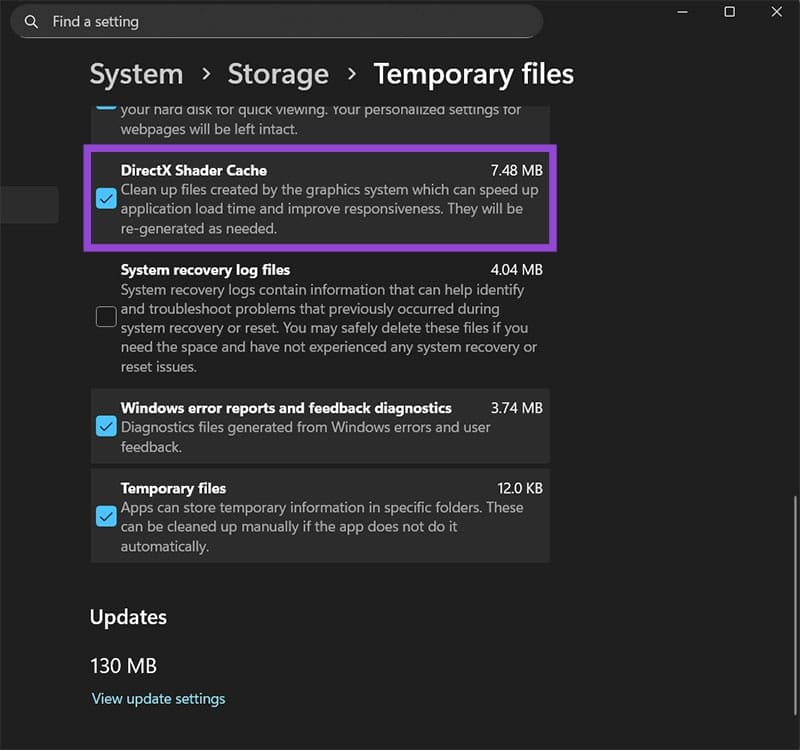
Step 4. Go to “Temporary Files” in Settings > Storage, then clear the “DirectX Shader Cache.”
Fix 3 – Force DirectX 11 Mode
By default, games will try to use the most modern DirectX version available (usually 12 or 13). However, its larger resource requirements can cause overheating. You can force the game to switch to an older DirectX, which reduces fidelity but improves performance.
Step 1. Go to the game client.
Step 2. Right-click on the game and select “Properties.”
Step 3. Find the “Advanced Launch Options” or “Launch Options” tab. In the textbox for launch options, enter “-dx11” (without the quotes).
Fix 4 – Disable Overlays or Streaming Tools
This will heavily depend on which graphics system and third-party services you’re using. In general, the more add-ons you have to track the game, the bigger the load on the processor and graphics unit, which can cause issues.
You may need to remove Discord or Steam overlays, as well as built-in GeForce Experience (also known as NVIDIA App) and AMD Afterburner stream capture services, and OBS or any other programs.
Fix 5 – Tweak System Settings
There are two things to work on here:
- Lower the graphics quality of the game. Start with graphics set to the lowest graphical setting for most options, then see if that fixes the issue. After that, slowly improve graphics until you reach the right balance between performance and visual clarity. Shadows, ray tracing, and texture quality are some of the most common resource hogs for graphics processing.
- Disable overclocking in BIOS if you’ve previously used it.
How to Recover Router Password
Read Next