Best Features in PowerToys to Supercharge Your Productivity
There are some tools that, once installed, you can’t imagine life without. PowerToys is one of those that enhances Windows 10 and 11 so much, it feels like there’s no going back. In this article, we’re going to be exploring some of the best features in PowerToys and why, if you aren’t using them already, you need to be.
The Best Features in PowerToys You Should Be Using
PowerToys is free to download and use, and by default, many of its features begin life on your PC enabled. You can grab it from the Microsoft Store to increase your productivity and streamline your Windows experience.
It’s worth knowing what you’re getting when you install it. Here’s our list of some of PowerToys best features you can’t afford to be without and not be productive:
Always on Top
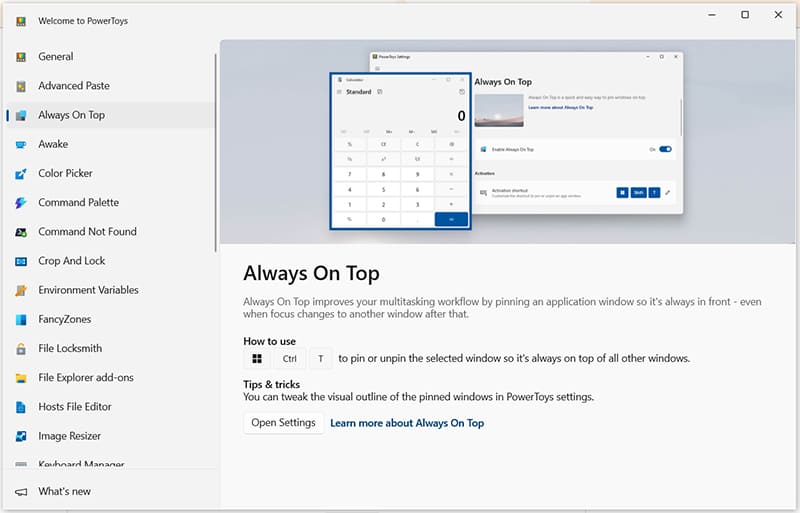
With a name like that, you know where we had to put this feature on the list. Always on Top allows you to choose a window and ensure that it never gets lost in the cascade of windows you always seem to end up having on your desktop.
Simply hit (Win + Ctrl + T) while a window is selected to keep it on top. You’ll know it’s working due to the thick blue outline.
Advanced Paste
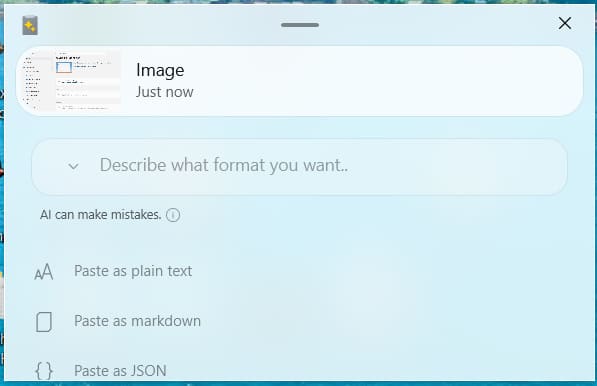
Sometimes you don’t just want a simple “Paste” option, but want to choose exactly how you do so and with what formatting. Advanced Paste moves beyond the simple (Ctrl + V) and more advanced plain text (Ctrl + Shift + V) and gives you the extra options to paste as Markdown, JSON, and get some AI assistance. To enable this feature on the go, simply use (Win + Shift +V).
Keyboard Manager
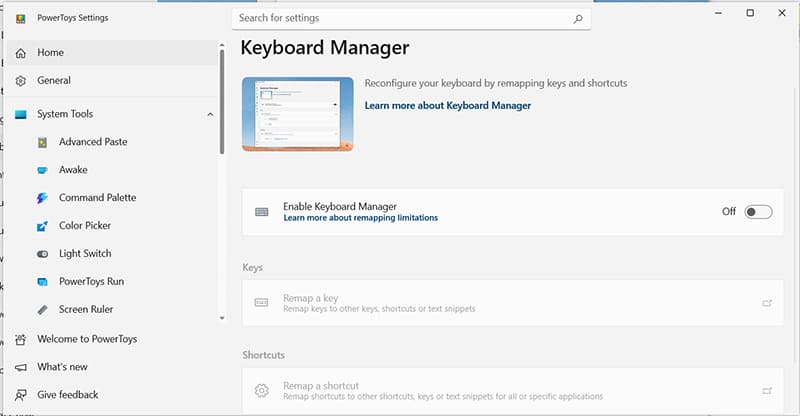
Sure, app shortcuts are great and all, but what if you could create your own? Keyboard Manager understands that you understand your own workflow best and allows you not only to create custom shortcuts, but also to remap particular keys on your board. This is a must for repetitive tasks and streamlining your workflow.
Color Picker
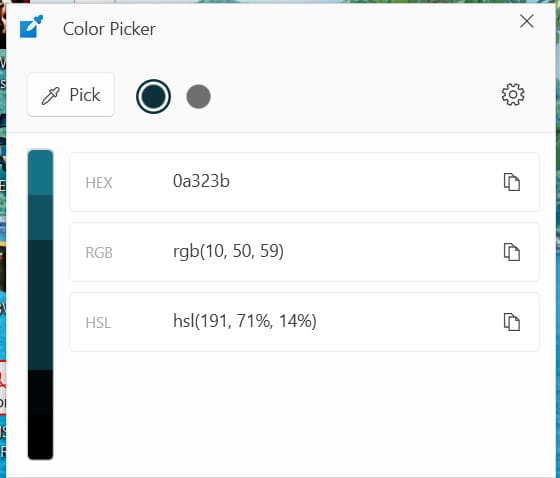
This tool is ideal for graphic designers and anyone working on digital art or UI design. Simply hover your mouse over any pixel on the screen, and a pop-up will tell you the exact code (HEX, RGB, CMYK, etc.) for that particular pixel. This is ideal when you need a quick reference, and all it takes is (Win + Shift + C).
File Explorer Add-Ons
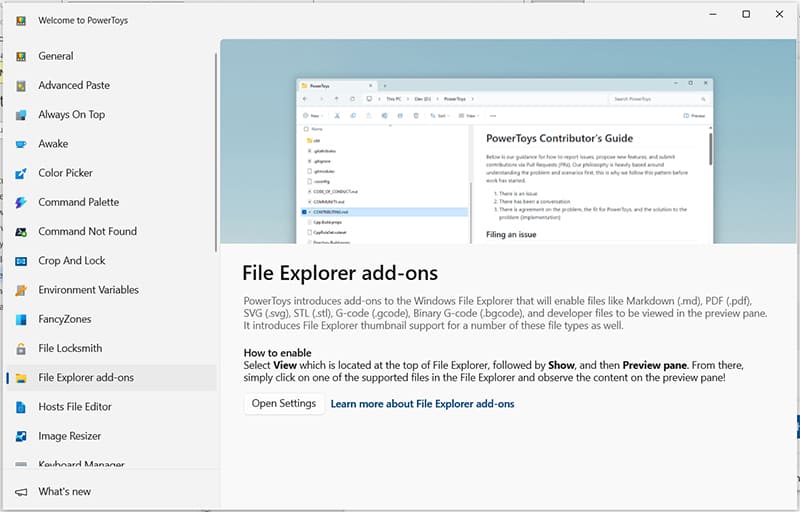
If you’ve ever used a Mac, you know how useful the Preview feature can be, and how much you miss it in Windows. Well, mourn no more, because this feature allows files like “.pdf,” “.svg,” “.stl,” to be viewable in a preview window within File Explorer.
FancyZones
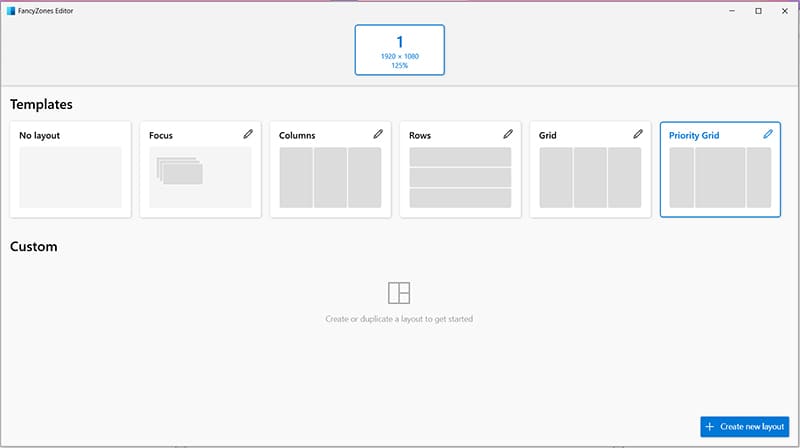
Are you a person who has a hundred windows open at once, but no patience or time to drag and resize them? FancyZones does it all for you, and with a press of (Win + Shift + `), you’ll be able to choose from a layout template or create your own for rapid organization.
Image Resizer
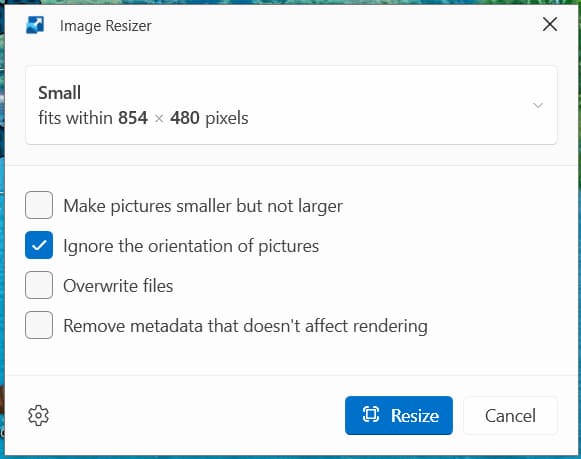
Did you ever need to make an image smaller in a hurry without time to fiddle around in third-party apps? Well, you need this tool then, which can quickly resize multiple files in a go, either replacing or duplicating them for easy compression. Choose your size from the options or go with custom dimensions. Either way, you’ll be cutting them down to size.
SD Card Won’t Format on PC – What to Do
Read Next