How to Extend the Life of Your SSD – 6 Tips

If you’ve just installed a new SSD or have been using one for a while now, then you’re no doubt loving the faster speeds and smooth loading times. And you probably want the party to keep going forever. Well, nothing lasts forever, but with our six tips, you can how to extend the life of SSD at least a little further.
How Long Does an SSD Last?
Unlike their magnetic HDD counterparts, SSDs have no moving parts and suffer less mechanical wear and tear. While HDDs might be the preferred option for long-term archiving (due to their physical nature), the SSD tops it in almost every other way. That said, they aren’t immortal, having an average lifespan of 5-10 years, depending on the make and certain factors. These include:
- The type of flash memory used (single-level, multi-level, triple-level, or quad-level cells)
- The Terabytes Written (TBW), which indicates how much can be written to the drive
- The Drive Writes Per Day (DWPD), which sets a daily average for writing and rewriting
- The number of Program/Erase (P/E) cycles the drive has before losing stability
- The type and efficiency of the firmware present
- The intensity of tasks for which the SSD is used
How to Extend the Life of Your SSD
Now you know what dictates an SSD’s lifespan, here are a few tips for extending it.
Keep It Cool
High operating temperatures adversely affect the cells of an SSD, and extended heat can cause premature failure. Cells degrade at high temperatures, and escaped electrons can cause damage in the drive. It’s important to ensure your PC or laptop is properly cooled, especially in summer or in arid climates.
Disable Power Cycling
Power cycling, or allowing the SSD to stop and start, can shorten its lifespan. To stop this from happening automatically on your PC, you can ensure your hard drive is never turned off when idle. Here’s what to do:
Step 1. Type “Edit power plan” into the search bar.
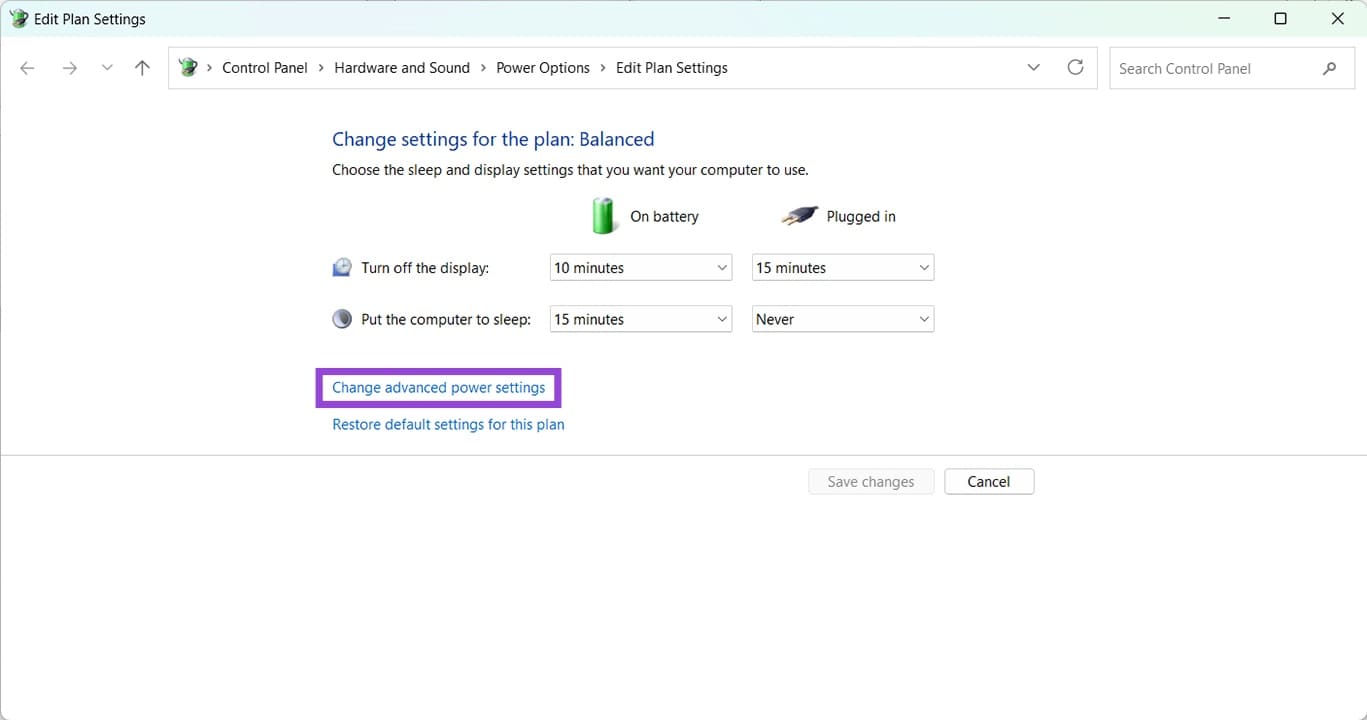
Step 2. In the window that pops up, click on “Change advanced power settings.”
Step 3. Choose your power plan from the dropdown menu at the top, and expand the “Hard disk” option.
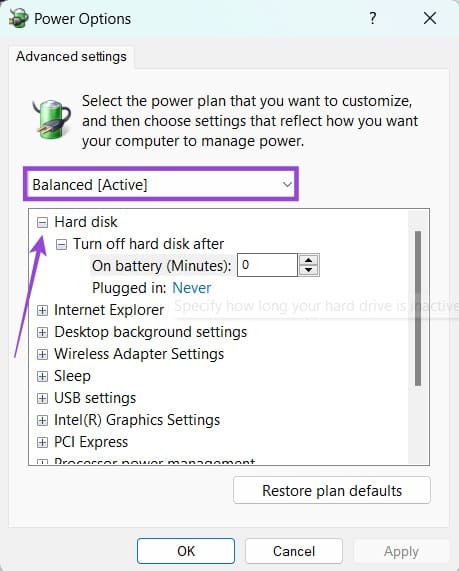
Step 4. Under “Turn off hard disk after,” set the time for both “On Battery” and “Plugged in” to 0 minutes. The option will show as “Never.”
Step 5. Click “OK” once done.
Keep Space Free
It’s always a good idea never to overload your SSD, and leave space free for reading and writing. More data means more to process and more fragments as files are moved or deleted. Leaving 10% of your drive free will help keep wear leveling stable and increase your drive’s lifespan.
Update Your Firmware
Your drive manufacturer will release firmware to keep your hard disk optimized and running smoothly. It’s always a good idea to ensure the latest version is installed if you’re wondering how to increase the lifespan of an SSD. To do this, visit your manufacturer and download their software (Samsung Magician, WD Dashboard, etc.) and use it to check for and install updates.
Turn Off Live Indexing
Background write processes can slowly but surely chip away at the TBW of your drive. You can minimize this by disabling such processes, like Live Indexing. Here’s how:
Step 1. Open the Run Dialog (Win + R).
Step 2. Type “services.msc” into the box and press “Enter.”
Step 3. In Services, scroll down to “Windows Search.”
Step 4. Right-click it and select “Properties.”
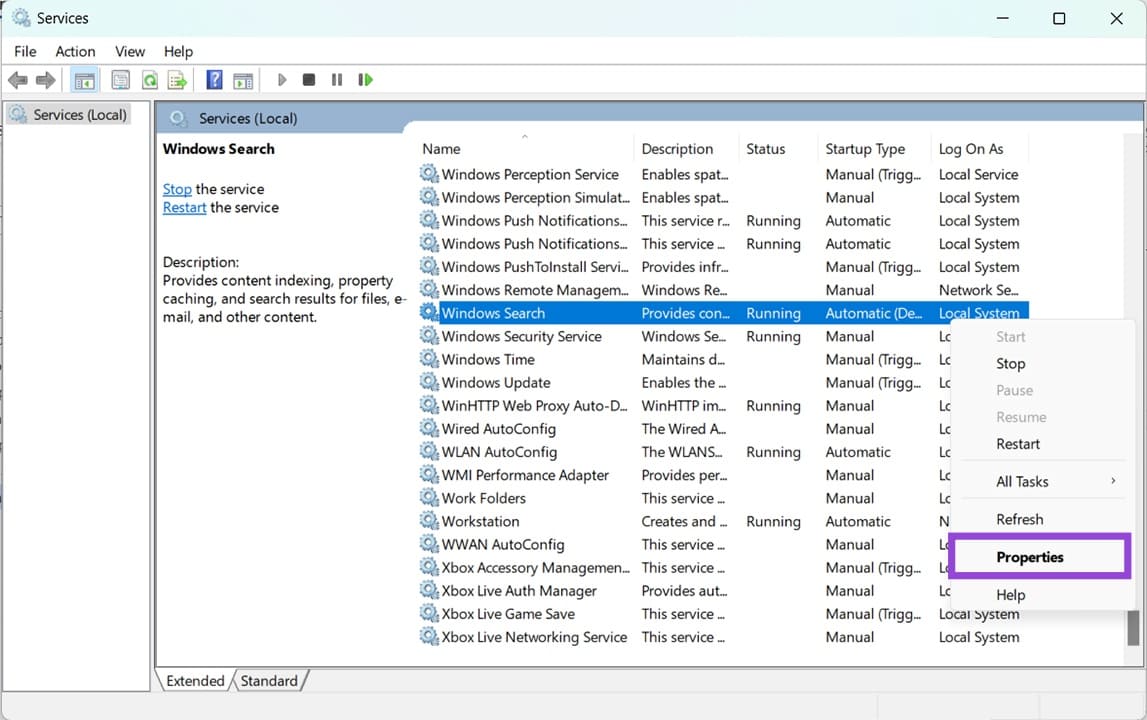
Step 5. Change the “Startup Type” to “Disabled” and click “OK.”
Step 6. Restart your machine for the changes to take effect.
Don’t Optimize
Quite a simple tip, but a vital one. Optimize was designed for physical HDD drives, but SSDs use a different write method entirely and don’t need it. Don’t defragment your SSD.