Laptop High CPU Usage When Plugged In – What to Do

You plug in your laptop to charge, and the fan sounds like a swimmer surfacing for air after a deep dive. It’s the sign of a laptop high CPU usage when plugged in, the result of the changing power profiles and processes that are allowed to run.
In this article, we’ll be explaining about this high CPU use and how to fix it if it’s driving you crazy.
It’s a Power Struggle
If your laptop starts making excessive noise when it’s plugged in, then the problem most likely lies with the different power profile. Unplugged laptops conserve power by default, which includes keeping processes and background tasks to a minimum. However, this isn’t the case when the device is plugged in.
That said, the high CPU usage while plugged in can be caused by other factors as well, including:
- A troublesome or demanding third-party application
- A faulty charger
- Cooling problems on your laptop (lack of thermal paste, blocked fan, etc.)
- Outdated system software
Laptop High CPU Usage When Plugged In? Here’s What to Do
We’ve gathered a few fixes to help you with troubleshooting this issue:
Change Your Power Profile
Perhaps the easiest fix to an overworked CPU is to restore its default power settings when plugged in. You can do this via the Control Panel. Here’s how:
Step 1. Open the Control Panel and select “Power Options.” Alternatively, type it into the search bar.
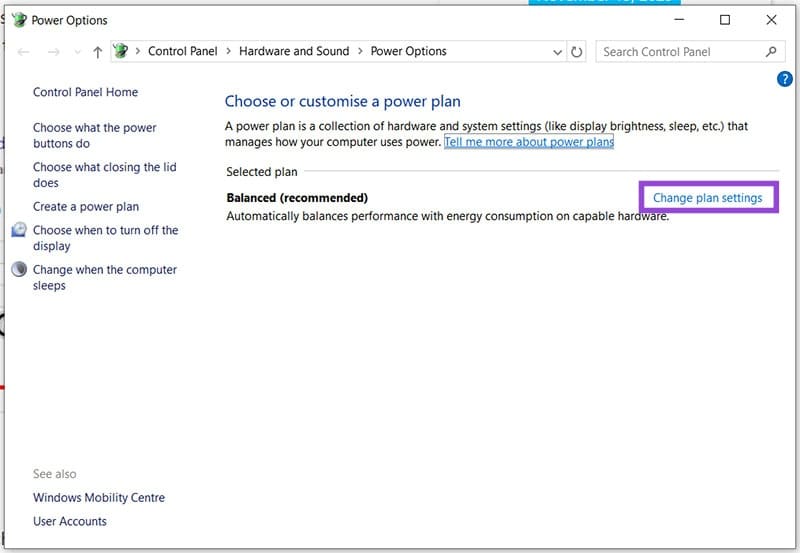
Step 2. Click “Change Plan Settings” in the main window of Power Options.
Step 3. To revert to defaults, click “Restore default settings for this plan.”
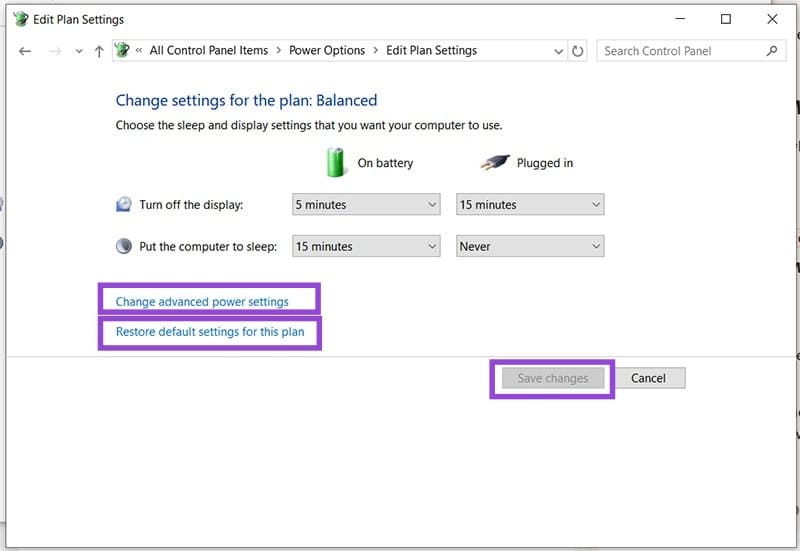
Step 4. Click “Save changes” to finalize. The “Balanced” plan is a good middle ground choice.
If you’d like to edit individual aspects of the plan, do the following:
Step 1. In Power Options, click “Change advanced power settings.”
Step 2. In the new window, navigate to “Processor power management” and click “Change settings.”
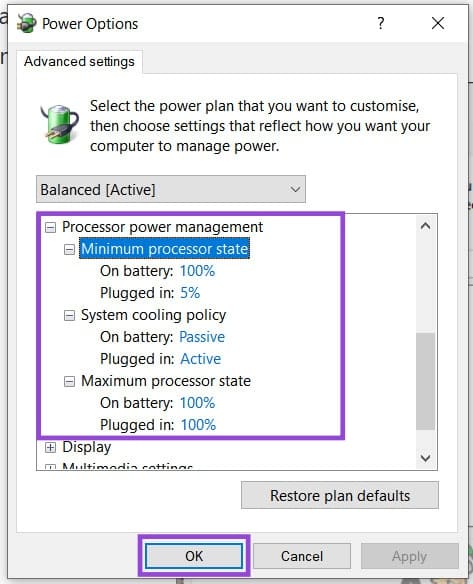
Step 3. Click “OK” to finalize.
Check Your Charger
Another reason for an overactive CPU can actually be the charger itself. If you aren’t using the default charger for your laptop, odds are good there could be an issue. Make sure that the power needs of your laptop, measured in watts, can be matched by the charger. Too little and the performance will dip; too much and the CPU might overheat and cause bottlenecking.
Inspect Task Manager
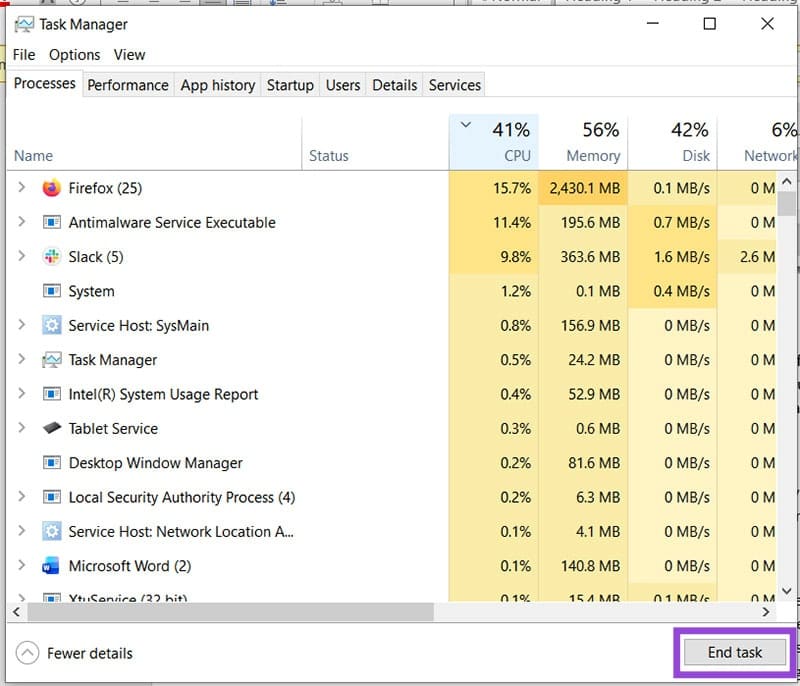
Even though your laptop, plugged in, will start handling more processes by default, some tasks may still be taking up a larger amount of processing power than they should. Open Task Manager (Ctrl + Shift + Esc) and sort tasks by CPU usage. Close any non-essential tasks by clicking them, then the “End Task” button.
Cool Your Laptop
Too much pressure on your CPU can cause heat to build and throttle performance, which, paradoxically, leads to everything running slower. If your fan is kicking into high gear even during the smallest of tasks, then the issue may lie with poor cooling and ventilation. CPU thermal paste is a go-to choice by many, but some laptops can get by just with a simple dusting of the fan. Cooling fan stands can also help.
If you’re unsure of how to clean your laptop internally or apply thermal paste, it’s a good idea to take your machine to a professional instead.
Best Features in PowerToys to Supercharge Your Productivity
Read Next