What to Do if the Laptop Can’t Power On via the Button

It sounds like something out of a horror movie: a laptop not starting up when you press the power button. How can you even start fixing it without the ability to power it on at all? Not to fear. Though intimidating, we’ve got a few fixes for you in this article to combat when a laptop won’t turn on.
When a Laptop Won’t Turn On – Power Button Alternatives
If your laptop isn’t turning on, there are some laptop power button alternatives for you to try.
Perform a Hard Reset
Your first check should be to ensure that the power button is the issue. You can perform a hard reset to drain all charge in your laptop and check for battery issues. Here’s what to do:
Step 1. Unplug the AC adapter from your laptop and remove the battery too.
Step 2. Next, to drain the static, press and hold the power button for at least a minute.
Step 3. Put your battery back in, but not the adapter, and boot your PC via the power button.
Step 4. If this still doesn’t work, the problem isn’t static, and you can move on to the next steps.
Enable Any Key Startup in Your BIOS
The BIOS is the firmware that handles the startup of your computer. It can also be configured so that your system starts up with a key other than the power button. Here’s what to do:
Step 1. Restart your machine and press the BIOS key. This varies by manufacturer and should be visible on the startup screen.
Step 2. Head to the “Power Management” section.
Step 3. Look for an option that enables power on by the PS/2 keyboard. Enable it.
Step 4. Save this change and exit the BIOS.
AC Power Boot
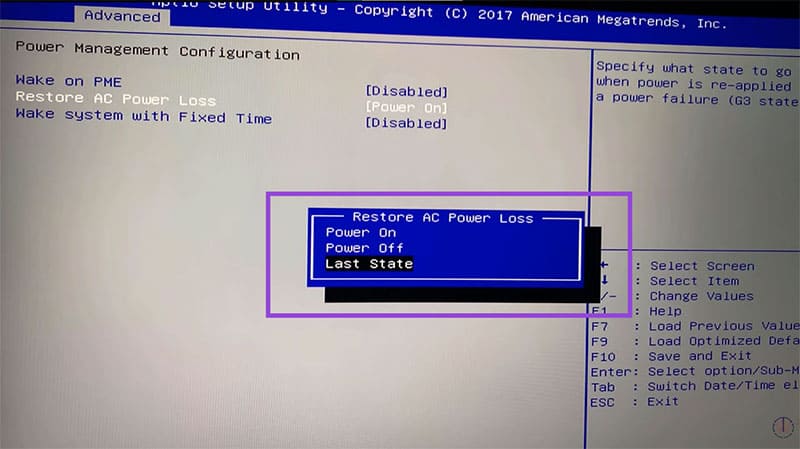
While you’re in your BIOS menu, see if your laptop brand has an option called “AC Power On.” This function will allow your laptop to switch on as soon as the AC adapter is plugged in. You can enable this in the BIOS and not have to worry about the power button.
Wake Your Laptop via PCI-E
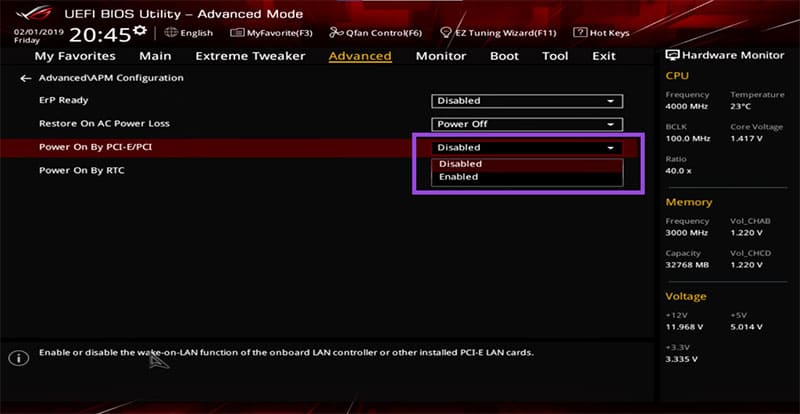
A laptop connected to a network doesn’t need a power button to be turned on, provided you have the “Wake by PCI-E” option enabled. Your computer will wake or turn on after receiving a signal from a PCI-E device, like a network controller that supports Wake-on-LAN (WoL).
Using a Real Time Clock
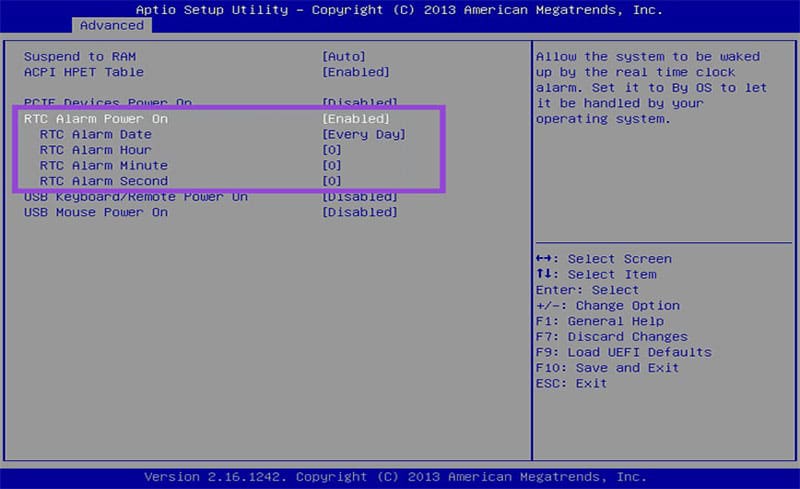
Another BIOS feature that allows a different form of startup is the Real Time Clock (RTC). You can set a time or date for your computer to start up. Here’s how:
Step 1. Restart your machine and enter the BIOS with the keyboard shortcut.
Step 2. Under Power Management (or similar), look for an option with “RTC wake” or “RTC startup.”
Step 3. Choose the specific time to start up your laptop. If possible, you can even choose a date for a one-time startup.
Step 4. Save your changes and exit. Keep in mind, this feature might not be available on your laptop.
Steam Shows a Game as Uninstalled
Read Next