How to Enable the New Translations Page on Firefox

Mozilla is always finding new ways to innovate and add useful features to the Firefox browser. In the recent drive to add more AI-powered features, there’s an in-house translation page you might find useful. In this article, we’ll be talking about what it is, what it does, and (importantly) how to enable the Firefox new translations page.
Introducing Firefox Translations
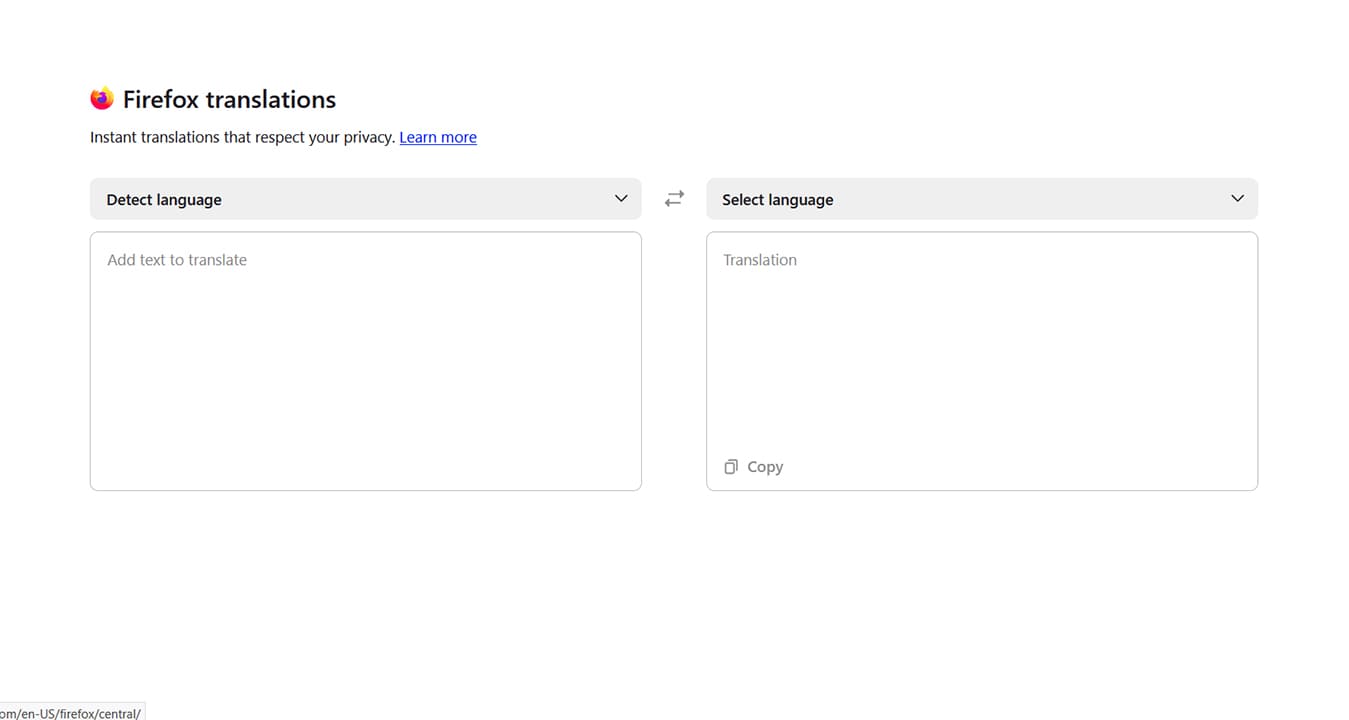
Move over, Google Translate, Mozilla is giving things a go! Beginning with Firefox 148 and later releases, Firefox includes a new AI-powered translation page. Users of Mozilla’s browser have the option to open a translation page and, using on-device AI models, translate anything from short sentences to entire blocks of text from one language to another.
The page itself functions much like you would expect a standard translator to. Paste text into one box, choose your languages, and get the translated text in the second box. Unlike Google Translate, however, the feature is still limited in languages, with nearly 50 at the time of writing this article.
That said, this page is but one aspect of Firefox’s translation capabilities. Long-time users might be familiar with the ability to translate entire pages or blocks of text within those pages, thanks to built-in translation functions within the browser. The key difference is that this latest page is powered by AI.
Enable AI
AI is a touchy topic for many users, especially those concerned about privacy. Seeing as Firefox is a browser that prioritizes user choice and data protection, the browser offers all users a choice of whether or not to use AI features at all. As mentioned above, the translation page falls under AI.
Before you can use the feature, you’ll need to enable AI or check that it’s enabled. Here’s what you need to do:
Step 1. Click the hamburger menu (three horizontal stripes) in the top-right corner of your browser.
Step 2. In the dropdown menu that appears, navigate right down to the bottom and click “Settings.”
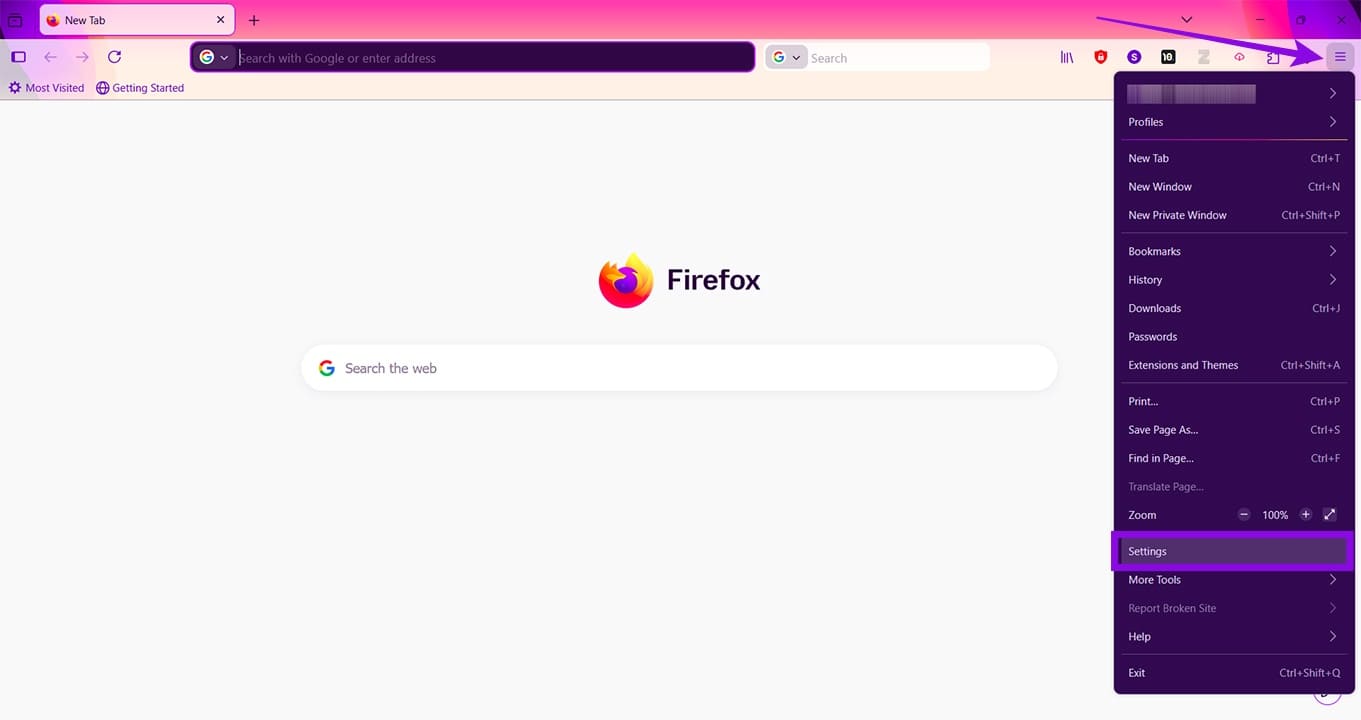
Step 3. The Settings page will pop up in a new tab. Click “AI controls” in the sidebar.
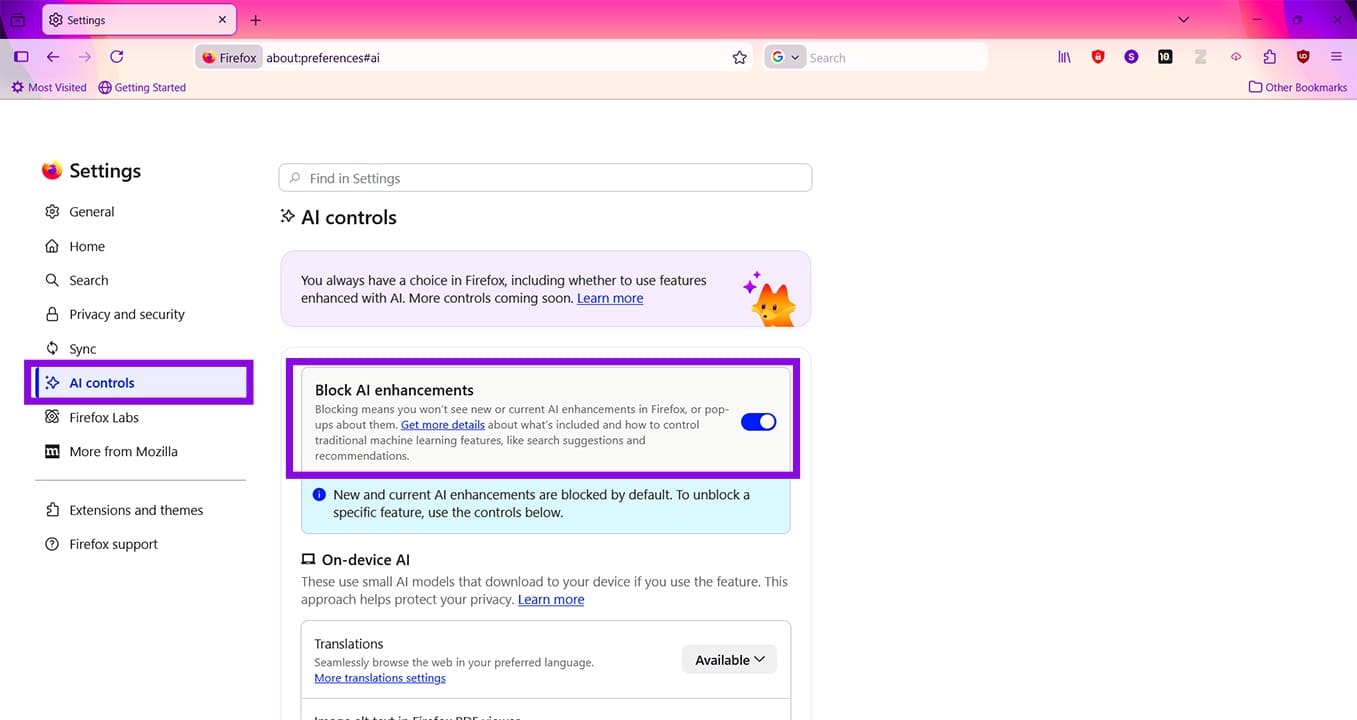
Step 4. Toggle “Block AI enhancements” to “Off” to enable all AI functionality.
Step 5. If you only want AI translation enabled, but nothing else, scroll down to the “On-device AI” section and choose “Available” from the dropdown menu of “Translations.”
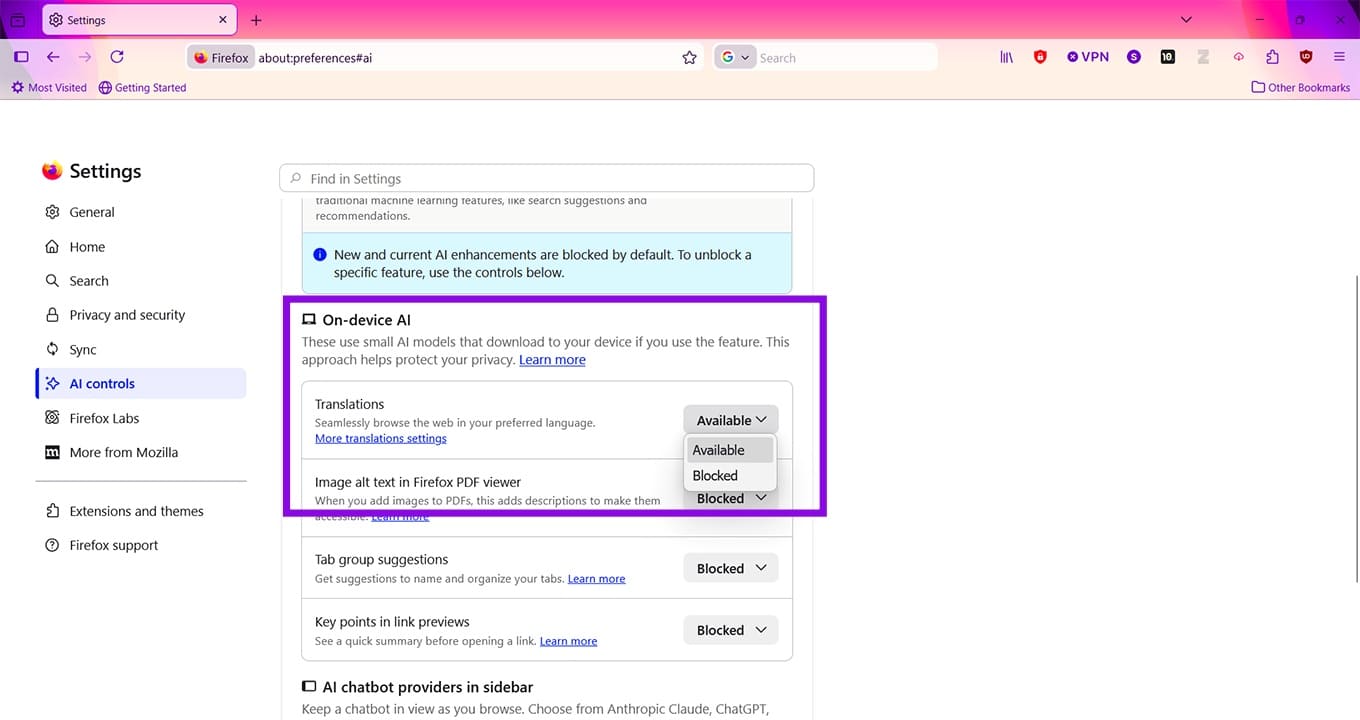
How to Use the Firefox New Translations Page
Now you’re set up and ready to get translating. Here’s how to use the new Firefox Translate:
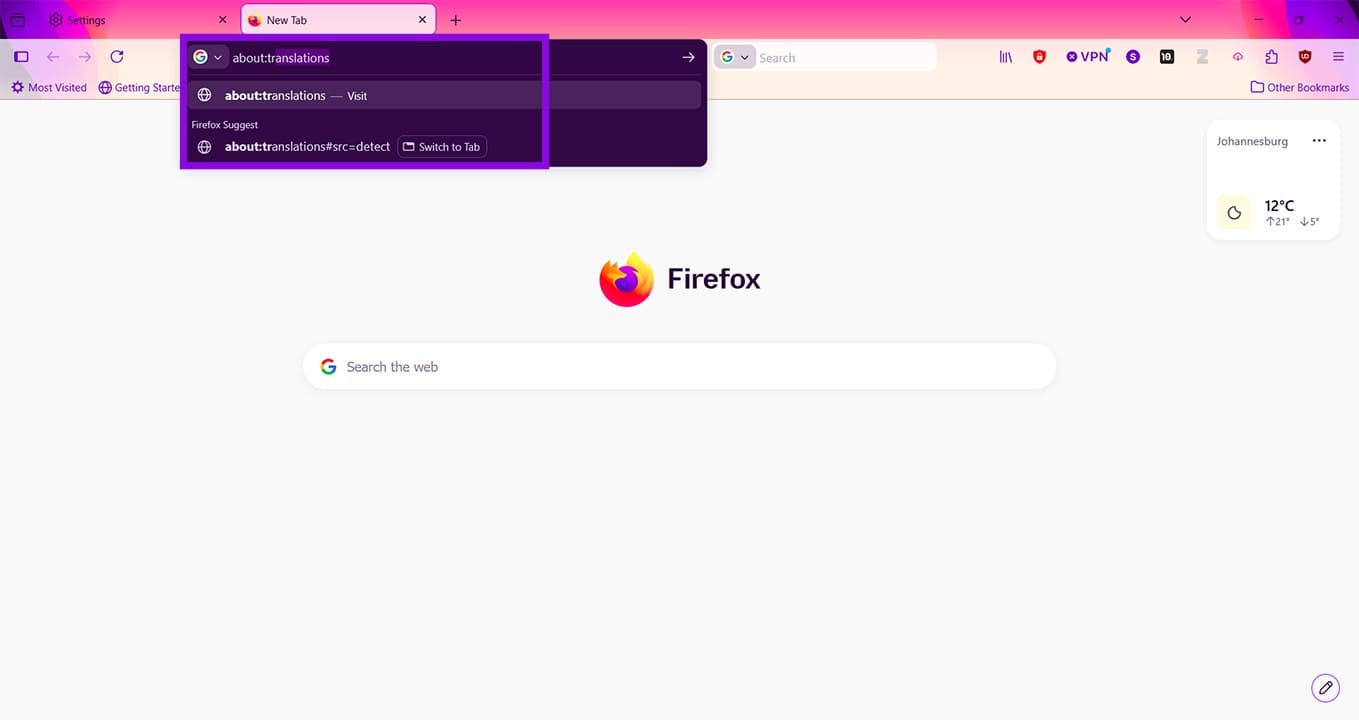
Step 1. In the Address Bar, type “about:translations” and click “Enter.”
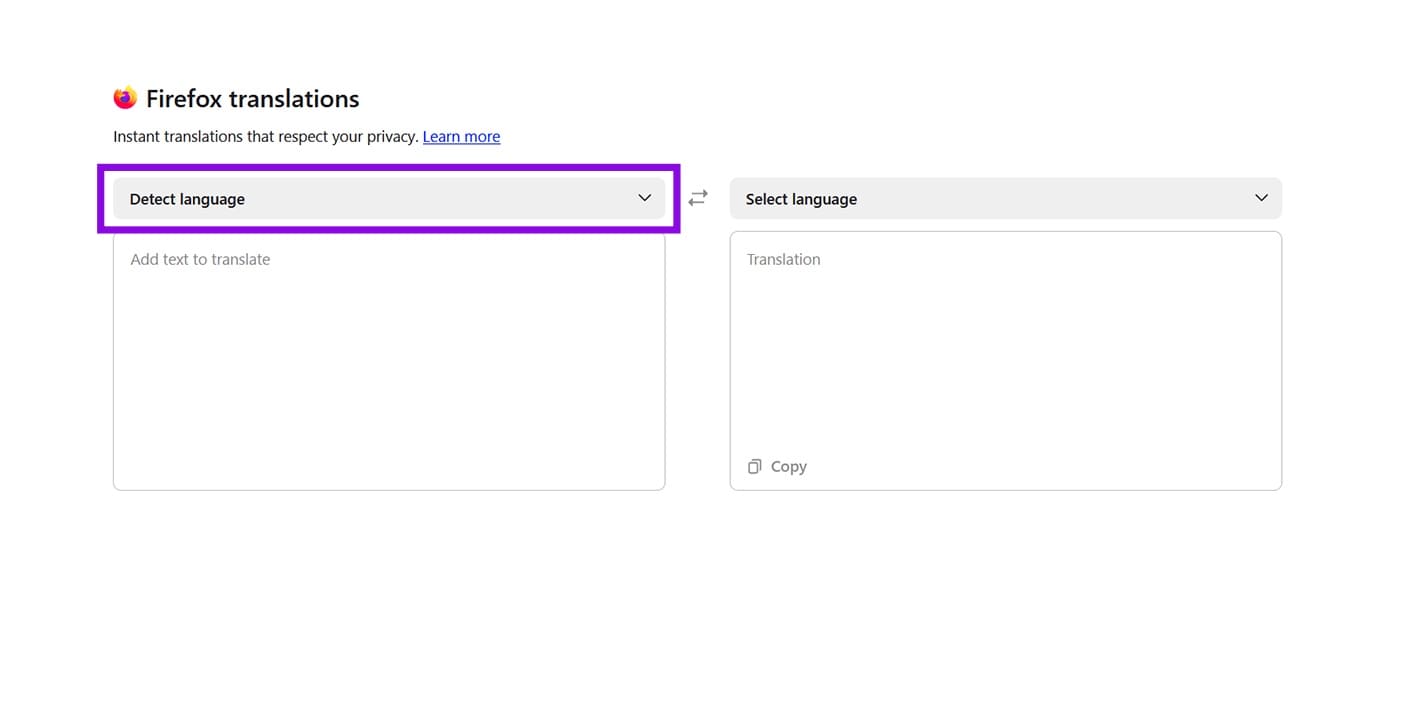
Step 2. You should then be taken to the translations page. If your AI is enabled for translations (or in general), the options shouldn’t be greyed out. Choose your input language above the first box by clicking the dropdown list, or leave it as “Detect language.”
Step 3. Choose the language to translate into via the dropdown above the second box.
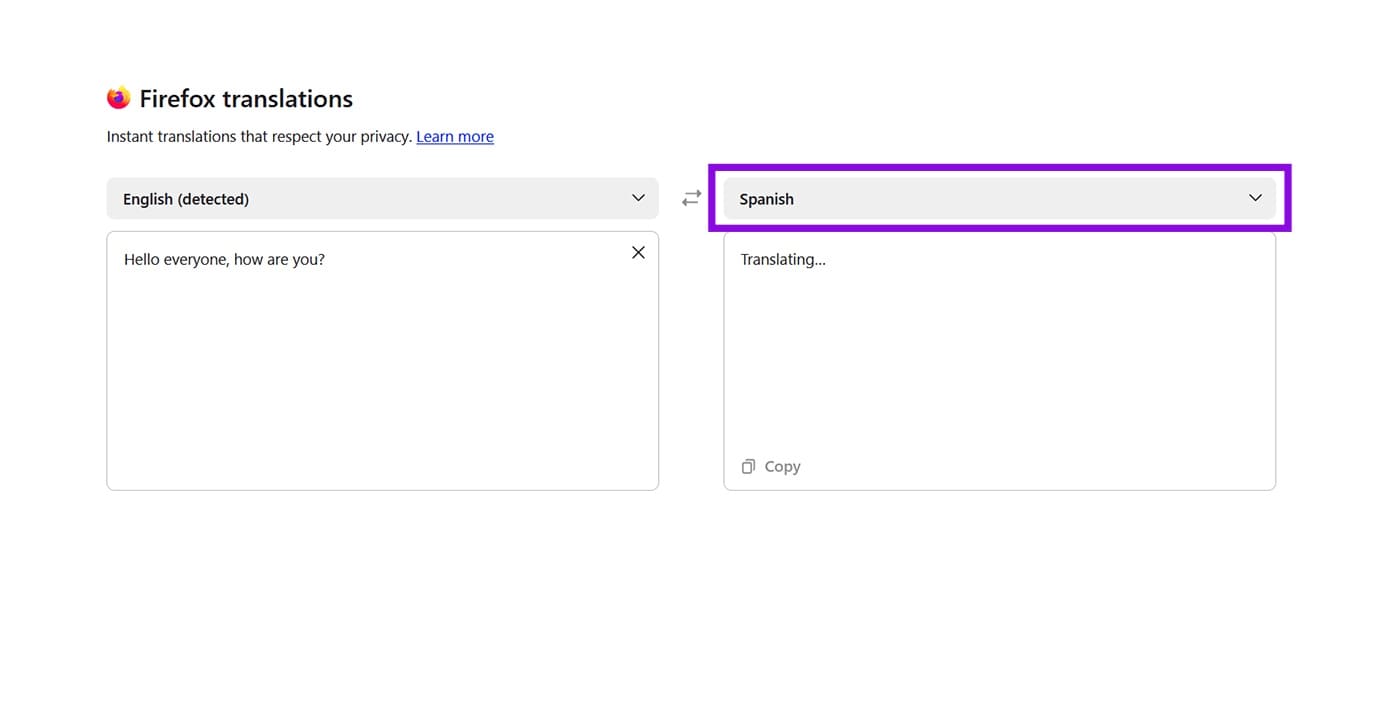
Step 4. Paste or type the text to be translated into the first box and allow the process to run.
Step 5. Once done, click the “Copy” button in the bottom-left of the second box to copy the translated text to the clipboard.
How to Pause on Chromecast When Streaming to TV
Read Next