What Is Taking Up Space in My Hard Drive?
Having enough free disk space on your computer is essential for it to run smoothly and fast. But even after a thorough disk clean-up of your files, you may notice that there’s still a lot of drive space being taken up by things that aren’t immediately evident.
That naturally leads users to ask, “What is taking up space in my hard drive?”
The extra space could be taken up by the Windows system, temporary and cached files, reserved space for Windows operations, and more. Let’s take a look at the different causes of the “hard drive space taken up by nothing” problem, and how to free up some of that space.
Windows Hidden Files and Folders
Windows hides important system files and folders by default to avoid accidental deletion or movement. Deleting or moving these files may render the entire system inoperable.
These files and folders include:
- Windows system files – System-critical files and folders of the operating system.
- The Master File Table (MFT) – A central table that stores information about every file and folder on an NTFS volume, including where its data is located. The MFT is stored on the drive in the form of an invisible file, and Windows reserves extra space on your drive to store info for new files.
- System Volume Information – Includes shadow copies and restore points, essential for using services like System Restore, Windows Backup, and Previous Versions.
- Temporary files – Files left by applications or browsers after installation or use.
- Cloud sync folders – Copies of files on cloud services like OneDrive or Dropbox that are stored on your local drive.
- Virtual machine disks – If you have virtualization software installed, it can create large hidden disk image files.
Some of these files and folders are system-critical, and you shouldn’t touch them. However, others – such as temporary files – can be safely deleted.
Viewing Hidden Files and Folders
To identify any hidden space hogs on your drive, you first need to be able to see them. Windows hides hidden files and folders by default to avoid accidental deletion or movement to a new location, which can break your system.
Fortunately, it’s a simple task to unhide these files and folders.
Step 1. Open File Explorer (Windows + E).
Step 2. Click on the View menu tab.
Step 3. Check the “Hidden items” option. (For Windows 11, go to “Show,” then “Hidden Items.”)
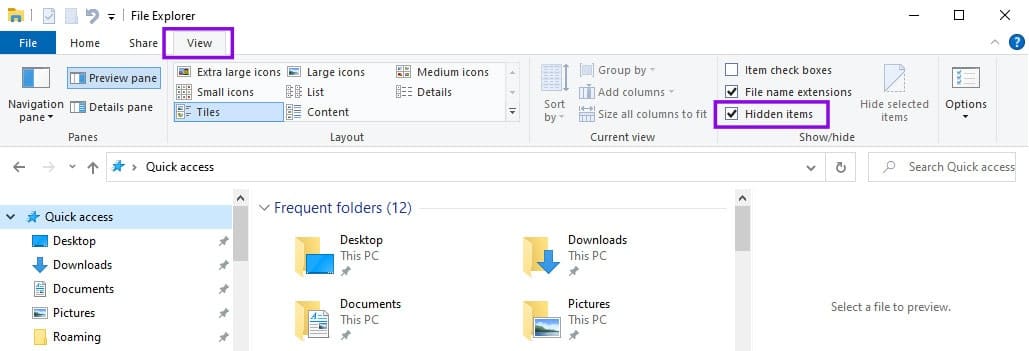
Hidden files and folders will now be visible in all File Explorer folders.
Identifying Hidden Files and Folders to Delete
There are three methods for quickly identifying large files that are hogging space on your drive.
The Built-In File Explorer Search
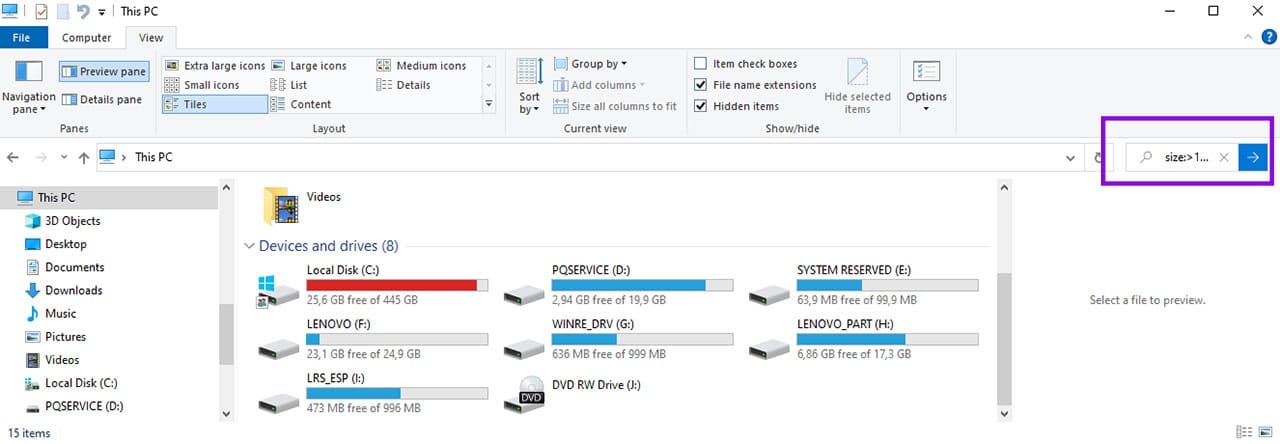
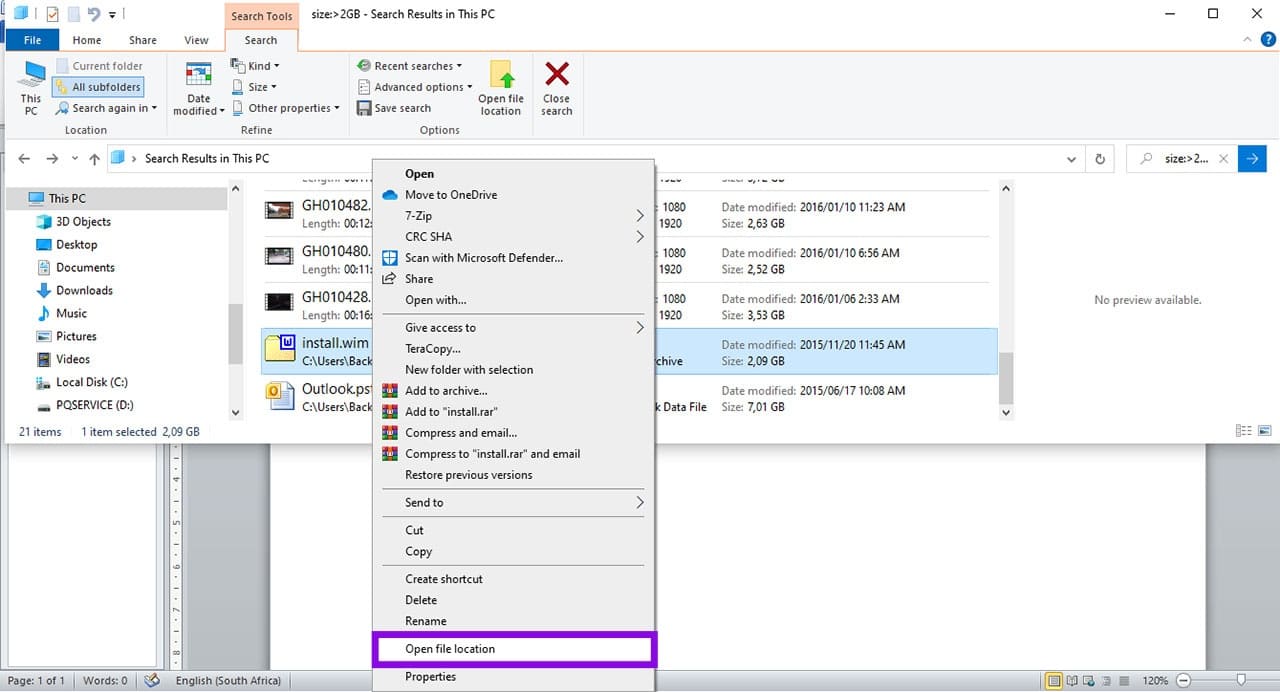
Step 1. Open File Explorer and select “This PC” or a specific drive.
Step 2. In the search bar on the top-right, type “size:>1GB” to find files larger than 1GB (or whatever size you like, e.g. size:>10GB) and click the blue arrow button.
Step 3. When the search is complete, click the View tab > Details.
Step 4. Sort by the “Size” column to see the largest files first.
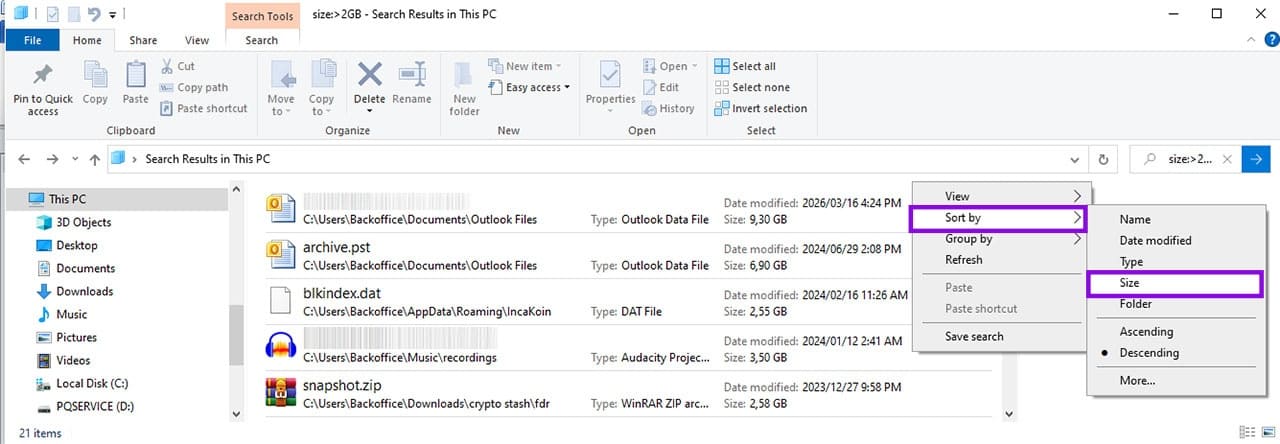
Step 5. Right-click suspicious files and select “Open file location” to verify their purpose before deletion.
Storage Settings
It can be easier to identify large hidden files using Windows Storage Settings, due to the way it groups files and prevents accidental deletion of system-critical files.
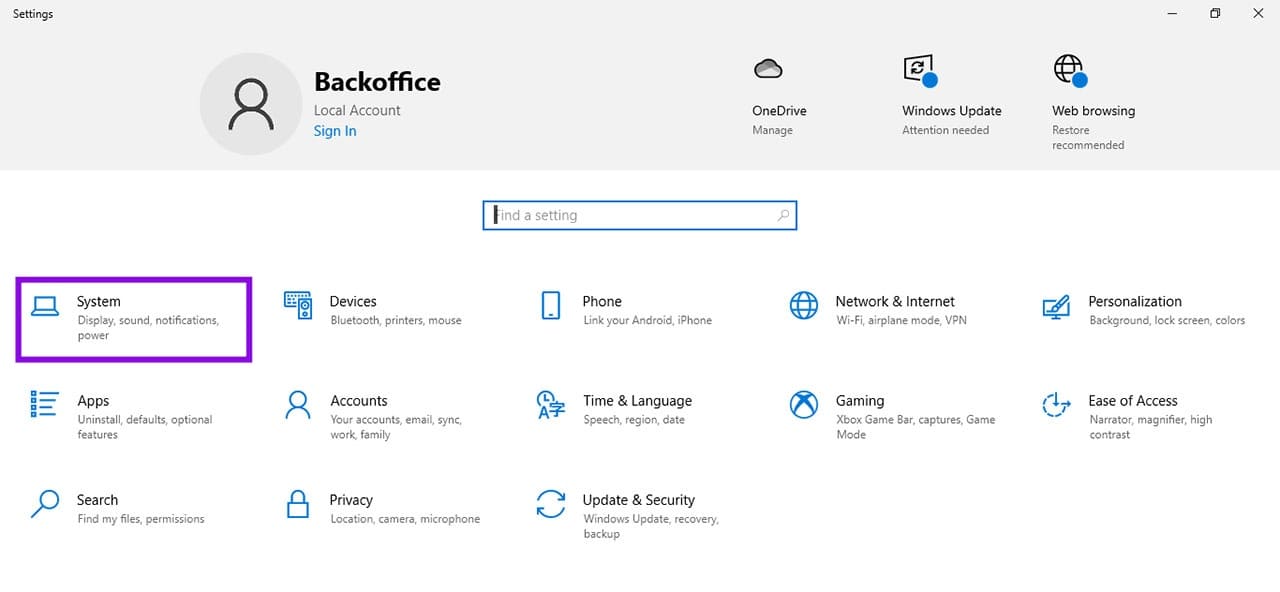
Step 1. Open Windows Settings (press CTRL + I).
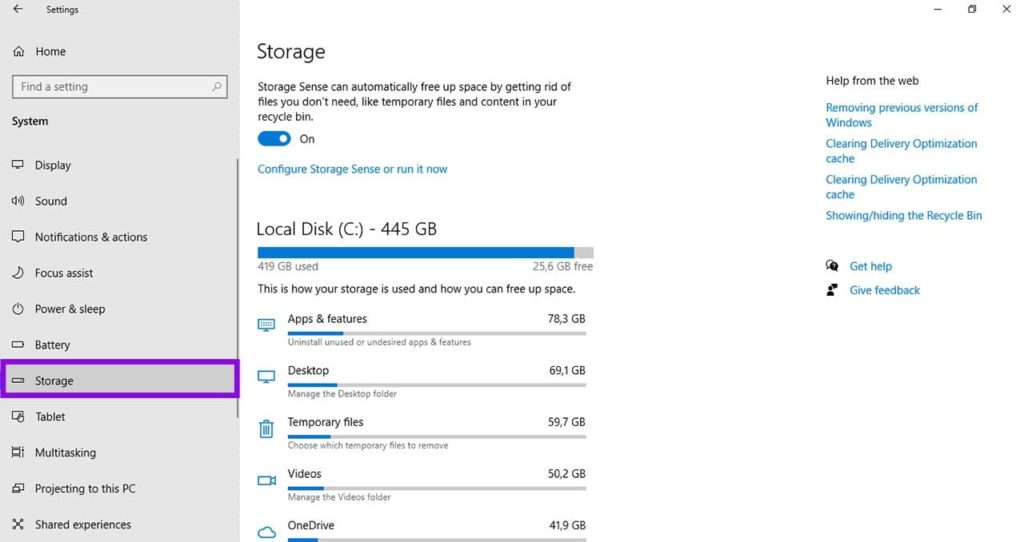
Step 2. Click on “System,” and then select “Storage.”
Step 3. Click “Show more categories” to see a breakdown by file type (“Apps,” “Temporary files,” “Videos,” etc.).
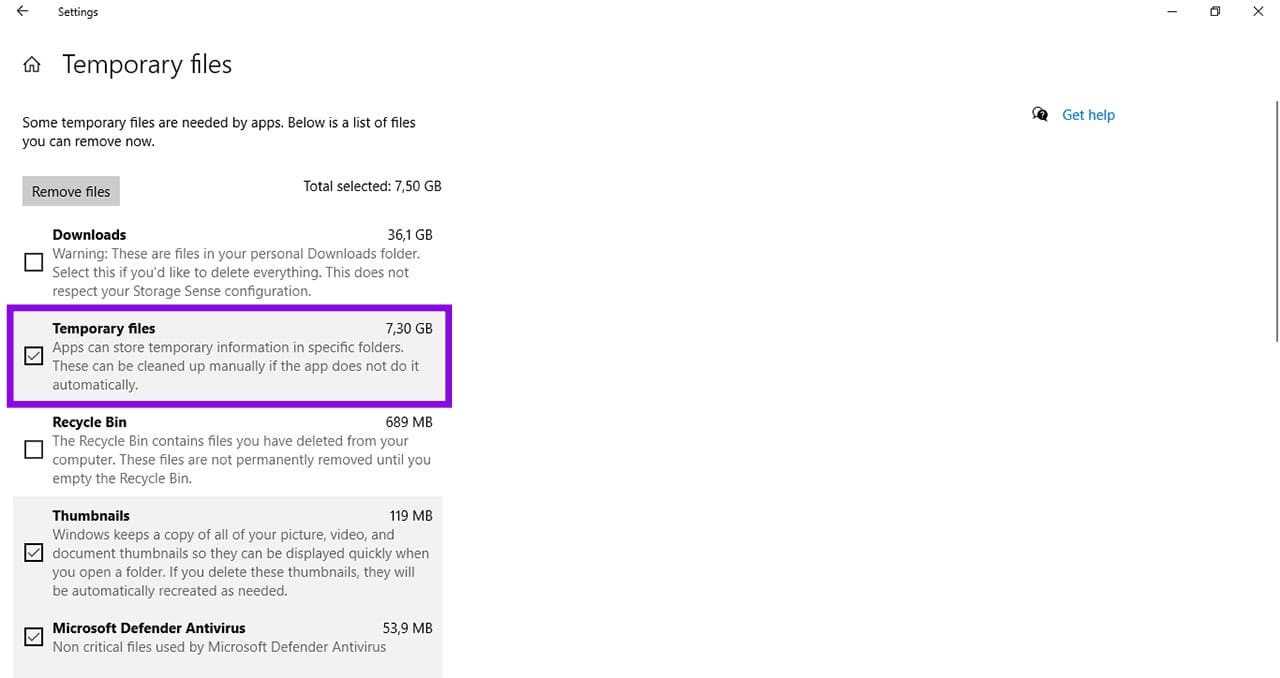
Step 4. Click on categories like “Temporary files” or “Other” to review and delete items directly.
Third-Party Apps
For a more granular examination of the files on your drive, you can use a free third-party app like WizTree, WinDirStat, or TreeSize Free that provides a visual “tree map” of your drive.
Step 1. Download the tool of your choice from the official developer site.
Step 2. Run it as Administrator (right-click on the file name and select from the context menu).
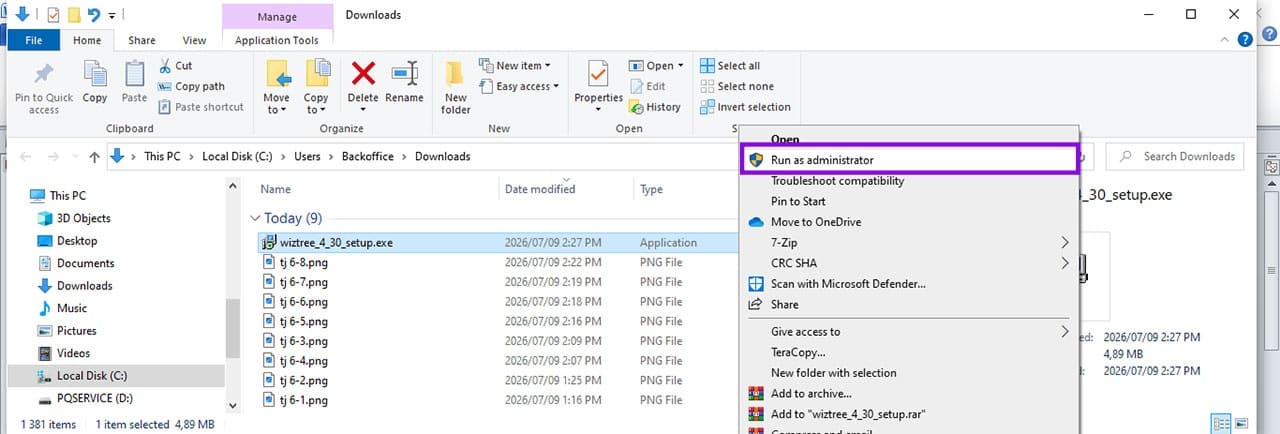
Step 3. Look for large colored blocks representing big files/folders.
Step 4. Right-click any block to Open or Delete (be cautious with system files).
Do Not Delete
Never delete files or folders in these locations directly:
- C:\Windows – The only subfolders that you can typically clear safely are the SoftwareDistribution\Download cache or Temp folder (see below for details).
- C:\Program Files / and C:\Program Files (x86) – If you want to uninstall software, do it via Settings > Apps, not by deleting files here.
- pagefile.sys – This is your virtual memory. Do not delete it manually. You can manage it via System Properties if necessary.
- System Volume Information – Manage these files’ size via System Protection settings. Do not delete manually.
Safe Delete Locations
You can safely delete files from the following locations.
Temporary Files
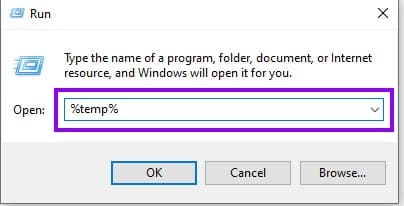
Step 1. Press Win + R to open the Run command.
Step 2. Type “%temp%” and hit “Enter.”
Step 3. In the Temp folder that opens, select all (press Ctrl + A) and delete.
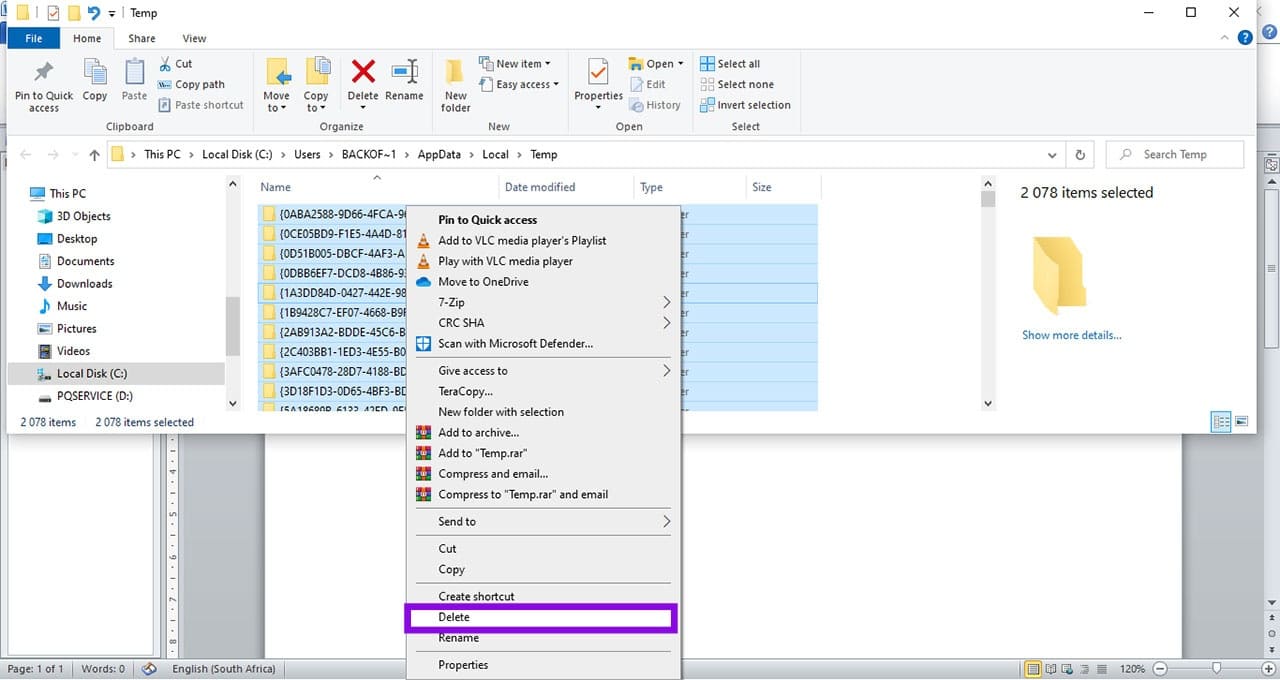
Step 4. Skip any files currently in use.
Step 5. Repeat the process for C:\Windows\Temp (requires Admin rights).
Hibernation File
If you do not use the Hibernation feature, you can safely delete the hiberfil.sys file, which reserves several gigabytes of disk space, depending on your RAM and Windows configuration.
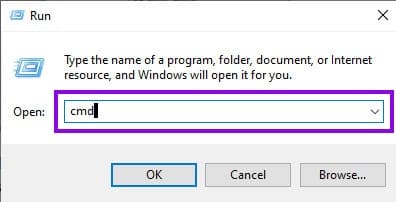
Step 1. Press Win + R to open the “Run” command.
Step 2. Type “cmd” and press “Enter” (standard) or Ctrl + Shift + Enter (to open as Administrator).
Step 3. In the Command Prompt box, type “powercfg -h off” and press “Enter.”
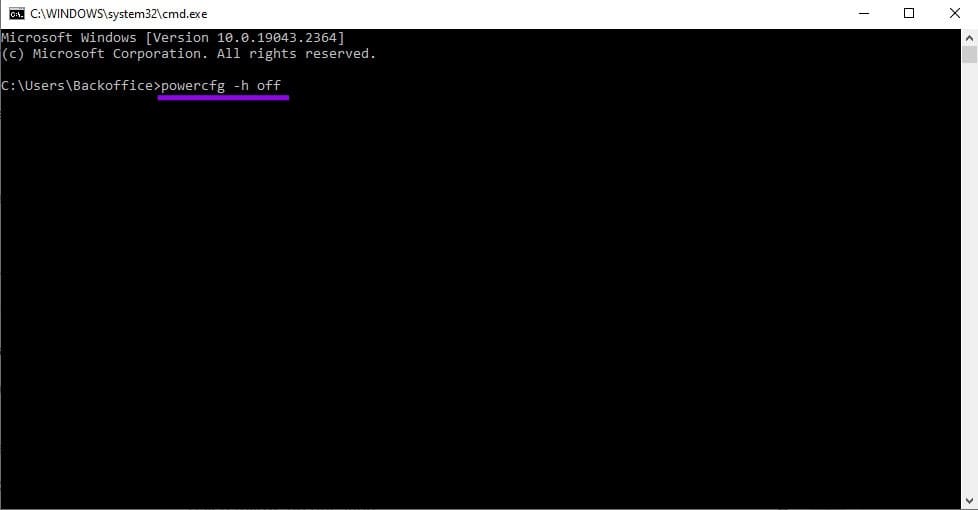
Step 4. The file is instantly deleted, freeing up several gigabytes.
Step 5. You can re-enable it by typing “powercfg -h on” into the Command Prompt later if needed.
Recycle Bin and Downloads Folder
Check these folders and delete everything unnecessary, e.g., old installers (.exe, .msi) ZIP files, duplicate downloads, and other files you no longer need. Emptying the Recycle Bin will free up the disk space they were occupying.
Outlook Recall Message Not Working – How to Fix
Read Next