What Is Cloud Rebuild in Windows 11 and How Do You Use It?

There’s truly a dizzying array of innovations and exciting developments accessible to those signed up for the Windows Insider Preview. Some of them may not make it to most Windows user screens for months (or ever), but we’re hoping that this one does soon: Cloud Rebuild Windows 11. This feature helps users install a fresh version of the OS if things ever get too bad.
What is it? What makes it unique? How do you use it? This article will answer all.
A New Way to Restore
So, what’s so great about Cloud Rebuild? There are currently options to reset your PC, and using WinRE together with a partition or bootable device can perform a clean install of a corrupted OS. Well, as the name implies, Cloud Rebuild utilizes Windows Update and Cloud technology to download and install a fresh Windows 11 image and drivers to restore a machine to an Out-of-Box Experience (OOBE).
Unlike other recovery methods that need a relatively functional version of Windows, Cloud Rebuild can work with a PC in any state, making it an ideal solution for severely corrupted or damaged machines. It forms part of the Windows Resiliency initiative, which includes features like Point-in-Time Restore.
Who Is It For?
As mentioned above, the feature is currently only available to those subscribed to the Windows Insider Preview, and even then, only to those with build 26300.8772. At the moment, it’s not clear when it’ll be released more widely.
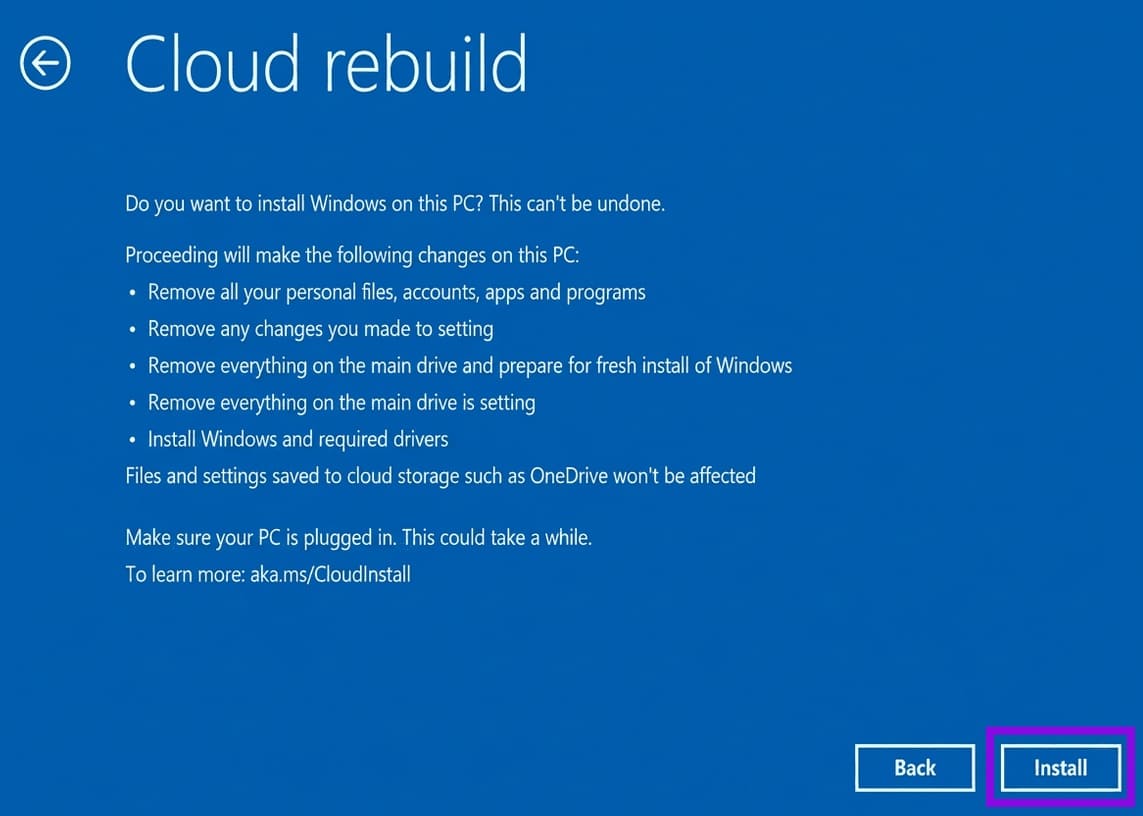
In addition, the feature itself is for machines that are quite far gone, or need a fresh start. As the drive is reformatted in the process, any locally stored data is lost in the journey to OOBE.
So, essentially, this is a feature you won’t have to worry about, but it’s good to know it’s around, should you need it.
What You’ll Need
In addition to being a Preview member using the current build, here are the other requirements for the feature:
- A Windows Recovery Environment in healthy working order (check via “reagentc /info” in Command Prompt, as Admin).
- A compatible networking driver included in WinRE, plus an internet connection through wired Ethernet or a WPA-Personal Wi-Fi network. If you don’t have this, your PC will return error code 0x800704C6.
- The minimum system requirements to run Windows 11 and the required drivers available through Windows Update. Without these, Cloud Rebuild can fail with error code 0xc1900200
How to Run Cloud Rebuild
So, if you meet all the requirements and want to know how to use Cloud Rebuild, we’ve got the guide for you below:
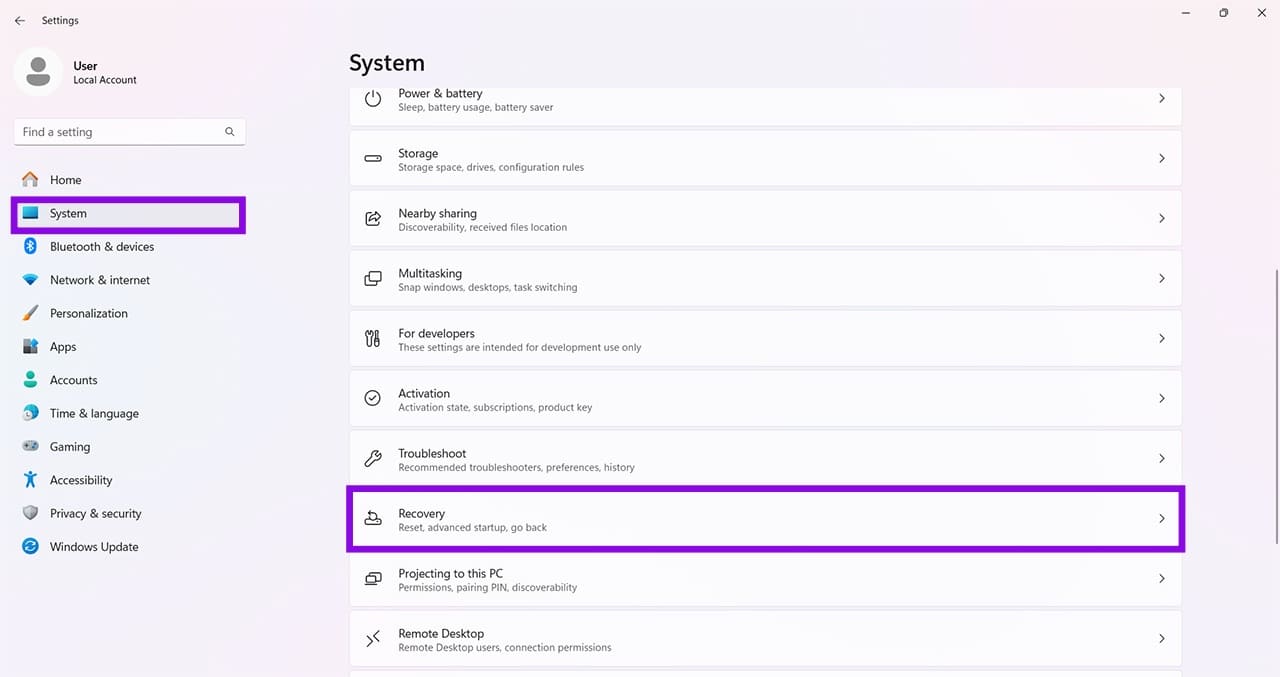
Step 1. Start your PC in Recovery Mode. You can do this in Windows through Settings (Win + I) and choose “System” and “Recovery.”
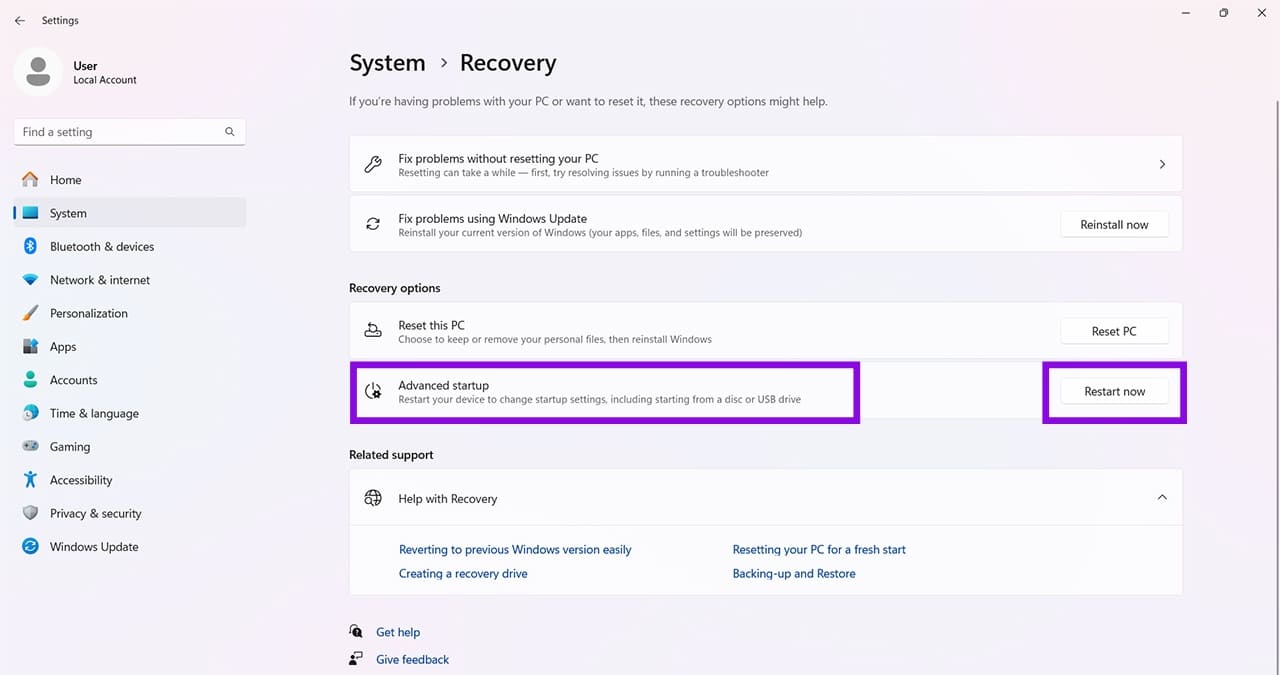
Step 2. Click “Restart now” next to “Advanced startup.”
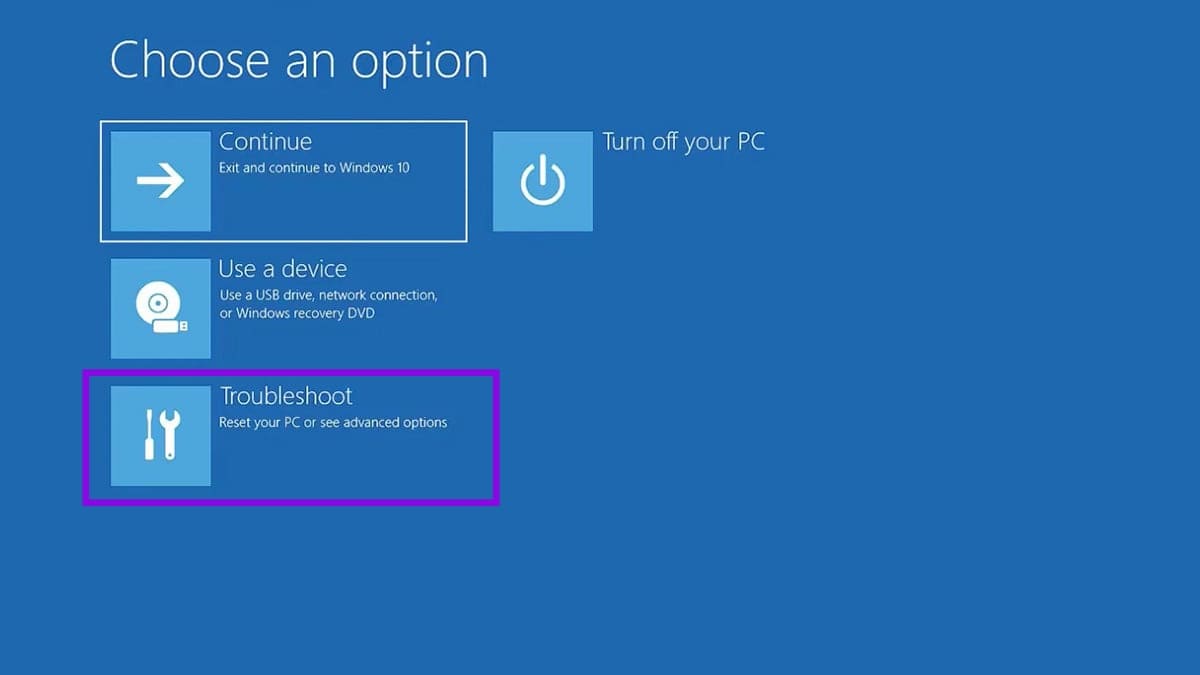
Step 3. Your PC will reboot into Advanced Startup. Choose “Troubleshoot.”
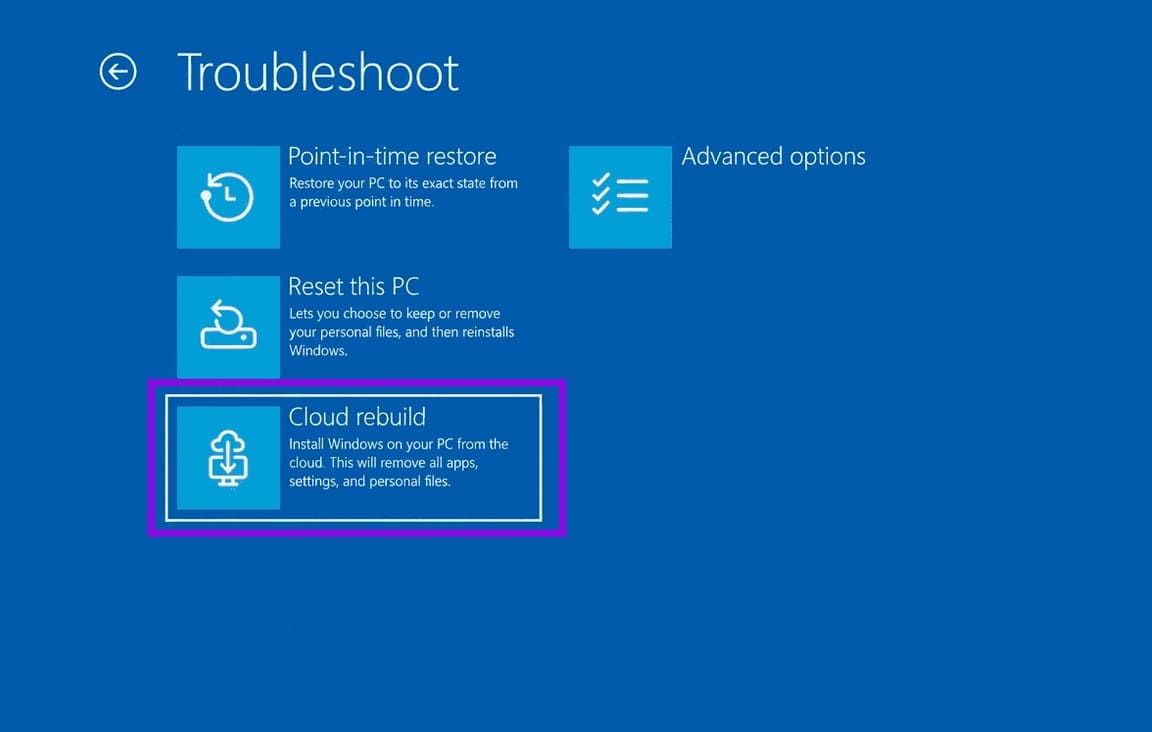
Step 4. In the next menu, click the “Cloud rebuild” option.
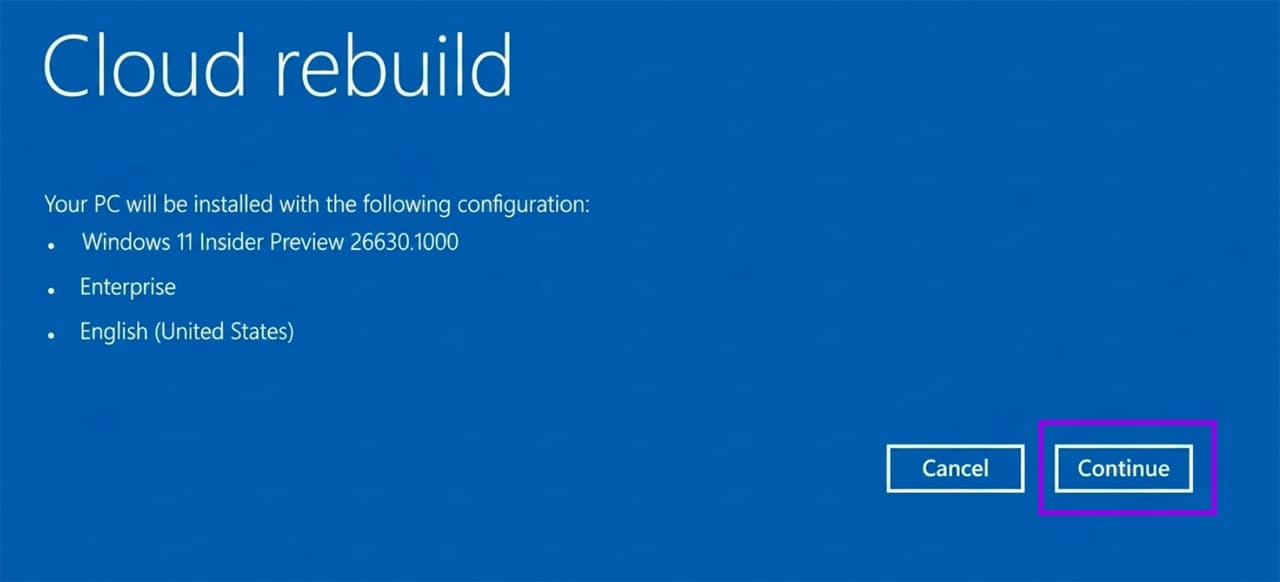
Step 5. The feature will contact Windows Update for the particular build to restore to. Click “Continue.”
Step 6. There’ll be a final warning about the loss of data involved with the installation. Review the data-loss warning and select “Install” to begin the rebuild. Just remember that everything locally stored (excluding OneDrive) will be lost.
Step 7. Allow Cloud rebuild to work its magic.

Keep your PC connected to a power source and do not manually restart or shut down while Cloud rebuild is preparing, downloading, or installing Windows.
Once the process is complete, you’ll have an OOBE experience with your machine. If you have any files and settings saved to OneDrive, sign in, and they will sync with your PC.
How to Enable a Multi-Session on Remote Desktop
Read Next