Top 7 Software to Overclock and Boost Performance on Mac
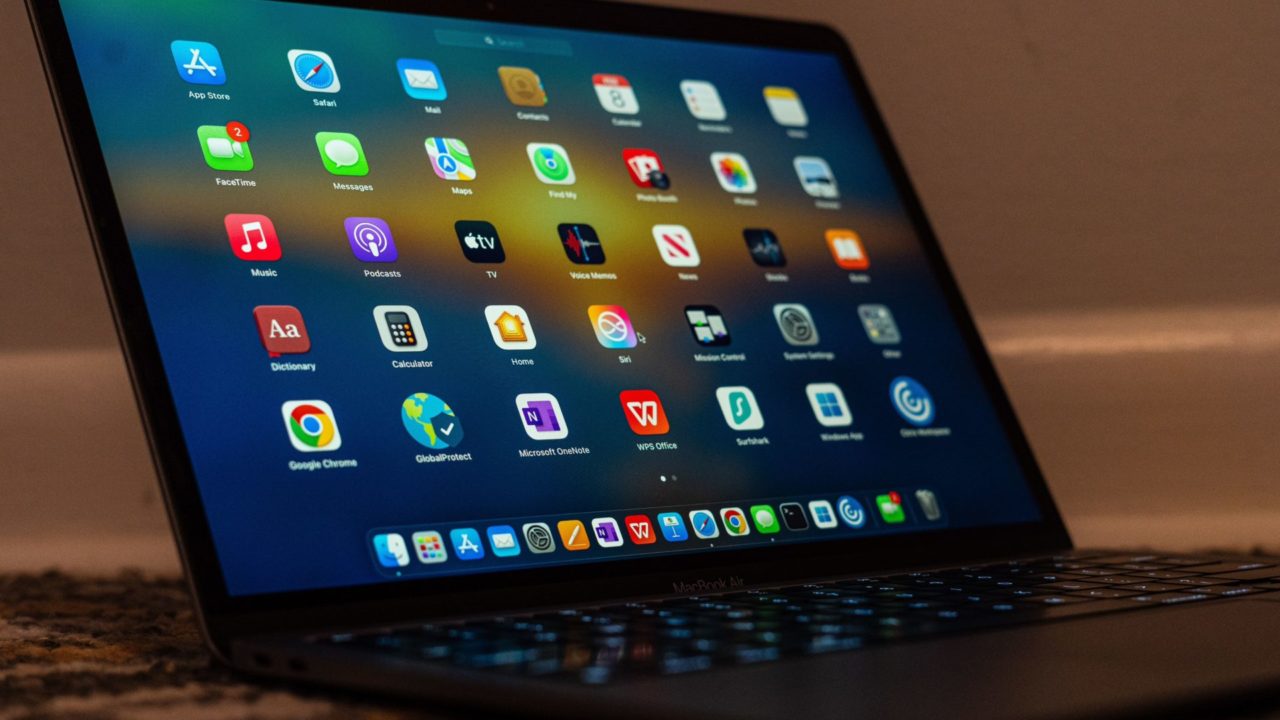
Apple builds killer machines that run great right out of the box. But let us be real: if you have ever pushed your MacBook to the absolute limit with a brutal video render, code compilation, or a heavy gaming session, you know that “good enough” starts lagging real fast.
Let me cut straight to the chase. Traditional PC-style overclocking by messing with clock speeds through a BIOS does not exist on macOS, and Apple Silicon locks down hardware access even tighter. You cannot magically turn your M1 or M2 Mac into a supercomputer, but you can completely eliminate the annoying bottlenecks dragging your system down. Bad thermal management, bloated startup items, high RAM pressure, and hidden junk files chip away at your performance every single day.
Want to fix it? Let us jump into the seven best utilities that actually make a noticeable difference.
1. CleanMyMac and Other Mac Cleaner Apps
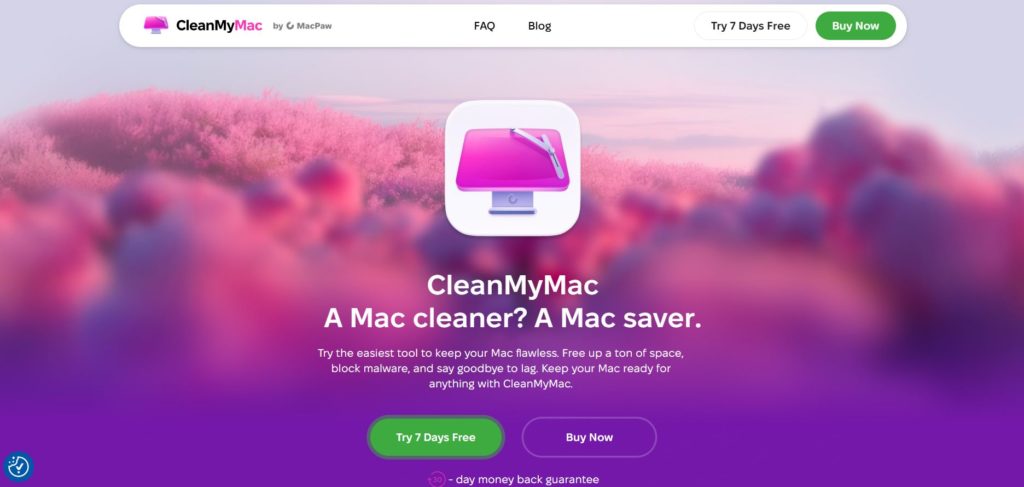
A messy Mac is a slow Mac. Over time, your system gets bogged down with unnecessary app caches, leftover language packs, ancient log files, and messy login items that turn everyday tasks into a chore.
Instead of jumping straight to a super technical fix, start here. Plenty of choices are out there, and an excellent breakdown of Mac cleaner apps covers all the top options worth your time. These tools generally let you reclaim gigabytes of hidden cache, stop weird startup apps from dragging down your boot time, and completely uninstall apps without leaving trash scattered across your system. Think of it like regular oil changes for your computer.
(Bonus tip: If you spend a lot of time downloading media files or managing content creation assets, you might also want to check out this guide on how to download YouTube videos to Google Drive to keep your local drives from filling up too quickly.)
2. Turbo Boost Switcher
If you are still rocking an older Intel-based Mac, Turbo Boost Switcher is one of the only apps that actually changes how your CPU behaves. Intel processors love to automatically crank up core speeds when they think you need extra power, but macOS sometimes leaves this feature running even when your battery is draining fast, or your laptop is getting dangerously hot.
With this tool, you can toggle Turbo Boost right from your menu bar. Turn it off during light tasks to keep your laptop cool and squeeze extra hours out of your battery. When you plug it in and need maximum power for heavy rendering, flip it back on. It is simple, free, and surprisingly handy.
Note: This tool does nothing for Apple Silicon Macs since Turbo Boost works completely differently on those chips.
3. Macs Fan Control
It sounds basic, but it solves a massive headache. macOS handles fan speeds automatically, which usually means your fans do not even kick into high gear until your CPU is already overheating. By that point, throttling has already hit your speeds.
With Macs Fan Control, you can set custom fan curves or minimum RPM limits so your Mac stays chilled under pressure. Since thermal throttling forces your CPU to slam on the brakes to avoid heat damage, keeping your hardware cool means you get fast, consistent performance during long work sessions. On MacBooks especially, cranking the fans up just a bit keeps your speeds stable.
4. iStatMenus
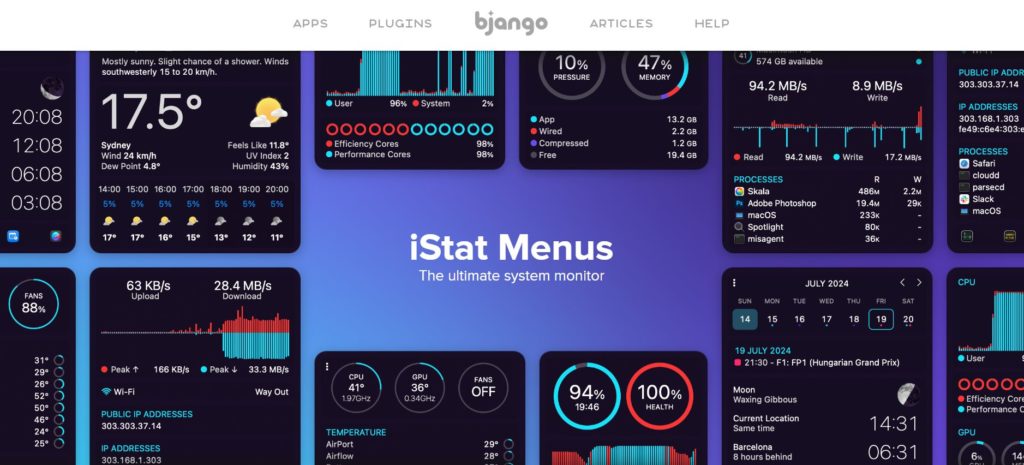
You cannot fix what you cannot see. iStatMenus sits right in your menu bar, giving you a live dashboard tracking CPU load, GPU activity, RAM pressure, disk speed, network traffic, and internal temperatures all in one glance.
It does not boost performance on its own, but it is the ultimate diagnostic layer. When a runaway browser tab pushes your CPU to 100 percent, you will see it instantly instead of guessing why your laptop sounds like a jet engine.
(Working across multiple platforms? If you ever find yourself troubleshooting annoying PC quirks on the side, it is always smart to keep a guide handy on what to do when stuck in a BitLocker recovery loop or how to enable a multi-session on Remote Desktop.)
5. Memory Clean 3
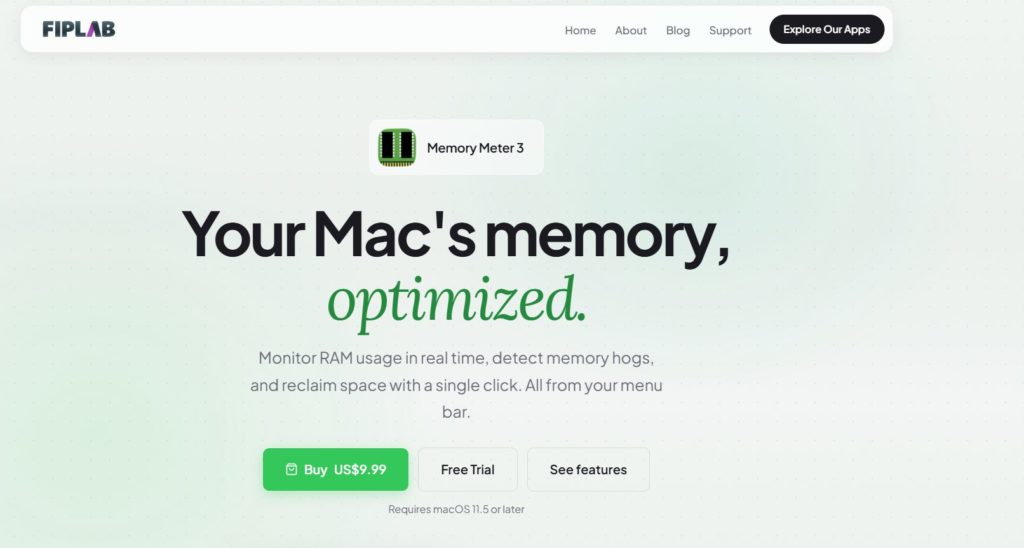
macOS is pretty good at handling its own memory, but older Macs or machines stuck with 8GB of RAM run out of breathing room fast. Memory Clean 3 forces inactive memory back into the available pool so memory-hogging apps have space to run without forcing a full reboot.
It lives in your menu bar, shows you your live memory pressure, and lets you clean house with a single click. It is an absolute lifesaver right before launching a heavy program like Final Cut Pro. It is not magic, but it is a quick fix when your system feels sluggish.
6. Activity Monitor
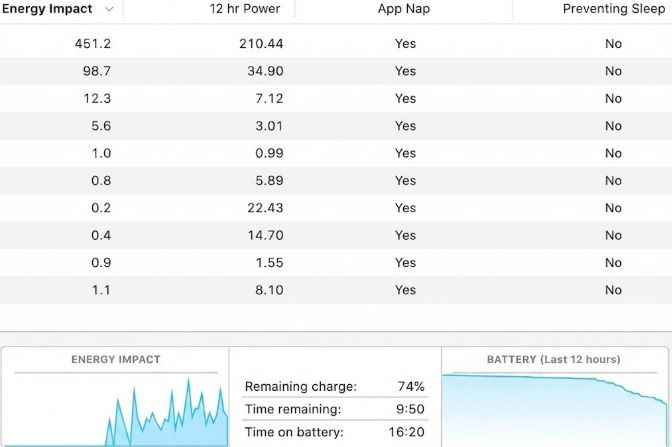
You do not even need to spend a dime for this one because it comes built straight into macOS. Activity Monitor shows you every single running process, its real-time CPU usage, RAM footprint, and disk activity.
The game plan is simple. When your Mac starts dragging, open Activity Monitor, sort by CPU, and find out what is draining your resources. Rogue apps, background sync tools, and heavy browser scripts stick out immediately. Force-quitting the bad actor brings your Mac back to life instantly. No downloads, no hidden costs.
7. OnyX
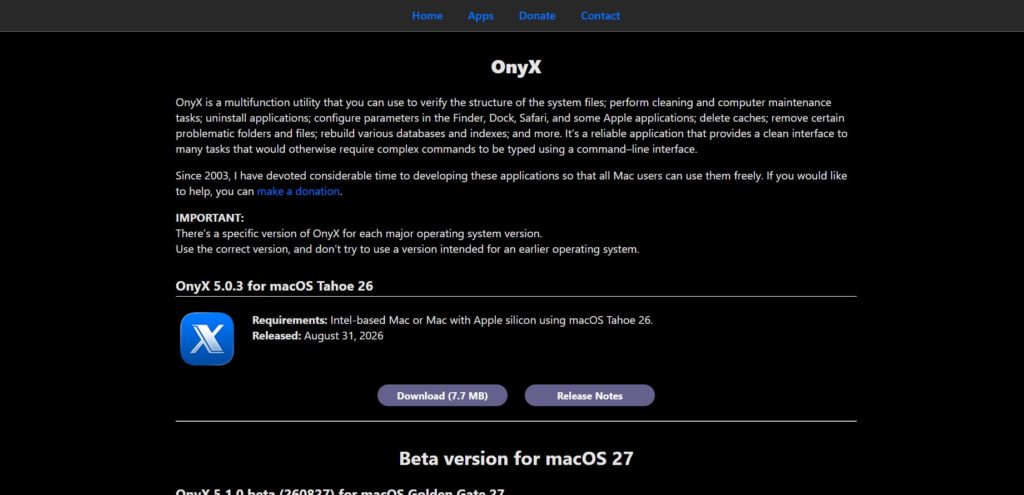
OnyX has been around forever for a reason. It is a legendary free maintenance tool that lets you run deep macOS maintenance scripts, clear stubborn caches, rebuild system databases, and mess with hidden tweaks you will never find in normal System Settings.
Running OnyX every few months to clear font caches and clean up background junk keeps your system snappy, especially if you have been running the same OS installation for years.
(If you ever branch out into digital design or custom web content creation while optimizing your setup, you can also learn how to create AI images for commercial use with Adobe Firefly. And if you are ever tweaking your social media workflow on the side, here is a quick fix on how to disable remix on your YouTube Shorts.)
Conclusion
Look, true hardware overclocking is off the table for Mac users, but keeping your machine fast and responsive is totally doable. Start with the free routes like Activity Monitor and OnyX to handle the everyday bloat if you have heavy workloads or specific hardware hurdles to jump over, layer in smart apps like iStatMenus or Macs Fan Control.
Keep an eye on your thermals, clear out your digital clutter, and let your Mac run at the top of its game without breaking a sweat!
Windows Won't Boot After Point-in-Time System Restore – How to Fix
Read Next