How to Enable a Multi-Session on Remote Desktop
There may be times when one Remote Desktop session simply isn’t enough. Those in admin roles or IT specialists generally agree with that. Standard Windows editions generally allow only one Remote Desktop session at a time, which means another connection can either disconnect or take over the existing session.
In this article, we’ll be looking at how to enable multiple remote desktop sessions in Windows 11, including a third-party workaround.
How to Enable Multiple Remote Desktop Sessions Windows 11
Let’s get straight into it. If you’re familiar with Remote Desktop in Windows 10, then you’ll be happy to know that many of the settings haven’t really changed. That said, we’re going to guide you through the available options of how to enable multiple remote desktop sessions. Keep in mind that the standard version of Windows 11 Pro does not officially support multiple concurrent remote desktop sessions. The preferred approach for multiple users is to use Windows Server with Remote Desktop Services, while Windows 11 Enterprise multi-session is designed for Azure Virtual Desktop.
Edit the Local Group Policy
One way to enable multiple sessions is through the Group Policy Editor. However, changing this policy isn’t all that’s needed to turn a standard Windows 11 installation into a supported multi-session RDP host. On supported Remote Desktop Services deployments, here’s where to find the relevant settings:
Step 1. Open the Run Dialog (Win + R) and type “gpedit.msc” before hitting “Enter.” If prompted, provide administrator credentials.
Step 2. In the Editor, click “Administrative Templates” and then choose “Windows Components” in the sidebar.
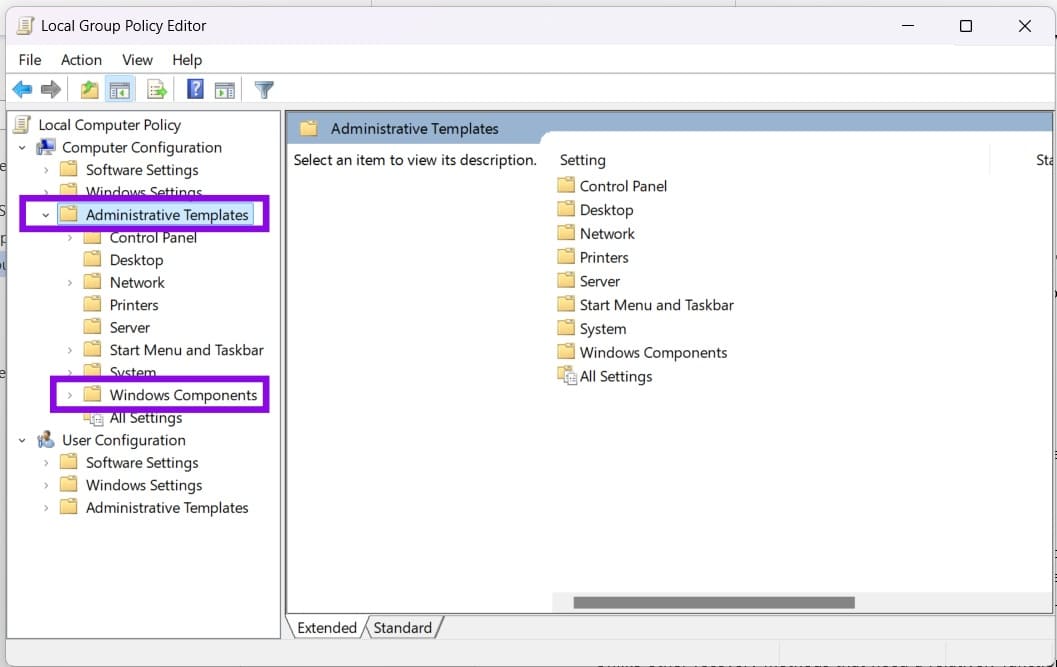
Step 3. Under that, click “Remote Desktop Services” and then “Remote Desktop Session Host.”
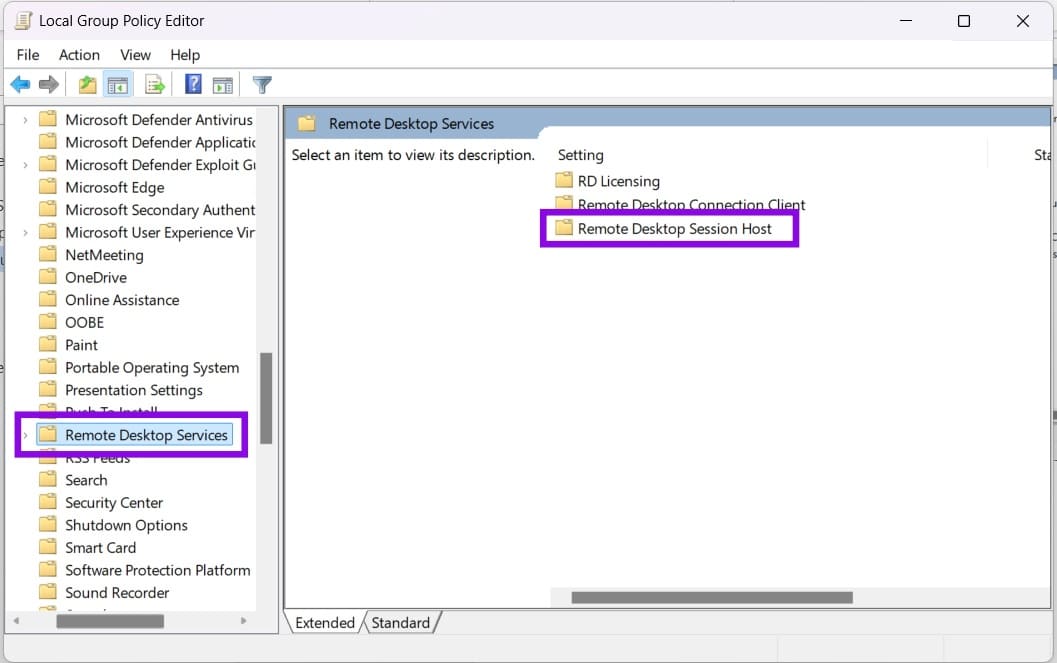
Step 4. Click “Connections” in the side panel or main window.
Step 5. In the main window, double-click “Restrict Remote Desktop Services users to a single Remote Desktop Services session.”
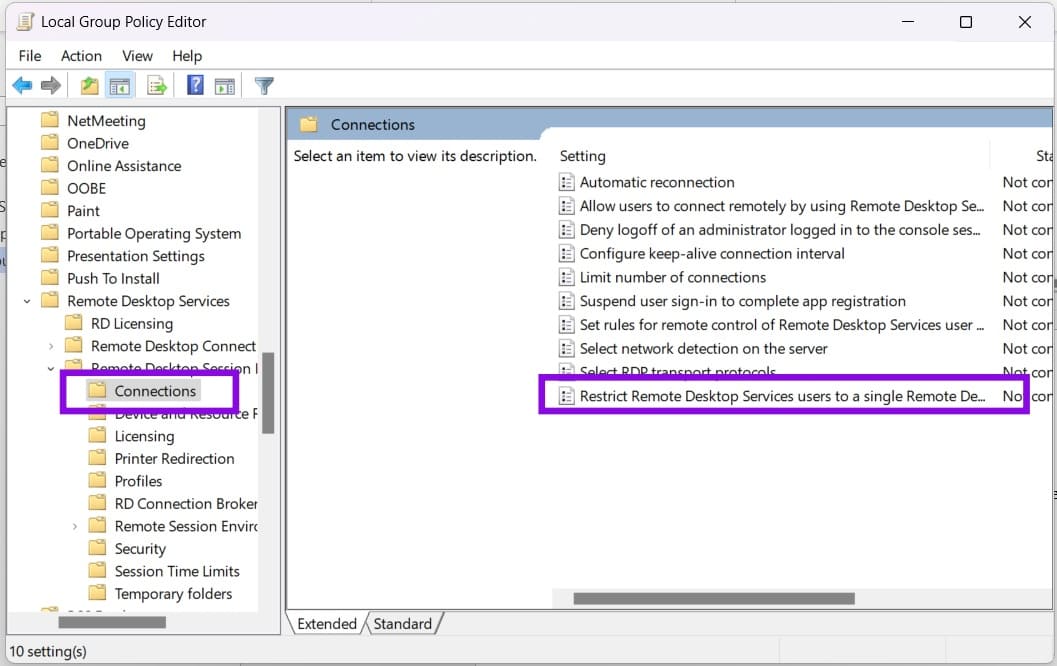
Step 6. In the window that pops up, select “Disabled.” Click “Apply” and “OK” to finalize.
Step 7. Back in the previous window, click “Limit number of connections.”
Step 8. In the window that appears, select “Enabled” and set “RD Maximum Connections allowed” to the number of simultaneous connections you want to permit. Click “Apply” and “OK” to finalize.
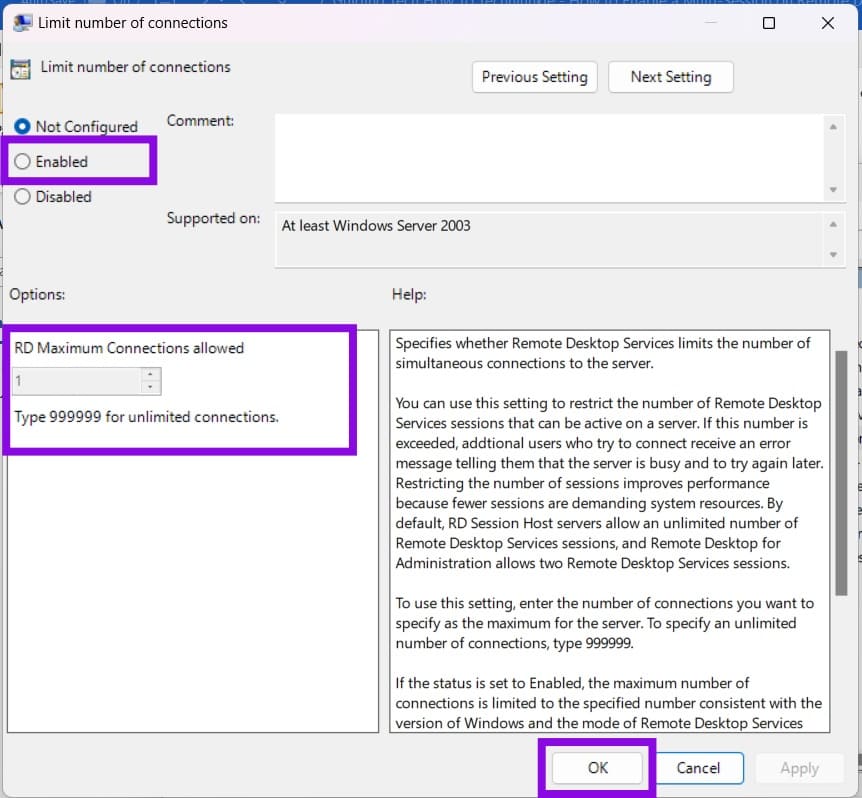
Step 9. For the changes to take effect, restart your machine or refresh Group Policy.
Step 10. On a supported Remote Desktop Services deployment, the configured session limit should now be applied. Test the configuration to ensure it works as expected. Test to ensure.
Use RDP Wrapper
Another way to enable multiple sessions is via third-party software. The open-source RDP Wrapper is free to download and use, and can help with this task. However, it is not an official Microsoft solution, and compatibility issues can arise when Windows updates change the Remote Desktop service. Here’s how to use it:
Step 1. Download the latest version of RDP Wrapper from GitHub. Occasionally, the download can get flagged as a virus, but it isn’t. Do not assume that an antivirus warning is a false positive without verifying the specific file and its source.
Step 2. Extract the files, and then install them.
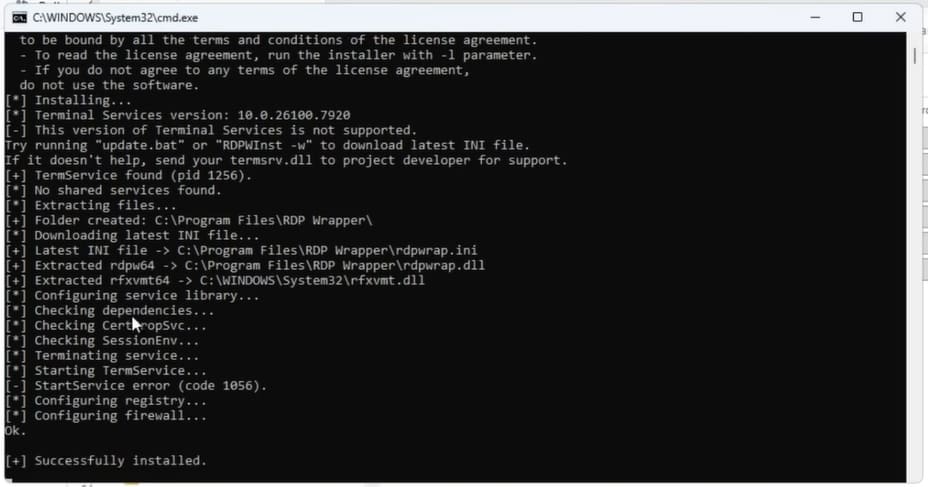
Step 3. Once installed, run the RDP Configuration file to adjust settings. If your version of Windows isn’t supported, you’ll need to download the “.ini” file from GitHub that does support it. If everything is green, you’re good to go.
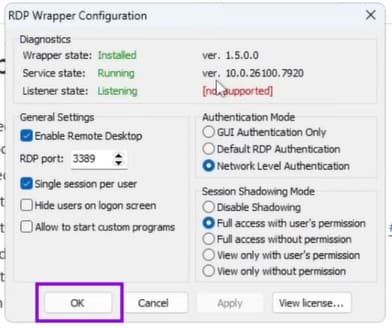
Step 4. Click “OK” to finalize.
Step 5. From here, you can use an RDP client to test whether multiple sessions work on your particular Windows build.
Stuck in a BitLocker Recovery Loop? Here’s What to Do
Read Next