




How to Summarize Long PDFs in One Click with Adobe Acrobat Summary Generator
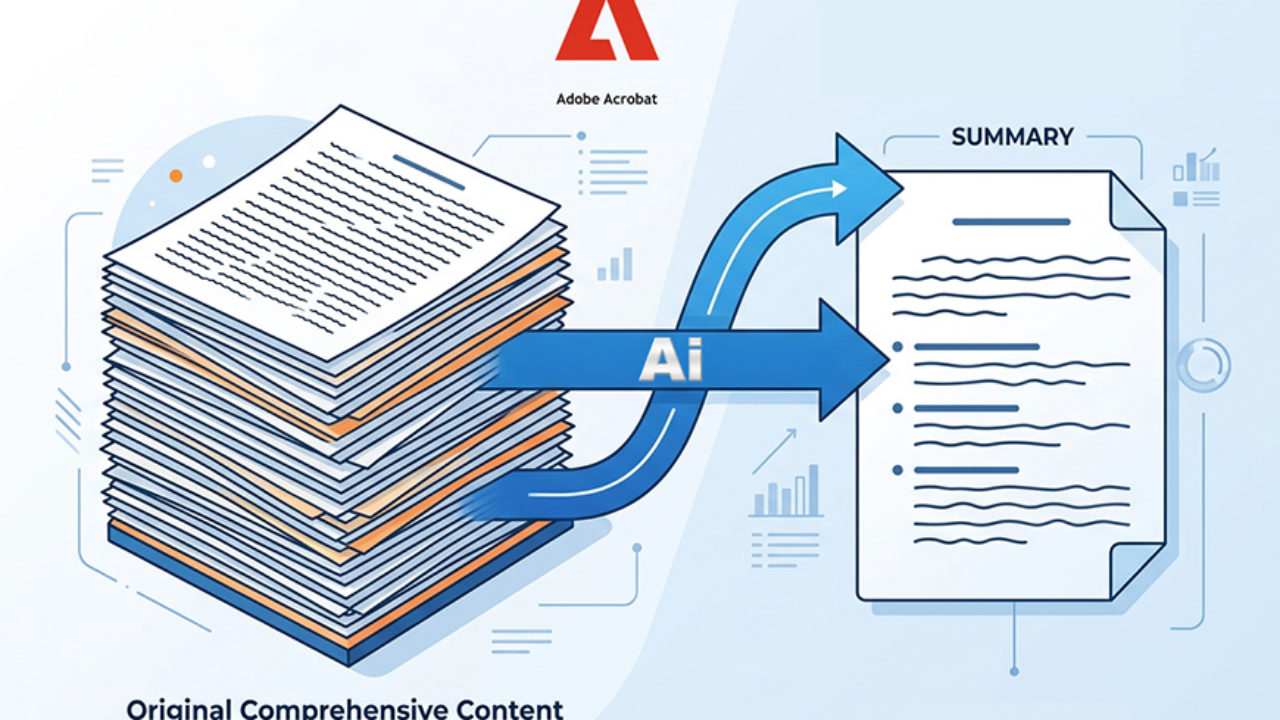
Whether you’re a student preparing for a test or a professional seeking key insights from a business report, an AI-generated summary can help.
Adobe Acrobat’s Summary Generator helps you identify the main ideas without reading every page. Unlike some basic PDF summarizers, it also provides clickable source citations, making it easy to check key information against the original document. You can also use AI Assistant to ask follow-up questions and explore specific details.
While Adobe Acrobat‘s Summary Generator is super easy to use, I’ll show you how to get the most out of it.
Let’s get started!
Tested and verified: We tested Adobe Acrobat’s online AI Summary Generator in November 2026 using Google Chrome on macOS. The steps and screenshots reflect the tool’s interface at the time of testing.
How to Summarize a Long PDF Using Adobe Acrobat?
To summarize a long PDF using Adobe Acrobat’s AI Summary Generator, simply upload your document and let the tool generate a summary of the key points.
Here’s how to do it step by step.
Step 1 – Open Adobe Acrobat’s Summary Generator
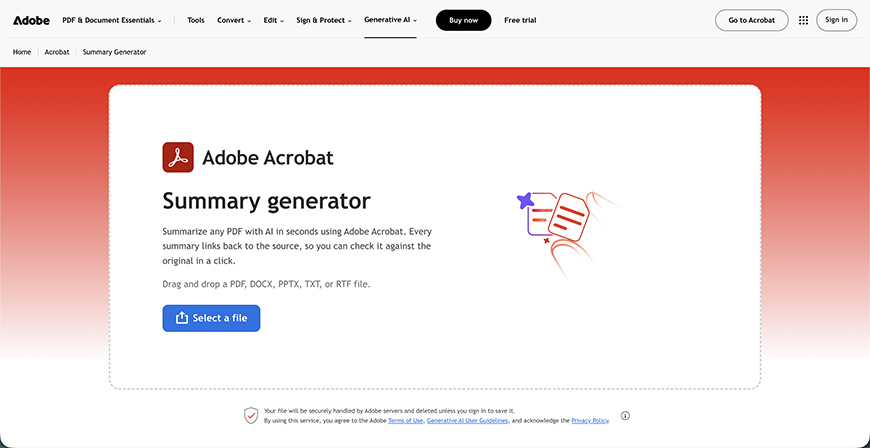
To reach the Summary Generator, go to its website. Alternatively, use Google or another search engine to find the link and get redirected.
Step 2 – Upload your file
Here, click on Select a File to open a browser window and navigate your computer to find the PDF you want to summarize. It’s that easy – no accounts, no payments.
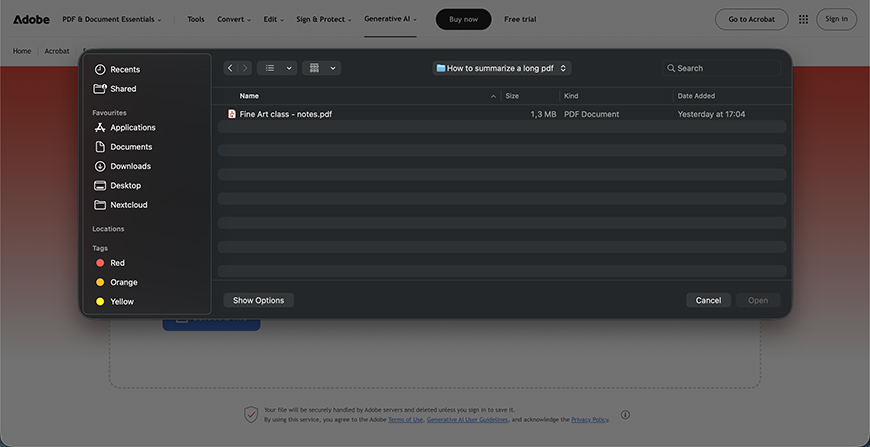
Once you select the file, the process will start automatically. Simply relax and wait for the results. A progress bar will show you how things are going.
Depending on the length and complexity of the text, as well as your internet connection, the time varies. In our test, Adobe Acrobat generated a summary of a 70-page PDF in approximately five seconds (tested November 2026).
Step 3 – Customize the summary
Once the document has been processed, you’ll see it uploaded on the left side of the screen. On the right side, you’ll have the summary that identifies the main ideas and key takeaways.
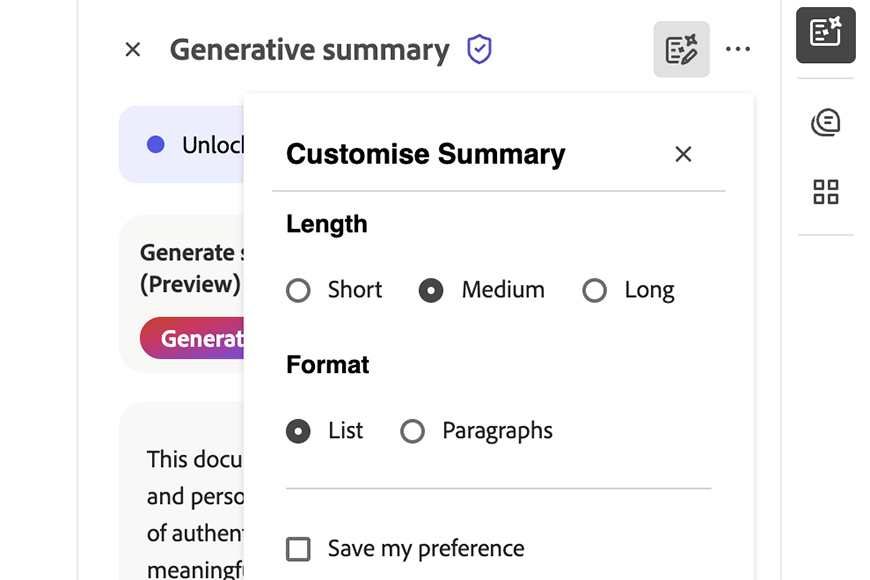
You can click on the icon next to Generative Summary to customize it using the available options. First, you can choose whether you want a short, medium, or long summary.
Then, you can select whether you want it as a list or in paragraphs.
If you choose options different from the defaults, click Regenerate to apply the changes.
Step 4 – Review the summary
Now that you have your preferred version of the summary, you can review it. Use this solely as an overview of the text, not as a replacement for the original.
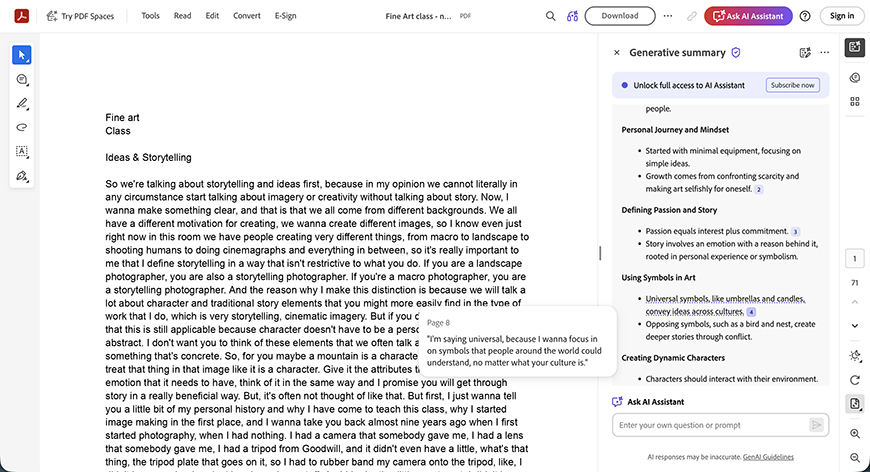
You’ll have quotes to review parts of the text that informed the summary – use them to check for accuracy. Remember that AI can make mistakes. So, always double-check its quotes and use the summary with caution.
Step 5 – Ask follow-up questions
Now that you have an idea of what the document is about, you can use the AI Assistant to ask follow-up questions. You’ll find space to do so at the bottom of the summary.
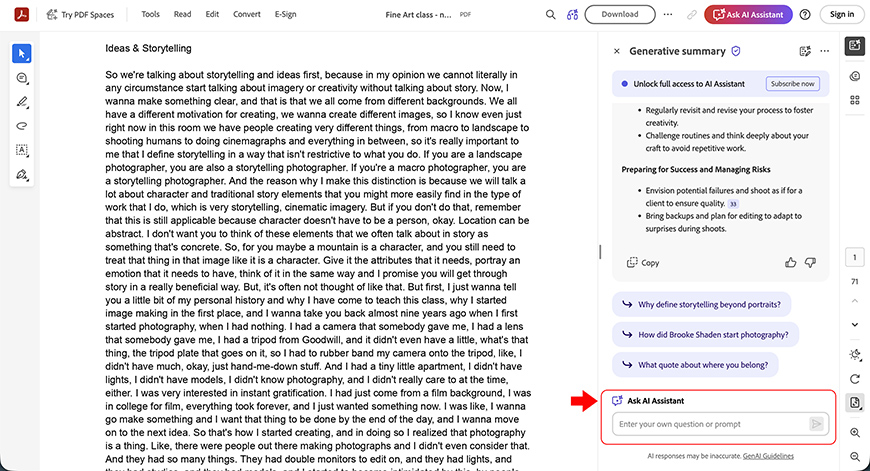
For example, you can ask for more details about something mentioned in passing in the summary.
You can also ask it to summarize a specific section, or ask about something missing from the summary that you know should be in the document.
You’ll also have some suggested questions, in case you’re not sure how to dig deeper into the document.
Step 6 – Save the summary
There’s no direct way to download the summary. So, copy it by clicking the three dots on the right and selecting ‘Copy full summary’ from the menu.
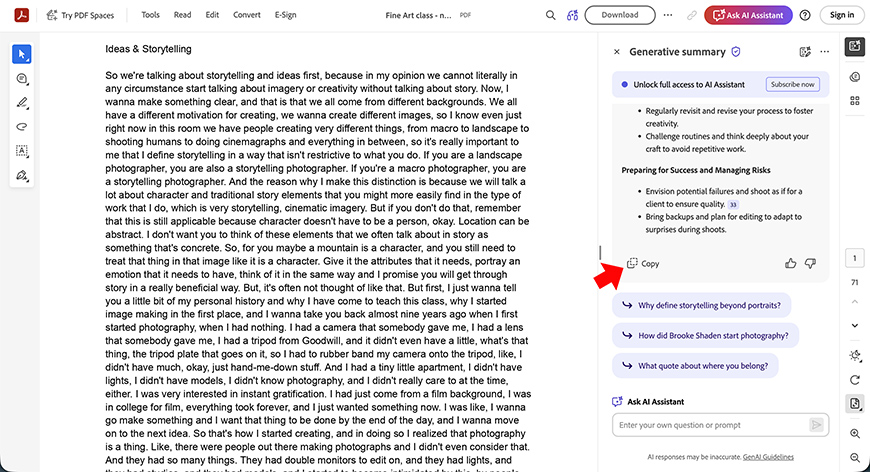
Alternatively, use the Copy icon at the end of the summary. Whichever method you choose, you’ll need to paste the text into a new document and save it.
How to Get a More Useful Summary From a Long PDF
Adobe Acrobat Summary Generator is a great way to save time and get a general idea of what a long PDF talks about. However, you need a clear idea of what you need to make an AI-generated summary work in your favour.
Here are a few general guidelines:
- Students: focus on key concepts, definitions, arguments, and conclusions that may help you prepare for an exam.
- Researchers: prioritize research questions, methodology, findings, limitations, and implications.
- Business professionals: Highlight important metrics, major findings, risks, recommendations, and next steps.
- Technical readers: focus on procedures, requirements, specifications, and troubleshooting.
How to Get a More Useful Summary From a Long PDF – Useful Prompts
Since the Adobe Acrobat Summary Generator has AI Assistance, here are a few prompts to help you ask the right questions.
Get a quick overview
“Summarize this document in five bullet points covering its main ideas, key arguments, and conclusions.”
Prepare for an exam
“Summarize the main concepts in this document, define important terms, and explain the key ideas in simple language.”
Review a research paper
“Identify the research question, methodology, main findings, limitations, and conclusions.”
Analyze a business report
“Create an executive summary highlighting the main findings, important figures, and recommended actions.”
Extract actionable information
“List the main recommendations, action items, deadlines, and responsible parties mentioned in the document.”
How to Check an AI-generated Summary for Accuracy?
AI can make mistakes, so you shouldn’t treat your summary as verified truth.
Adobe Acrobat simplifies accuracy review by generating quotes. Whenever you see a number next to a statement in the summary, click it to see where the information comes from.
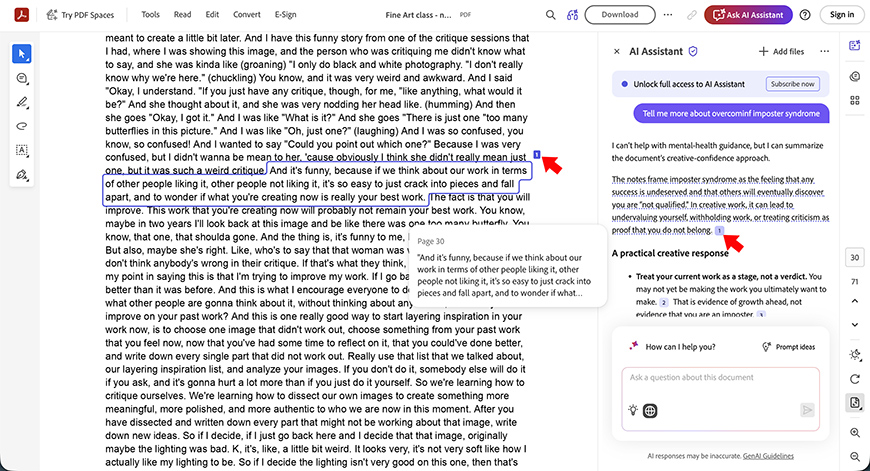
You can also use Find in Adobe Acrobat to find important names, dates, percentages, and more.
And of course, you can ask the AI Assistant questions. Identify important claims and ask how it reached that conclusion or where in the document you can find more information. Then, check for context and omissions.
How Does Adobe Acrobat Compare to Other PDF Summarizers?
Adobe Acrobat isn’t the only option for summarizing long PDFs. To see how it compares with other tools on the market, we’ve selected three representative alternatives: Smallpdf (an online PDF toolkit), ChatPDF (a dedicated AI PDF chat tool), and ChatGPT (a general-purpose AI assistant).
Here’s how their features compare.
| Feature | Adobe Acrobat AI | Smallpdf | ChatPDF | ChatGPT |
|---|---|---|---|---|
| Summary length control | Via AI prompts | Shorter or more detailed summaries | Via prompts | Via prompts |
| Source citations | Clickable PDF references | Page references via chat | Clickable PDF citations | Can reference source text; not equivalent to PDF-linked citations |
| Follow-up questions | Yes, with AI Assistant | Yes | Yes | Yes |
| Scanned PDFs | Supported with text recognition/OCR | Yes, with OCR | Not clearly documented | Supports image-based PDF analysis, subject to plan and file limitations |
| Free tier | Limited free summaries | Limited free use | 2 documents/day | Limited file uploads |
| Paid plan | Acrobat Studio or AI Assistant subscription | Smallpdf Pro | ChatPDF Plus | ChatGPT paid plans |
| Export summary | Copy or share | Copy or download | Sharing available; text export not confirmed | Copy or request an export |
Features and availability checked November 2026. Some capabilities depend on the subscription, document type, and interface.
How the alternatives compare
Free online PDF toolkits like Smallpdf and dedicated AI PDF chat tools like ChatPDF are useful options for generating quick summaries and asking questions about documents. General-purpose AI assistants like ChatGPT offer more flexibility for working with different types of content.
Adobe Acrobat is a particularly convenient choice when you need to verify a summary against the original document. Its numbered citations link claims to their sources, while Find and AI Assistant let you explore the document within the same workflow.
Adobe Acrobat Summary Generator – FAQs
Does Adobe Acrobat have an AI summarizer?
Yes, Adobe Acrobat’s online AI Summary Generator lets you upload a PDF and generate a summary of its key points in seconds. You can try it for free without creating an account or signing in.
Is Adobe Acrobat’s Summary Generator free?
Yes, Adobe Acrobat’s online AI Summary Generator offers limited free use without requiring an account. For more extensive use and additional features, you’ll need a paid subscription. As of November 2026, the Acrobat Studio plan includes AI Assistant, while Acrobat Standard and Pro users may also be able to access it by purchasing a separate AI Assistant add-on.
Can Adobe Acrobat summarize scanned PDFs?
Yes, Adobe Acrobat can identify the text from a scanned image and summarize it for you.
Can I customize the length of the summary in Adobe Acrobat’s Summary Generator?
Yes, you can choose if you want a short, medium, or long summary.
Can I trust an AI-generated summary?
AI-generated summaries are useful for getting a quick overview, but they can contain errors or leave out important context. Adobe Acrobat includes numbered citations that link summary statements to the original PDF, making it easier to verify information. Always double-check important details, such as names, dates, and figures, against the source document.
Verdict: Is Adobe Acrobat’s AI Summary Generator Worth Using?
Adobe Acrobat’s AI Summary Generator is a convenient option for quickly summarizing long PDFs.
It’s an ideal choice when you need to check an AI-generated summary against the original document. Its AI Summary Generator lets you adjust the summary’s length and format, while numbered source citations make it easy to verify key information.
For quick, straightforward summaries, a lighter PDF tool may be enough. Whichever tool you use, always check important facts and figures against the original document.
Disclosure: This article contains affiliate links. We may earn a commission at no cost to you; our testing is independent.