Robocopy: The Handiest Windows Feature You’ve Never Heard Of

Windows File Explorer is convenient for everyday file transfers, but copying large batches of files can sometimes be slow or difficult to manage. On some systems, transfer estimates can climb dramatically while the progress bar appears to stall.
Luckily, you don’t have to use a third-party program to handle this. With Windows Robocopy, PowerShell users can achieve the same result in a single command. Here’s what you need to know.
What Is Windows Robocopy PowerShell?
In PowerShell, the Robocopy command allows you to transfer or copy files between two directories with extreme precision and control, all while using the processor’s built-in multi-threaded capabilities.
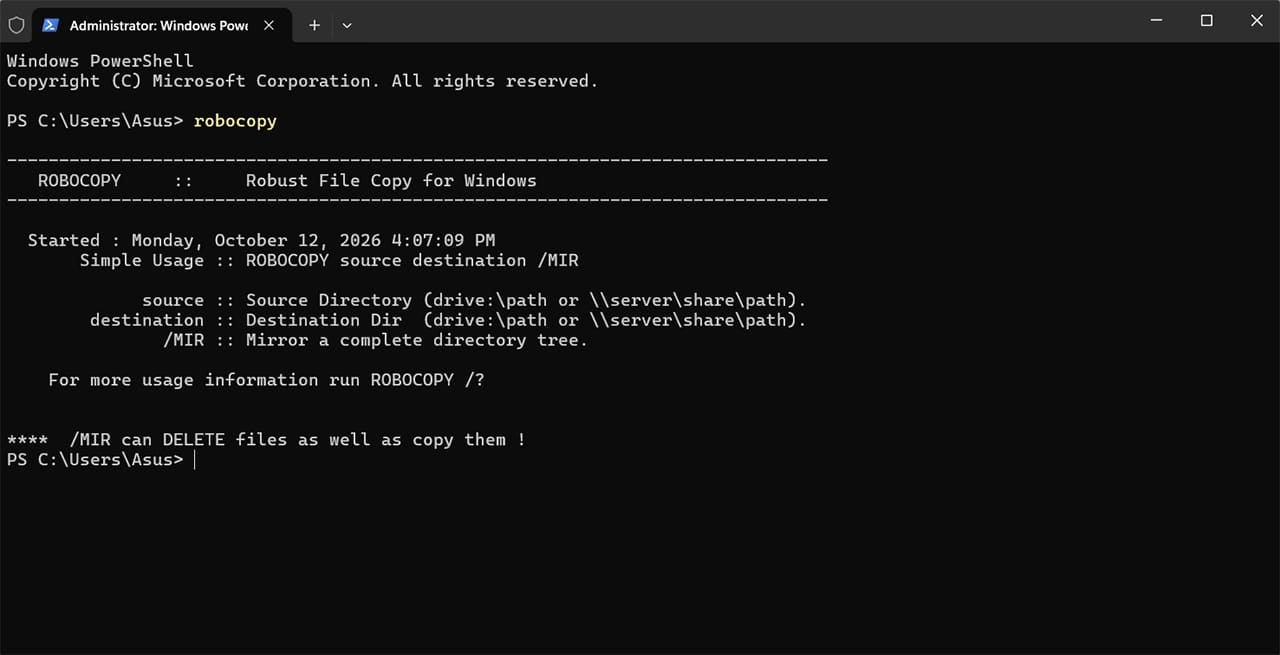
In some situations, Robocopy can be more efficient or easier to manage than File Explorer, particularly when transferring large batches of files or automating repeat copies.
For one, the command can utilize multiple system threads, meaning that it can try to load the memory bus with more files and use more of your hard drive’s speed.
By default, Robocopy skips files it considers unchanged and copies new or changed files. Its file comparisons use information such as filenames, file sizes, and timestamps, so it generally avoids recopying files that already match the source.
Third, the command has a bunch of added arguments you can use, for example, the ability to auto-restart the copy if it ever fails or loses connection. This can be beneficial if you’re scheduling backups to networked devices.
How to Use Windows Robocopy in PowerShell?
The basic structure of the command is simple:
robocopy <source> <destination> [<file>[ …]] [<options>]
The source and destination arguments specify the directories accessible from your PC.
After that is the “files” section, which specifies the exact files to copy over. However, this can be glossed over, and omitting it will simply transfer all files from the source to the destination.
The “options” part is arguably the most important, with a few notable arguments:
- /mt turns on multi-threading mode, with 8 being the default number of threads (but you can put “/mt:4” for 4 threads and so on, up to 128).
- /S copies subdirectories but excludes empty ones; /E copies subdirectories, including empty ones.
- /mir deletes extra files and subdirectories from the destination that no longer exist in the source.
- /Z enables restartable mode, allowing an interrupted file transfer to resume. Use /R to specify how many times Robocopy should retry a failed copy.
- /ZB uses restartable mode and switches to backup mode if access is denied. Backup mode requires the appropriate privileges and isn’t a general-purpose way to override folder permissions.
- /j removes the usage of the file input/output buffer, which can be a bottleneck for external USB devices or particularly large files.
- /log:[filepath] creates or overwrites a log file with the status output of the command.
For a complete list of options, you can use “robocopy /?” to get help within the PowerShell interface.
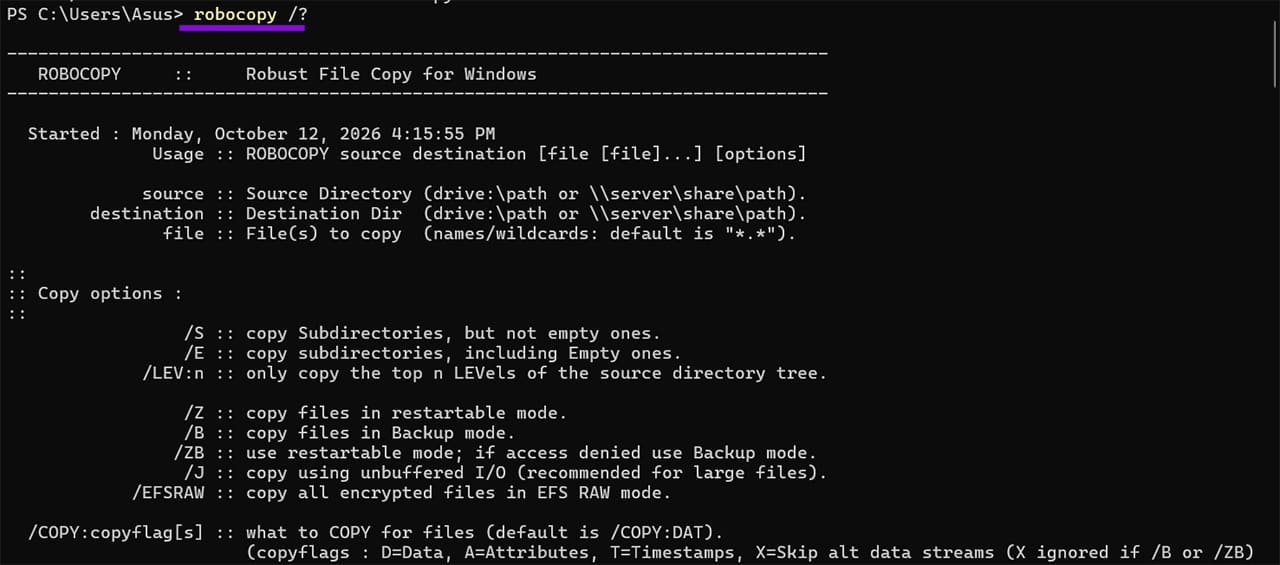
For lengthy or recurring transfers, it’s helpful to save the command’s output to a log file so you can review the results. Robocopy provides progress and a summary by default, while logging makes it easier to inspect a transfer later or troubleshoot failures.
Here’s an example of the command in use:
robocopy C:\Users\Admin\Records D:\Backup /E /ZB /LOG:C:\Logs\Backup.log
This command will essentially create a copy of the “Records” folder in D:\Backup, trying to copy over everything, and putting the log in the “C:\Logs\Backup.log” file.
Should You Use Robocopy Over File Explorer?
For most daily usage, File Explorer will work just fine using drag-and-drop copying or moving files. It’s especially useful in that it will repeatedly notify you if you’re trying to copy over files of the same name.

Robocopy only truly shines in heavy-duty workloads where you’re copying hundreds or thousands of files from predetermined places. This allows you to set up scripts that can periodically back up folders, all by using built-in Windows utilities.
For example, the /move and /mir options can be extremely damaging, as mistyping the source or destination will permanently delete data from the destination folder. While Robocopy keeps a log of changes, it can’t be undone, and it doesn’t ask for permission to start performing the file transfer once you run the command.
Why Frictionless IT Onboarding Is the New Retention Standard for Remote Teams
Read Next