Top 5 Free Data Recovery Software for Windows

Free data recovery software sounds like a simple solution when you’ve accidentally deleted files or suddenly lost access to your important data. But there’s often a catch. Many recovery tools let you scan a drive and preview what can be recovered, only to place a recovery limit behind a paywall when you try to save the files.
The good news is that not every free recovery tool works this way. Some let you recover data without a limit, while others offer a certain amount of free recovery before requiring an upgrade. The difference matters, particularly if you’re dealing with a large amount of lost data. In this guide, we’ll break down what each tool’s free version actually offers, how much data you can recover, and which type of data loss it is best suited for.
Before you run any recovery software, stop using the affected drive. Deleted files can become permanently unrecoverable if new data overwrites the space they occupied. Avoid installing the recovery software on the same drive, too. Install it on a different drive or computer, and save the recovered files to a separate storage device. This gives you the best chance of recovering your lost data.
Not All Free Recovery Software Is the Same
The word “free” can mean different things when it comes to data recovery software. Some tools let you recover as much data as you need without paying, while others only allow limited recovery before asking you to upgrade. Knowing the difference upfront can save you from spending hours scanning a drive, only to discover that the files you need are locked behind a paywall.
Free Recovery Tools Without a Data Cap
Some recovery programs are genuinely free, meaning they don’t put a limit on how much data you can restore. That makes them useful when you have a large number of files to recover and don’t want to pay based on the amount of data retrieved. However, there’s a trade-off. A zero-cost recovery tool may not have the capabilities needed for complicated data loss situations.
Take Recuva, for example. It can recover deleted files without a recovery cap, but it works best when the underlying file system is still intact. If the drive has severe file system damage, you may need a more advanced recovery solution.
In general, truly free tools are better suited to recovering large amounts of data in simpler recovery scenarios than handling complex or severely damaged drives.
Freemium Recovery Tools with Data Caps
Freemium tools work differently. They let you scan a drive and preview potentially recoverable files for free, but place a limit on how much data you can actually restore. That limit can still be useful. If the software can find and preview your files, you have a clearer idea of what the paid version may be able to recover. Before choosing a freemium tool, keep these two things in mind:
- Check the per-file limit, not just the total recovery limit: Check whether the software also imposes a maximum size for an individual file. A tool offering plenty of free recovery may still be unable to restore one large file.
- Check whether it’s actually a free edition or just a trial: A trial version may let you scan and preview files but prevent you from recovering anything, while a free edition may allow actual recovery up to a specified limit.
5 Best Free Data Recovery Software for Windows
Now, let’s take a closer look at the five data recovery tools included in our list. We’ll break down what each one does well, where it falls short, and how it performs in different data loss situations.
1. Stellar Data Recovery
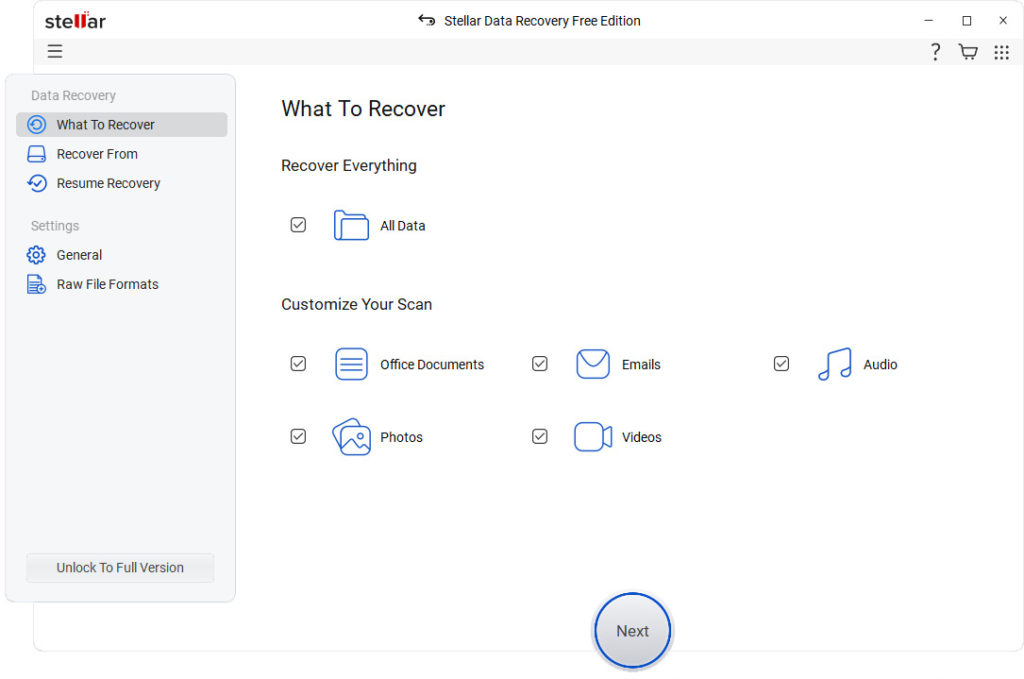
Stellar Data Recovery is a great choice for everyday Windows users who want to recover lost or deleted files without having to navigate a complicated process. The software takes you through recovery step by step, letting you choose what type of data to search for and where to look. It also supports a broad range of file types and storage media, and lets you preview files before deciding what to restore. The free edition allows you to recover up to 1 GB of data, while upgrading unlocks additional capabilities for more demanding recovery situations.
Main Features
- Supports recovery from HDDs, SSDs, USB Drives, SD cards, and more.
- Recovers from 4K drives.
- Recovers from formatted, corrupted, and encrypted drives.
- Supports RAW drive data recovery.
Stellar keeps the recovery process fairly simple, even if you’re using it for the first time. Start by selecting the type of files you want, whether that’s documents, emails, photos, videos, audio files, or all supported file types. Then select the drive or specific location where the data was lost. You can run a Quick Scan for simpler recovery cases or switch to Deep Scan when a more thorough search is needed.
After scanning, the results are listed for you to preview. For larger drives, you can pause a scan, save its progress, and resume it later instead of starting over. The software operates in read-only mode during recovery, so it doesn’t write data to the source drive you’re trying to recover.
Pros
- Guided UI suitable for beginners
- Unlimited file-type support
- Recovers from encrypted drives
- Dual scanning modes with dual monitor support
Cons
- Deep scan can take time
- Advanced features require upgrade
2. PhotoRec (Best for RAW & Formatted Drives)
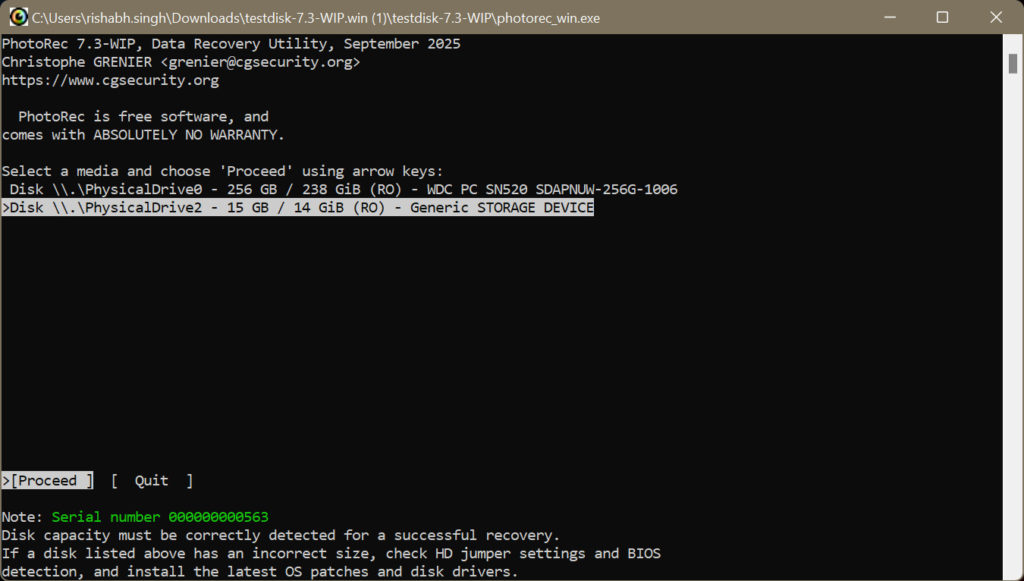
PhotoRec takes a more bare-bones approach to data recovery. It’s a free, open-source utility that can recover files across more than 480 formats, so despite the name, it isn’t limited to photos. The program is portable and cross-platform, meaning you can run it directly from a USB drive without a traditional installation.
The main trade-off is usability. PhotoRec relies on a command-line interface rather than a conventional graphical workflow, which can make it less approachable for users who aren’t comfortable working with command-line tools.
Main Features
- Works with HDDs, SSDs, optical discs, USB drives, and memory cards
- Supports most file formats
- Recovers data in read-only mode
- Recovers files by bypassing the file system
Rather than trying to reconstruct the damaged file system, PhotoRec searches the storage device directly for recognizable file patterns, scanning the underlying sectors for recoverable data. This makes it useful for reformatted or severely damaged drives. Before starting, make sure you have another storage device ready because the recovered files must be saved somewhere other than the source drive.
PhotoRec doesn’t preserve the original file names, creation dates, or folder hierarchy. Instead, recovered files may be assigned generic names. You’ll therefore need to sort through the recovered data and rename or reorganize the files manually.
Pros
- Free and open-source
- Supports more than 480 file formats
- Compatible with most operating systems
Cons
- Command-line interface
- Returns files with generic names
- Original folder structure is lost
3. Recuva (Best Unlimited Recovery)
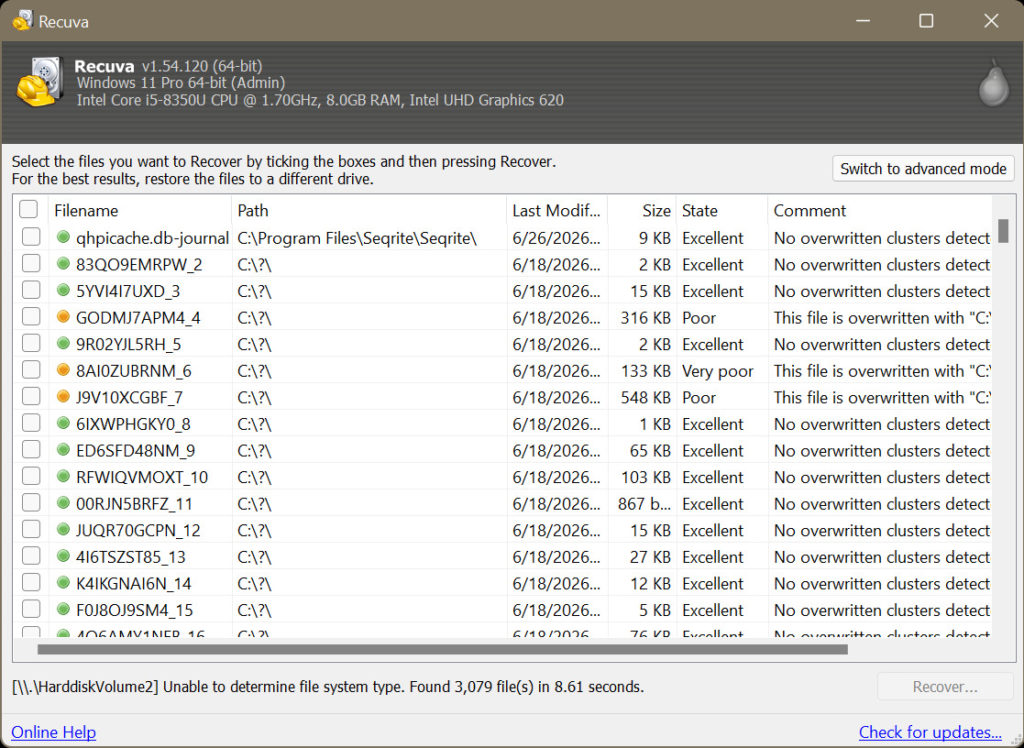
Recuva is aimed at users who need simple file recovery without putting a limit on how much you can restore. The software has been around for more than a decade and remains available as a maintained recovery utility. It was developed by Piriform, the company behind CCleaner. Its wizard-based workflow also keeps the recovery process approachable for users who may not have much technical experience.
Features
- Dual scanning modes
- Supports damaged disk and formatted partition recovery
- Offers additional secure erasure capability
Recuva’s dated interface is probably the first thing you’ll notice, especially if you’re used to newer recovery software, but the workflow itself is quite simple. After launching the recovery wizard, you first narrow the search by selecting the type of files you’re trying to retrieve. Then select the drive or location where the files were lost and start the scan.
Once the scan finishes, Recuva presents the results in a list with a color-coded recovery indicator. From there, select the files you want and choose a separate destination for saving them. Recuva also includes file preview, although you’ll need to enable Advanced Mode to access it.
Pros
- 100% free unlimited recovery
- Step-by-step wizard
- Doesn’t require installation
Cons
- Windows-only tool
- Lower success rate on complex data loss
- Lacks advanced features
4. Windows File Recovery
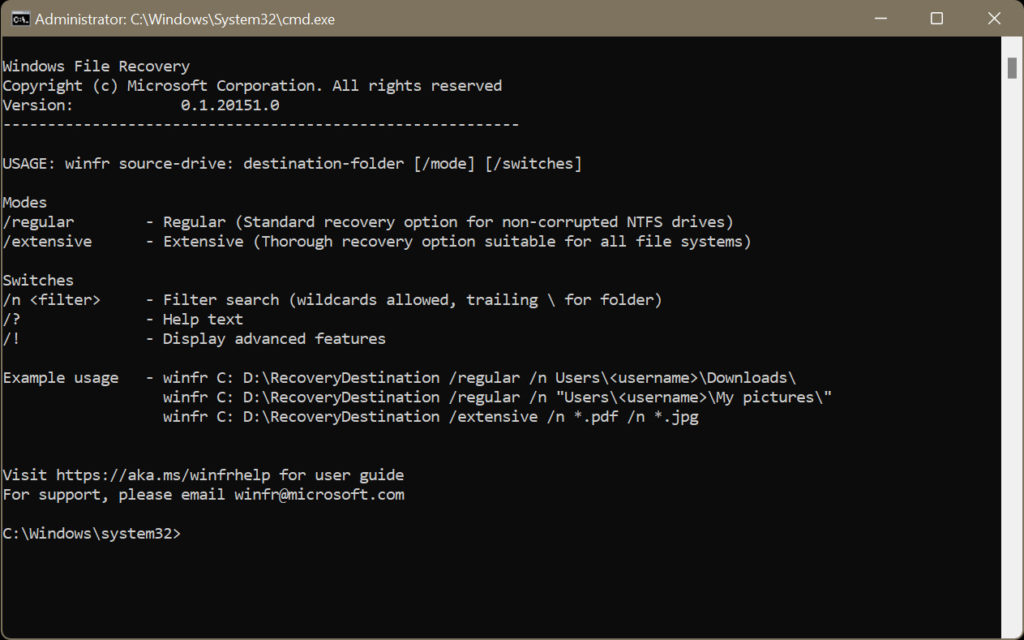
Microsoft’s Windows File Recovery is essentially a command-line alternative to conventional recovery software. It’s designed for cases where the usual options like restoring a file from the Recycle Bin or using a backup are no longer available. The tool has no graphical interface or file preview, so recovery is handled entirely through Command Prompt. It supports several Windows file systems, including NTFS, FAT, exFAT, and ReFS.
Features
- Multiple scan modes
- Recovers from both internal and external drives
- Supports NTFS, exFAT, FAT, and ReFS
Windows File Recovery works by looking for deleted data that may still exist on the drive even though its file references are no longer available. Since it’s a command-line utility, you start it from Command Prompt with administrator privileges and select a recovery mode based on the situation. Regular Mode is intended for recently deleted files on NTFS drives, while Extensive Mode performs a deeper, sector-by-sector search and is suited to formatted or corrupted drives and other file systems.
After you run the appropriate command, Windows File Recovery searches for matching data and copies what it finds to automatically created folders on a separate drive. Using another drive as the recovery destination helps avoid overwriting the deleted data you’re trying to retrieve.
Pros
- Free with no caps
- Advanced file filtering using keywords, file paths, and extensions
- Safe to use
Cons
- Purely command-line, hence not suitable for beginners
- Does not support file preview
- Does not retain original file names and folders
5. MiniTool Power Data Recovery
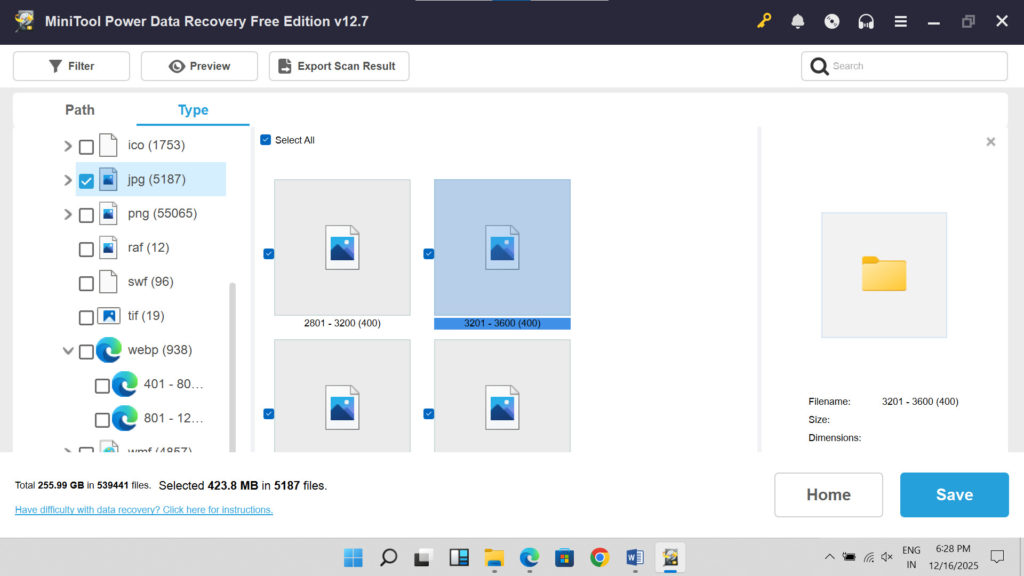
MiniTool Power Data Recovery is particularly useful when the missing data is tied to a lost or damaged partition. Its free edition includes a dedicated partition recovery module, giving it an edge over many other freemium tools that focus mainly on individual file recovery. The software also covers common data loss situations and allows up to 1 GB of recovery at no cost. Its interface is somewhat dated and the feature set is limited in the free version, but it remains a practical option for basic recovery needs.
Features
- Supports NTFS, FAT12/16, exFAT
- Recovers from HDDs, SSDs, USB drives, and more
- Supports recovery from deleted, formatted, RAW, and lost partitions
- Broad file type support
MiniTool’s recovery interface brings both recognized and missing partitions into the same view, so you can select the storage area you need even when Windows no longer shows it normally. Once you choose the relevant drive or partition, the software performs a deeper scan to look for recoverable data.
As files are found, MiniTool groups them into a more familiar folder structure and also categorizes them by file type, making large scan results easier to navigate. You can preview files before restoring them, and the software also lets you recover files while the scan is still running.
Pros
- Includes partition recovery feature
- Recovers from formatted and RAW partitions
- Allows preview before recovery
- Compatible with most storage devices
Cons
- Deep scans take really long
- Needs paid license for advanced features
- Prompts asking for an upgrade keep popping up during recovery
What Makes a Good Data Recovery Tool?
We assessed the capability of each data recovery software based on our five most important parameters. Let’s take a look.
Recovery Capability
We examined each tool’s ability to handle typical data loss situations, including accidental or permanent deletion, formatting, damaged or corrupt partitions, etc.
Ease of Use
We gave preference to user-friendly applications that deliver results efficiently with minimal input.
Compatibility & Security
We ensured that our top picks are in sync with the latest Windows OS, hardware, and file systems. Additionally, the software should be 100% secure and free from any malicious attachments.
Scanning Efficiency
At times, you need to recover a large amount of data; hence, applications that quickly scan huge volumes of data were favored.
Additional Features
We chose applications that offer extra functionalities that help users manage data on their system or optimize the Mac’s performance.
Finding the Right Tool for Your Data Loss
To choose the right recovery software, first understand how the data was lost and how much of it you need to recover. A tool that works well for a few accidentally deleted files may not be suitable for a formatted drive, a missing partition, or a large recovery job. The amount of free recovery available also varies, so it’s worth checking the limits before starting a scan.
For everyday file deletion, Stellar Data Recovery Free offers a guided recovery process and up to 2 GB of free recovery. If you need to recover a large number of deleted files without a recovery cap, Recuva allows unlimited recovery at no cost. Its simpler feature set makes it more suited to straightforward deletion scenarios.
For a formatted or severely damaged drive, PhotoRec takes a different approach by searching the underlying data rather than relying on the file system. It can be useful in more difficult recovery situations, although its command-line interface and generic recovered filenames require more manual work. If the problem involves a missing or damaged partition, MiniTool Power Data Recovery Free includes a dedicated partition recovery feature.