



The Second-Screen Setup: How To Get More From The Devices You Already Own
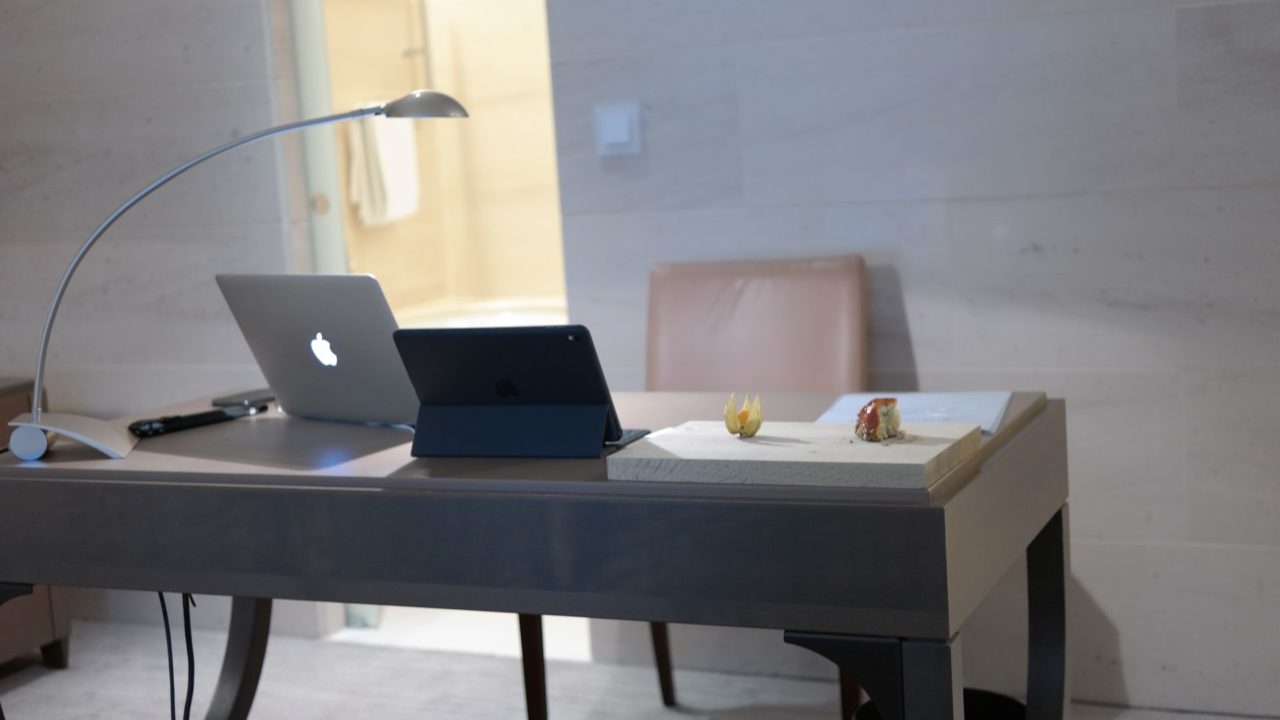
Although you stopped using a laptop as your main computer, it still has a perfectly useful screen. The same goes for a tablet that spends more time in a drawer than in your hands. Either could earn a place on your desk again.
With a good setup, you’ll get more room for notes, documents, and extra apps. And there’s no need to buy another display. The first step is to check what you have at home and figure out how your devices can work together.
You Can Use An Old Laptop As A Monitor For A macOS Setup
You replaced that MacBook a while ago, but that doesn’t mean every part of it has outlived its usefulness. The battery might barely last an hour, but the screen is still sharp and comfortable to read.
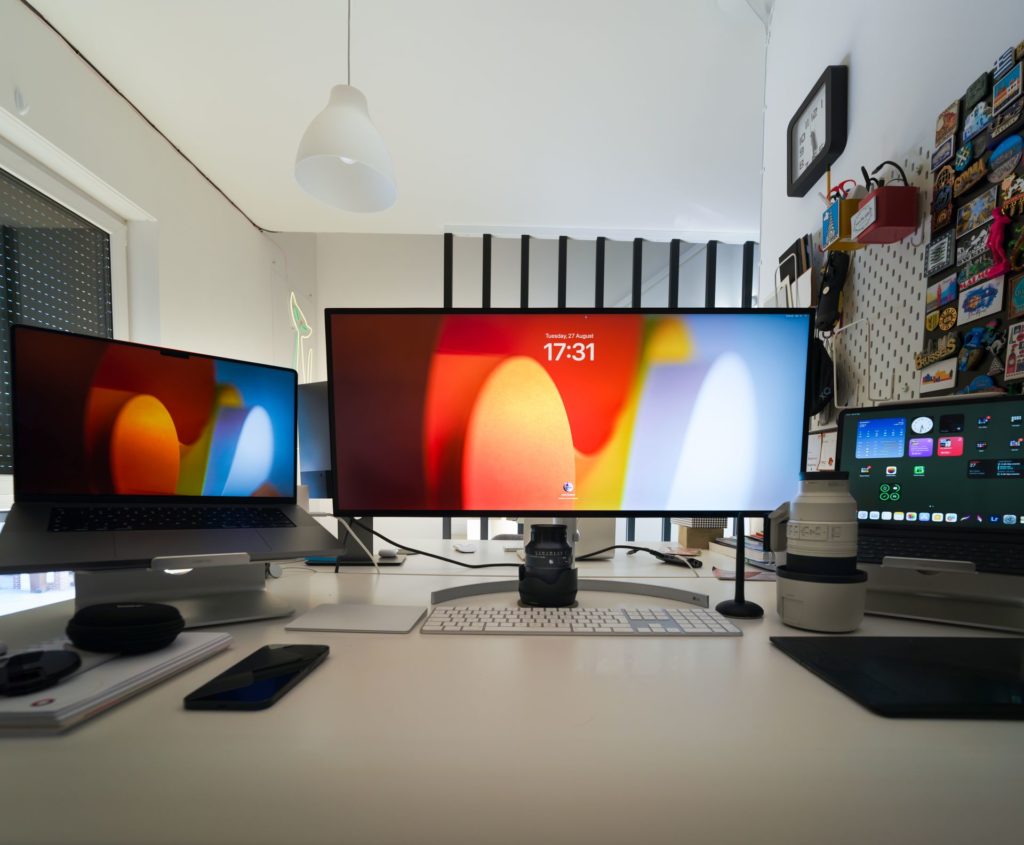
Learning how to use a MacBook as a monitor can give that old machine a useful role beside your current computer. For a setup that stays on your desk, a worn battery is manageable because the MacBook can remain connected to power.
We need to take a closer look at software compatibility, though. If you use a MacBook as a second monitor, it doesn’t necessarily need the newest macOS release. However, it must support the display-sharing method you choose.
Apple’s built-in AirPlay to Mac feature requires a MacBook from 2018 or later, running at least macOS Monterey 12. If your MacBook is older, you can check for an alternative, such as Duet Display. An HDMI cable won’t solve the problem, since MacBooks don’t accept direct HDMI video input.
How To Use A Laptop As A Second Monitor On Windows
If your spare laptop runs Windows, the built-in option is Wireless Display. This method connects one Windows PC to another, and both must support Miracast. To use your old laptop as a monitor, start on the receiving machine:
- Open Settings > System > Projecting to this PC.
- If Wireless Display isn’t installed, select Optional features, find Wireless Display and install it.
- Return to the projection settings to make the laptop discoverable. Then, open the Wireless Display app.
- On your main PC, press Windows + K and select the spare laptop.
- Now that they are connected, press Windows + P > Extend to give each screen its own windows.
Use An iPad As Your Mac’s Second Screen
If you have a spare iPad, Apple’s Sidecar feature can extend your Mac desktop over Wi-Fi or USB. Both devices must use the same Apple Account, and you’ll have to enable two-factor authentication. Compatibility is important here, too. Sidecar supports MacBook Pros from 2016 onward, MacBook Airs from 2018 onward, and desktop Macs running at least macOS Catalina 10.15. The iPad’s compatibility might also be an issue.
Sidecar is supported by all iPad Pro models, iPad sixth generation or later, iPad mini fifth generation or later, and iPad Air third generation or later. It has to run at least iPadOS 13.
You can check Apple’s official list of Sidecar requirements to make sure your Mac and iPad can be paired through Sidecar.
To extend your laptop screen with an iPad, open Control Center > Screen Mirroring on the computer and select the iPad. Choose the option to extend the display (you don’t need simple mirroring). For wireless use, keep the devices within 10 meters and enable Wi-Fi and Handoff. A USB connection is also useful, since it keeps the iPad charging while you work.
How To Use A Tablet As A Second Monitor For A Laptop On Windows
Spacedesk supports both iPads and Android tablets. Install the Spacedesk Driver on your Windows PC and the Spacedesk Viewer app on your tablet. For a wireless connection, connect both devices to the same local network and open Viewer. Then, select your PC from the detected devices.
When the devices connect, press Windows + P > Extend on the PC. Then open Settings > System > Display. Arrange the screen icons to match your desk. For example, placing the tablet’s icon to the left of the main screen lets you move a window onto it. Just drag it past the left edge.
Let’s Put Your Second Screen To Work
Start with a simple task just to see how things work. For example, you can move your reference document or meeting notes onto the extra screen. Check that the text is comfortable to read and the connection stays stable. If the second screen saves you from constantly switching windows, it has earned its desk space.