How to Fix PS5 Error Code CE-107891-6
The PS5 error code CE-107891-6 typically appears when content fails to install properly. Usually, it’s because the console considers a game’s data corrupted or incomplete, and the error tends to show up when you launch a game, download an update, or copy a title from an external USB drive to the internal SSD. In most cases, deleting and reinstalling the affected game should fix this, but here are a few other ways to fix PS5 error code CE-107891-6 without a full installation.
Option 1 – Restart Your PS5
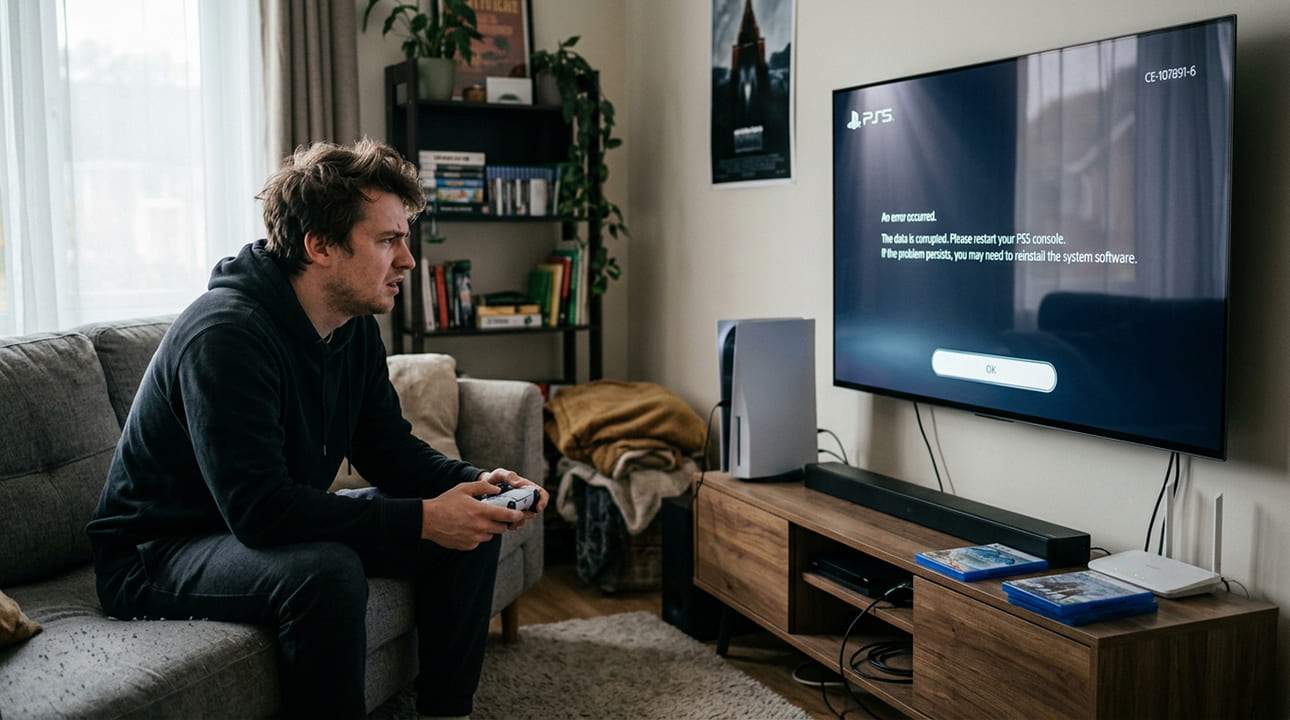
A restart can clear temporary glitches that can interrupt an installation.
Step 1. Press the PS button on your controller to open the Control Center.
Step 2. Select “Power,” then choose “Restart.”
Step 3. Once the console reboots, try installing or launching the game again.
For a deeper reset, fully power the console down, unplug it for around 30 seconds, then plug it back in and power it on.
Option 2 – Update the PS5 System Software to Fix PS5 Error Code CE-107891-6
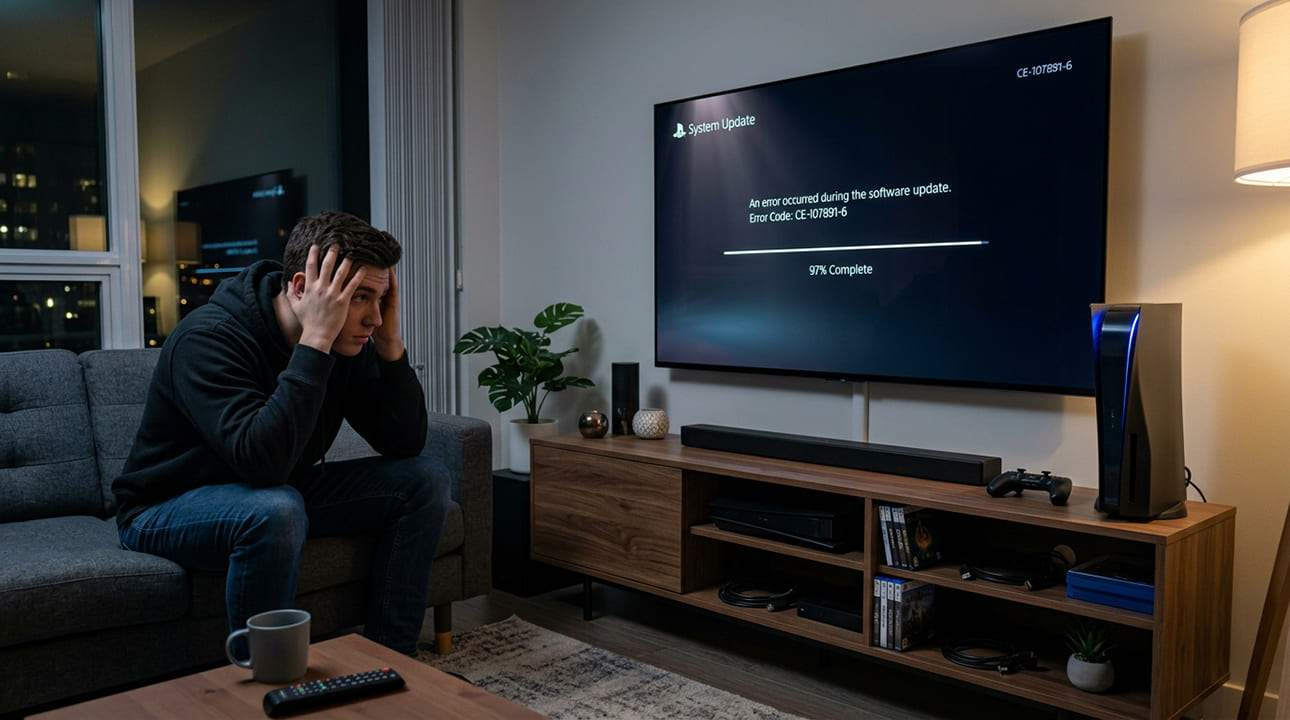
Outdated firmware can cause installation problems that a newer version has already patched, so make sure your console is fully up to date.
Step 1. Go to “Settings,” then to “System” and “System Software.” Find the “Update” section.
Step 2. Select “Update System Software,” then “Update Using Internet.”
Step 3. Let any available update finish installing, then restart and try again.
Option 3 – Rebuild the PS5 Database
Rebuilding the database scans the PS5’s storage and rebuilds the system’s index. This can resolve issues caused by a corrupted or incorrect database.
Step 1. Press and hold the power button until you hear a second beep (after about seven seconds), then release. The console boots into Safe Mode.
Step 2. Connect your controller with a USB cable and press the PS button to pair it.
Step 3. Select “Rebuild Database” from the menu and wait for the process to complete. This usually takes a few minutes.
Step 4. Let the console restart normally.
Option 4 – Free Up Storage Space
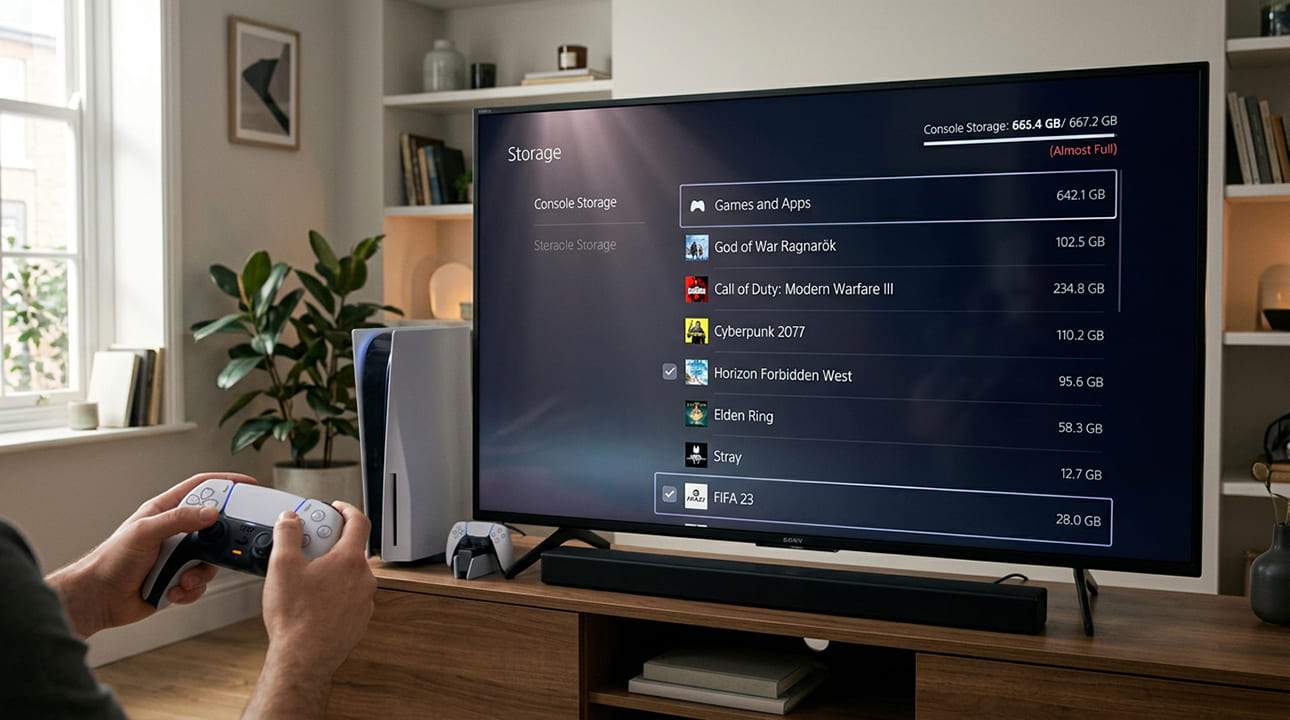
A lack of space on the SSD can stop content from installing cleanly and cause the corruption issue that leads to the PS5 Error Code CE-107891-6.
Step 1. Go to “Settings,” then to “Storage.” Open “Console Storage.”
Step 2. Select “Games and Apps.”
Step 3. Highlight any games or apps you no longer need, select “Delete,” and confirm.
Step 4. With space freed up, try to reinstall the game.
Option 5 – Delete and Reinstall the Affected Game
This is Sony’s officially recommended fix and the one that resolves CE-107891-6 in the vast majority of cases. Deleting the game removes the corrupted local data so a fresh, complete copy can be installed in its place.
When doing so, back up the save files to the cloud or a USB drive first if you need them.
Workaround – Avoid PS5 Error Code CE-107891-6
CE-107891-6 seems to appear most often while transferring a game from an external USB hard drive to the PS5’s internal SSD.
In most cases, deleting and reinstalling the affected game fixes the issue, but there are several other fixes worth trying first.
Option 6 – Contact PlayStation Support
If the error keeps returning, the problem may point to a failing internal SSD rather than a software fault.
You can visit the official PlayStation Support site and search for CE-107891-6, or use the chat option to reach a support agent.
Can 'Windows K2' Win Back the Users Microsoft Lost?
Read Next