




Windows System Image Manager Can’t Generate Catalog – What to Do

If you’re trying to set up an unattended Windows deployment, you need to generate a catalog in Windows System Image Manager (SIM) as a prerequisite to generating an answer file. You won’t be able to automate disk partitioning, product key entry, network configuration, and other important parts of the process without one.
So, the “Windows System Image Manager unable to generate catalog” error can be a serious wrench in the works. In this guide, we’ll explain how to fix it.
Causes of the “Windows System Image Manager Unable to Generate Catalog” Error
The main causes of the error are:
- An incompatible Windows Assessment and Deployment Kit (ADK) version or Windows SIM architecture
- Insufficient permissions to access the Windows image
- Problems with the Windows image or another process accessing it
Here’s how to fix each of them.
How to Fix
First, assess which of these causes is the likely culprit.
Step 1. Copy the entire exception text. Note whether it came from Windows SIM or MDT, and whether the log says “Performing operation ‘generate’ on Target ‘Catalog’” or that another process is using the WIM.
Step 2. Note the Windows architecture of the PC, the architecture and edition of the image, and the installed ADK version.
Step 3. Note the WIM’s full path. Is it on a local drive, DVD, network, or removable drive?
These details decide which resolution path to follow.
Architecture Mismatch
If the architecture of Windows SIM and the image don’t match, that’s likely the problem right there. Microsoft recommends using an ADK version that matches the Windows version whenever possible. You may need to download a compatible ADK if your installed version doesn’t support that Windows version.
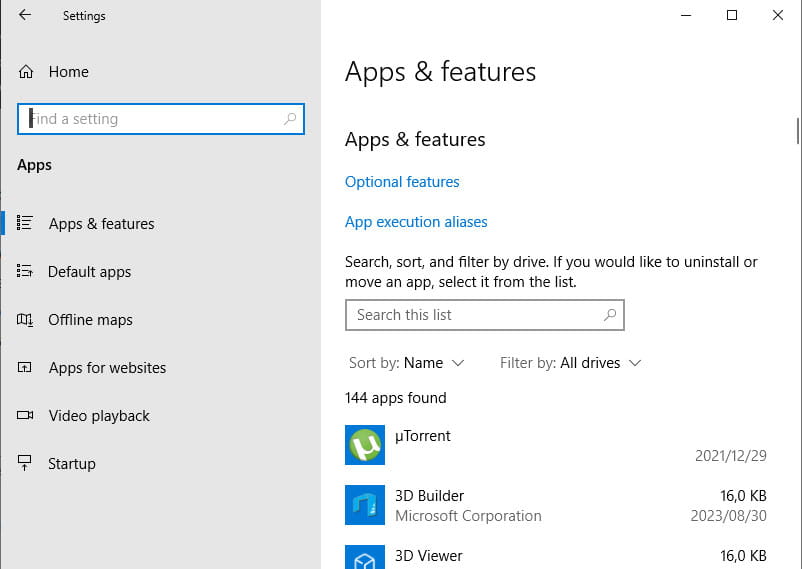
Step 1. Check the installed ADK version under Settings > Apps > Apps & features.
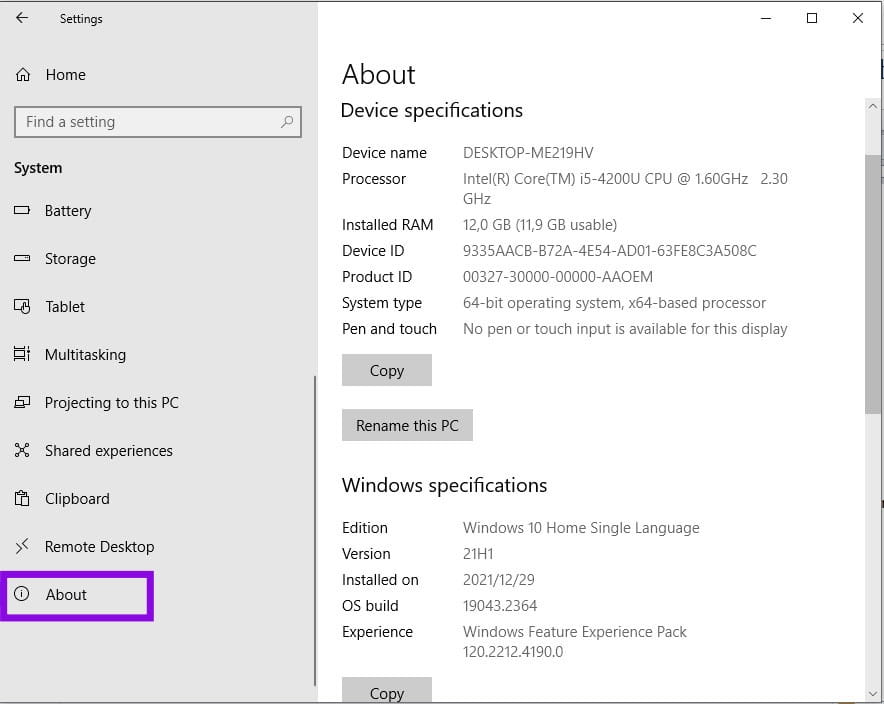
Step 2. Check your Windows version under Settings > System > About.
Step 3. If the ADK is older than your version of Windows, download and install the appropriate ADK for your Windows version from Microsoft’s ADK download page.
Update / Repair Windows ADK
If the correct ADK is installed but you still can’t create a catalog with Windows SIM, check the ADK installation itself. It may be damaged or missing necessary components.
Step 1. Open Settings > Apps > Installed apps and locate Windows Assessment and Deployment Kit.
Step 2. Click on the three dots and select “Modify.”
Step 3. Select Repair > Next.
Step 4. When the process completes, reboot the PC and try again.
Check WSIM’s Permissions
If the image file is read-only or you do not have sufficient permissions, catalog generation can fail. Microsoft specifically recommends ensuring that Install.wim has read/write permissions to avoid catalog generation issues.
Step 1. Locate the WIM file — in a Windows ISO or extracted media, it sits in the \sources folder as install.wim.
Step 2. If the WIM is not on your local drive, copy it to a simple folder with read/write access, such as C:\Images.
Step 3. Right-click the WIM file and select “Properties.”
Step 4. In the Security tab, make sure your Windows account has the required permissions to access the file and enable read/write if necessary.
Step 5. Retry generating a catalog from the new, correctly permissioned location.
Step 6. If the error reports that another process has the file open, check which process or user is accessing it.
If the error persists, you’ll likely need professional assistance. Keep on hand the full exception text, Windows and ADK versions, selected image index, and WIM path to expedite the process.