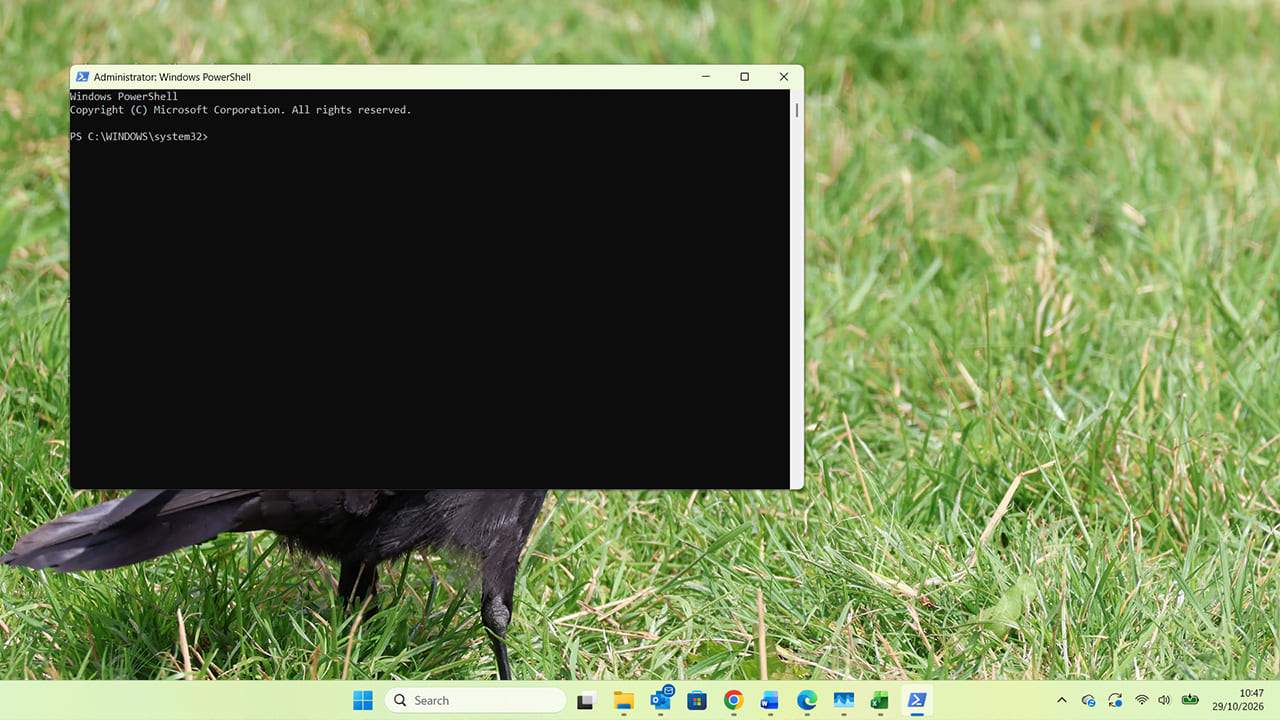
How to Always Run Apps as An Admin in Windows 11

Opening a file with administrative rights means you can do more with it and make more changes, in most cases. Admin rights may help you make system changes or adjust key settings in certain pieces of software.
However, by default, you always have to manually select the option “Run as administrator.”
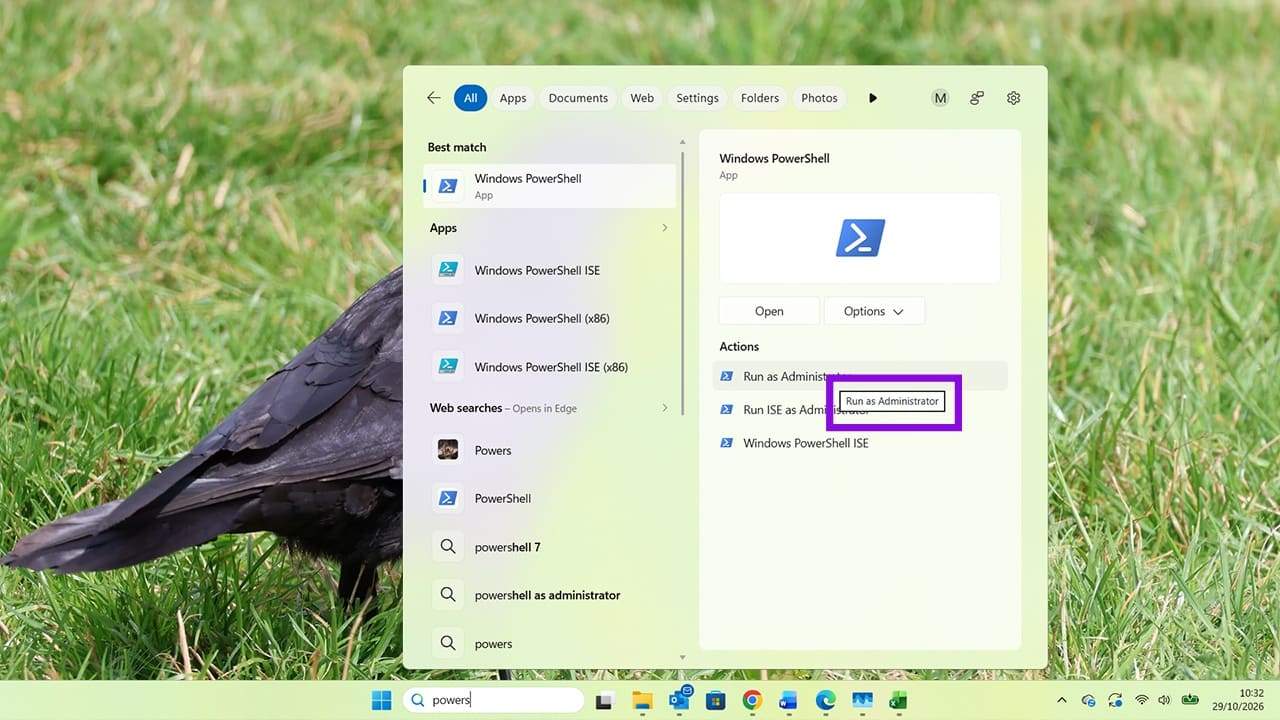
Because this requires an extra step, it’s easy to miss, potentially forcing you to close and reopen an app with the correct permissions.
So if you want to always run app as admin, Windows 11 lets you do it. This guide takes you through the steps without any extra clicks.
Always Run App as Administrator Windows 11: Why Do This?
The option to run apps as administrator gives them elevated permissions, allowing them to perform certain tasks that require administrative access. You may be able to change settings and other core aspects of the app, depending on what the app allows administrators to change.
Without admin rights, you may experience:
- App permissions errors
- Policy errors
- Glitches and bugs that don’t occur when running an app as administrator
Not all apps experience these, but some Windows users find that switching from “Run” to “Run as Administrator” fixes some of the above problems.
Always Run App as Admin Windows 11 Guide
Step 1. If you want an app to always run with administrative rights, you must configure its shortcut or applicable settings. Follow this process for each app you want to adjust. Start by searching for the app you want to change. For this guide, we’ll search for “PowerShell” using Windows Search. Right-click the search result and select “Open file location.”
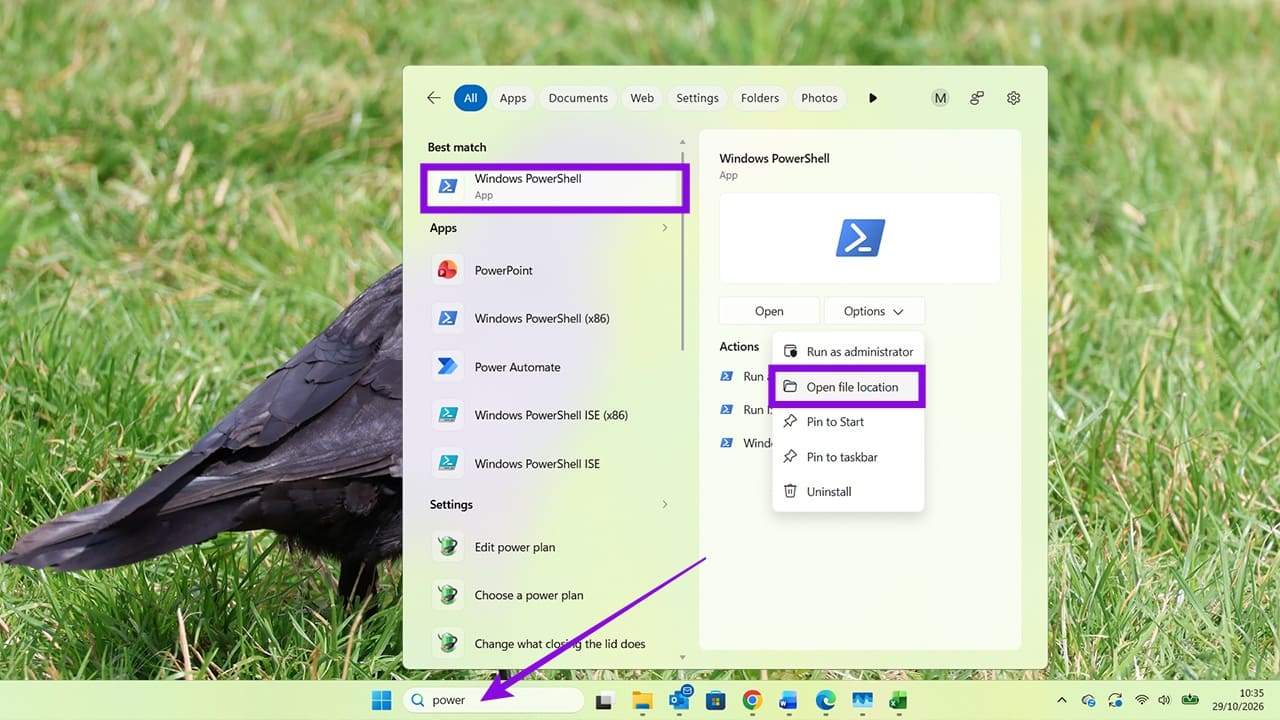
Step 2. Click “Open file location,” and you’ll be taken to Windows Explorer. It will show the exact location in Programs where the app exists on your computer.
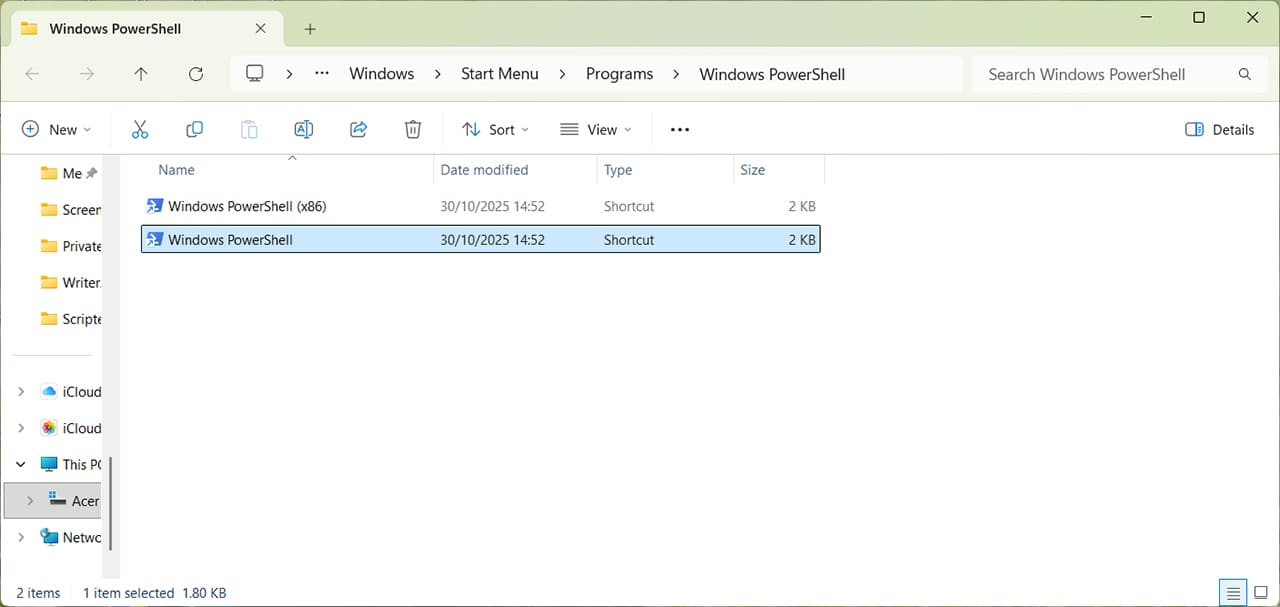
Step 3. Right-click on the app’s shortcut, and select “Properties.”
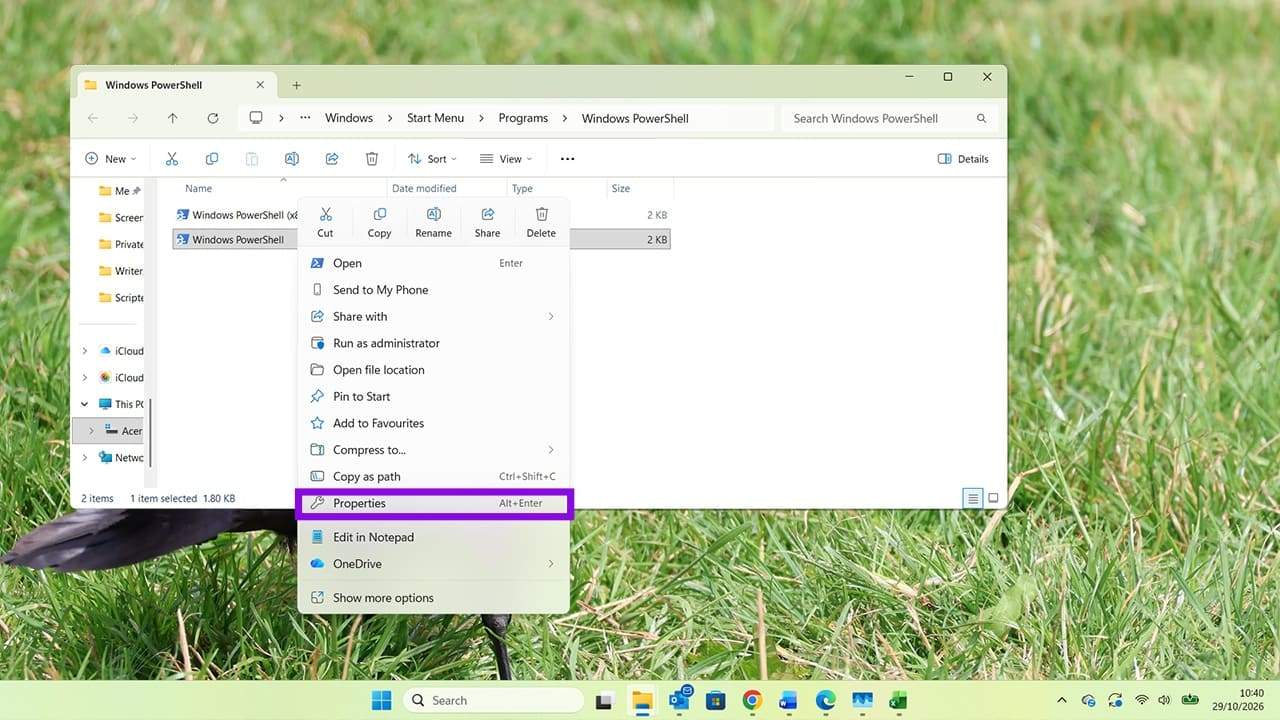
Step 4. Click “Advanced.”
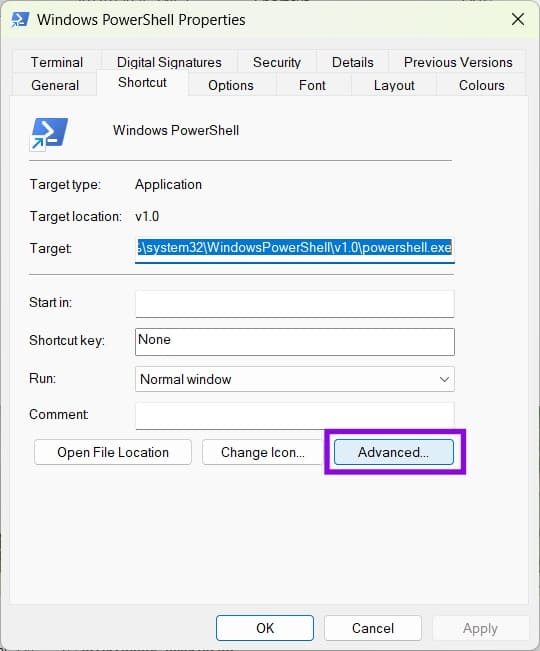
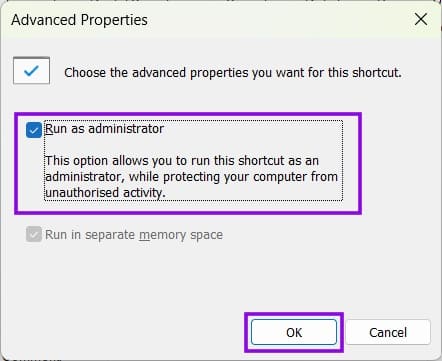
Step 5. You’ll now see a new pop-up window that allows you to choose the option to “Run as administrator.” Select this option and press “OK.”
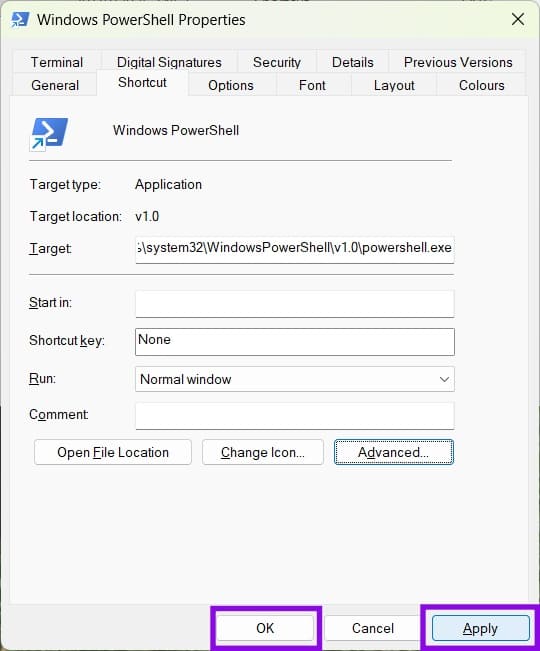
Step 6. You’ll be taken back to the Properties screen. Select “Apply” followed by “OK” to ensure the change you made is saved.
Depending on your User Account Control settings, Windows may still ask you to confirm that you want the app to make changes to your device. This setting does not necessarily bypass that security prompt.
You can repeat this process for any apps that you want to always run as admin. There is also a keyboard shortcut that you can use, but of course, you do have to remember to use this every time. It’s not a permanent change like the process shown in the guide above.
To launch an app pinned to the taskbar as an administrator, hold Ctrl + Shift while clicking its taskbar icon. Windows will open the app with elevated permissions, subject to any required security prompts. In most cases, you can check that either of these options has worked by looking at the bar at the top of the app’s window. Before the app name, it should say “Administrator.”