



How to Password Protect Apps on Windows 11
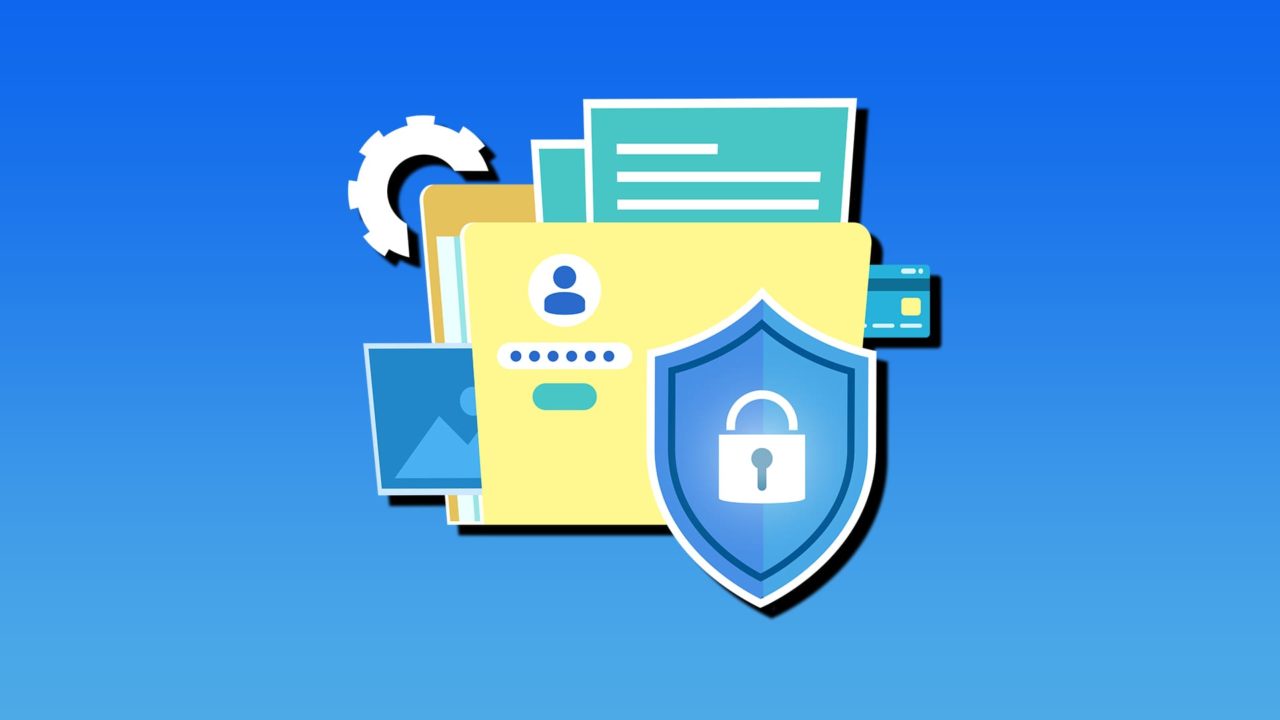
Have you ever wanted to lock individual programs on PC or laptop? Sometimes, you might have apps that are just too sensitive for everyone to have access to, or you may want to keep business-critical processes or information to yourself.
If you want to password protect apps, Windows 11 doesn’t have a built-in option unless you have Pro or Enterprise. However, administrators can use application-control tools such as AppLocker to restrict which programs users can run. For all other versions of Windows, you can download third-party apps that can lock individual programs with a password of your choice.
Password Protect Apps Windows 11: Download and Use a Third-Party App Locker
Step 1. Before you decide which app-locking or password-protection app you’re going to use, do a little research. Check user reviews and make sure the software is compatible with your version of Windows. For this guide, we’re going to show you how to download Cisdem AppCrypt from a developer that’s rated 4.9 out of 5 on Trustpilot. Visit the developer’s official website to download the software.
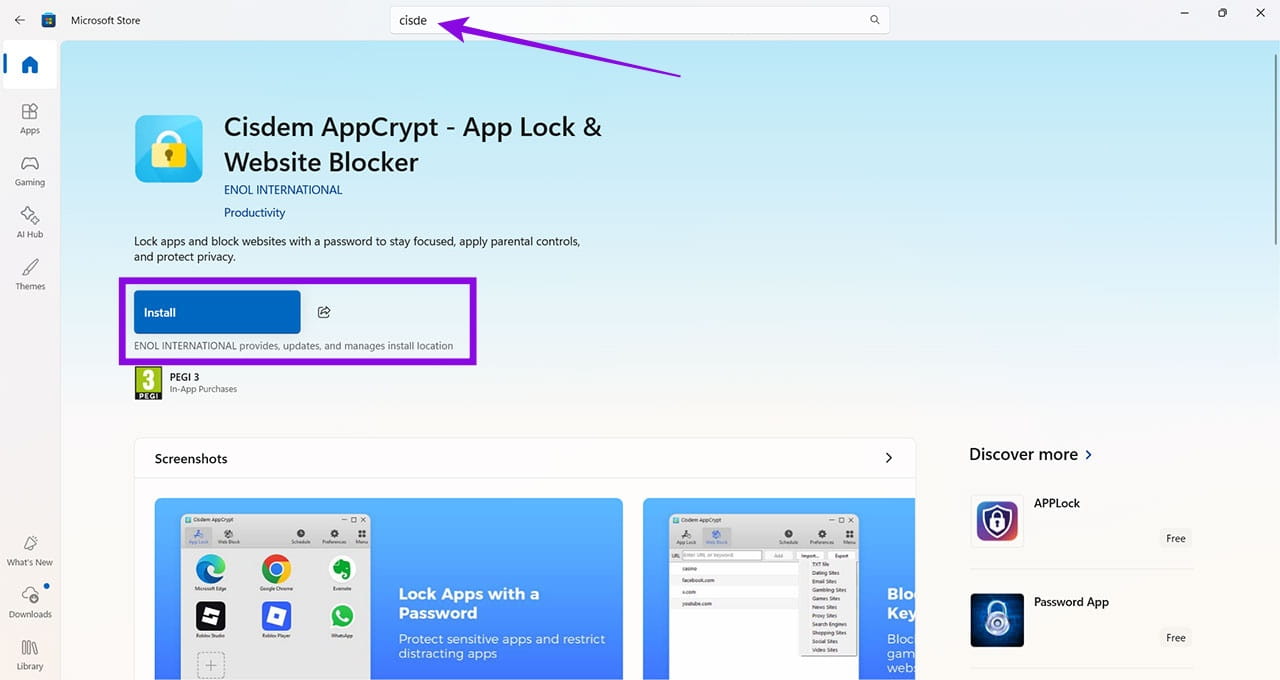
Windows will update you on the progress of the download and installation, which can take a few minutes.
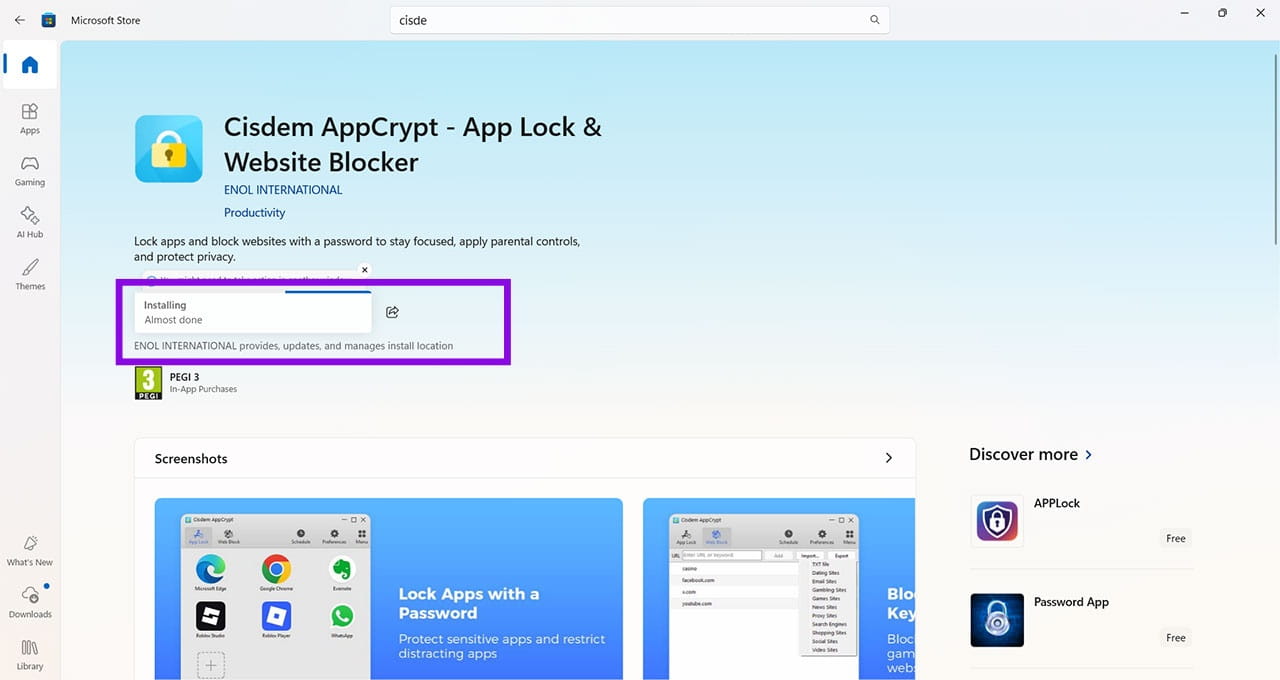
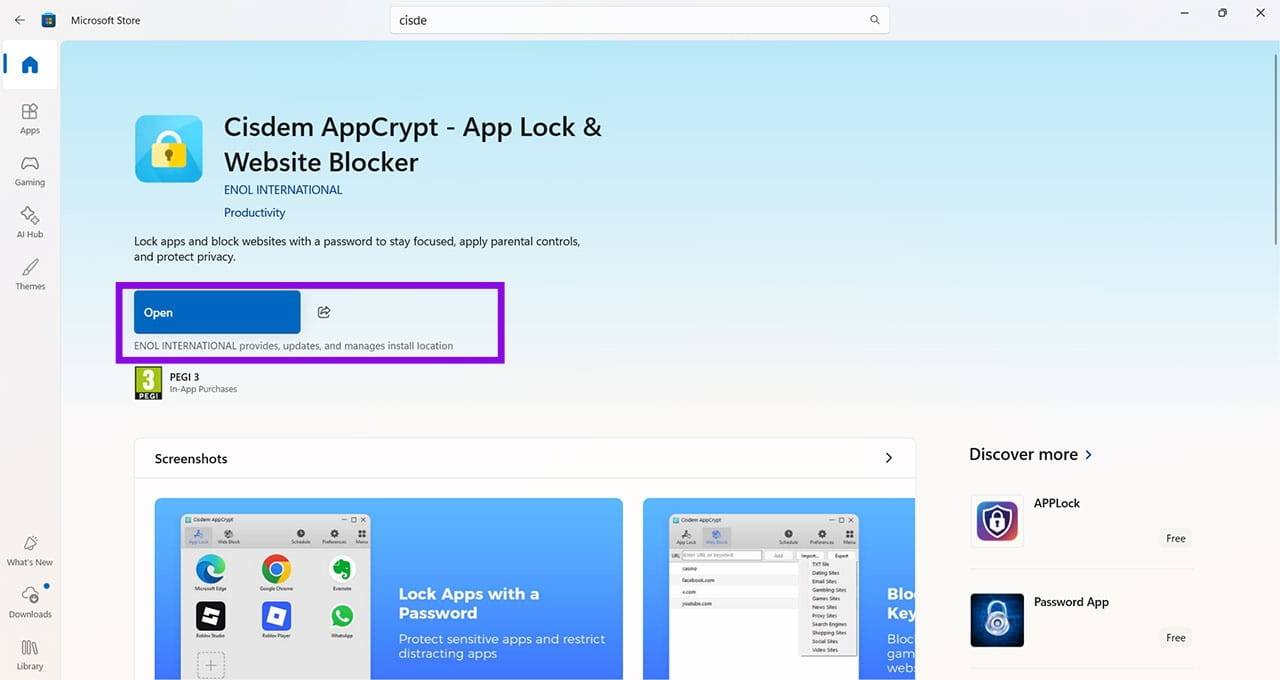
Step 2. Once the app has installed, click the “Open” button.
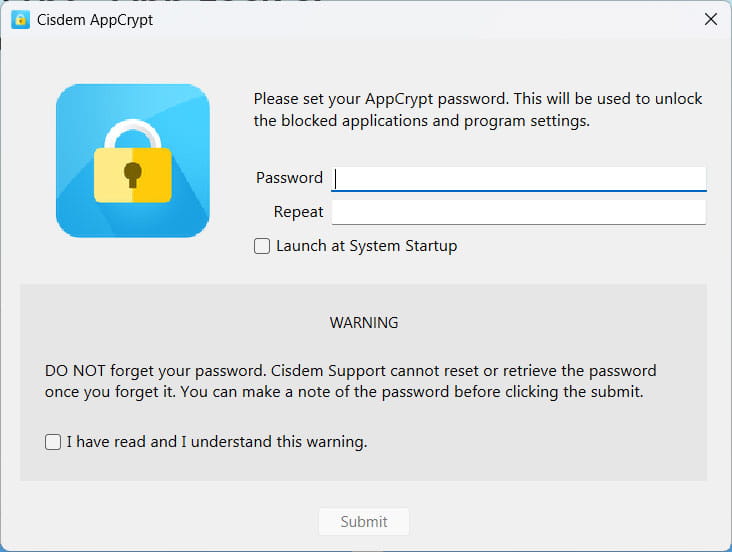
Step 3. Set a password that you will use to lock apps. Important note: On many app locker-type apps, you cannot retrieve this password later. Make sure you remember the password you choose. If you forget it, recovery will depend on the app-locking software you’re using. Cisdem AppCrypt allows users to receive a one-time password-reset code from its support team.
Step 4. Follow the on-screen prompts to select an app to protect. Some apps, like this one, have a drag-and-drop interface or a button to press that allows you to choose which app to which you want to add a password.
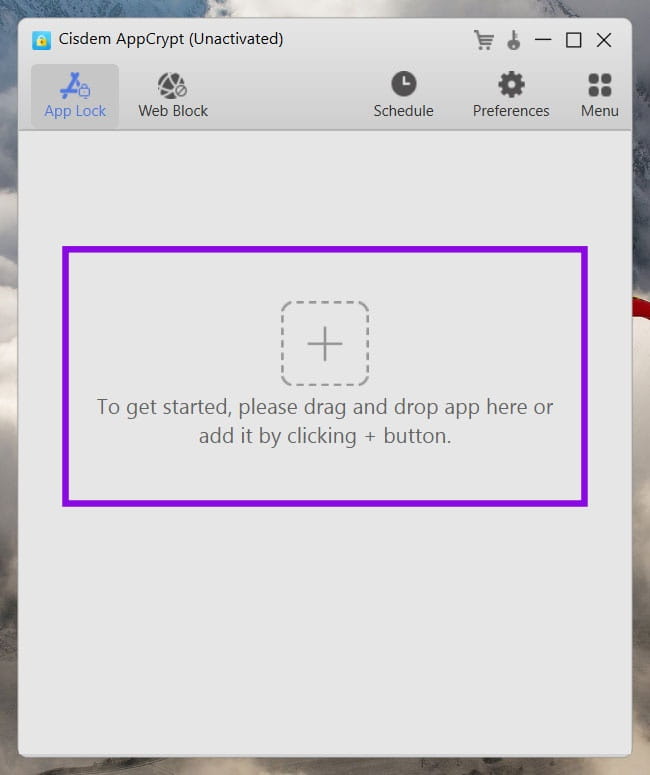
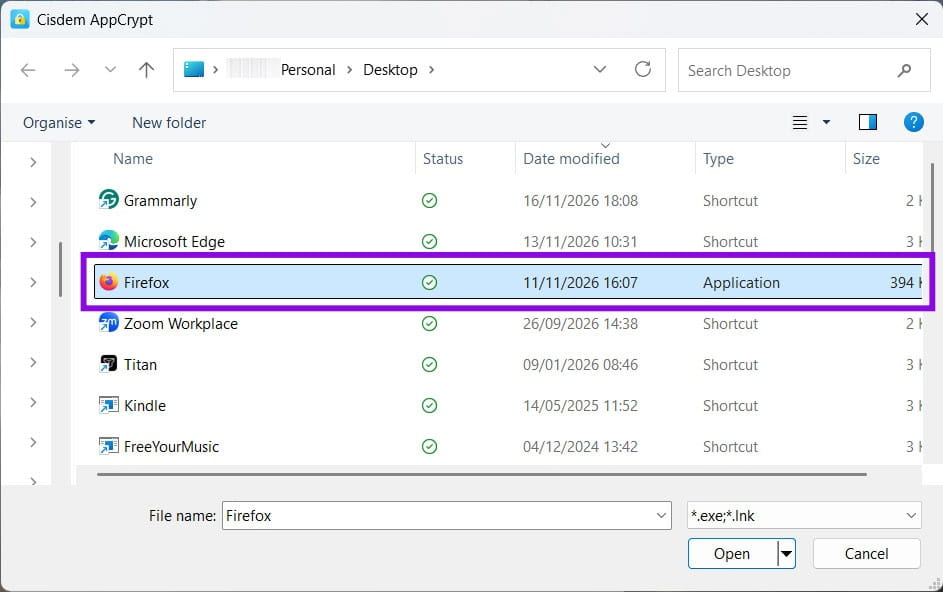
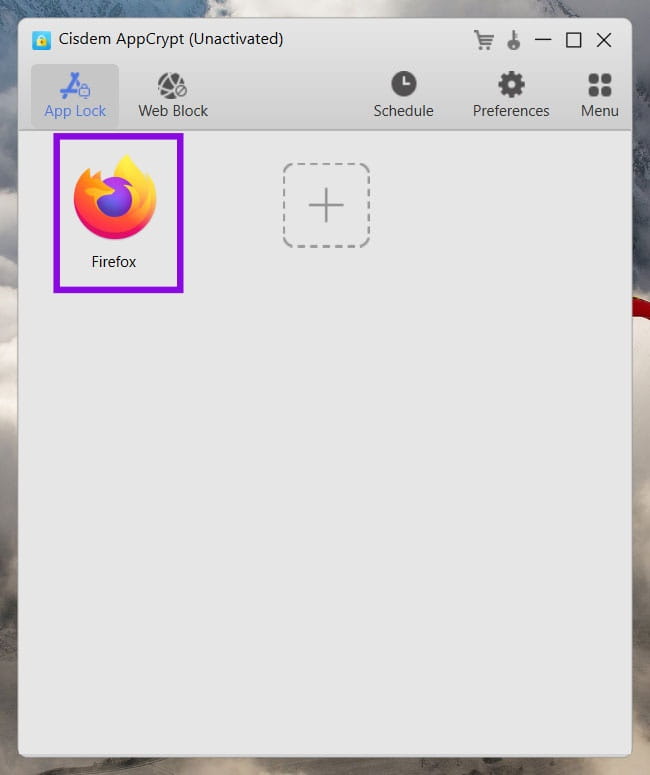
Once you’ve added an app, you should find that you cannot open it without entering the password you chose when you first opened the app.
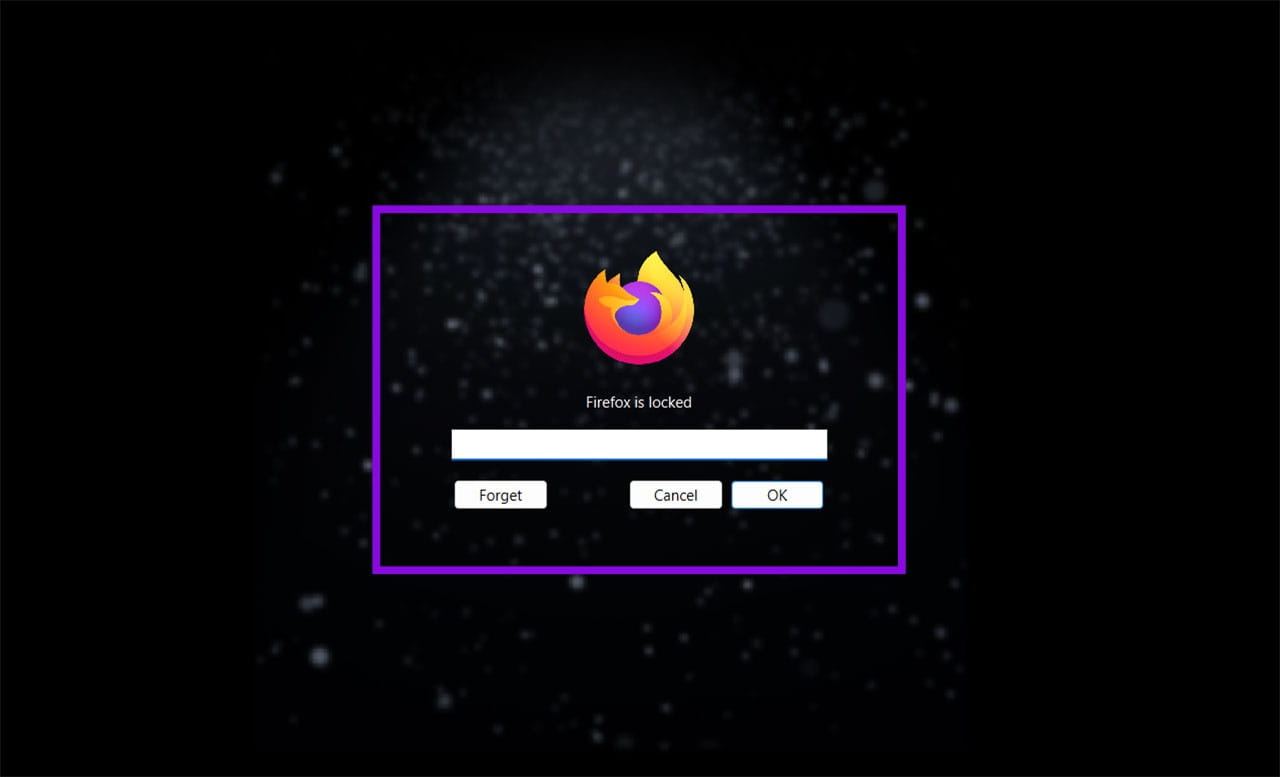
If someone tries to access the app and they don’t know the password, they will get a message telling them that they’ve entered the wrong details. There is no way to access the app unless they obtain the correct password details.
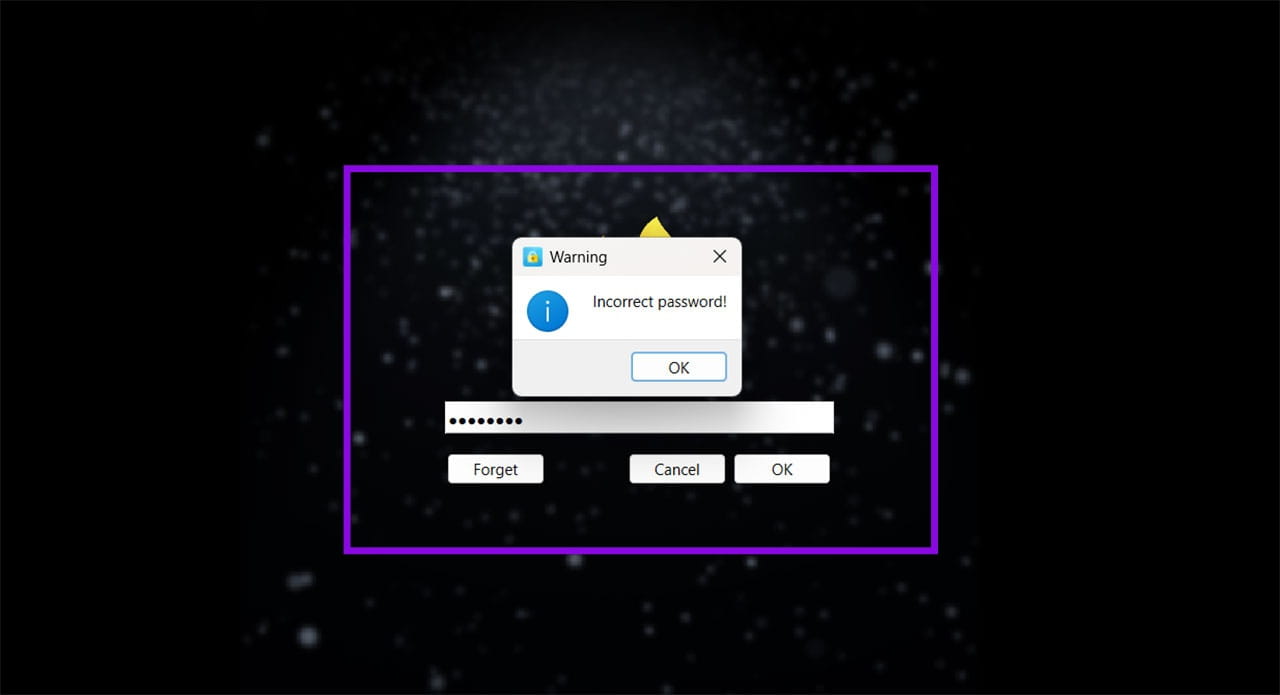
Enter the correct password to gain access to the app.
Some apps may also allow you to create a schedule, so certain apps are only password-protected at certain times of the day. Parents may want to do this with child-friendly apps that they don’t want the kids accessing after bedtime. Or you may want to lock certain work-related apps during busy periods to reduce the risk of people accessing sensitive information. This is especially important on shared computers. .
Note: Many app lockers are free of charge for the first few days, then chargeable thereafter. Make sure you understand the costs before you make any commitment.
How To Rescue A Messy Product Photo Before You Reshoot It
Read Next