How to Fix Microsoft Store Error 0x80073CF6
The Microsoft Store is a great repository of games, apps, and handy tools to help make using your Microsoft devices easier. However, sometimes, errors can occur. A common one is where you download a new app from the store, but the installation won’t complete. Or, in some cases, it seems like the app is installed, but you can’t run it.
In these instances, you’ll normally get an apologetic message with a code of 0x80073CF6.
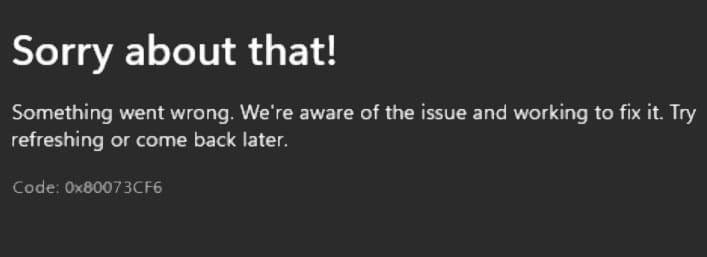
If you try again later and still get the same message, follow these steps, which explain how to fix Microsoft Store Error 0x80073CF6 and ensure all your apps are installed correctly.
Update Windows
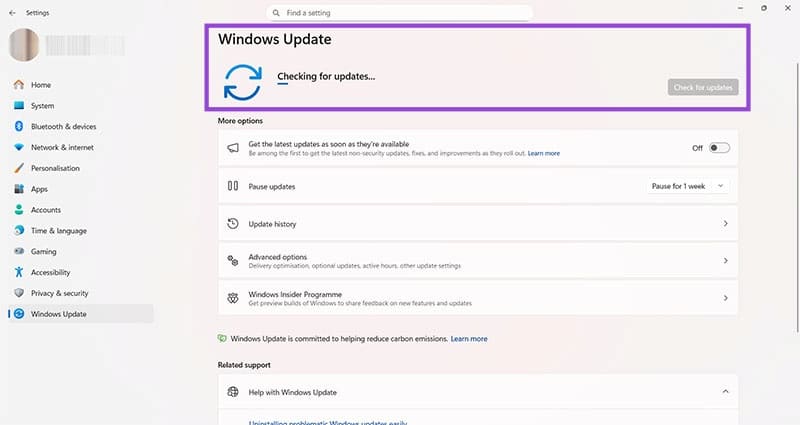
Step 1. Sometimes Microsoft Store won’t work properly because your version of Windows is not up to date. Check for updates by heading to “Settings,” using the Windows key + I, or by searching from your home screen.
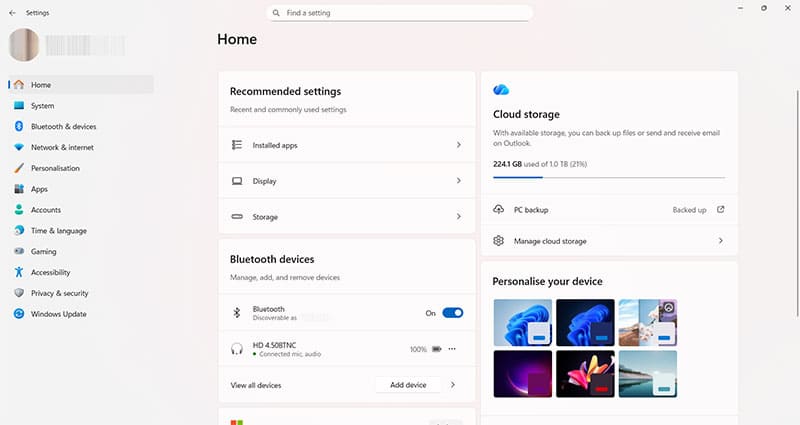
Step 2. Look for “Windows Update” at the bottom of the left-hand menu, and click here.
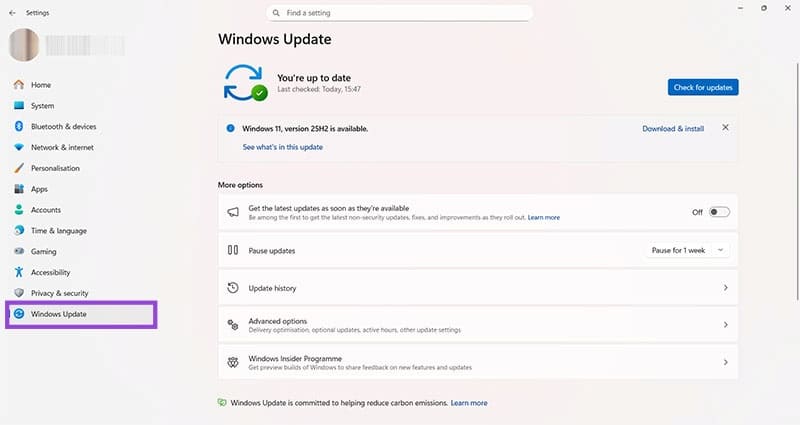
Step 3. Even if the screen says, “You’re up to date,” click the blue “Check for updates” button. Apply any updates as prompted. You can also use the same screen to adjust your settings so that updates are automatically applied in the future.
Check Your Date, Time, and Region Settings
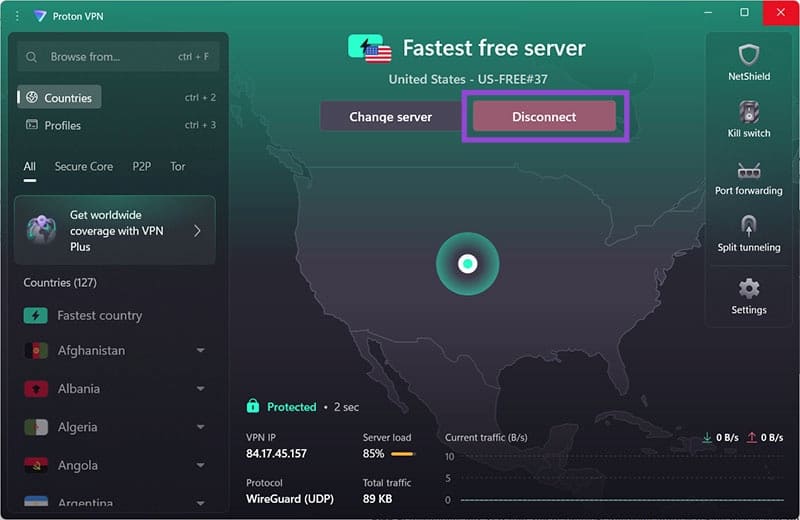
Step 1. Disconnect any VPN that you’re running. Microsoft Store is region-based, and you may have inadvertently downloaded an app that’s available in the VPN region but not your home region.
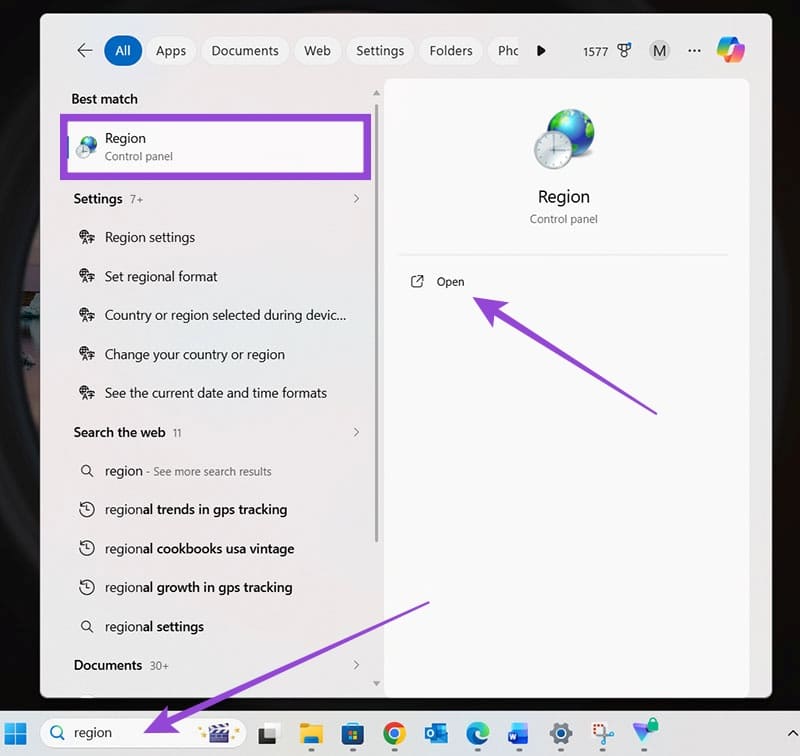
Step 2. Use the search bar to search for “region” and click on “Region control panel” when you see it.
Step 3. Use the drop-down menu to ensure you have the correct region selected.
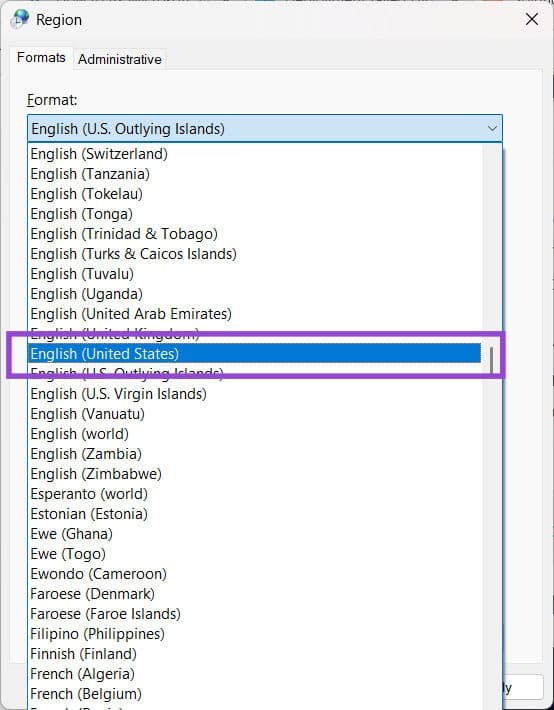
Step 4. If you need to make a change, press “Apply” before closing the panel. You can also double-check that the time and date are correct using this panel.
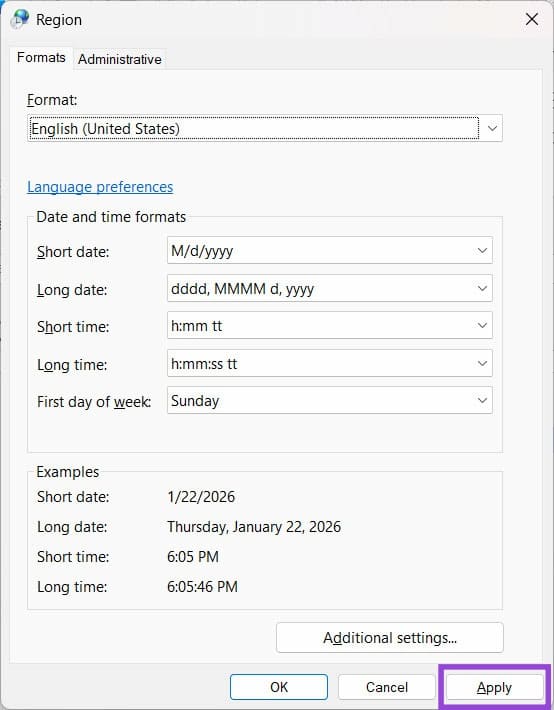
Try downloading and installing the app again to check if this fix has worked.
Reset Microsoft Store
Step 1. Head back to the “Settings” screen and look for “Apps” then “Installed apps.”
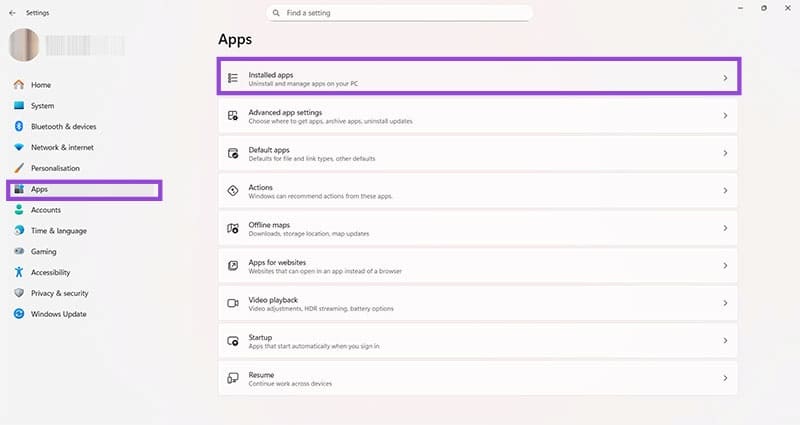
Step 2. You’ll see a list of everything that’s installed on your Windows machine. Scroll right past this list until you see an option called “System components.”
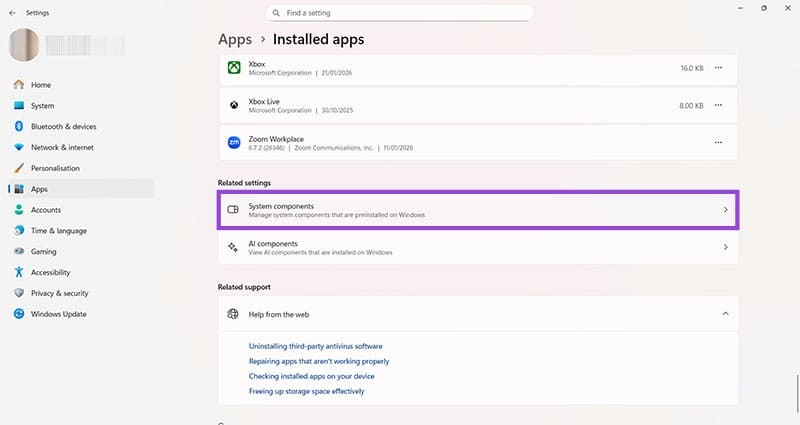
Step 3. Click here and look for “Microsoft Store.” Hit the three-dots menu, then “Advanced options.”
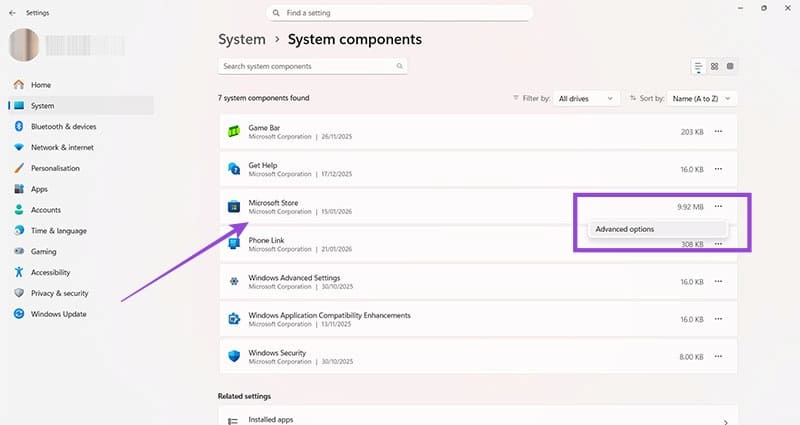
Step 4. Scroll down until you see the “Reset” option. Clicking here will clear out any cache data that could potentially be corrupted and cause the installation failure.
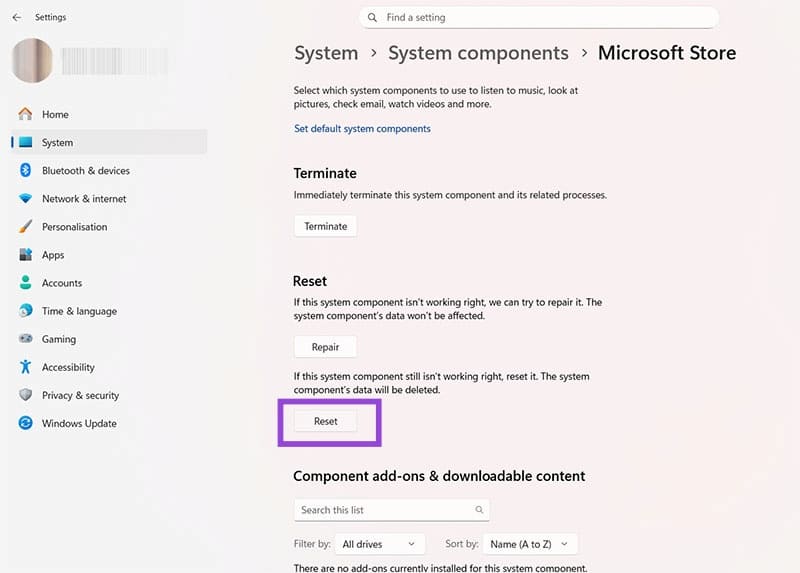
The reset process may take a few minutes, and you should restart your computer once the process is complete. It’s also recommended that you delete any installation files of apps that prompted the error code. Uninstall any apps that were successfully installed but won’t open, and try re-downloading and installing them once the reset and reboot process has completed.
Now you know how to fix Microsoft Store error 0x80073CF6 in several ways. If problems continue, it’s recommended that you contact Microsoft directly.
Critical Steps to Setting Up Windows 11 After a Fresh Install or Upgrade
Read Next