Windows 11 Feeling Slow? Here’s How to Speed It Up Immediately
Figuring out how to speed up a slow Windows 11 setup can be the difference between frustration and productive workdays. Apps taking ages to launch or the boot-up process taking forever can all be indicative of background processes using too much memory. These quick fixes stop Windows 11 feeling slow and frustrating, so you can actually enjoy using your computer.
Disable Certain Startup Apps
You don’t need every app to launch on startup. Here’s how to disable anything you don’t need to use immediately.
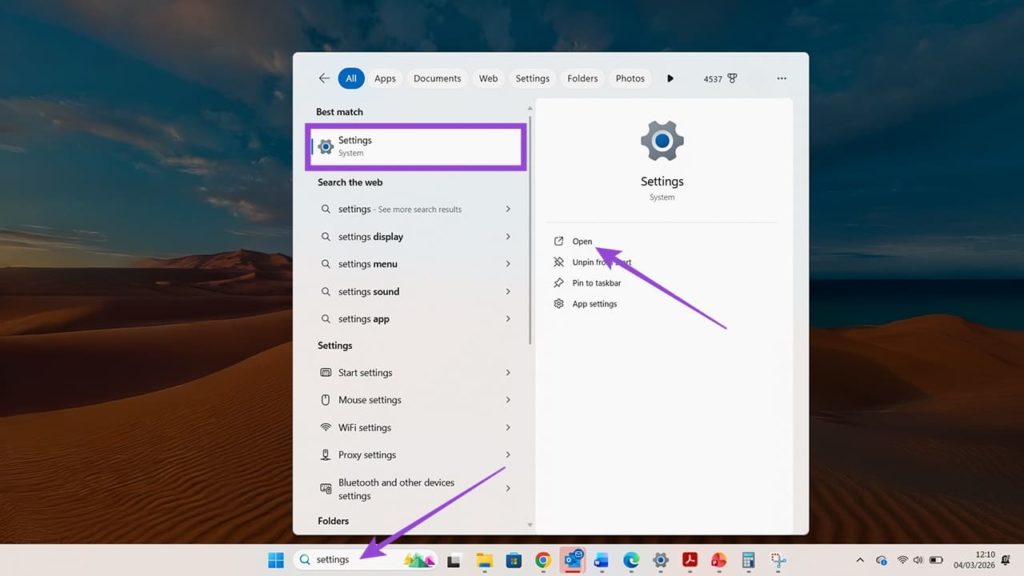
Step 1. Open Settings by searching for it or pressing the Windows key + i.
Step 2. Click on Apps in the left-hand menu.
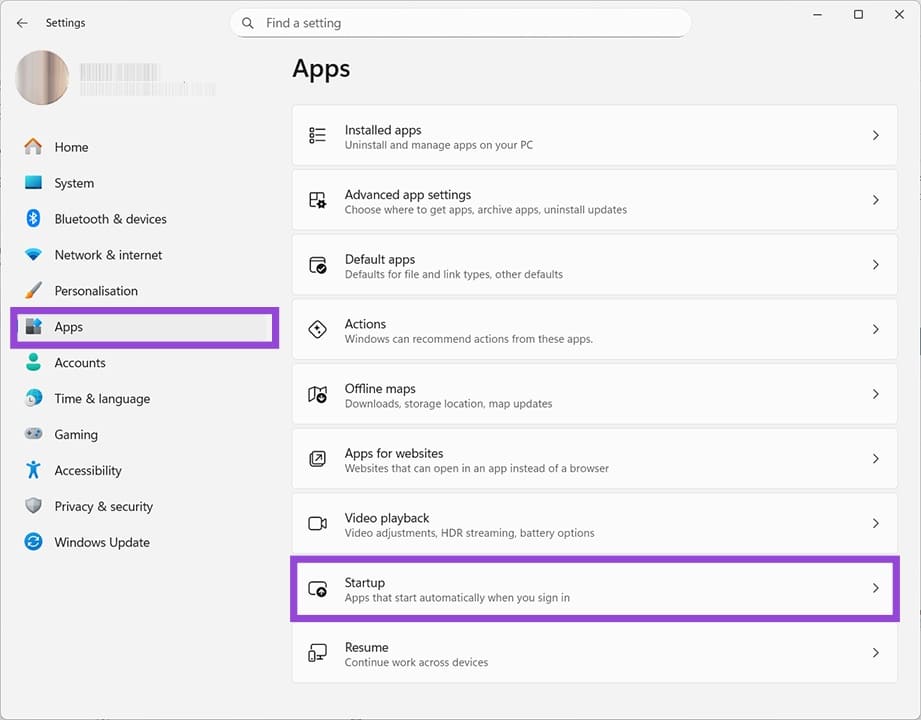
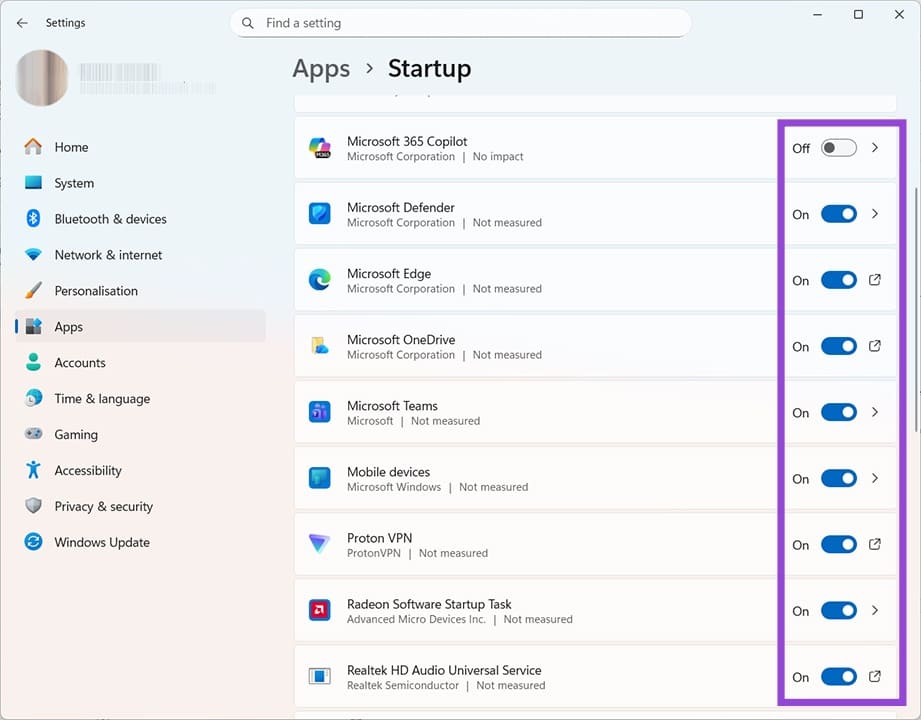
Step 3. Click on Startup. Here you can see all the apps that are trying to launch as you’re booting your computer up. If there are any here that aren’t essential, just click the blue toggle button to stop this from happening.
Uninstall Bloatware
Bloatware refers to apps and software that you don’t need and don’t want. They often arrive on your computer as extras installed off the back of apps you did want, sometimes hidden in the T&Cs. Getting rid of some of these can streamline your computer’s processing speeds and stop Windows 11 feeling slow.
Step 1. Go back to the Settings > Apps, and this time click on Installed apps.
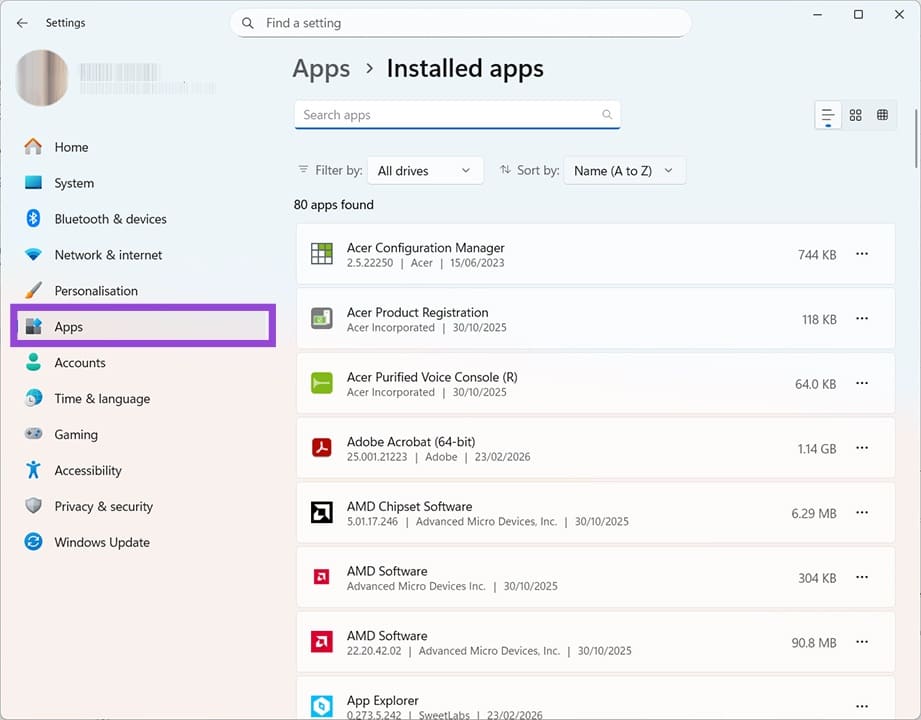
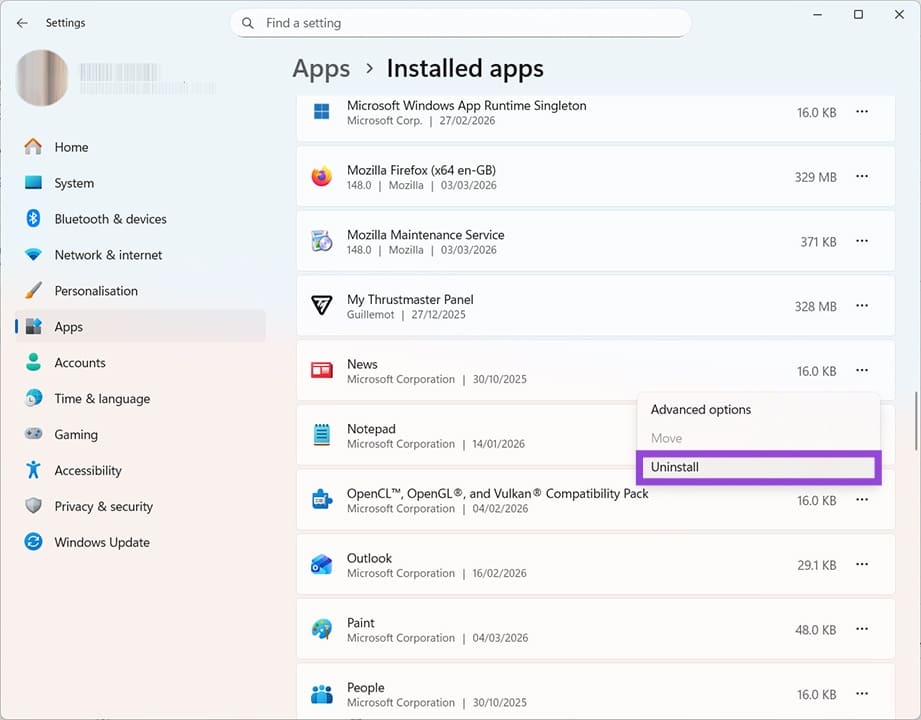
Step 2. Scroll through the list for apps you don’t use. Be cautious: you don’t want to accidentally remove the software that runs your graphics card, for example. If you’re unsure what an app does, search for it online for more information. Once you find an app you don’t need, click the three dots next to it, then Uninstall.
Use Storage Sense
When figuring out how to speed up a slow Windows 11 computer, clearing out old data is a top priority. Storage Sense is a handy setting that gets rid of files from your downloads and recycle bin after a pre-determined time. Just make sure you move files that you want out of your downloads so you don’t accidentally lose them.
Step 1. Go back to your main Settings menu, but this time choose System.
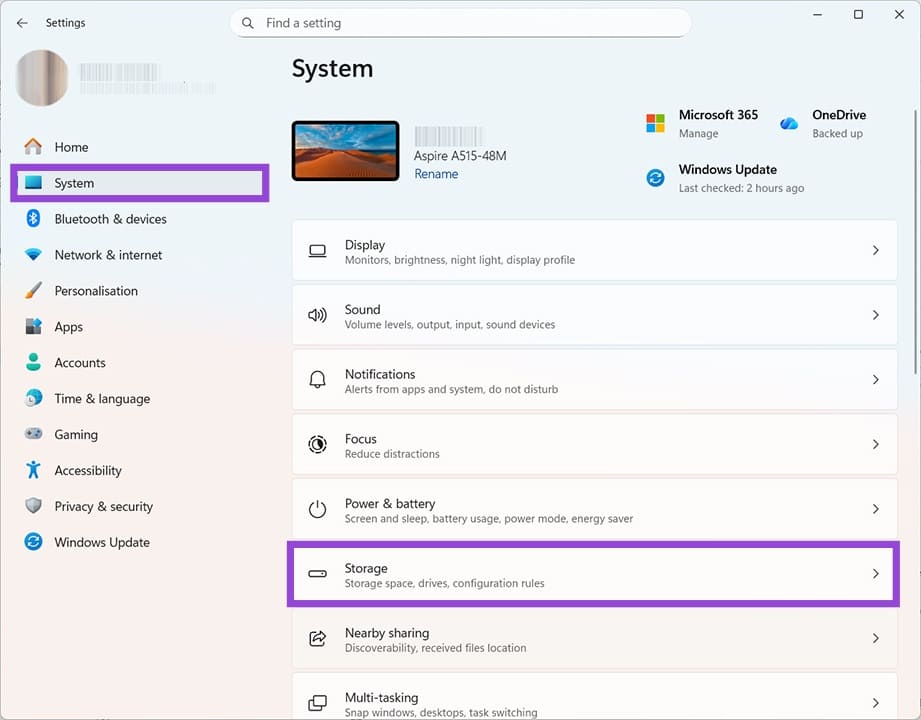
Step 2. From here, click on Storage. This page is useful as it gives you a snapshot look of what’s taking up physical space on your computer. Top tip: If files and photos are taking up too much space, consider moving them to cloud-based storage.
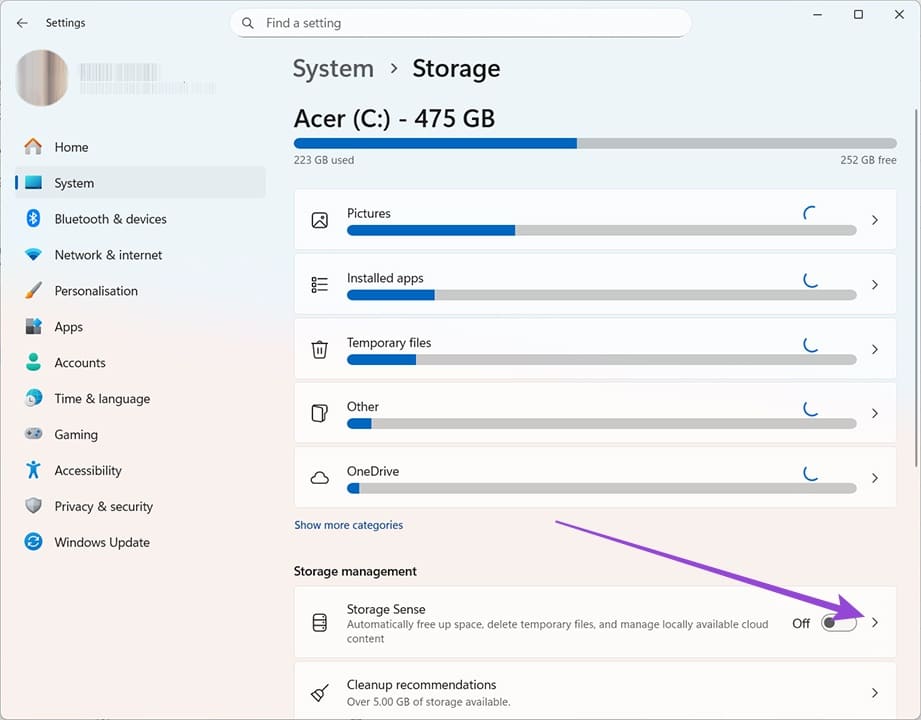
Step 3. Click the arrow next to Storage Sense to see the relevant settings.
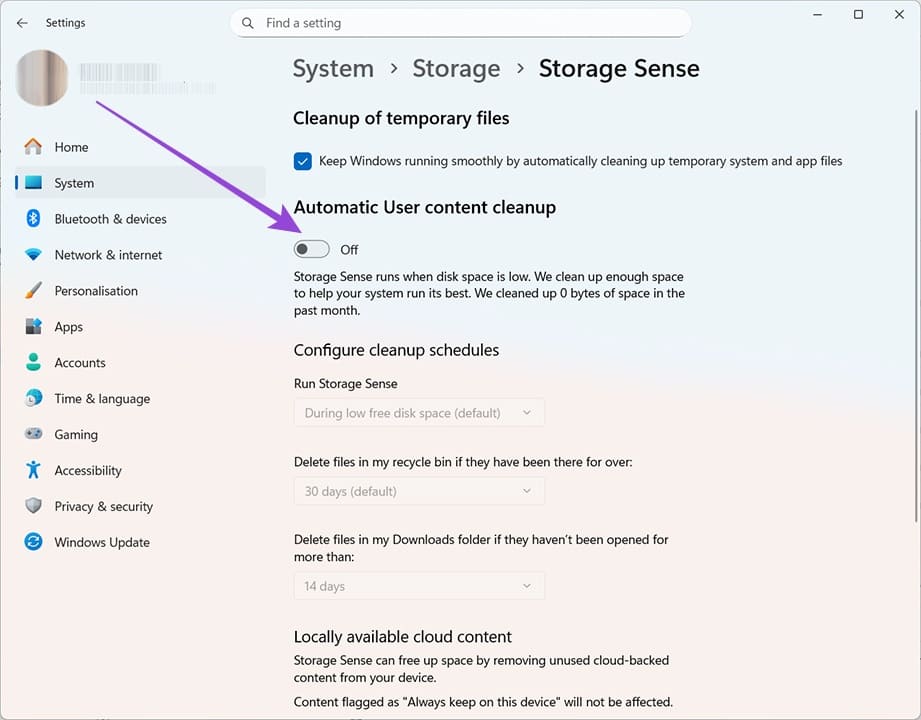
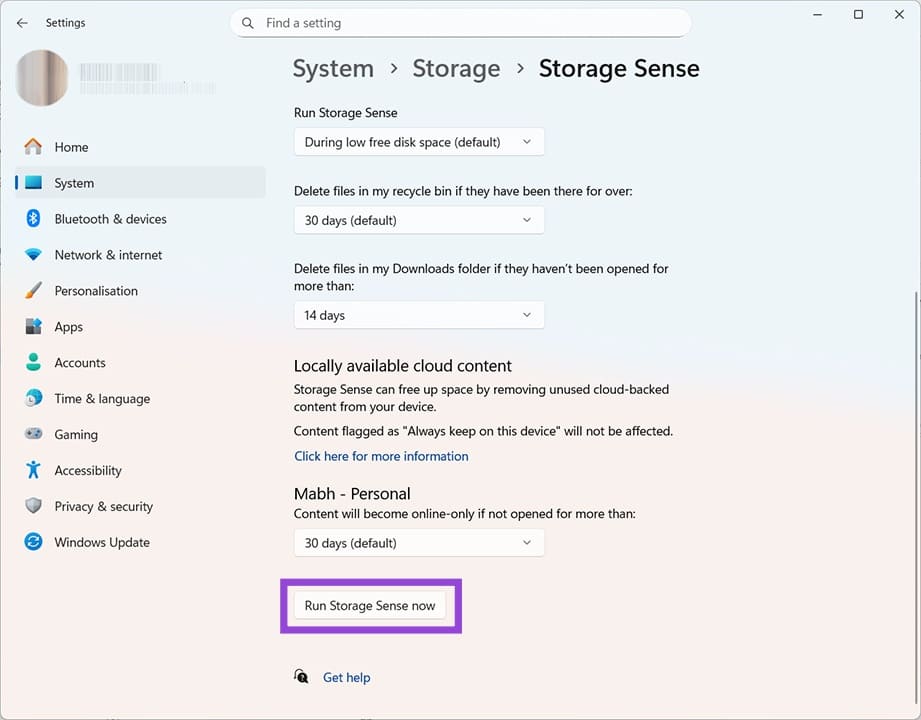
Step 4. Click the button under “Automatic User content cleanup” so it shows “On.” You can now determine your preferred settings. By default, Storage Sense will clean out old downloads and items from the Recycle Bin if disk space is running low. You can change that to daily, weekly, or monthly, as needed.
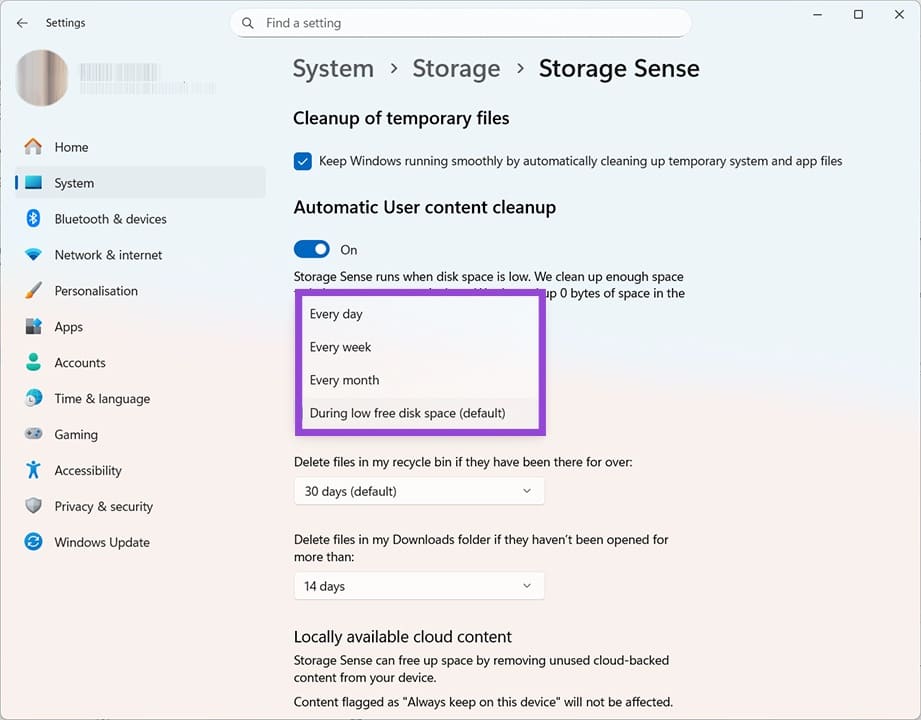
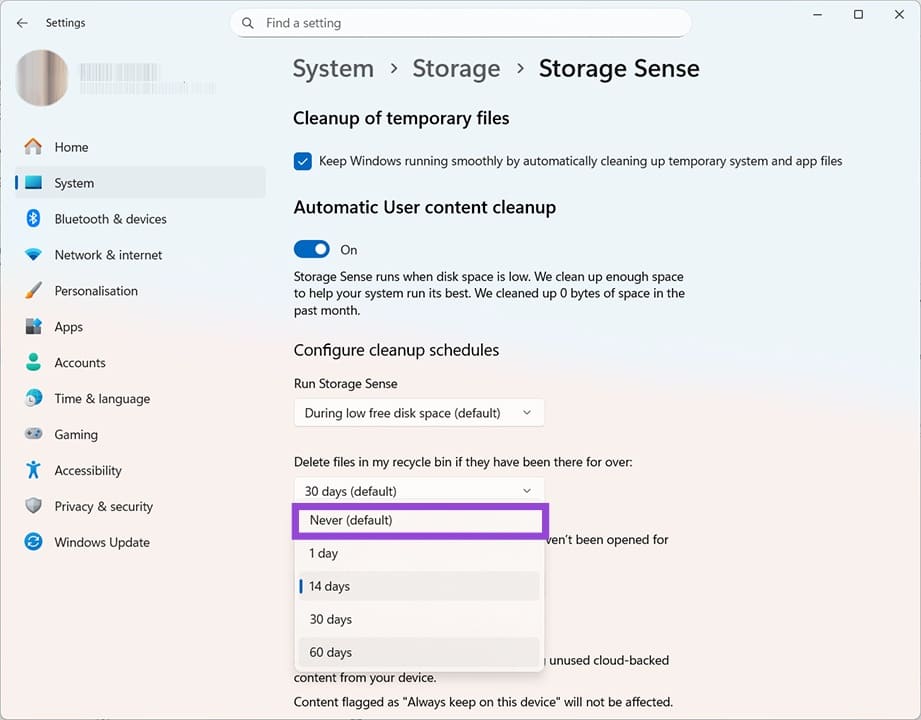
You can also specify that you don’t want downloads to be deleted by adjusting this setting to “Never.”
If you want to see the impact this can have right away, scroll down and click “Run Storage Sense Now.” Just be sure that you have the files you need in secure locations.