








All the Ways to Connect Your PC to Internet Without Wi-Fi or Ethernet
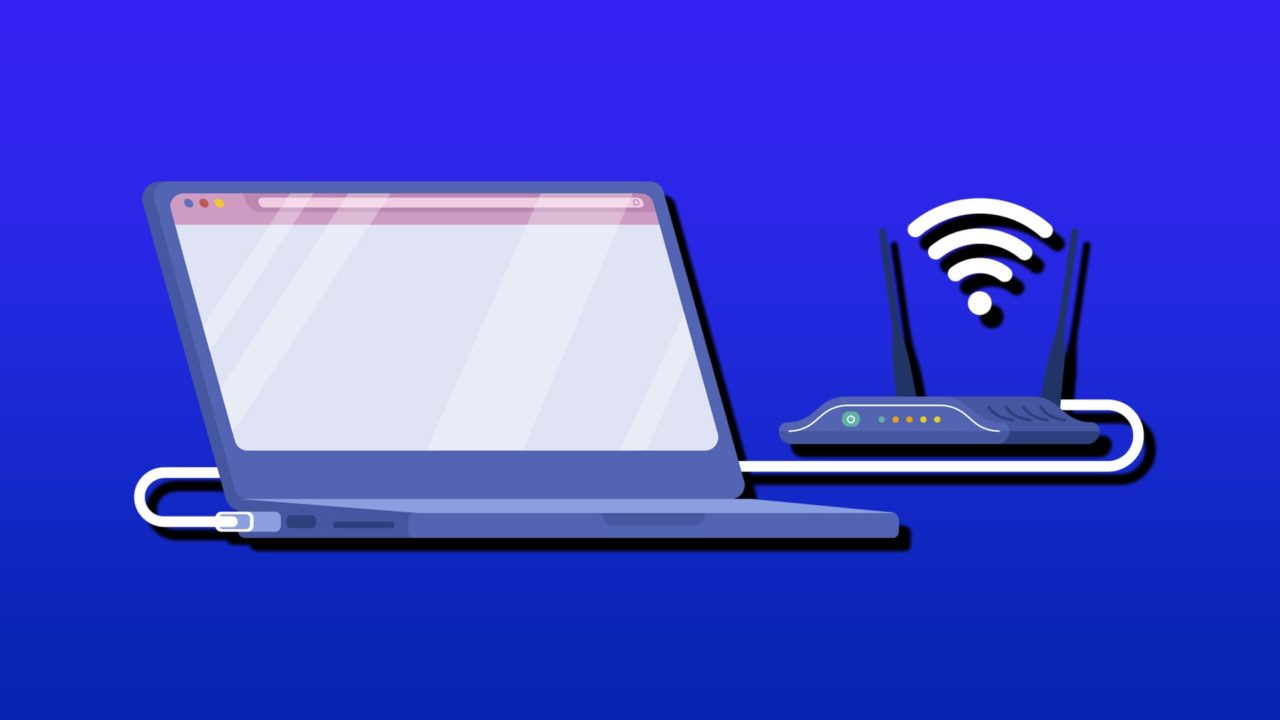
You may be fooled into thinking that if your PC has neither Wi-Fi or ethernet capabilities, you won’t be able to connect to the internet. In reality, there are in fact several other ways to get online, from USB and Bluetooth tethering to MoCA adaptors that turn coaxial cables into high-speed wired internet connections.
This guide will give you all the alternative options you can use to connect PC to the internet without Wi-Fi.
Tethering to a Cell Phone
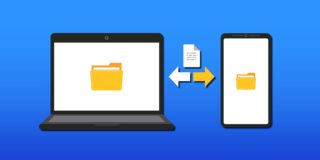
If you have a mobile device with access to the internet, then the easiest option is to tether to that and use its internet connection. You can do this either via Bluetooth or by physically connecting via USB and a suitable cable.
USB Tethering
Step 1. Connect your Android or iPhone to your PC via USB cable.
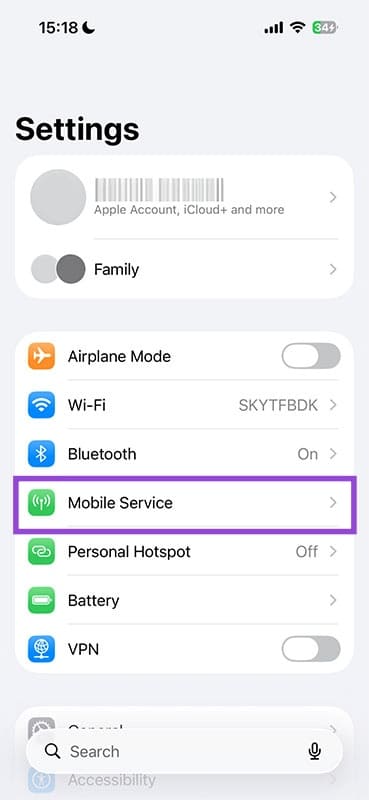
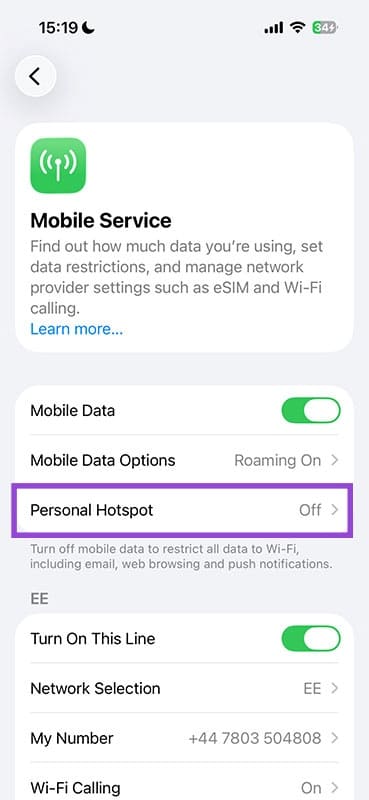
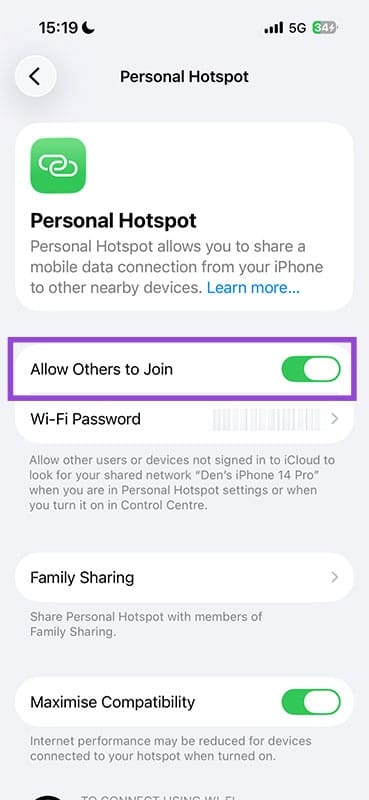
Step 2. Enable tethering on the phone. For Android OS, select “USB tethering” in the notification panel, which will show up once you connect. For iPhone, go to “Settings,” “Mobile Service,” “Personal Hotspot,” and enable “Allow Others to Join.”
Bluetooth Tethering
Tethering via Bluetooth is a similar process to connecting via USB.
Step 1. For Android systems, enable “Bluetooth tethering” in Personal Hotspot settings. For iPhone, follow the same USB tethering instructions above to first allow others to join the phone (but without the cable).
Step 2. Next, open “Settings” on your PC, then “Network & Internet.”
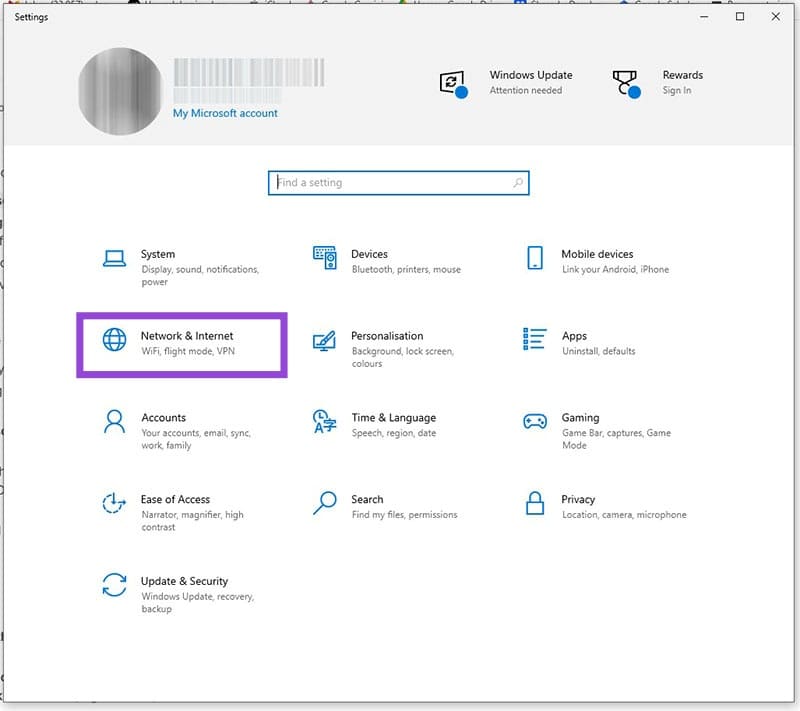
Step 3. Click “Wi-Fi” and then select “Show available networks.” Choose the iPhone’s hotspot network name from the list.
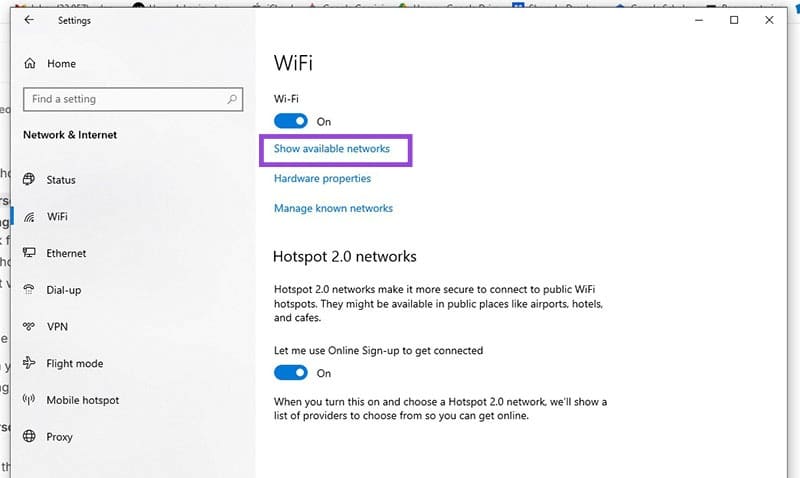
Step 4. Enter the password shown in your iPhone’s personal hotspot settings, located under the “Allow Other to Join” button.
USB Wi-Fi Dongle
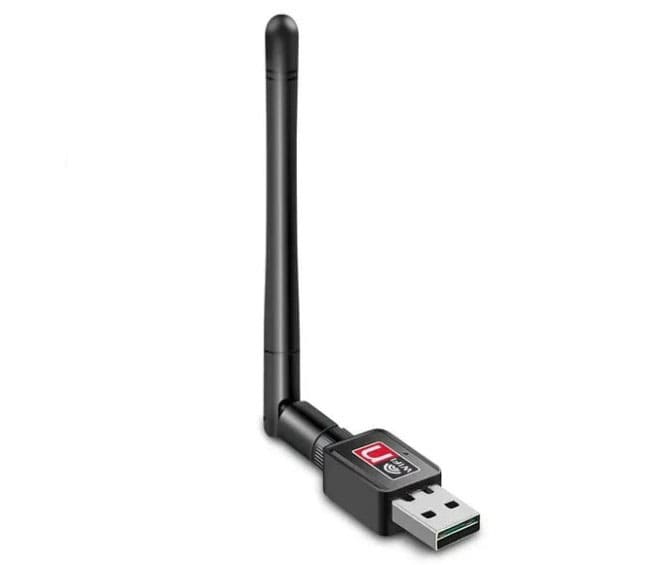
If you’d prefer not to have to rely on tethering to a cell phone, a USB Wi-Fi dongle is an excellent option to connect laptop to internet without Wi-Fi that will add Wi-Fi functionality to a PC that doesn’t have it built in. With most adaptors being plug and play, it’s as simple as finding a spare USB port, connecting the adaptor, adjusting the antenna for best coverage, and away you go.
MoCA Adaptors
If your home has existing cable TV (coaxial) outlets, you can turn them into high-speed wired connections throughout the house using MoCA adaptors.
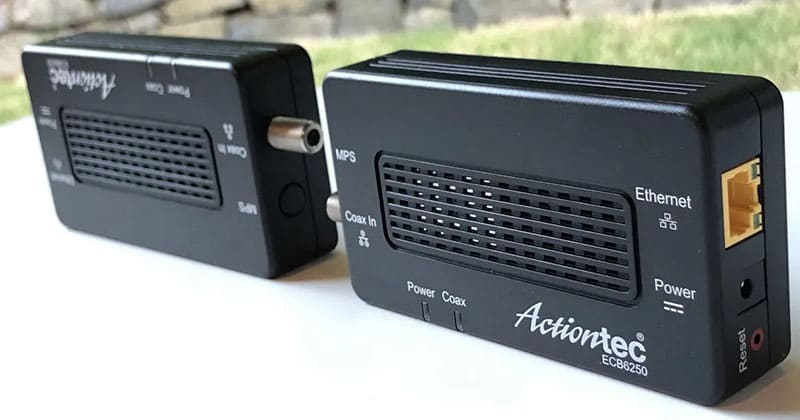
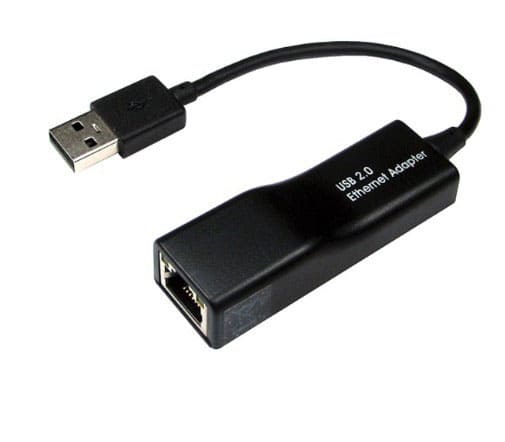
You’ll need to plug one adaptor in near your router and plug the other one into an outlet near your PC, finally connecting it to the computer via an Ethernet to USB adaptor.
Powerline Adaptors
In much the same way as you can use existing coaxial cabling, you can also utilize the electrical wiring in your house by connecting it to Powerline adaptors, which will use the home wiring circuits to transmit the internet from the router to your PC.
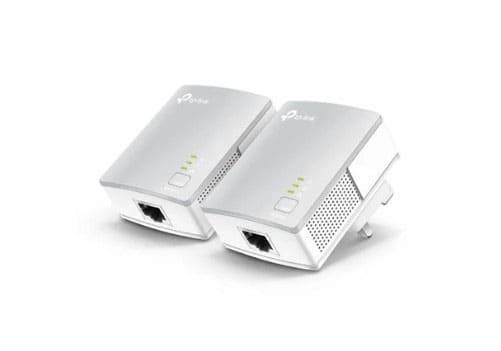
One adaptor should be plugged in near the router and the other near your PC. Again, you’ll connect using an Ethernet cable plugged into the router, and another Ethernet cable attached to an Ethernet-to-USB adaptor, and then into your PC.
BSOD on First Startup Only
Read Next














3 thoughts on “All the Ways to Connect Your PC to Internet Without Wi-Fi or Ethernet”
Are you looking to grow your YouTube channel with real, engaged subscribers?
We offer a YouTube growth service designed to help you consistently expand your audience in a safe and effective way.
Here’s what you can expect:
– Gain approximately 300–500 new subscribers every month
– Attract viewers who are genuinely interested in your content
– Increase engagement with more likes, comments, and interactions
– 100% manual promotion — no bots, no shortcuts
Our service is simple and affordable at just $60/month, and we can get started right away.
If you’d like to see examples of our past results or learn more, just reply to this email — we’d be happy to share details.
Best regards,
Mollie
To unsubscribe, simply reply with “unsubscribe” in the subject line.
I am reaching out here because it looks like my email may not have gone through.
I work with companies to control what prospects see when they actively research their brand or compare alternatives.
Right now, Reddit threads often rank on Google for buying-intent searches, and they are one of the first places buyers go when deciding what to trust. When your brand is missing from those conversations, competitors or random users end up shaping the narrative for you.
I run a structured visibility and narrative campaign that includes:
• Monitoring Reddit and branded search queries
• Entering high-intent threads early with helpful, neutral context
• Positioning your product naturally inside comparison discussions
• Strengthening what appears when someone searches your brand name
• Keeping relevant threads active so they continue generating visibility
• Ensuring posts are brand-safe and feel organic, not promotional
The result is that when prospects research you, they see authority and relevance instead of silence.
If this is relevant, I would be happy to show a few live examples and explain how it would apply to your market.
Best,
David