How to Deal With Windows Error Code 0x800f0983
Updates are a necessary evil when it comes to Windows. While they can be annoying, they come with vital improvements, not to mention security and stability patches. So, if you come across a problem while trying to update, like Windows error code 0x800f0983, you’re most likely frustrated and looking for answers. We’ve got you with some troubleshooting tips.
What Causes This Error?
Windows update error code 0x800f0983 is, as the name implies, an update error and will greet you when attempting a Windows update, cumulative, security, or otherwise. There’s no one cause behind this code, and it can include:
- A damaged or corrupted update file or the SxS directory, which manages updates
- Updates failing to install in whole or in part
- Corruption or inconsistency in the Windows Component Store or in the cache
- A conflict with the firewall or third-party software
Fixing Windows Error Code 0x800f0983
A few causes also mean a few solutions to try, and we’ve got them handy for you:
Run the Update Troubleshooter
Windows has various troubleshooters that are more helpful than you might believe. This should be your first stop with an error like this. Here’s what to do:
The Windows Troubleshooters are more helpful than many give them credit for. It’s a good first stop. To use the Update Troubleshooter:
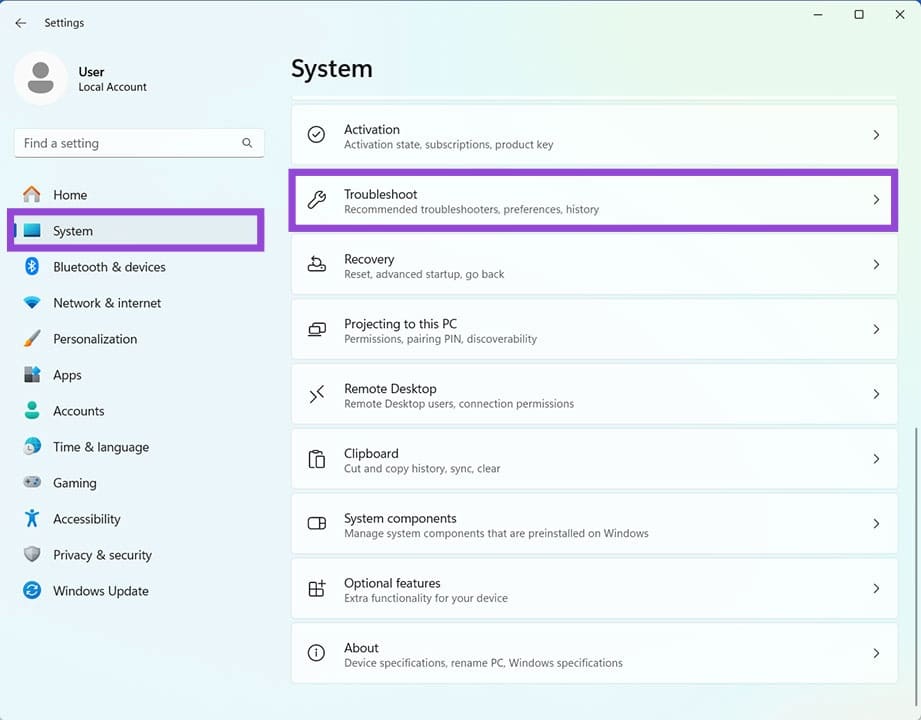
Step 1. Open Settings (Win + I), click “System” in the sidebar, and scroll right down to “Troubleshoot.”
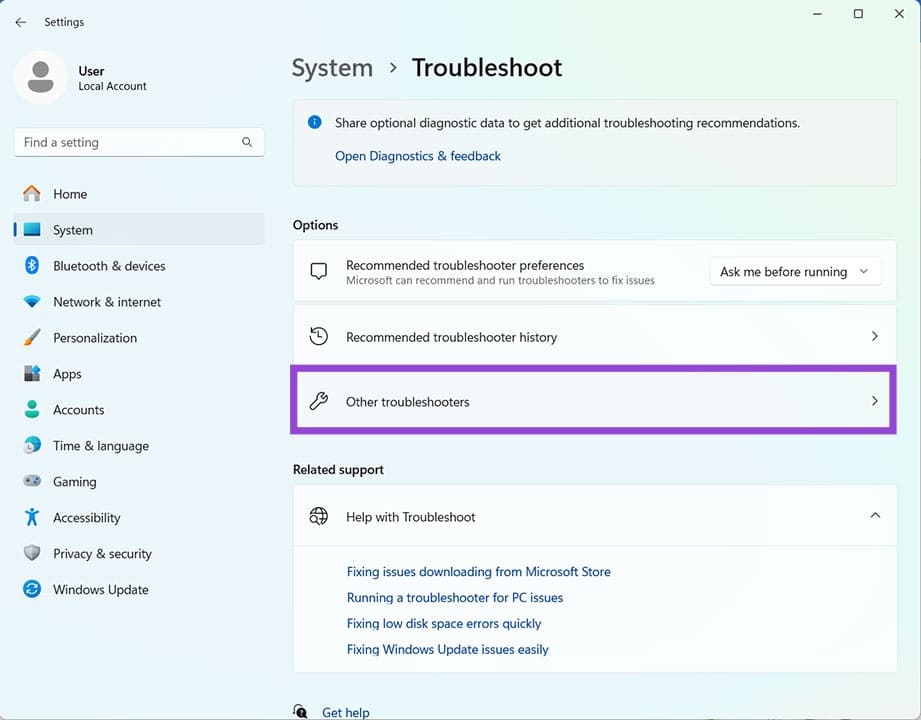
Step 2. Select “Other troubleshooters.”
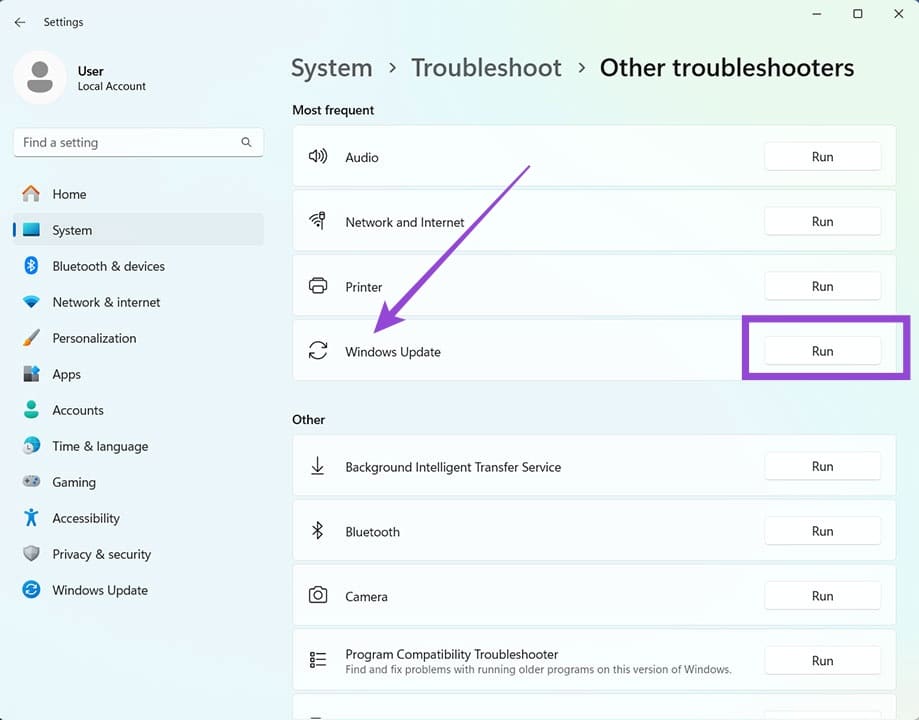
Step 3. You’ll see “Windows Update” in the list. Click the “Run” button next to it, and let the troubleshooter run.
Step 4. If the troubleshooter identifies any issues, it’ll try to repair them. If so, restart your PC for the changes to take effect.
Clear Your Update Cache
Existing update files can be corrupted in the cache, especially if the download process is interrupted. It’s best to start with a clean slate, and you can do this by clearing your update cache in Windows Explorer:
You can use Windows Explorer to quickly and cleanly delete all files. Don’t worry about bulk deleting files and folders; Update will redownload and rebuild any deleted data. Here’s what to do:
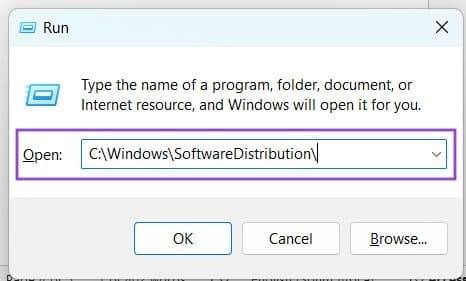
Step 1. Open the Run dialog (Win + R) and enter “C:\Windows\SoftwareDistribution\”
Step 2. In the new Explorer window that pops up, select all the files and folders and delete them. You can press (Shift + Del) to skip sending them to the Recycle Bin.
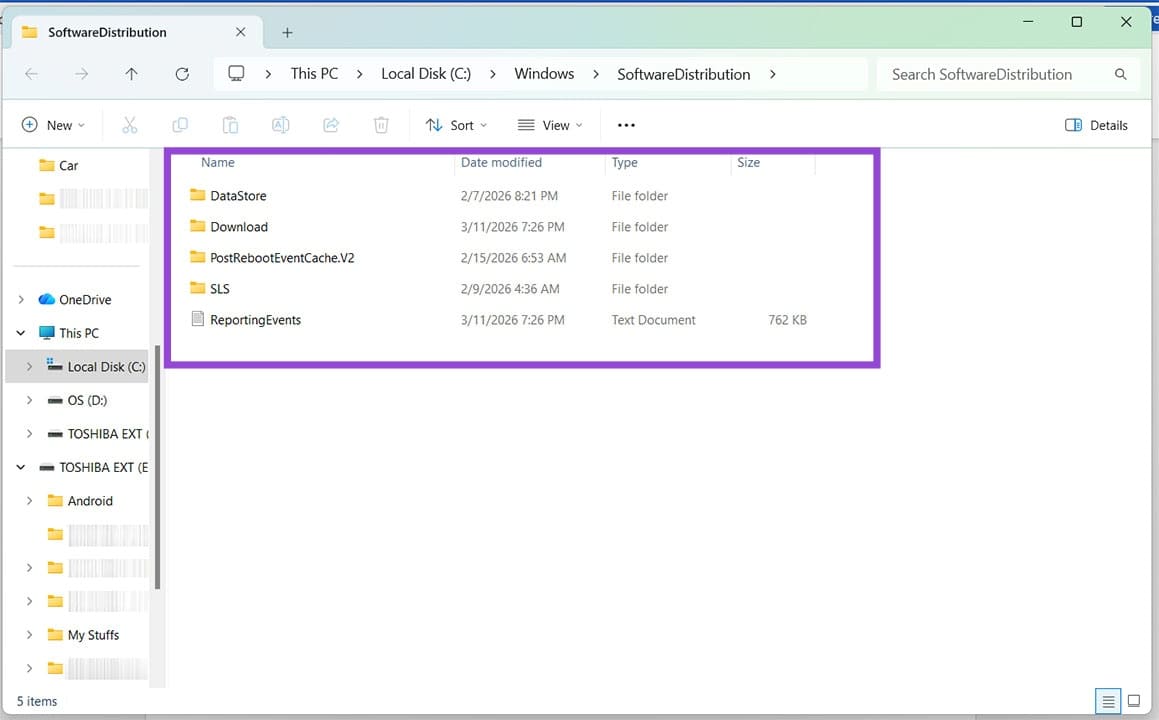
Step 3. Your files should be deleted and the cache cleared. Windows will recreate the folders once you restart your machine, which you should do once done.
Step 4. Try downloading the update and installing it again to see if the issue is resolved.
Run SFC, Disk Check
If you’re worried that system files themselves might be corrupted, you can attempt to scan and repair them through Command Prompt. Here’s how:
Step 1. Open the Run Dialog (Win + R), type “cmd”, then press (Ctrl + Shift + Enter) to run as Admin.
Step 2. Type: “sfc /scannow” in Command Prompt and press “Enter.” The process will run. Restart your machine once done.
To check your disk:
Step 1. Open Command Prompt again in the same way:
Step 2. Type “DISM /Online /Cleanup-Image /RestoreHealth” and press “Enter.”
Step 3. Let the process run and restart afterwards.
Do Things Manually
If you’re still having no luck with error code 0x800f0983, then you can try installing the update manually. Here’s how:
Step 1. Head to the Microsoft Software Download site and download the Installation Assistant.
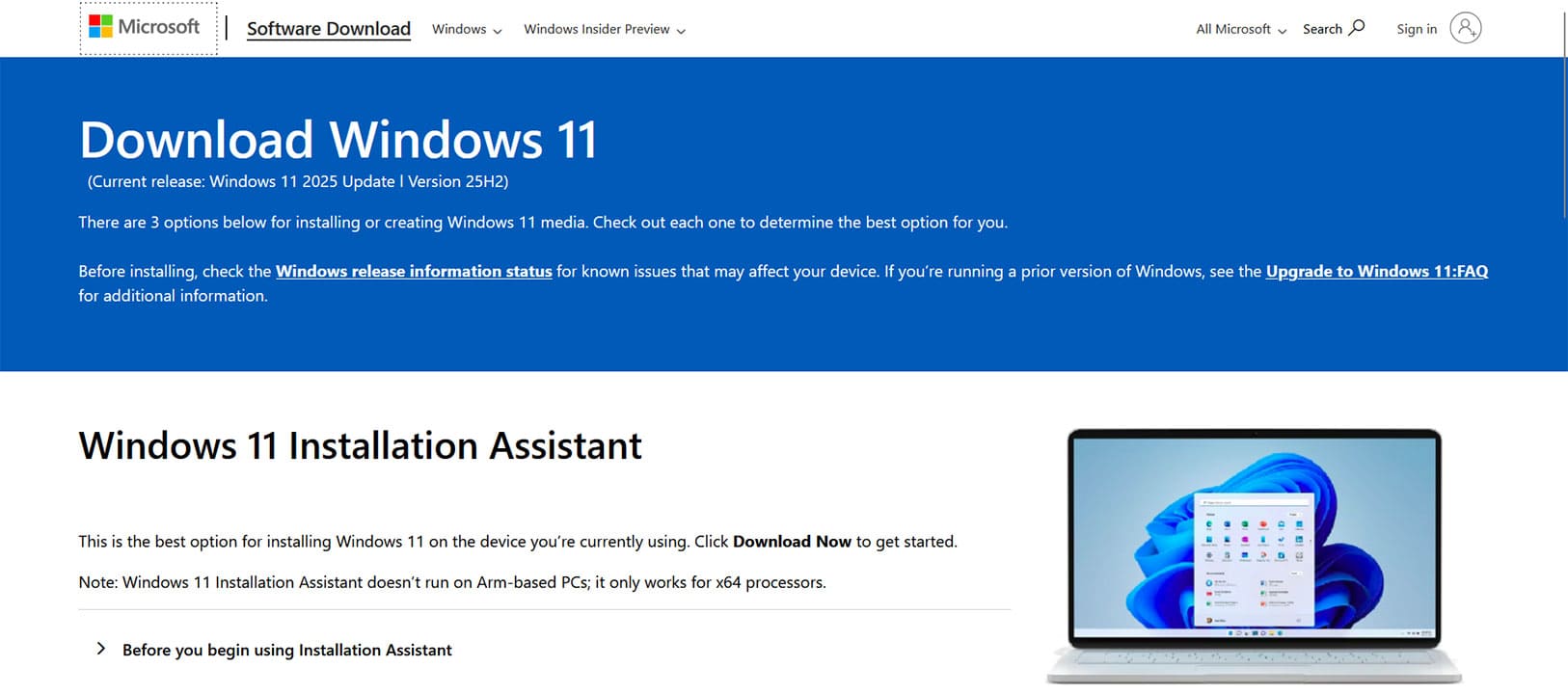
Step 2. Follow the steps to install the software, and then use it to manually download the troublesome update and install it yourself.
How to Fix Steam Error Code 118 and 138
Read Next