Had Enough of Quick Links in Edge? Here’s How to Disable Them
Quick Links are a handy way to get to pinned sites quickly and get a handle on news worldwide. On that side, like many things in Windows 11, the information can become overwhelming quickly. Your eyes might need a break, or you may just want to declutter your workflow. Whatever the case, this article will show you how to turn off Quick Links in Edge.
How to Turn off Quick Links in Edge
Have you had enough of Quick Links and are ready to say goodbye? We’ve got a few different ways to get the job done below:
Using the Edge Settings
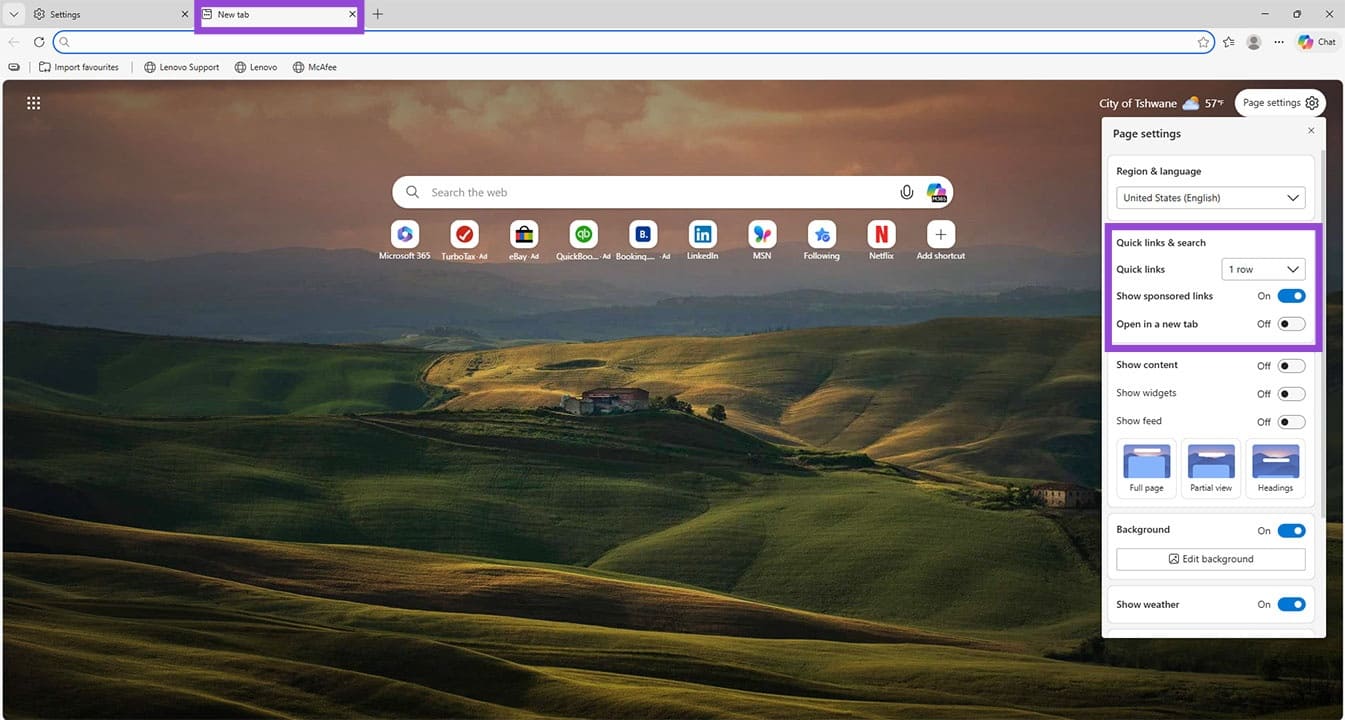
The easiest way to turn off Quick Links in Edge is via the browser’s own settings. Here’s what to do:
Step 1. Open Edge and a new tab.
Step 2. In the top-right of the window, click the “Page Settings” icon, the gear.
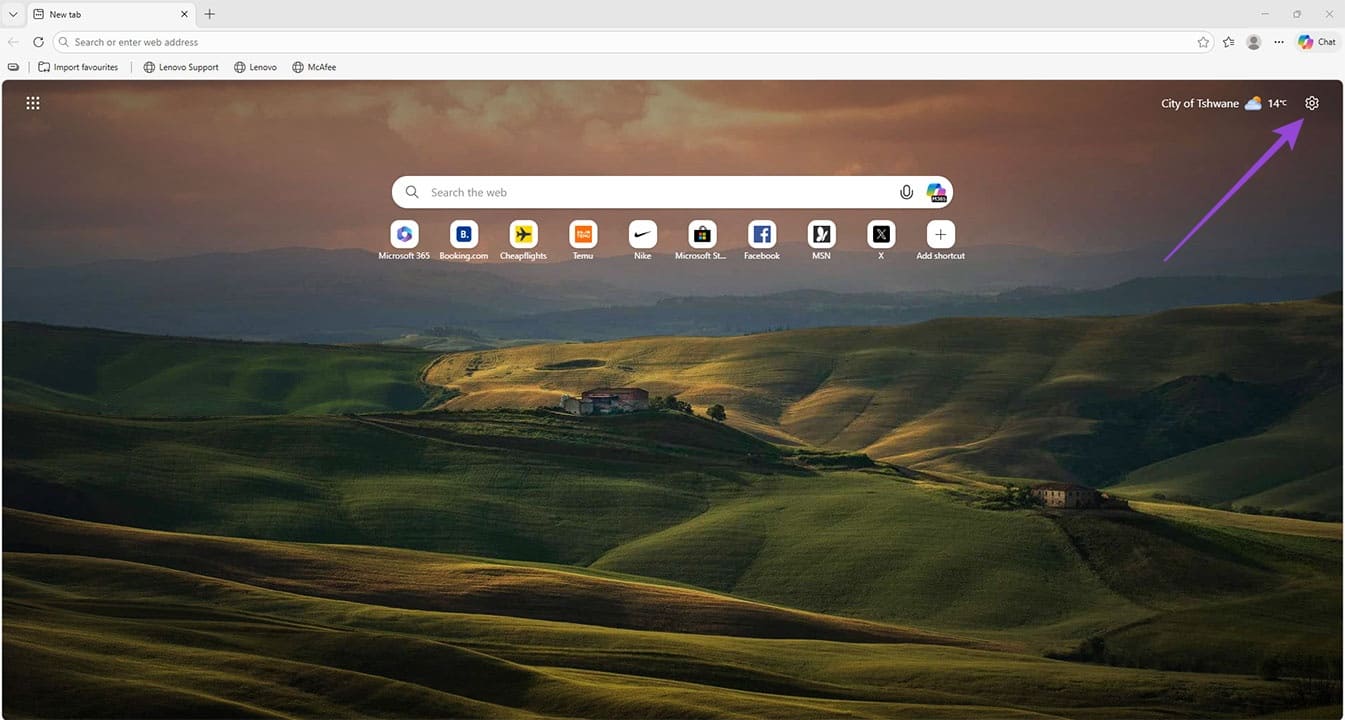
Step 3. A dropdown menu will appear. Under the “Quick links & search” subsection, click the “Quick links” dropdown and select “Off.”
Step 4. All Quick Links should vanish.
Disable Sponsored Links
If you don’t mind the Quick Links but do mind the sponsored links Microsoft keeps inserting, then the good news is you can disable these easily, too. Here’s how to edit Quick Links in Edge:
Step 1. Open a new Edge tab and click the “Page Settings” icon.
Step 2. Under the “Quick links & search” subgroup, toggle “Show sponsored links” to “Off.”
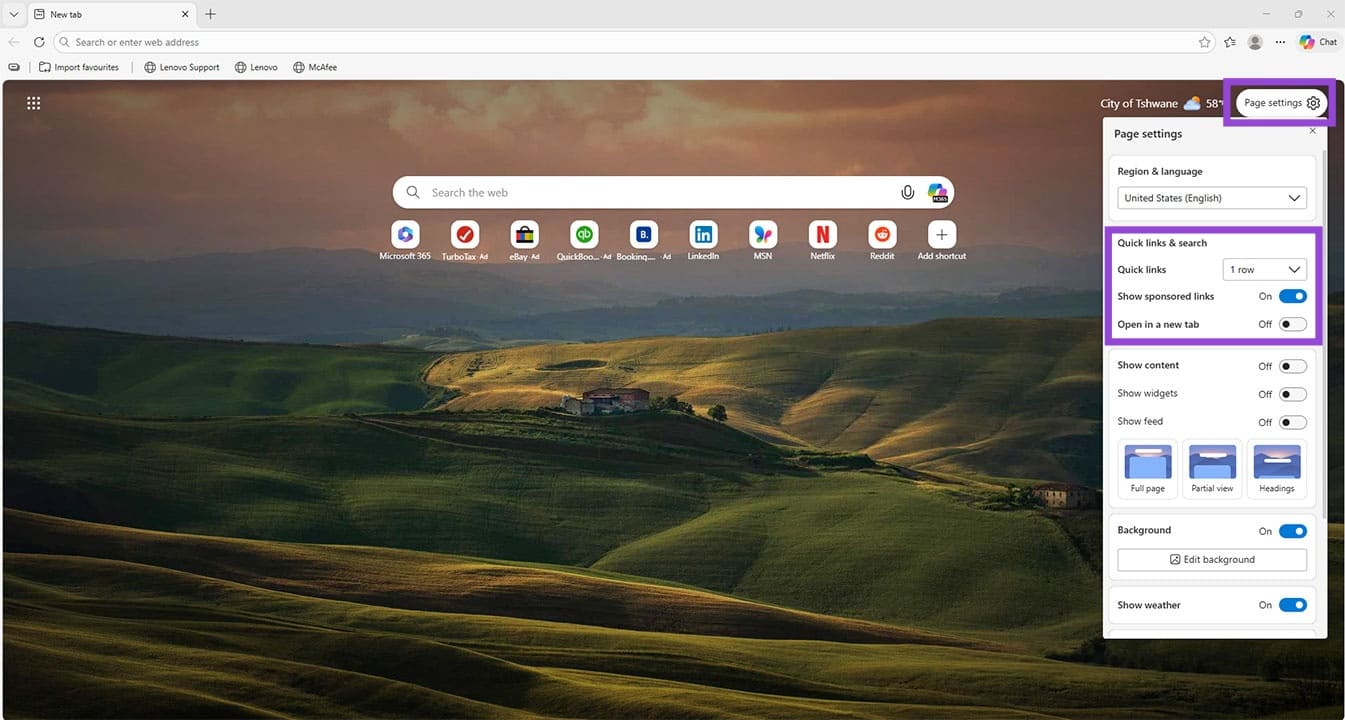
Step 3. All sponsored links should be removed.
If you don’t want Widgets or Feeds hanging around either, then you can toggle “Show content,” “Show widgets,” and “Show feed” to “Off” as well. The options are just below the Quick Links subsection.
Disable via App Settings
This route is a bit longer than those above and relies on Edge’s settings rather than the Page settings. Here’s what to do:
Step 1. Open Edge and click the Ellipses Menu (three dots) in the top-right of the window.
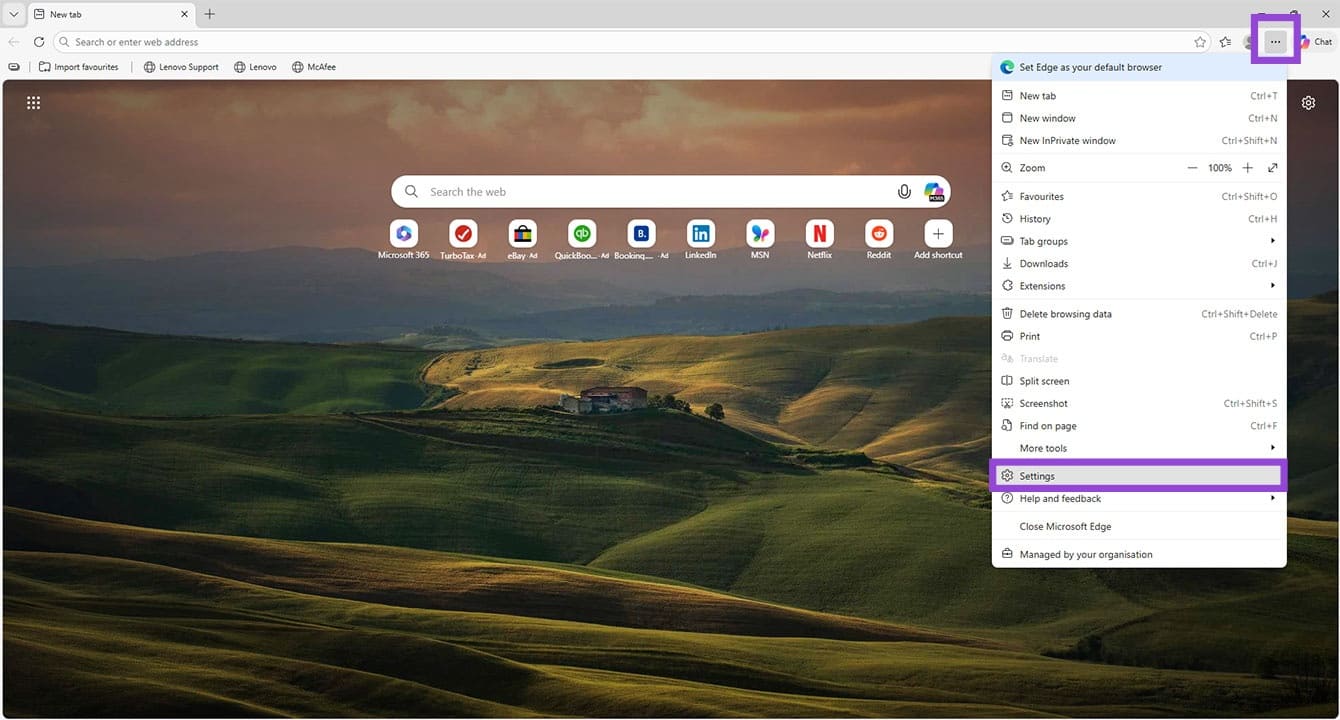
Step 2. Click “Settings.”
Step 3. In the Settings menu, click the “Start, home, and new tab page” option in the sidebar.
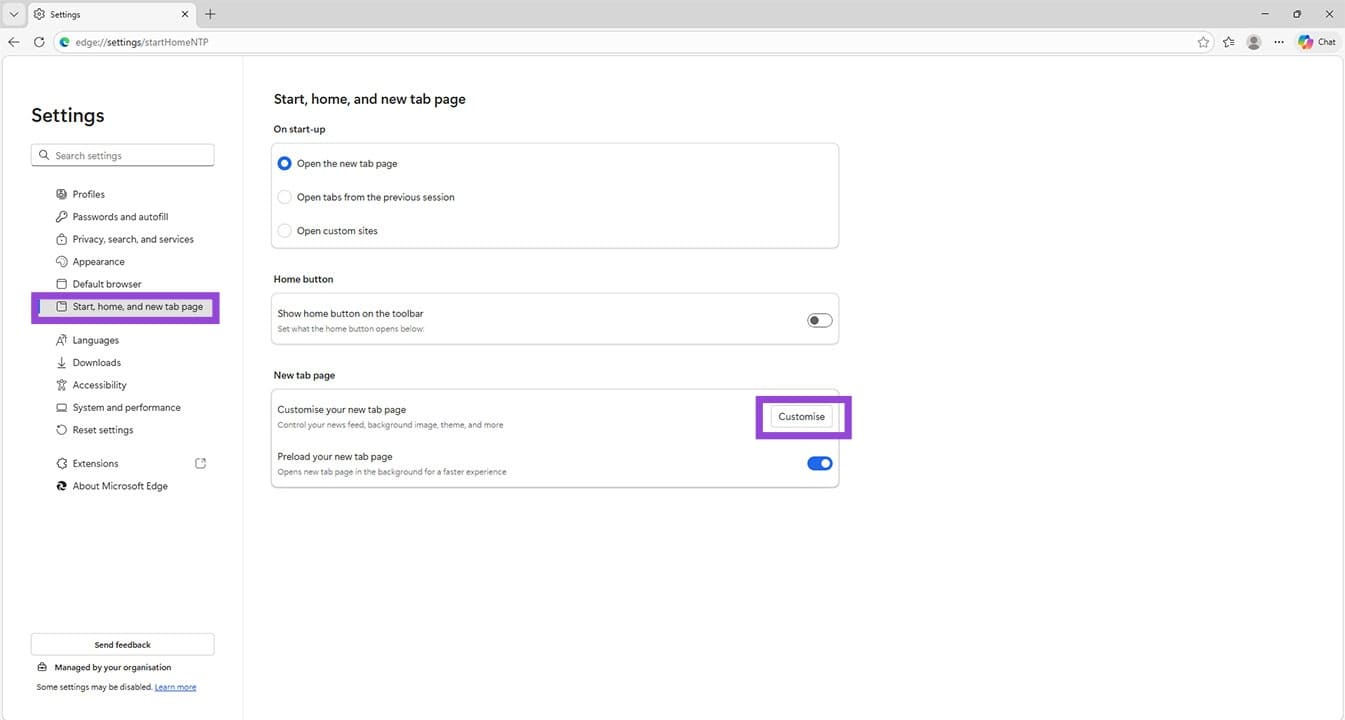
Step 4. Under the “New tab page” subsection, click the “Customize” button next to the “Customize your new tab page” option.
Step 5. You’ll be taken to a new tab page, with the Page Settings dropdown open. You can disable Quick Links from here.
Disable via the Registry
If you’re looking for a more permanent way to disable Quick Links by default, then you can edit your System Registry to do so. Just be careful, if you don’t know what you’re doing, any changes you make in your Registry can destabilize your machine. Here’s what to do:
Step 1. Open the Run Dialog (Win + R) and type “regedit” before hitting (Ctrl + Shift + Enter) to run as Admin.
Step 2. In the Registry, navigate to “HKEY_LOCAL_MACHINE\SOFTWARE\Policies\Microsoft\Edge” in the top menu.
Step 3. Right-click in the main window and choose “New” and “DWORD (32- bit) Value” from the context menu.
Step 4. Name the new value “NewTabPageQuickLinksEnabled” and set the “Value data” to “0” before hitting “OK” to finalize.
Step 5. Restart your machine and reopen Edge. The Quick Links should be gone.
Search Menu Feeling Cluttered? How to Streamline Your Interface
Read Next