Search Menu Feeling Cluttered? How to Streamline Your Interface
What was once a simple Start menu in Windows 95 has slowly become more and more cluttered with widgets, feeds, recommendations, and other aspects that are probably hurting your eyes. Combine that with the Search Bar, and things get crowded. It doesn’t have to stay this way, though. In this article, we’ll be showing you ways to streamline Windows Search Bar.
How to Streamline Windows Search Bar
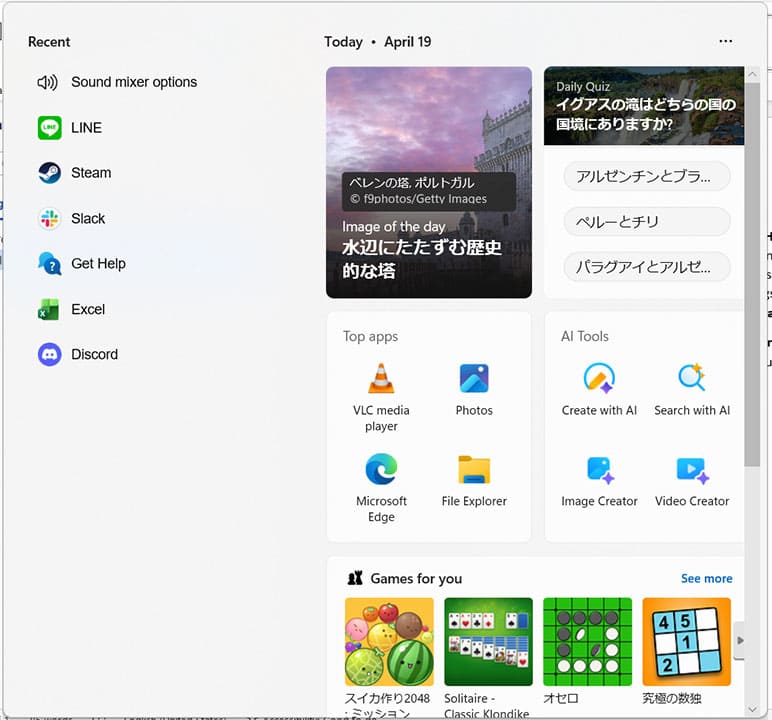
Let’s start with the Search Bar. When you click your Search Bar in the Taskbar, you’ll be taken to a menu that shows you your most recently used apps and services on the left, and a lot of recommendations, AI tools, and web pages on the right. If you want to cut down on this clutter, the solution lies in the Personalization section of Settings, which addresses the Start Bar too. Here’s what to do:
Step 1. Open Settings (Win + I) and click “Personalization” from the sidebar.
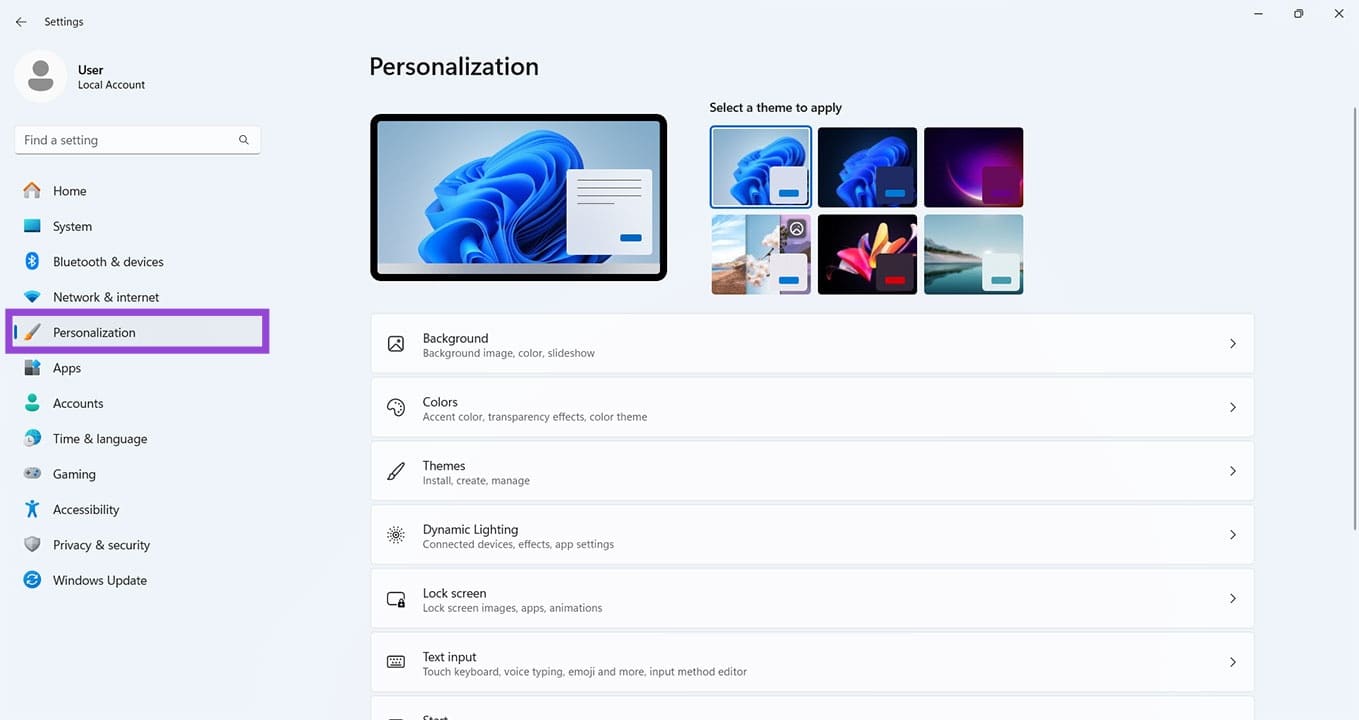
Step 2. Navigate down in the main window until you see “Start.” Click this.
Step 3. In the next screen, click the toggle next to “Show recommendations for tips, shortcuts, new apps, and more.
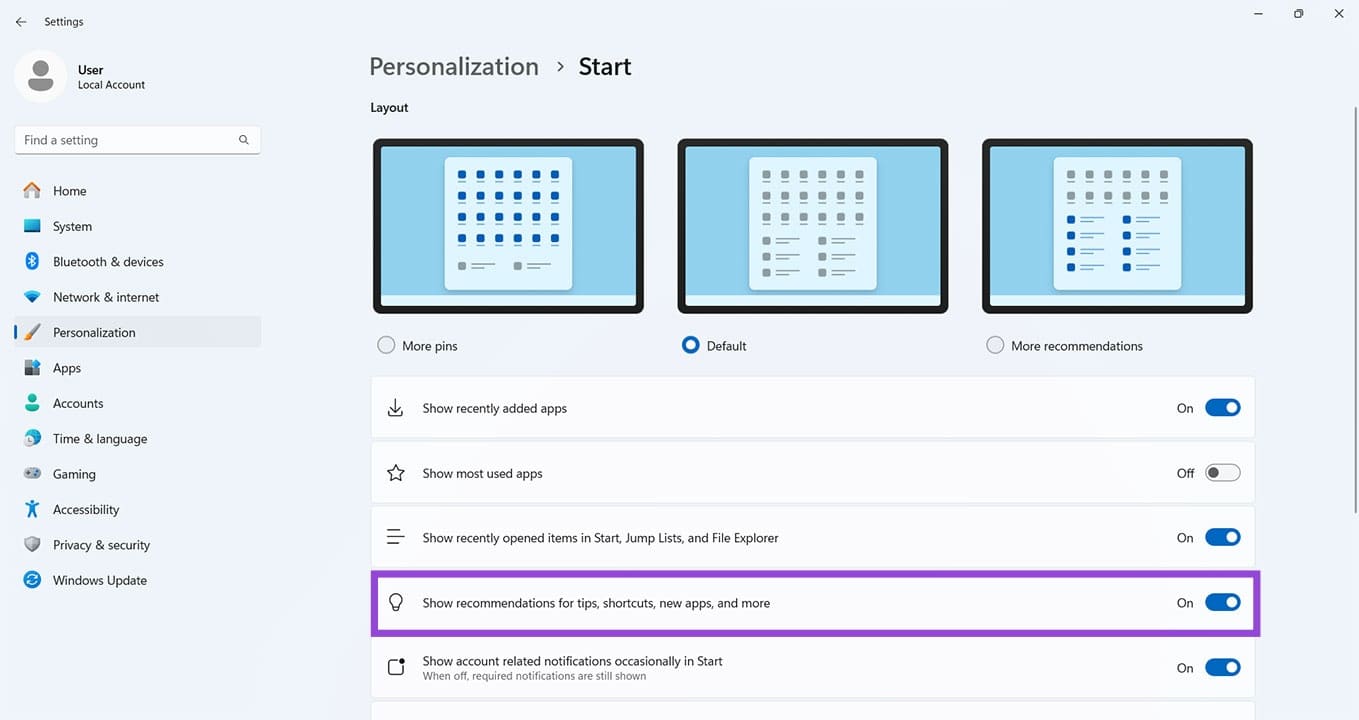
Step 4. Open the Search Bar again, and the right side of the menu should be cleaned up.
Using Personalization to Streamline Interface
Let’s take a look at the other functions in this menu to see how you can better customize your experience.
Layout Presets
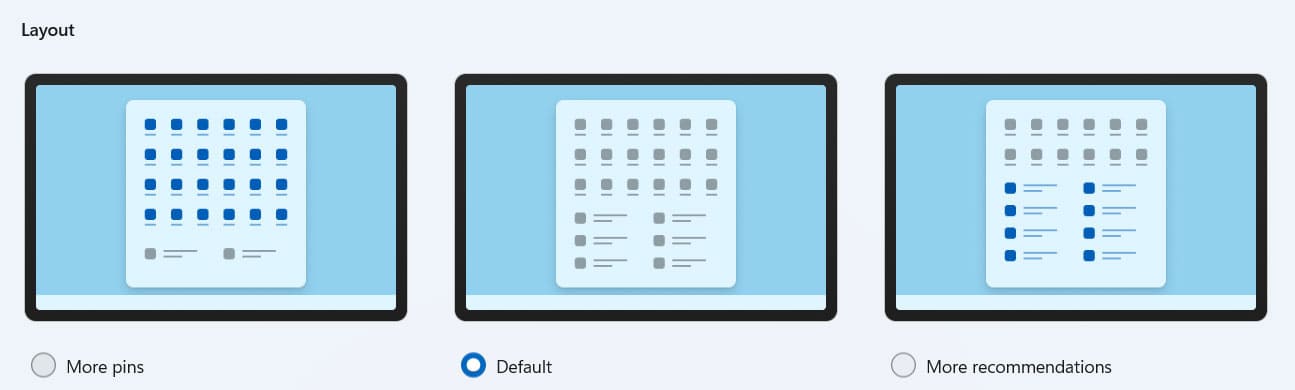
Right at the top of the Start Personalization Menu, you’ll see three screens, all with different presets. You can toggle whichever you want to suit your preferences. The “Default” option offers a blend of both pinned shortcuts and recommendations. If you want a more app-based menu, choose “More pins.”
Recents
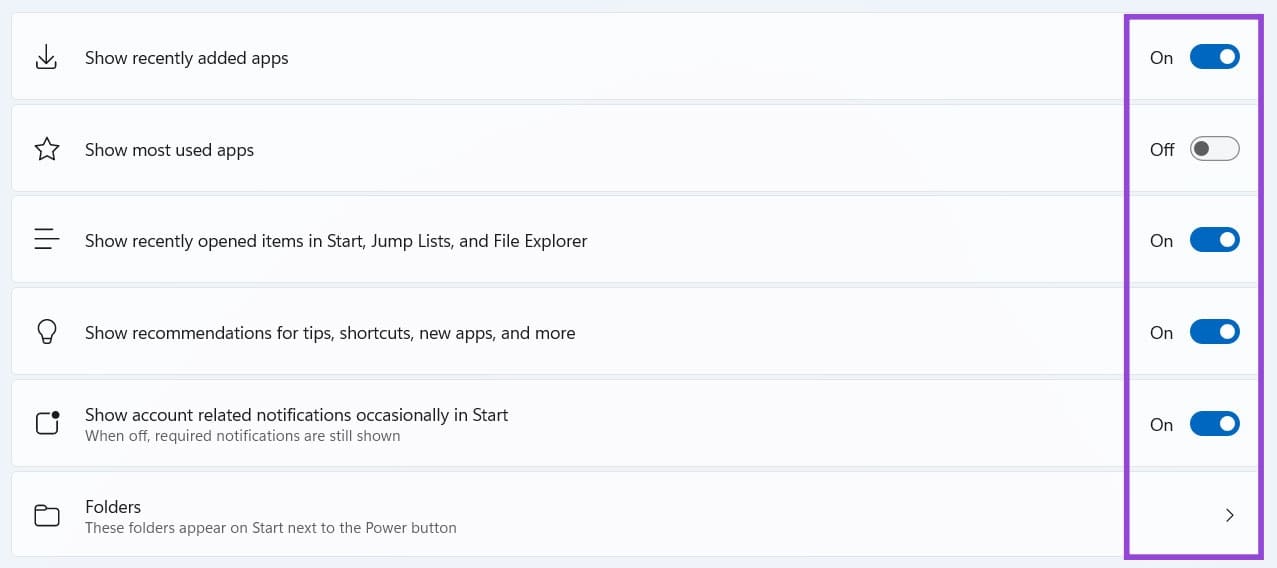
There are a few settings that deal with recently added, opened, and announced things:
- Show Recently Added Apps – Have quick access to your recently opened apps with this toggled on.
- Show Recently Opened Items in Start, Jump Lists, and File Explorer – Much the same as above,
- except with files and items that have been opened.
- Show Account Related Notifications Occasionally in Start – Any recent notifications can pop up in your Start menu.
Toggle any of these on or off to further refine your menu.
Most Used Apps
If you frequently use certain apps, this lists them for easy access. If you don’t want the section included in the Search Menu, toggle this setting off.
Folders

“Folders” deals with the icons that can appear next to the Power Button on your Start Menu. They can be a handy way to access major directories, like Settings, Downloads, or Music.
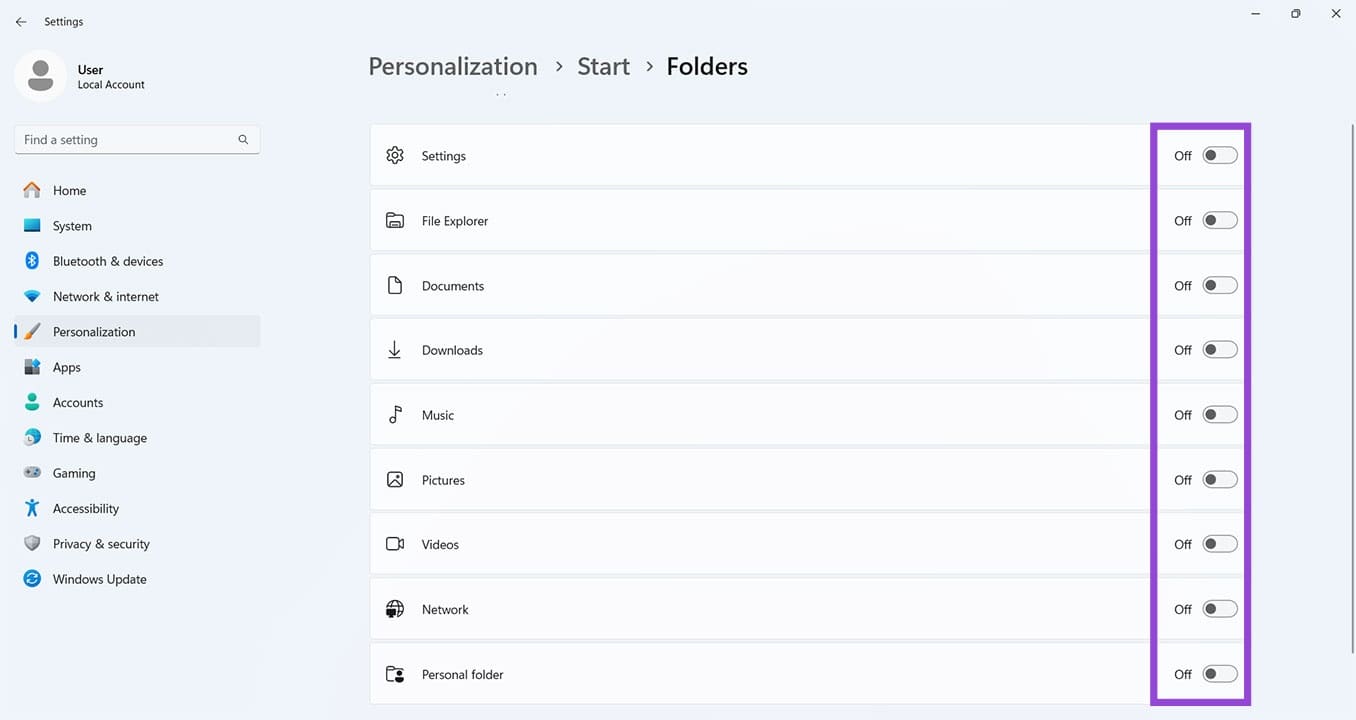
There are a total of nine folders you can toggle on to include in your Start Menu. If there’s something you’re using a lot, you can easily include it.
Streamlining the Taskbar
Though it might not be Search Bar-related, the Taskbar can also appear cluttered to users of Windows 11. That’s why we’re going to take a quick look at the best functions to toggle to streamline interface. This menu can be found in the “Taskbar” section of “Personalization.”
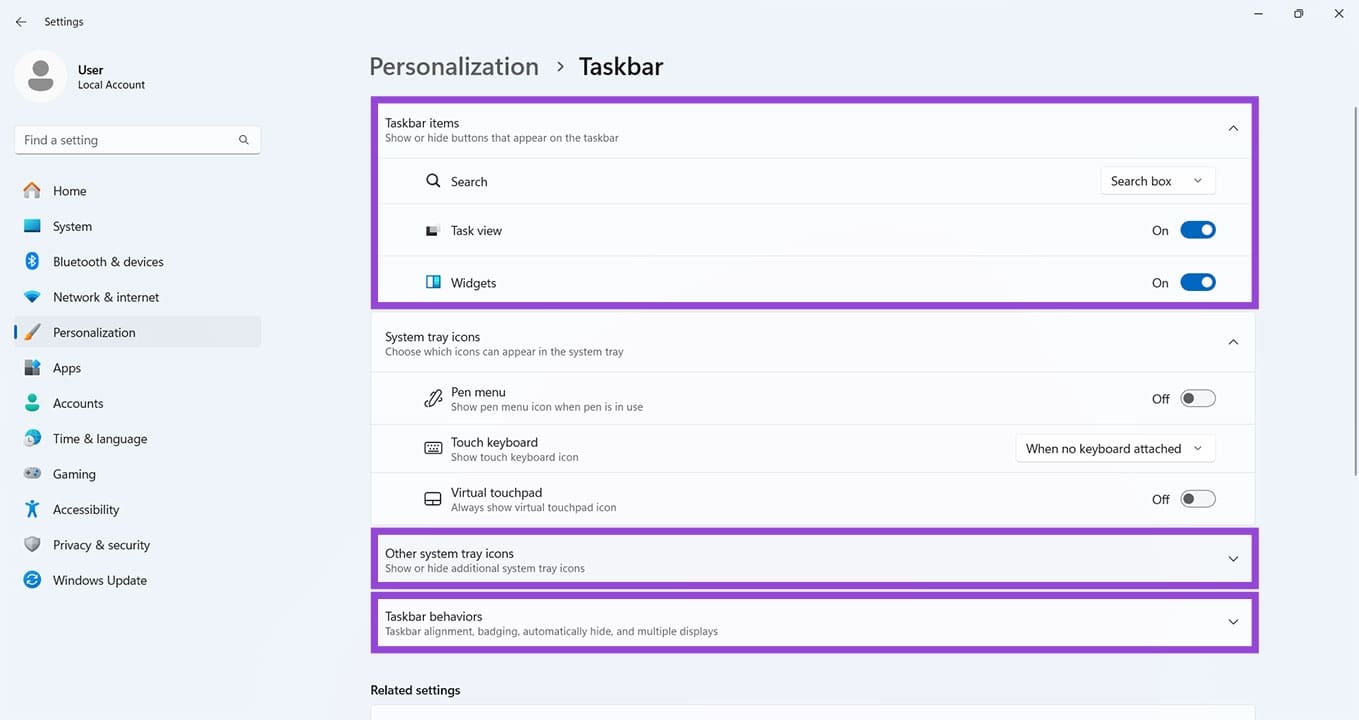
To streamline your Taskbar:
- Toggle the “Widgets” option to “Off.”
- Cut down on “System tray icons” by turning them off.
- You can adjust the size of the Search Bar, too, by adjusting the “Search” option, or you can even hide it.
- To control notifications, flashing messages, and more, click the “Taskbar behaviors” dropdown and uncheck any functions you don’t want distracting you.
5 Methods to Check Microsoft Office License
Read Next