What’s Causing Error Code 53 on Steam and How to Fix It?
So, you’re settling in after a long day of work to play your latest game on Steam. Only there’s a problem: the game won’t run. It crashes, and in fact, you get an error code: Steam error code 53. No doubt you’re wondering what causes this, and eager to get it fixed. Don’t worry, we’ve got some possible solutions to help you out.
What Causes This Error?
Steam error code 53 has a number of causes, all of which result in a game’s failure to run. Some major ones include:
- The Steam servers themselves are too busy
- Your game files are incomplete, not fully installed, or corrupted
- The installed Steam version is out of date
- Your Firewall settings are too strict
- Network connectivity troubles
How to Fix Steam Error Code 53
Let’s take a look at some solutions below. Hopefully, one will get your Steam client behaving again.
The Obvious Fixes
They might be common sense, but trying obvious fixes first might save you a headache early on. Before you try anything else:
- Restart your Steam client and try running the game again.
- Check your network connection for any problems.
- Restart your entire PC.
- Check if Steam itself is down using a website checker.
- Run Steam as an Administrator.
Update Steam
Starting simply, keeping your Steam up to date is important for keeping things smooth. Steam normally and regularly updates itself, but if you want to ensure you’re running the latest version:
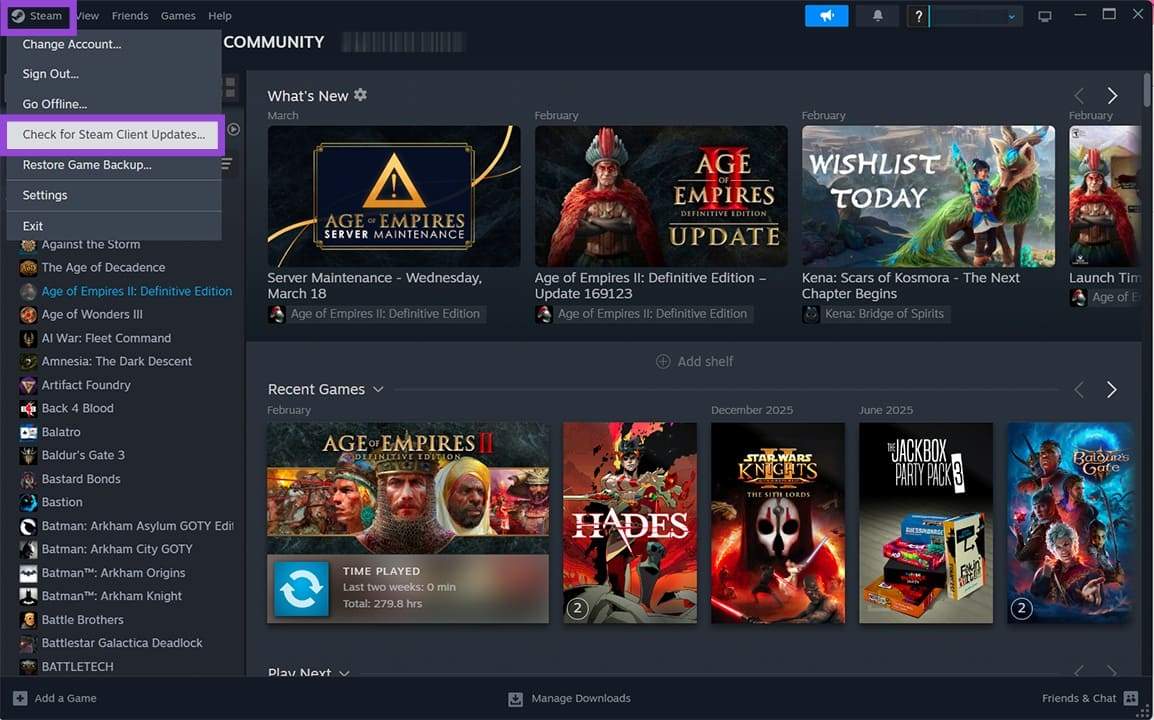
Step 1. Click “Steam” in the top menu.
Step 2. Choose “Check for Steam Client Updates” from the dropdown menu.
Step 3. If a new version is available, a blue ribbon will show up at the bottom of the window. Click “Download” or “Later” if you can wait.
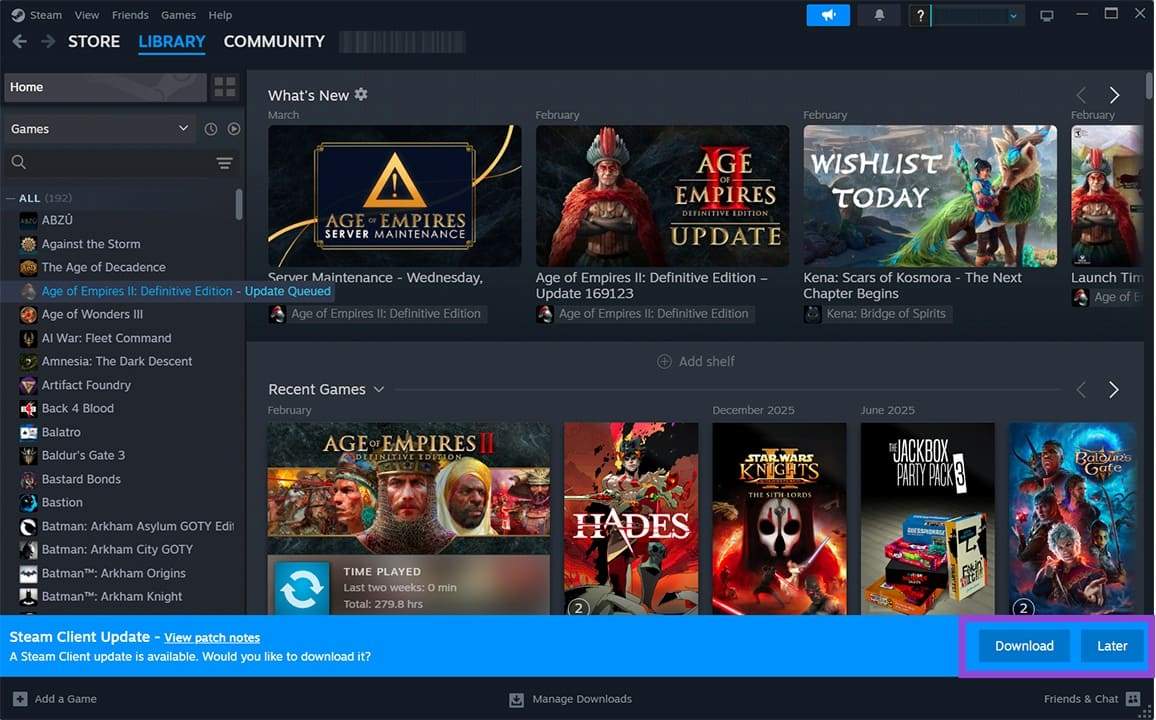
Step 4. Allow the update to download and install. Restart once you’re done and test your game again.
Test Your Antivirus
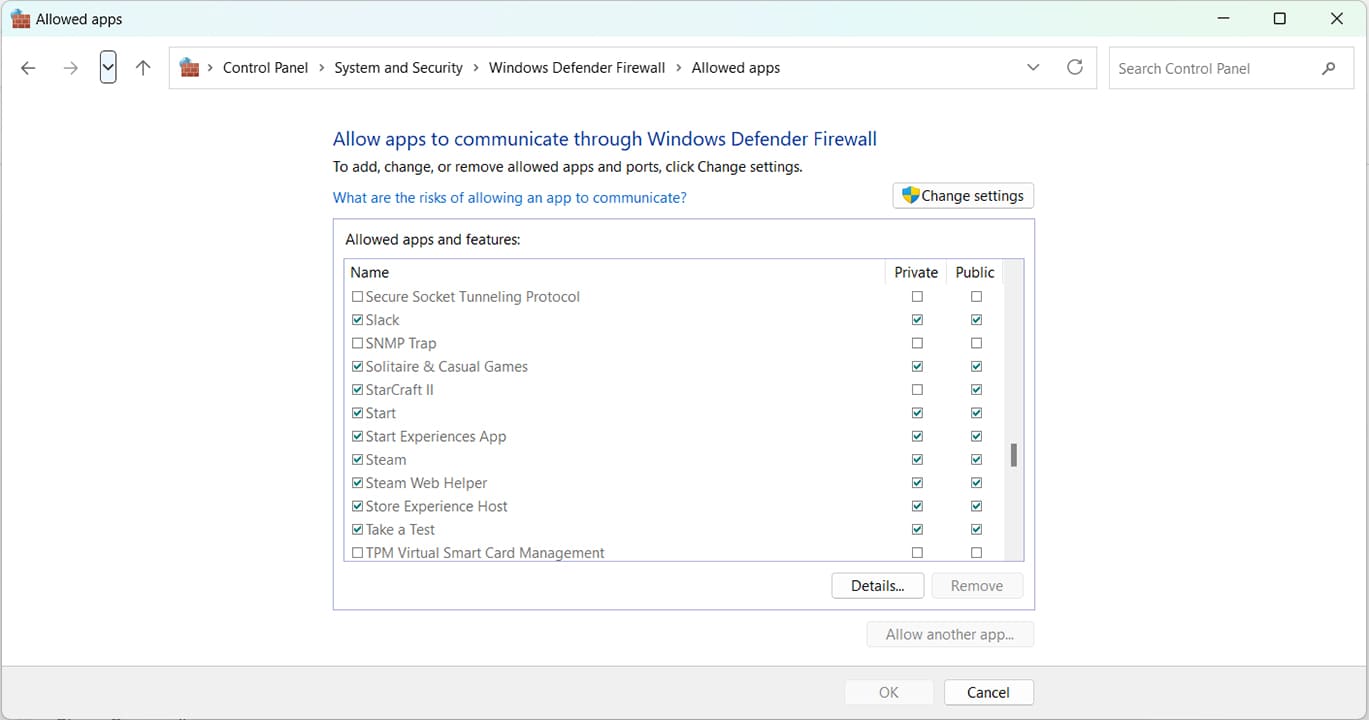
If you suspect your antivirus software is to blame, try disabling real-time scanning first, and then temporarily disable the entire service to see if it helps fix Steam error code 53. If you’re concerned about doing so, you can also add the Steam client as an exception to your antivirus.
Your firewall might also be to blame. Ensure that Steam is allowed through your firewall on both Private and Public channels. For Windows Firewall, you can find this in “Allowed Apps” in “Windows Defender Firewall,” under “System and Security” in the Control Panel.
Check Your Game’s Integrity
If you suspect your game might not have been installed correctly or has been corrupted in any way, you can use the Steam client to verify. Here’s how:
Step 1. Right-click on your game and select “Properties.”
Step 2. In the window that pops up, click “Installed Files” in the sidebar.
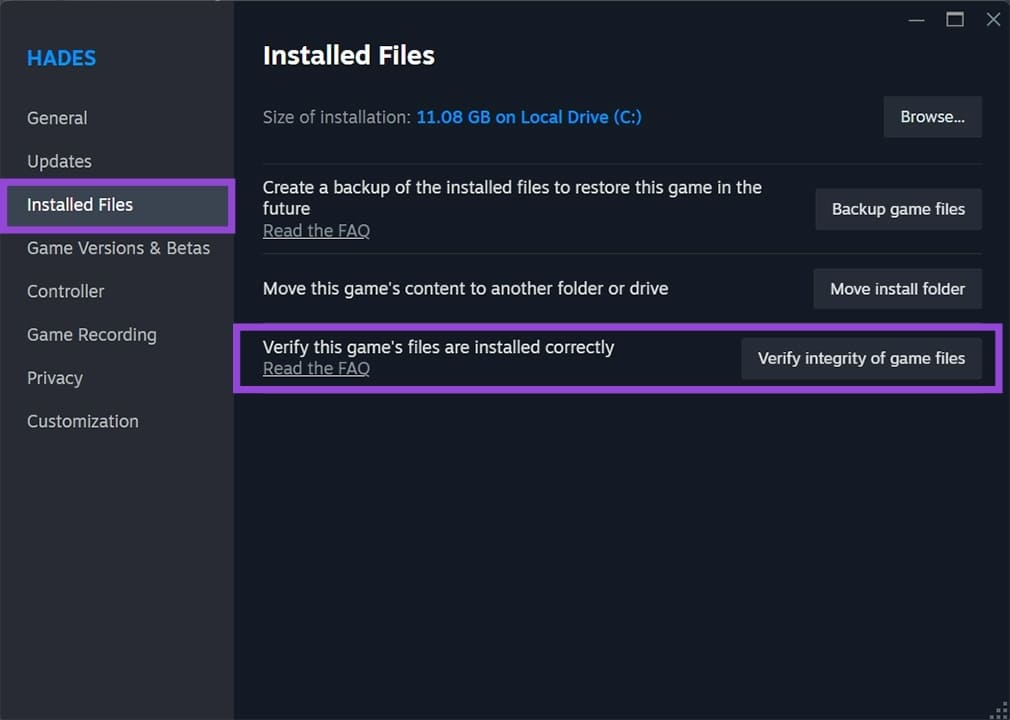
Step 3. Click “Verify integrity of game files” and wait for the process to finish.
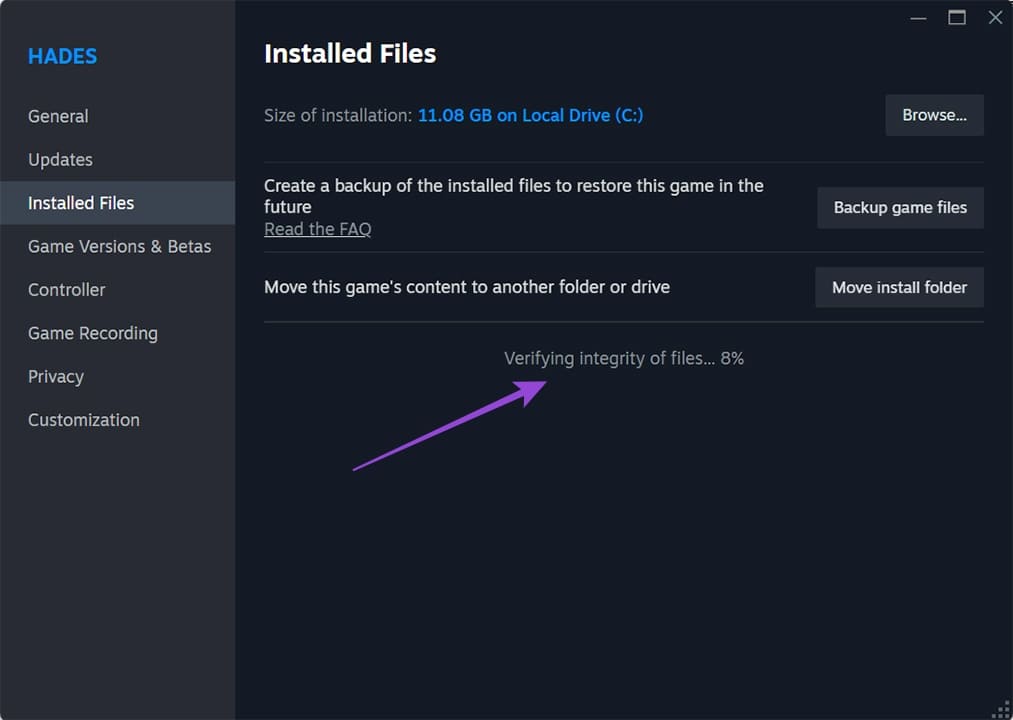
Step 4. If any files are missing or corrupted, Steam will redownload them.
Change the Download Region
It could be that the region you’re downloading game files from is the source of the trouble. You can change your default region and see if this resolves the issue. Here’s how:
Step 1. Click “Steam” in the Top Menu and select “Settings.”
Step 2. Click the “Downloads” tab in the sidebar.
Step 3. Next to “Download region,” click the dropdown and select a different region.
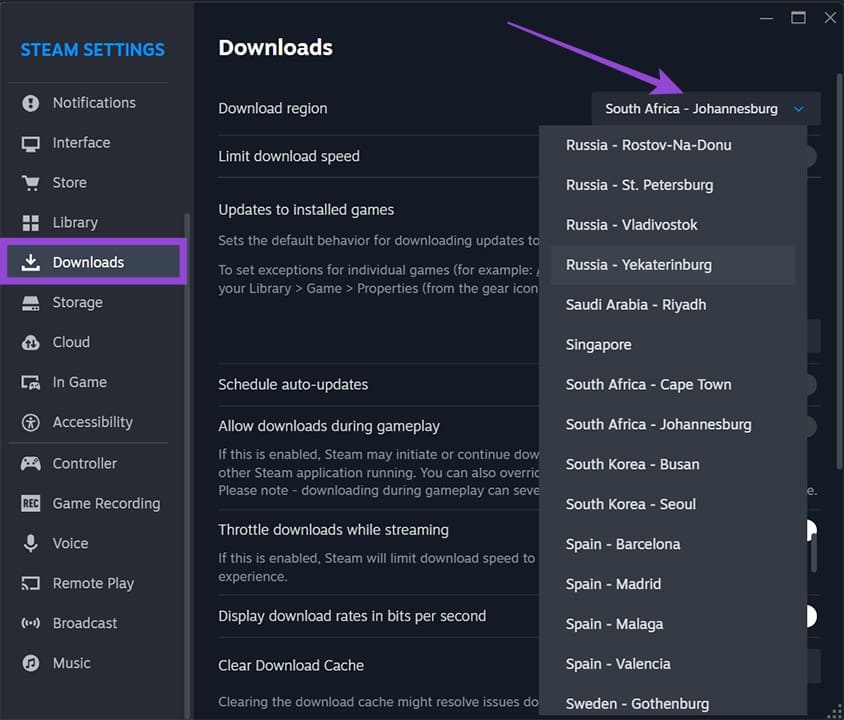
Step 4. Once selected, try downloading, repairing, or running your game again.
How to Extend the Life of Your SSD – 6 Tips
Read Next