How to Unlink Old Devices From Your Microsoft Account and Why It’s Important
How many devices have you had linked to your Microsoft account over the years? Depending on your age, you might have used everything from an old-school Microsoft Lumia phone to desktop PCs and previous laptops.
Every time you upgrade to a new device, you should take the time to unlink devices from Microsoft account logins that are linked to you. Learn why and how to do this below.
Unlink Devices From Microsoft Account: Why It Matters
You might not know this, but Microsoft limits the number of devices that can download apps and content from the Microsoft Store using your account. If you’re using your first or second Windows laptop, you may never be affected by this. However, if you reach the limit of 10 devices per account, you may no longer be able to download Microsoft Store apps or content to another device until you unlink an old one.
It’s easier to hit this limit than you might think. A device login counts when you:
- Access online Office apps, such as Word or Excel via a browser
- Set up your Microsoft email account on a smartphone or tablet
- Download your email through an internet browser
- Use an Xbox console
- Sign in on someone else’s machine, even if it’s only to perform a web search or similarly simple task
It’s also a good idea to limit how many devices are linked to your account for security. If you sell your old laptop or a smartphone with your Microsoft account linked, there’s a chance the person who takes possession of that device could access your personal information. Removing a device from your account helps keep your device list up to date, but it does not erase the device or automatically sign you out of every Microsoft service. Before selling or giving away a Windows PC, back up your files and reset the device to remove your personal data.
How to Remove Old Device From Microsoft Account: Step-by-Step Guide
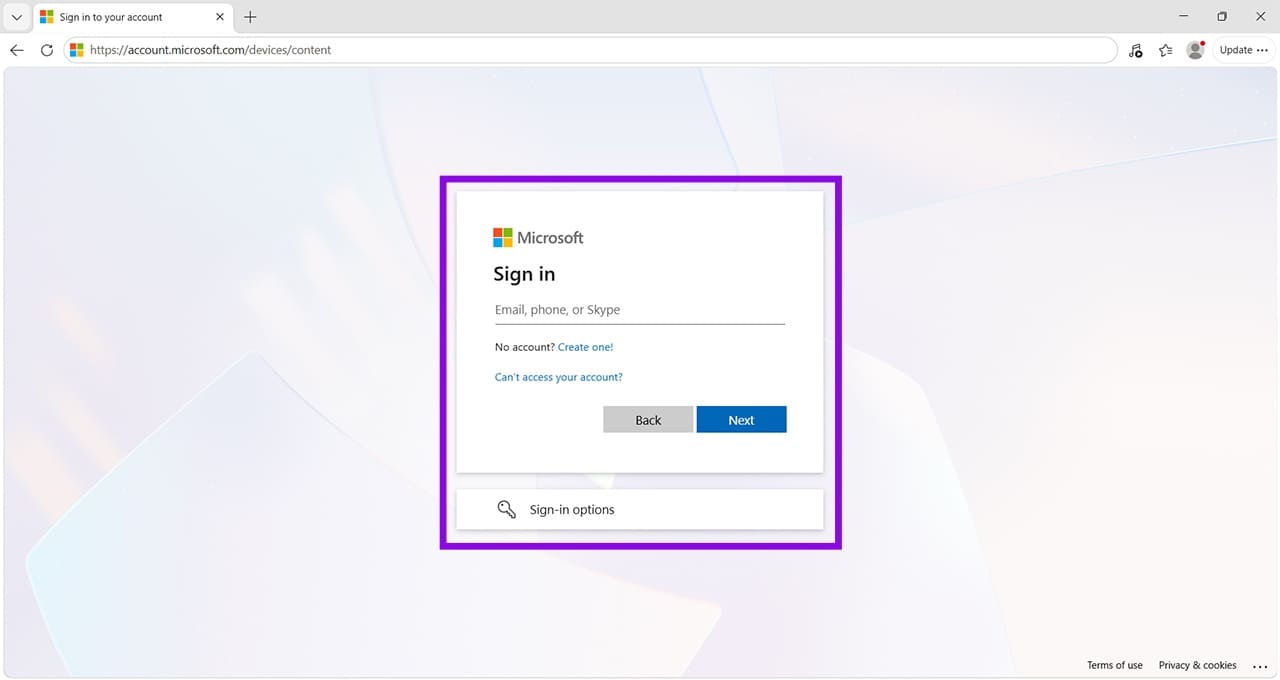
Step 1. In a web browser, navigate to https://account.microsoft.com/devices/content. If you’re not already signed in, follow any prompts to sign in. Make sure you use the Microsoft account associated with the Microsoft Store downloads you want to manage.
Step 2. You’ll now see a page that shows the devices connected to your Microsoft account. It also shows your device limit and how many devices of your allocated limit you have used. Click the blue Unlink button to remove any of these devices from your account.
Tip: Make sure you select the correct device. You can look at the date you set up your Microsoft account on this page, which can help you figure out which devices may not be currently in use.
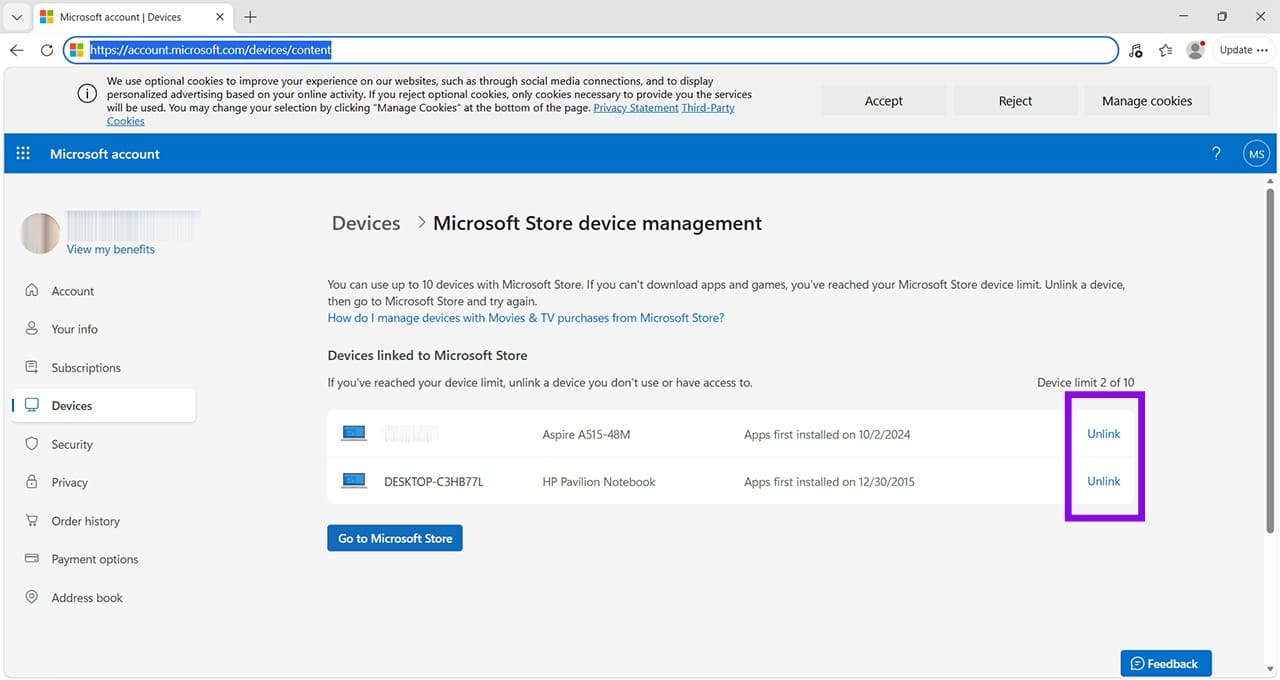
Step 3. Review the device details and confirm that you want to unlink it by selecting Unlink again. Once the process is complete, the device will no longer count toward your Microsoft Store download limit. If you download an app or game from the Microsoft Store to that device again, it will count toward the limit once more.
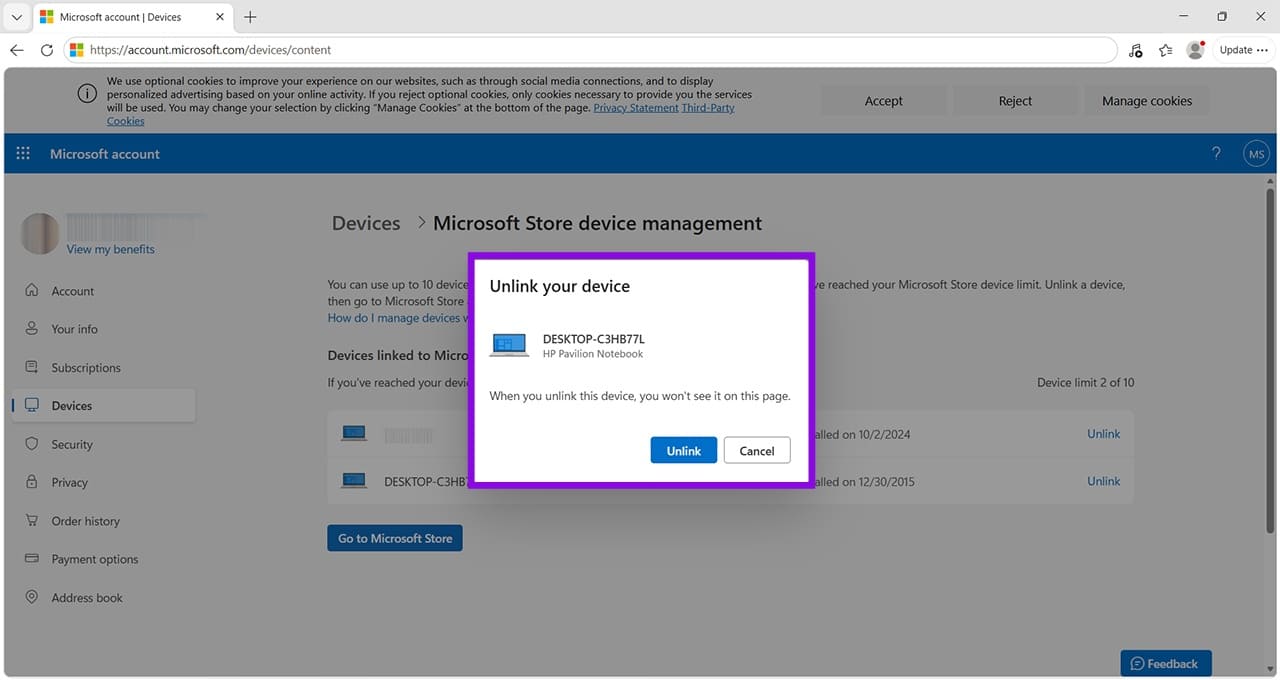
If you download an app or game from the Microsoft Store to that device again in the future, it will count toward your Microsoft Store device limit once more. You don’t need to repeat the unlinking process unless you want to free up a slot again.