What to Do When You Can’t Paste Text in Microsoft Office Apps
If none of these get things working, the fixes below go deeper into what’s blocking the paste function.
Fix 1 – Clear and Restart the Windows Clipboard
The Windows clipboard function can get stuck or lose parts of its data, which causes apps to regard it as empty. Flushing and restarting it usually fixes paste failures.
Step 1. Open the Command Prompt (preferably as an administrator). You can also right-click on the Start button and select “Terminal (Admin),” which opens PowerShell but will still run the command.
Step 2. Paste in the following command and hit “Enter”: echo off | clip
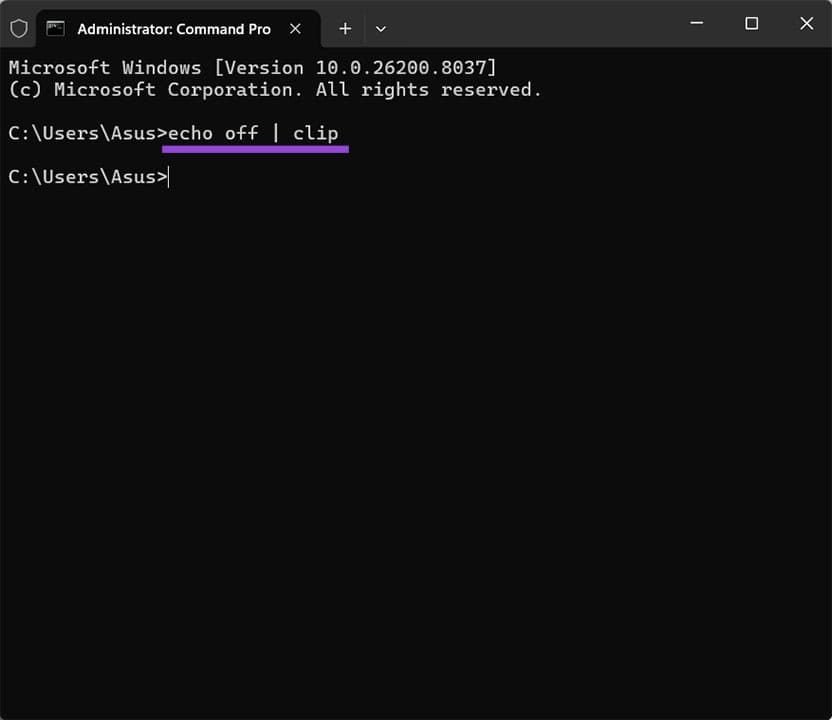
Note that you won’t get any feedback or response, but trying to paste the command again will fail.
Step 3. Go back to your Office app, copy your text again, and try pasting.
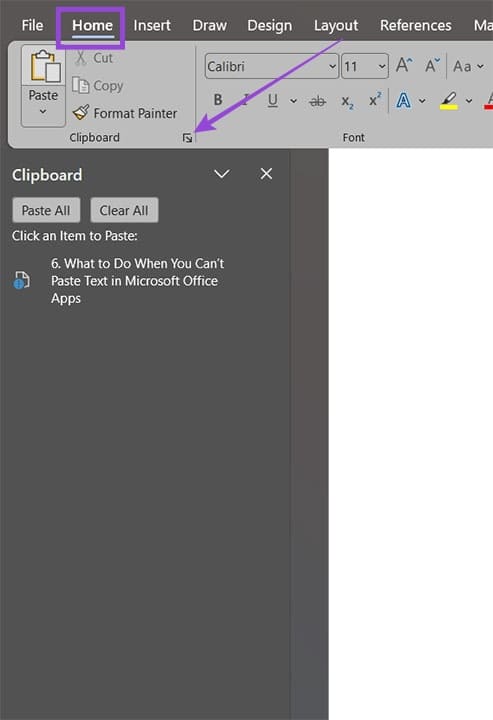
Alternatively, you can open the Office Clipboard panel directly inside the app: go to Home and select “Clipboard” (by clicking the small arrow in the bottom-right of the Clipboard group). This opens a panel showing everything currently on the Office clipboard, and you can click any item to paste it directly, even if “Ctrl + V” isn’t responding.
Fix 2 – Restart the RDP Clipboard Monitor (Remote Desktop Users)
If you can’t paste in Microsoft Word while working on a remote desktop, the clipboard monitor process that bridges your local and remote clipboards has likely crashed and needs to be restarted.
Step 1. Inside the remote desktop session, press “Ctrl + Shift + Esc” to open Task Manager.
Step 2. Go to the “Details” tab and look for a process named “rdpclip.exe.”
Step 3. Right-click on it and select “End task.”
Step 4. In Task Manager, go to “File” and choose “Run new task.” Manually type in “rdpclip.exe,” and hit “Enter” to restart it.
If rdpclip.exe isn’t in the list at all, it means the process never started. Running it fresh will launch it for the first time in this session, but it might mean the problem has a different source.
Fix 3 – Disable Office Add-Ins or Run in Safe Mode
Third-party add-ins can intercept or conflict with clipboard operations in Office. If paste works when you open Office in Safe Mode (which disables add-ins), one of your installed add-ins is the cause.
Step 1. Close your Office application. Hold “Ctrl” and click on the app icon to open it in Safe Mode, or press “Win + R,” then use “winword /safe” (for Word) or “excel /safe” (for Excel).
Step 2. Try pasting text in Safe Mode. If it works, an add-in is interfering.
Step 3. Reopen Office normally. Go to “File” then to “Options,” then to “Add-ins.”
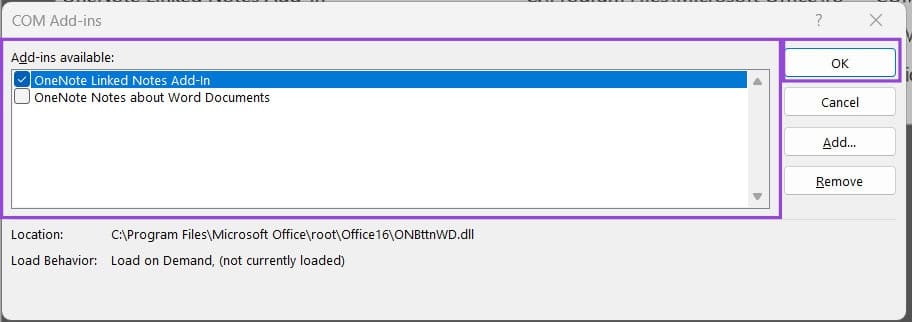
Step 4. At the bottom of the page, set the “Manage” dropdown to “COM Add-ins” and click on “Go.”
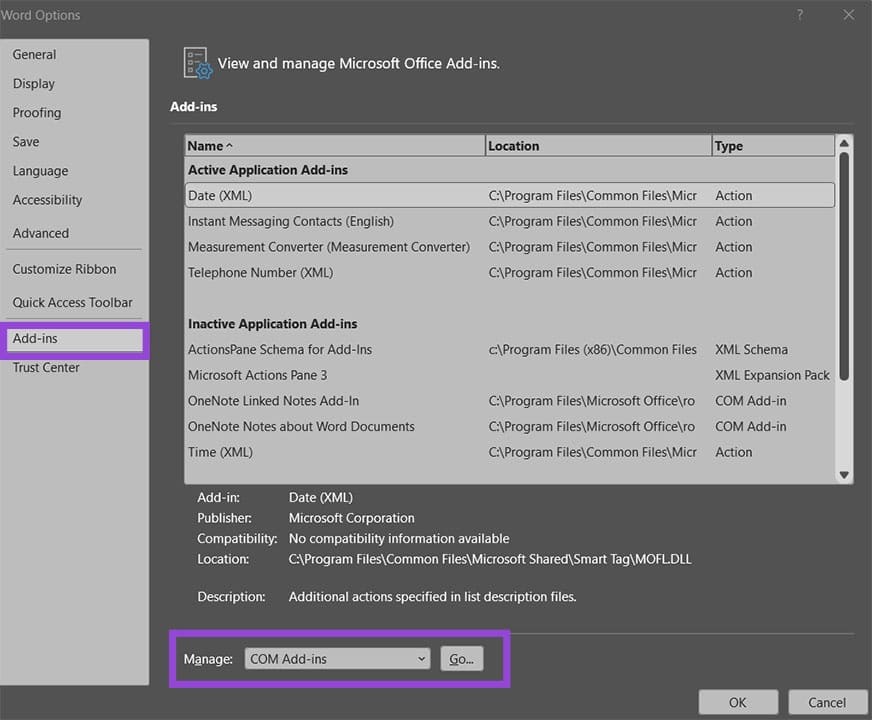
Step 5. Uncheck all add-ins and click “OK,” then restart the app.
Fix 4 – Remove Conflicting Background Program
Some applications use the Windows clipboard but might lock it to prevent other programs from accessing it.
Step 1. Press “Ctrl + Shift + Esc” to open Task Manager and review the running processes.
Step 2. Look for clipboard-adjacent software like Ditto, ClipX, 1Password, LastPass, Snagit, TeamViewer, or similar utilities. End their tasks one at a time and test pasting in Office after closing each one.
Step 3. If disabling one of them restores paste functionality, check that app’s settings for an option to exclude Office applications, or configure it to release the clipboard after reading rather than holding it.
Fix 5 – Repair the Office Installation
The most consistent way to fix an app is to reinstall it.
Step 1. Press “Win + I” to open Settings, then go to “Apps” and ”Installed apps.”
Step 2. Find “Microsoft Office” or “Microsoft 365” in the list, click the three-dot menu next to it, and select “Modify.”
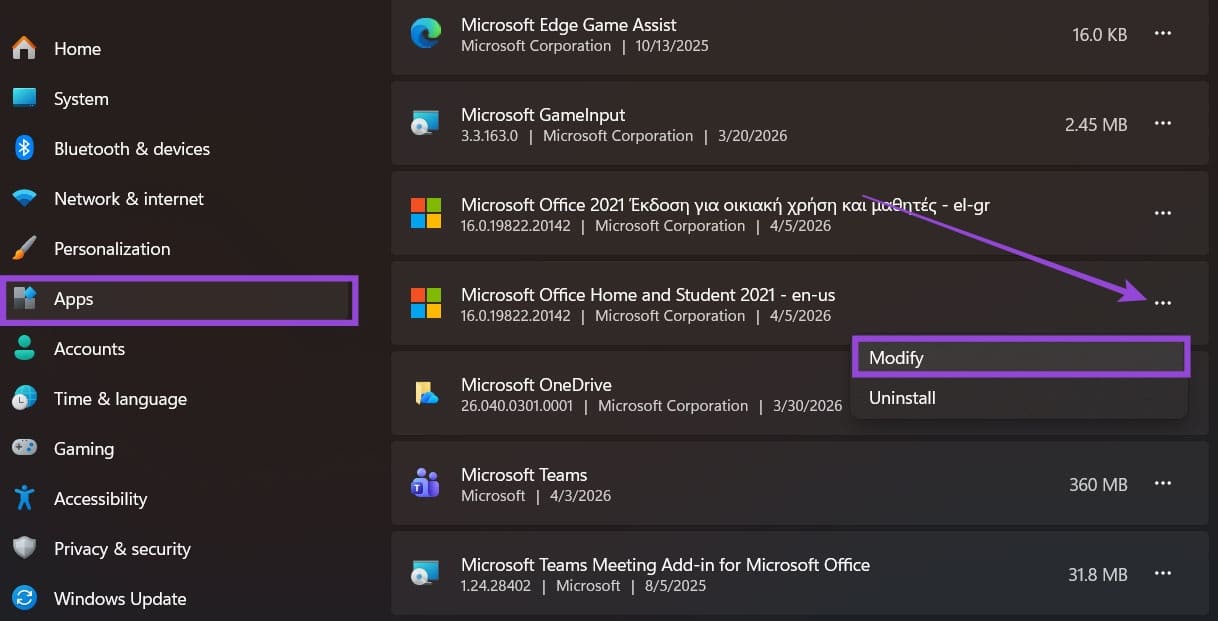
Step 3. Choose “Quick Repair” first, but you might need to use the “Online Repair” option if needed. Follow the instructions on the screen.
Had Enough of Quick Links in Edge? Here’s How to Disable Them
Read Next