How to Prevent Edge From Opening on Every Restart
Microsoft Edge is part of the Windows 11 experience, but sometimes you may not want that experience popping up every time you want to restart or boot up your PC. If you’re dealing with this persistent issue, then this article will show you a few ways to prevent Edge from opening on startup.
How to Prevent Edge From Opening on Startup
Along with Windows 10, the ways to prevent Edge from opening (Windows 11) are very similar. We’ve got a few troubleshooting steps below to stop Edge from starting up:
Disable Edge via Task Manager
A nice, quick fix is to ensure that Edge is not one of the apps allowed to start on startup. You can do this via the Task Manager and the “Startup apps” tab. Here’s how:
Step 1. Hit (Ctrl + Alt + Esc) to open Task Manager.
Step 2. In the sidebar, click the “Startup apps” tab.
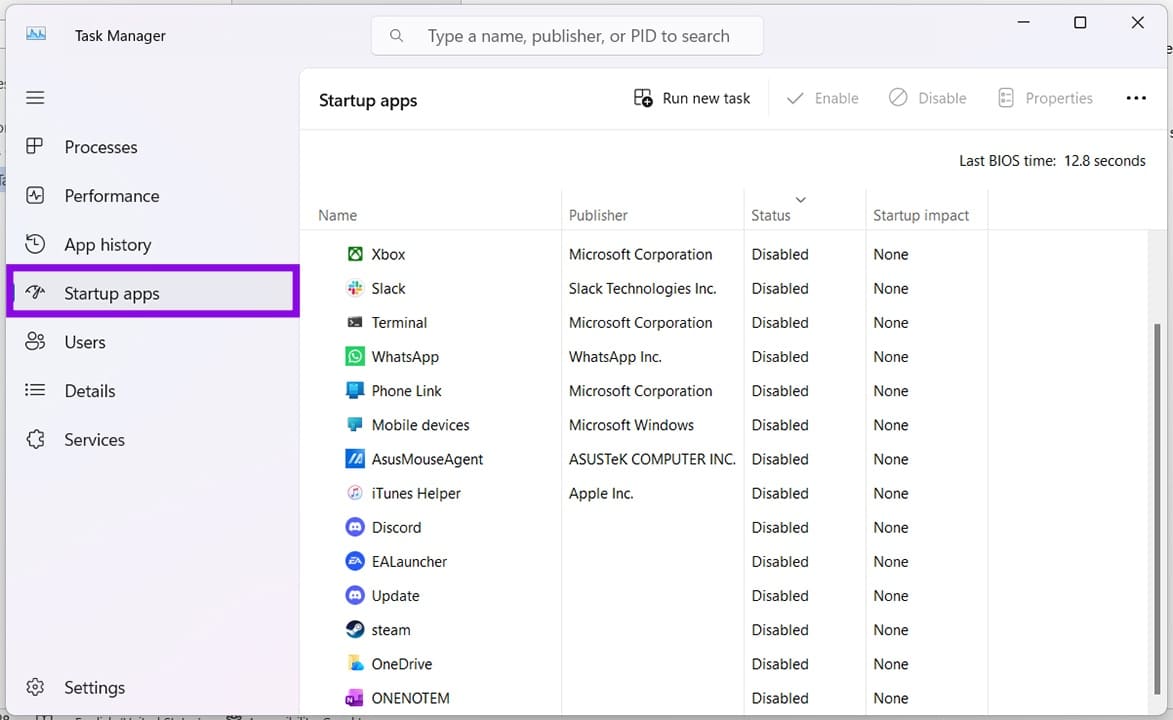
Step 3. Search for Microsoft Edge. If you see it in the list, right-click it and choose “Disable.”
Step 4. Restart your PC to confirm Edge no longer launches automatically at startup.
Remove From the Startup Menu
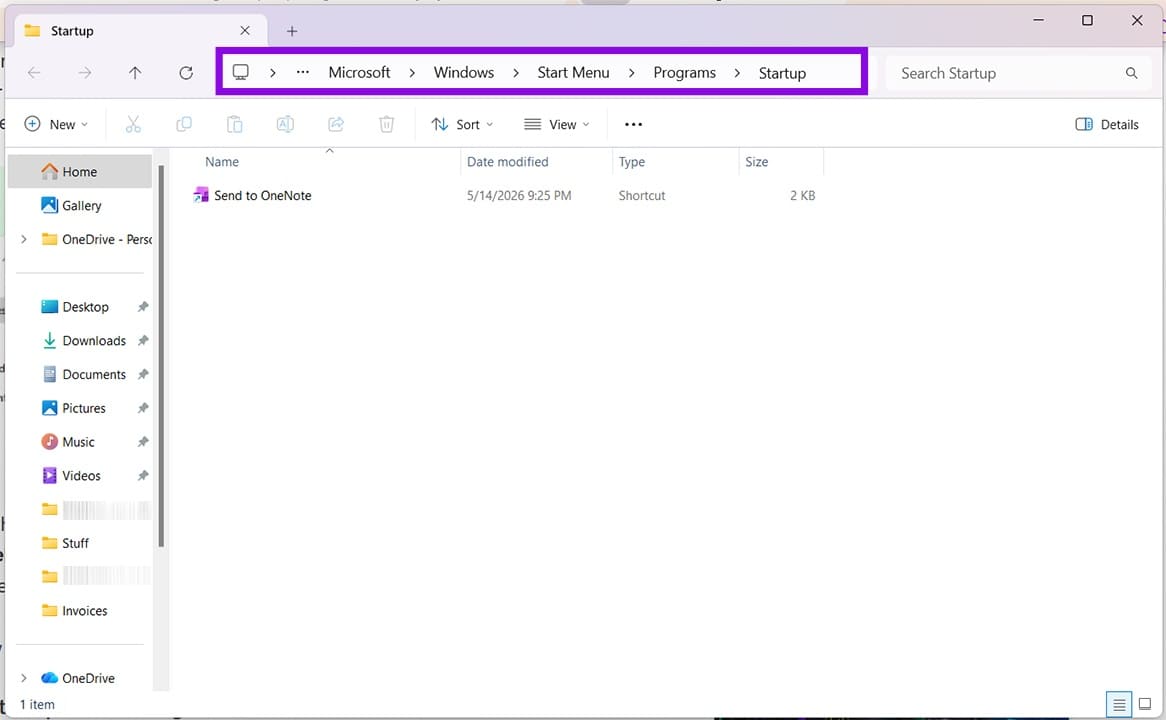
If you can’t find Edge in the Startup apps section of Task Manager, you can also search for and remove it from the “Startup” folder in Windows Explorer. Here’s how:
Step 1. Open the Run Dialog (Win + R) and type “shell:startup” before clicking “Enter.”
Step 2. The Startup apps should appear in an Explorer window. If you see Edge here, click it and click (Del) to remove it.
Disable Startup Boost
If you can’t find Edge either in Explorer or Task Manager, then don’t worry. The culprit may be Startup Boost, a feature in Edge that helps it open faster when your PC starts up. Disabling this can keep Edge from opening every time. Here’s what to do:
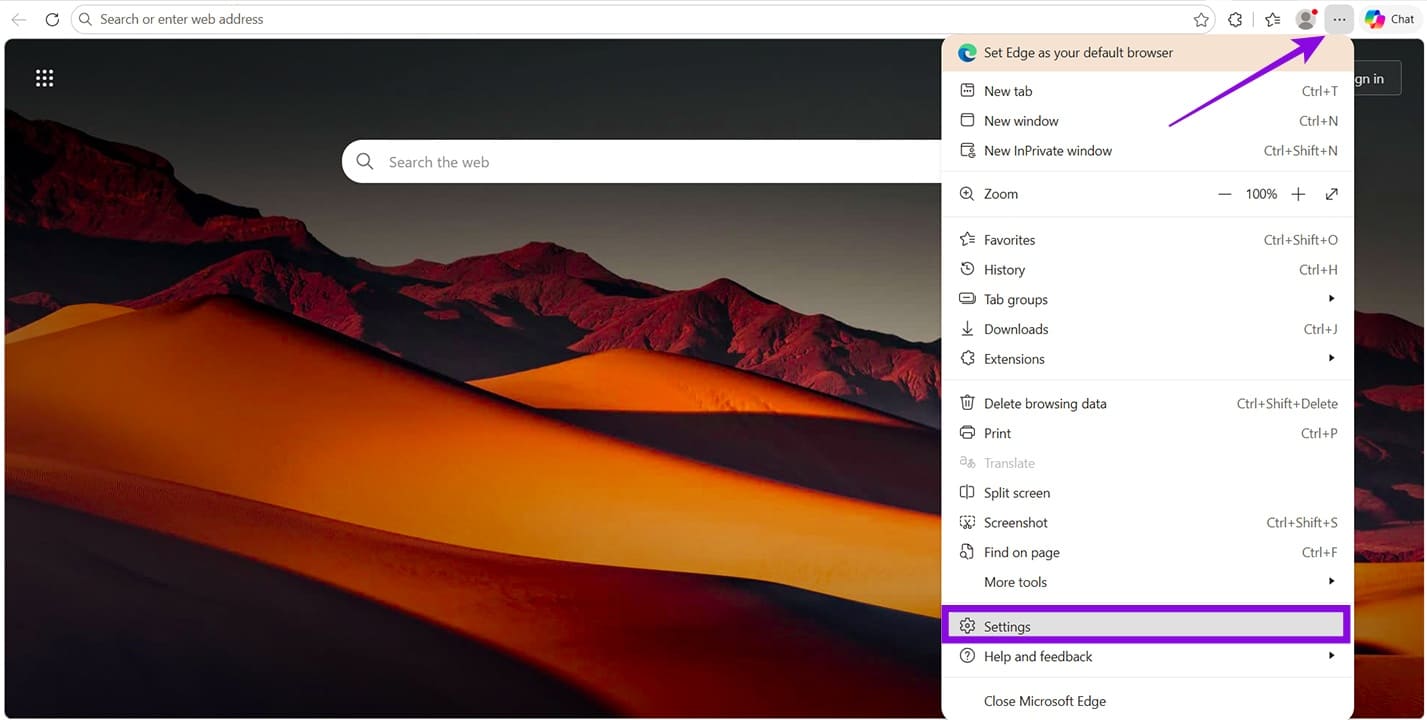
Step 1. Open Edge, if it isn’t open already.
Step 2. Click the ellipses menu (three dots) and click “Settings” from the dropdown menu.
Step 3. In Settings, click on “System and performance” in the sidebar.
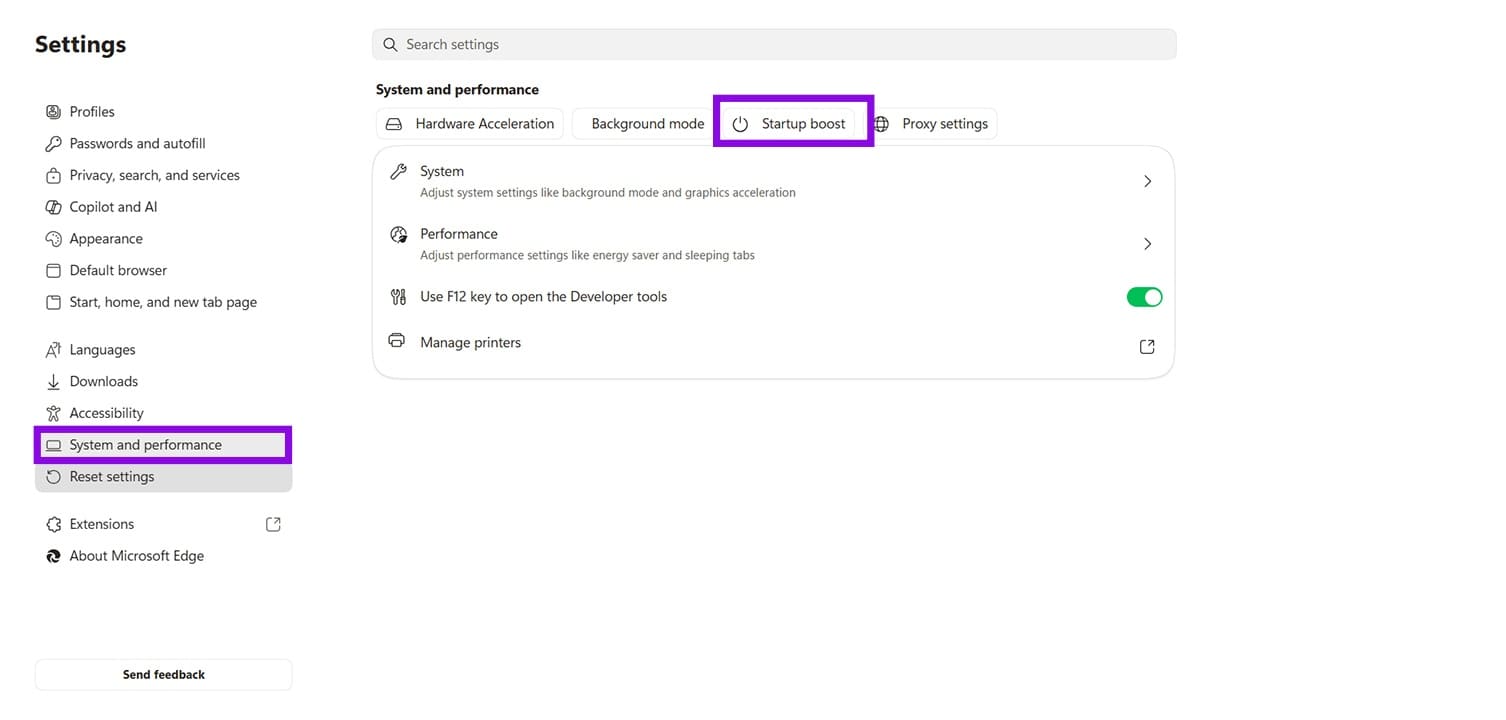
Step 4. Click the “Startup boost” button, and then disable the toggle next to “Startup boost.”
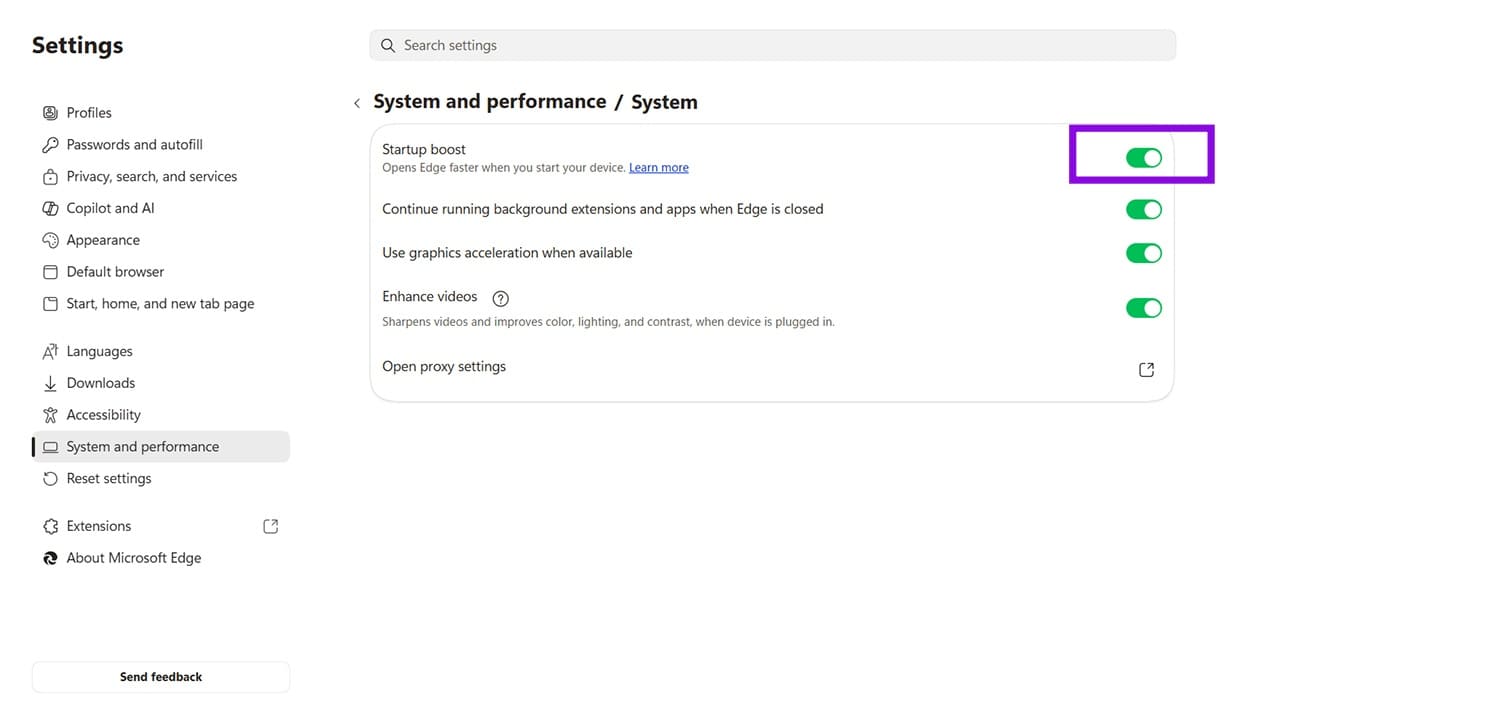
Step 5. Restart your machine and see if the issue has been resolved.
Disable Startup via the Registry
If you’re feeling a bit more adventurous, then you can disable things via the Registry. Just be sure not to tinker with anything else; it can make unwanted changes to your system:
Step 1. Open the Run dialog (Win + R) and type “regedit”, then press (Ctrl + Shift + Enter) to run Registry Editor as administrator.
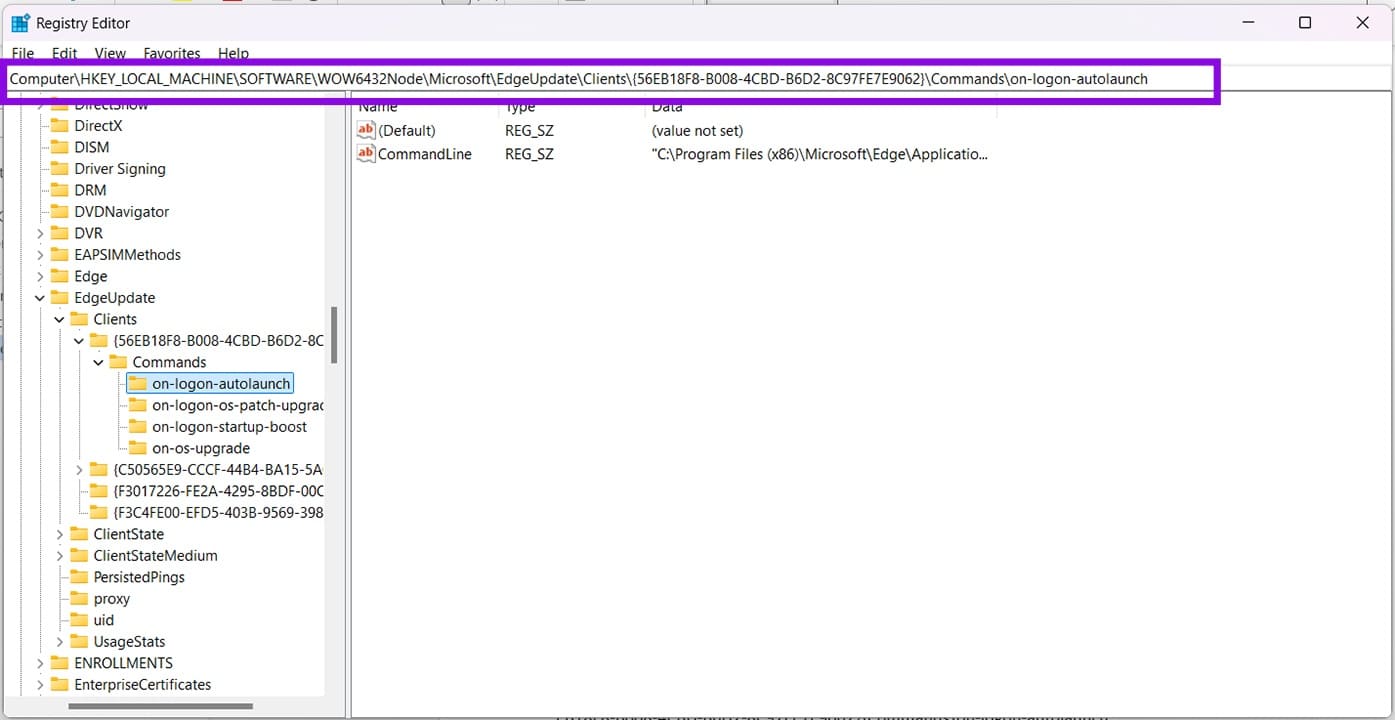
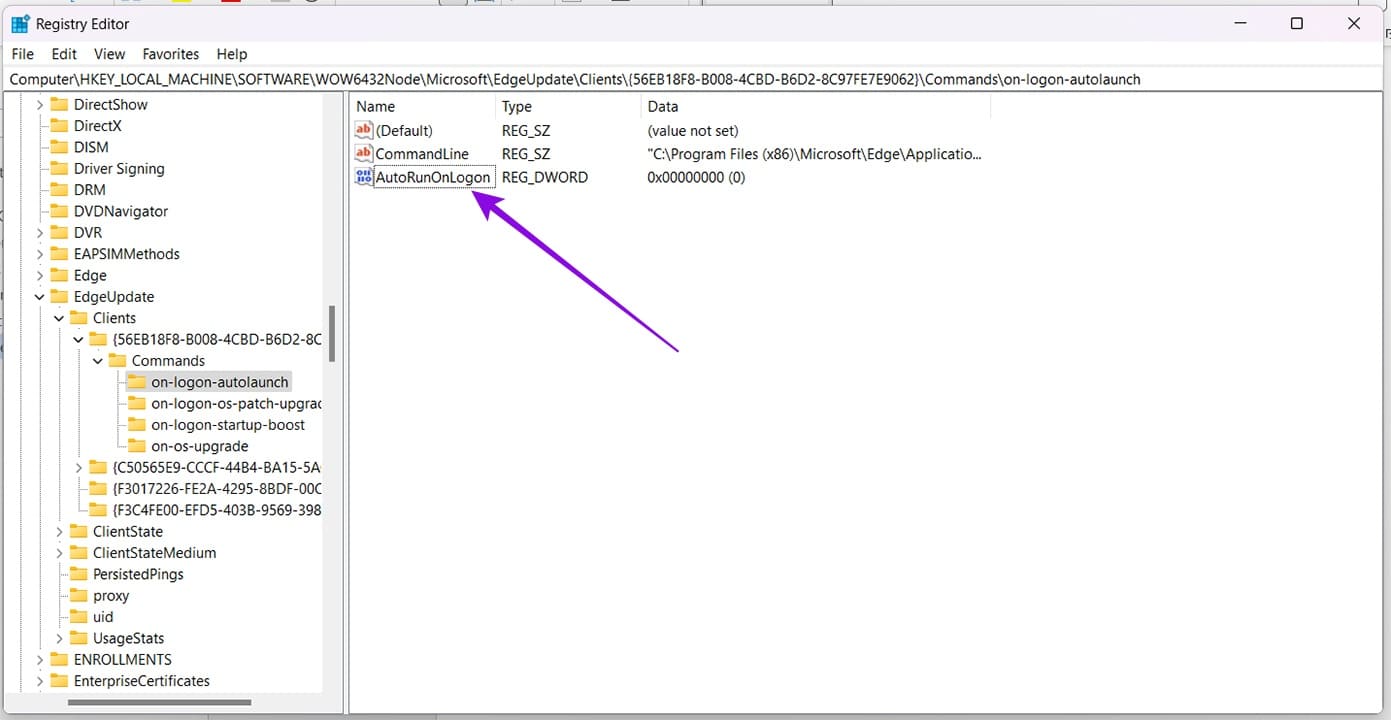
Step 2. In the Registry, enter the following path in the Top Bar: “Computer\HKEY_LOCAL_MACHINE\SOFTWARE\WOW6432Node\Microsoft\EdgeUpdate\Clients\{56EB18F8-B008-4CBD-B6D2-8C97FE7E9062}\Commands\on-logon-autolaunch”
Step 3. To create the option (if it doesn’t exist), right-click the main window, select “New” and “DWORD (32-bit) Value.”
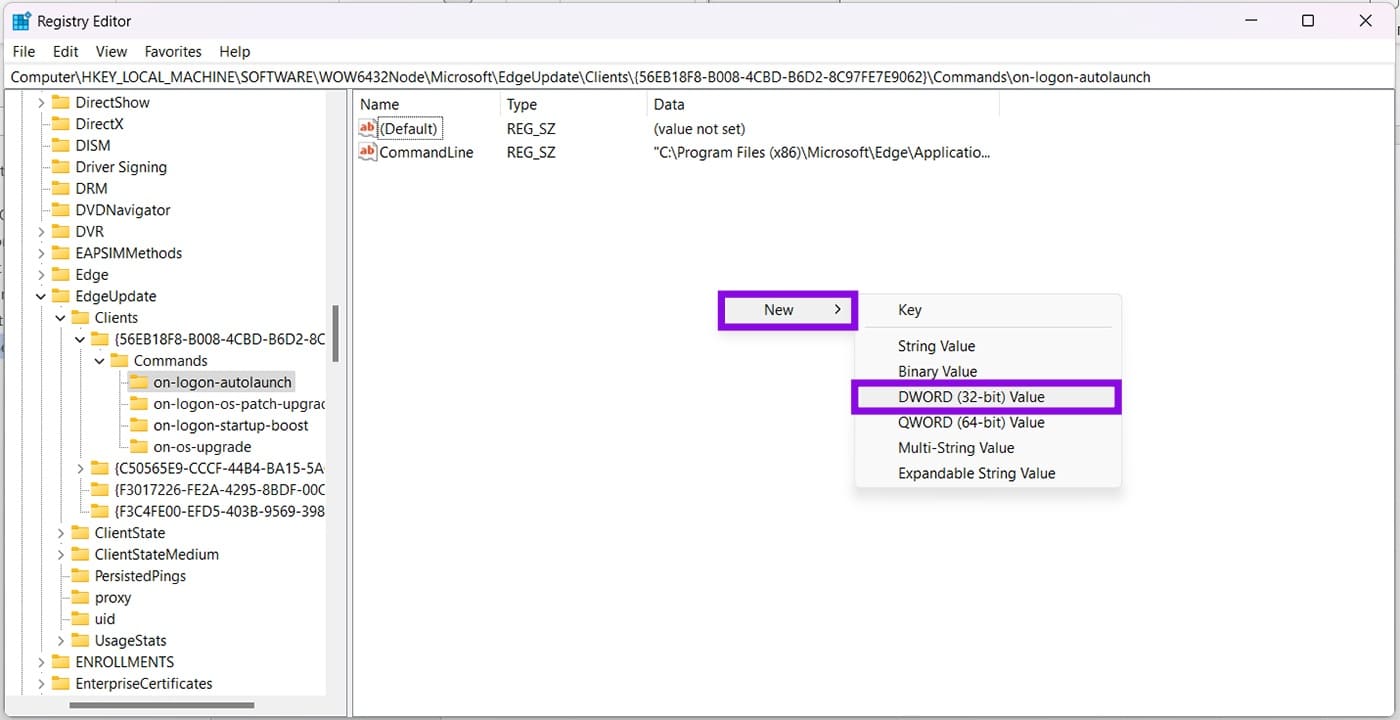
Step 4. Once the value is created, rename it to “AutoRunOnLogon.” The value should be “0.” If so, Edge won’t start when your PC boots or restarts.
Change Your User Account Options
If you were using Edge in your last session, your user account might be restarting it, along with any other apps running. If this is the case, you can adjust these settings like so:
Step 1. Open Settings (Win + I) and click on “Accounts” in the sidebar.
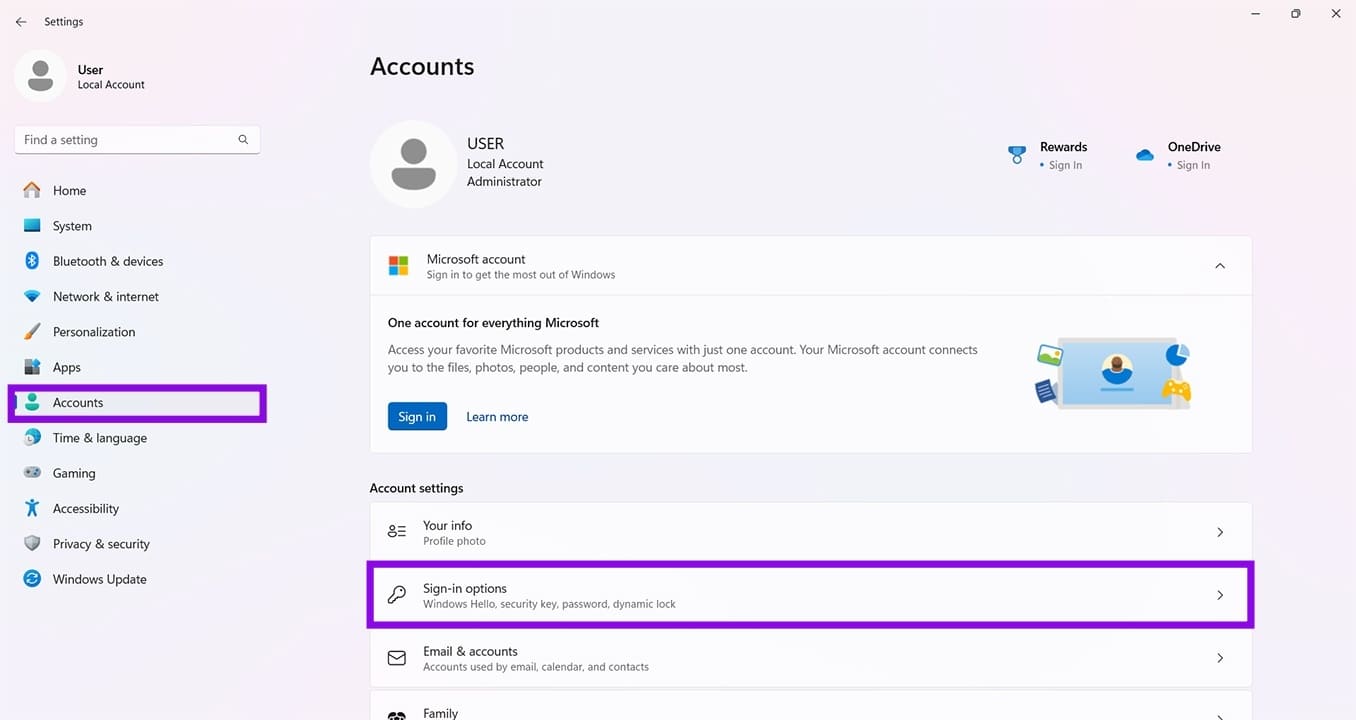
Step 2. Click “Sign-in options.”
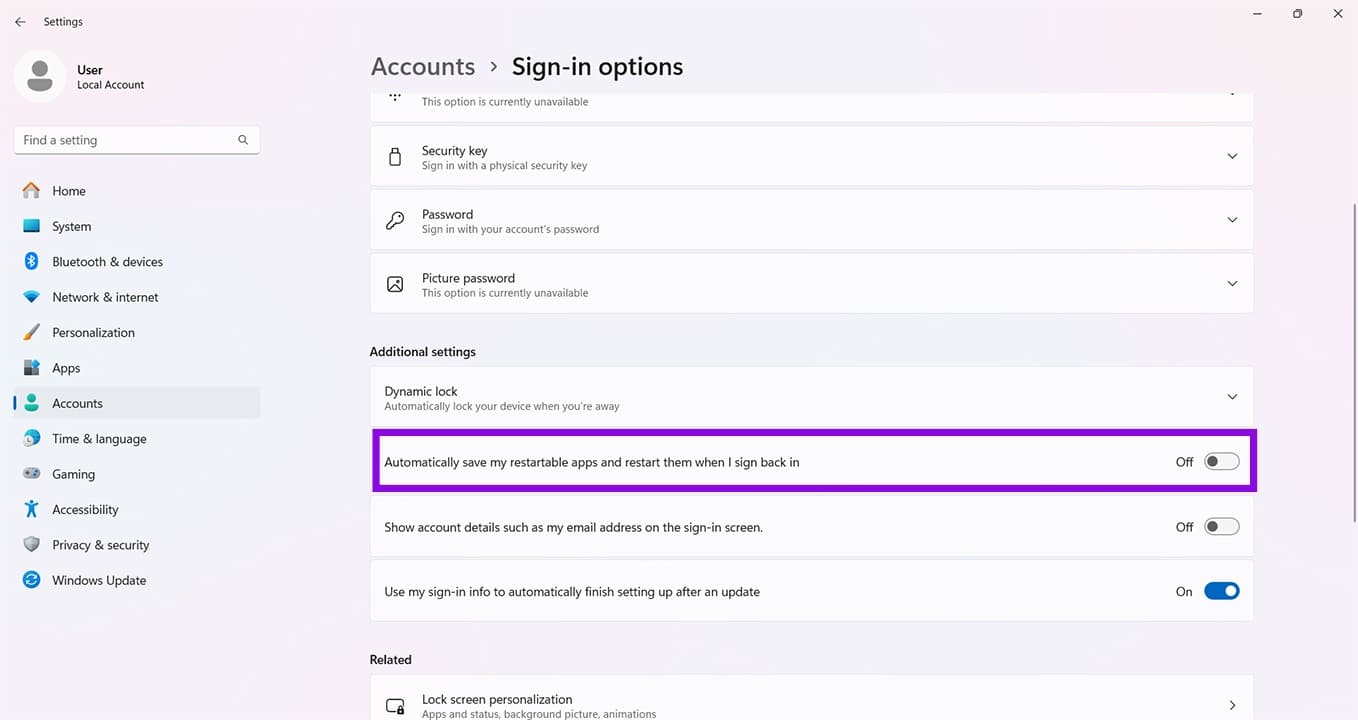
Step 3. Navigate down to the “Additional settings” subsection and toggle off “Automatically save my restartable apps and restart them when I sign back in.”
The Best Free Alternatives to OneNote
Read Next