What Does Google Chrome’s New Bookmark Encryption Mean for Privacy

By default, Chrome has stored bookmarks as a readable plain text file in your local storage folder or cache. As such, any program, piece of malware, or person with access to your file system could open that file and see every URL you’ve ever saved. But in April 2026, there was a new Google Chrome bookmark encryption test that made that file inaccessible. Here’s what that actually means.
Why Bookmarks Have Always Been a Privacy Weak Spot
Chrome saves your bookmarks to a file simply called “Bookmarks” in your local profile folder. On Windows, that sits at “%LOCALAPPDATA%\Google\Chrome\User Data\Default.” It has no extension lock, no password, and no encryption, so you could open it in Notepad and see every URL, folder name, and date added sitting there in plain text. This is unlike saved passwords, which require operating system access (and PIN or password).
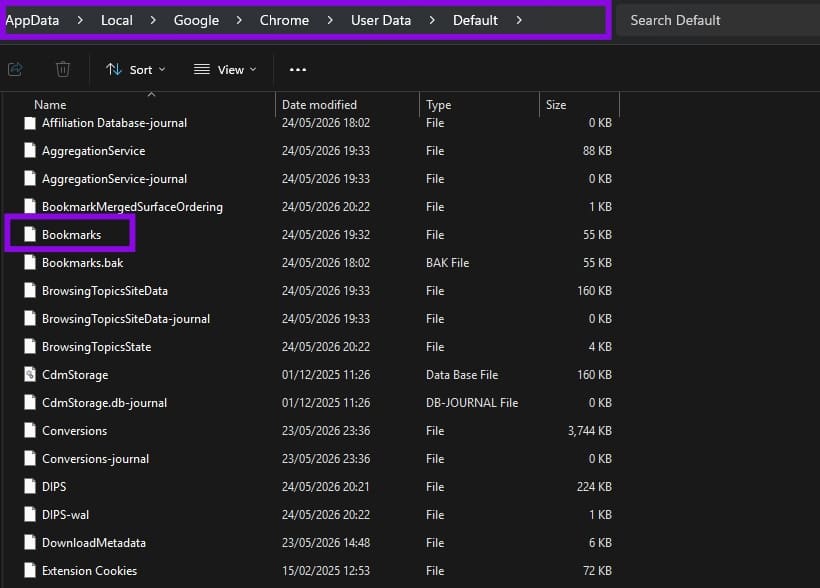
This could become a danger in a few scenarios:
- Malware that targets browser profile folders, which is a standard tactic in info-stealer attacks designed to harvest browsing data without triggering obvious alarms
- Anyone with physical access to your machine while it is left unlocked – or on a shared workspace computer where users share a single, generic Windows guest login – can easily access your local profile folder
- Any other application or script that reads your file system, since the file is not restricted to Chrome’s own process
What the New Google Chrome Bookmark Encryption Feature Does
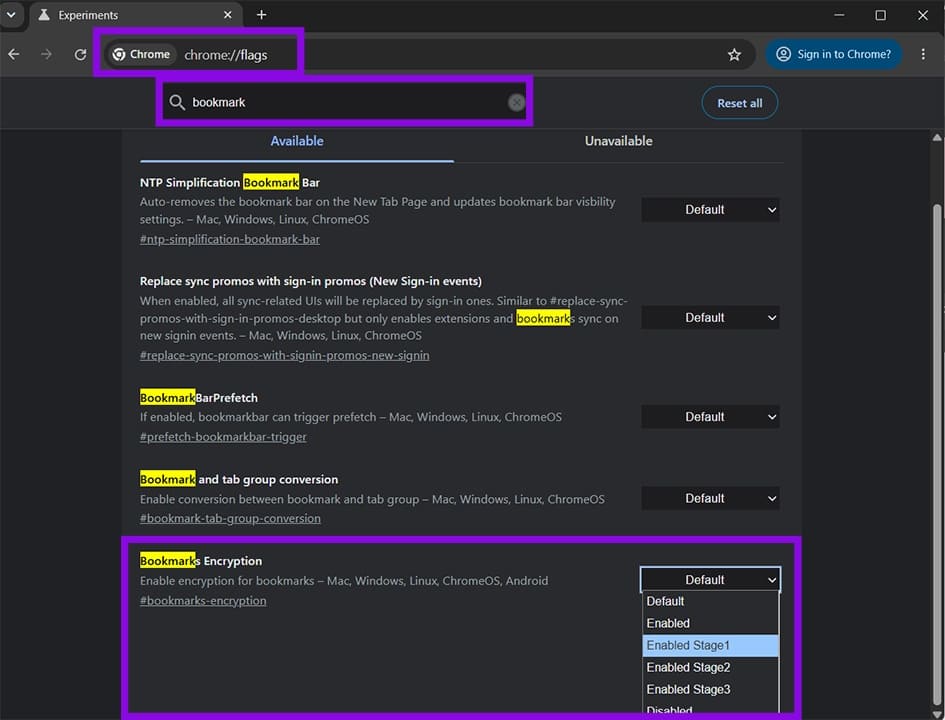
The “Bookmarks Encryption” flag that appears in Chrome Canary uses os_crypt, the same system-level encryption Chrome already applies to saved passwords and other sensitive local data. The feature rolls out in three stages:
- Stage 1 and Stage 2: The existing plain-text Bookmarks file stays in place, but Chrome begins writing encrypted data alongside it. These transitional stages allow Chrome to migrate data without breaking anything.
- Stage 3: The plain text file disappears from the profile directory entirely. What replaces it is an encrypted one that can’t be opened or read by anything outside of Chrome itself.
From your perspective as the user, nothing should change. The bookmarks bar, the bookmark manager, sync behavior, and search all work exactly the same. The only difference is that the underlying data becomes unreadable outside of Chrome.
What It Doesn’t Protect Against
Local encryption is tied to the operating system and your user account. It makes the file unreadable outside Chrome, but won’t:
- Prevent Google from seeing your bookmarks when sync is enabled — your data still travels to and is stored on Google’s servers, under Google’s encryption keys
- Protect bookmarks in transit without a separate sync passphrase (covered in the next section)
- Guard against malicious Chrome extensions that have been granted broad permissions, since those run inside Chrome’s own context.
What About Chrome’s Existing Sync Encryption?
Chrome already has a separate encryption option for synced data: a custom sync passphrase that encrypts your bookmarks, history, passwords, and other data before they leave your device. That’s a different feature from what’s being added here, and the two address different problems.
The custom passphrase protects data on Google’s servers. While it’s enabled, even Google can’t read the synced content because the encryption key never leaves your device. Without it, Google holds the keys, and your synced data is readable on their end.
But the custom passphrase has never protected the local file on your device. The new bookmark encryption fills that gap: it locks the copy sitting on disk, regardless of whether sync is on or off, and regardless of whether you have a passphrase set.
If you want both layers — local file protection and protection from Google’s servers — you’d need both features active. The sync passphrase is available now under Chrome’s sync settings. The local encryption is coming once the Canary flag graduates to stable.
When Google Chrome Bookmark Encryption Become Available?
The bookmark encryption is for now available only behind an experimental build in Chrome Canary, where Google tests new functionality before it reaches regular users. There is no confirmed release date for stable Chrome.
If you want to try it early, Chrome Canary can be installed alongside your regular Chrome installation. You can then enable the flag by typing “chrome://flags” in the address bar and searching for “Bookmarks Encryption.” Keep in mind that Canary builds are intentionally unstable and aren’t recommended as a daily browser.
How to Remove Photobombers in Seconds Using Photoshop Online
Read Next