How to Use Markdown in Notepad on Windows 11

Notepad has been around since Windows 1 (back in 1983) and has long been considered the most “basic” text editor, but it’s been quietly picking up new tricks with Windows 11. One of the more practical recent additions is native Markdown support, which lets you write and preview formatted text directly in the app without installing add-ons. Here’s how to use Markdown in Notepad to add a bit of color and style to your text files.
Part 1 – Check the Version and Enable Markdown in Notepad
Using Markdown requires Notepad version 11.2504.52.0 or newer. You can update it through the Microsoft Store if needed. Once you have a compatible version, the feature needs to be enabled first.
Step 1. Open Notepad.
Step 2. Click the gear icon in the top-right corner to open Settings.
Step 3. In the “Text Formatting” section, turn on the “Formatting” toggle.
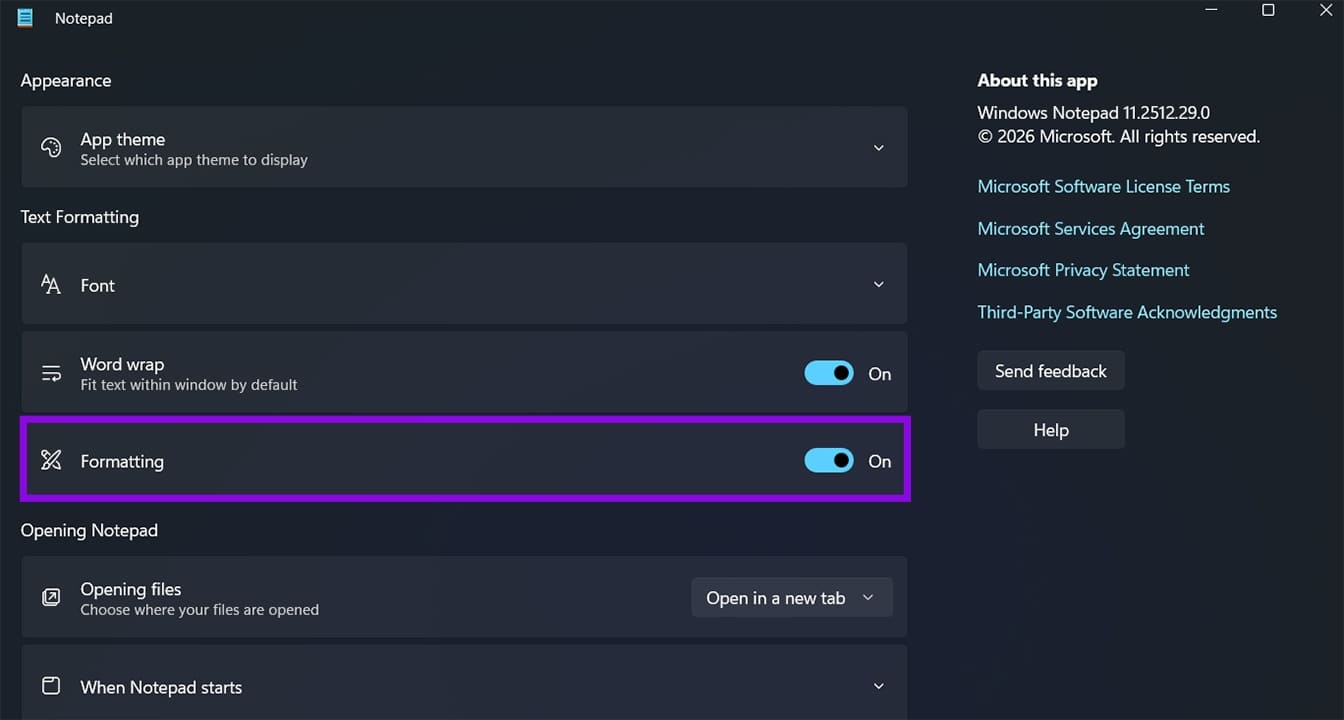
A formatting toolbar will be added to the menu bar. If you disable it later, it stays off until you turn it back on manually. The feature works with both .txt and .md files.
Part 2 – Create a New Markdown File in Notepad
You can open a Markdown file either through the File menu or by saving an existing tab with the .md extension.
For the first option, all you have to do is click “File” in the menu bar and select “New Markdown tab.” This opens a fresh tab already set to Markdown mode.
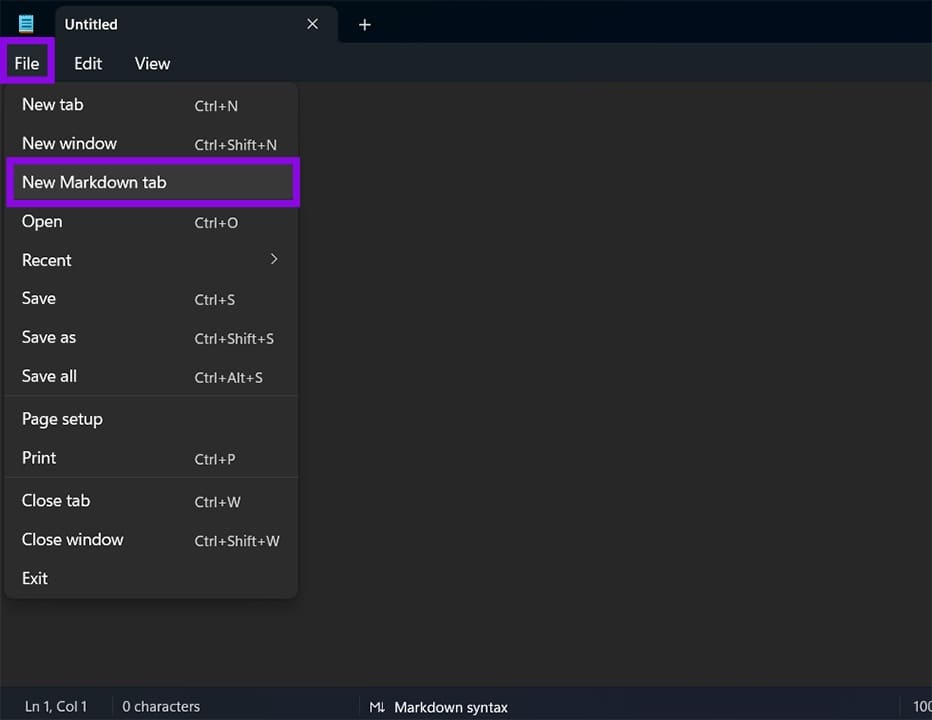
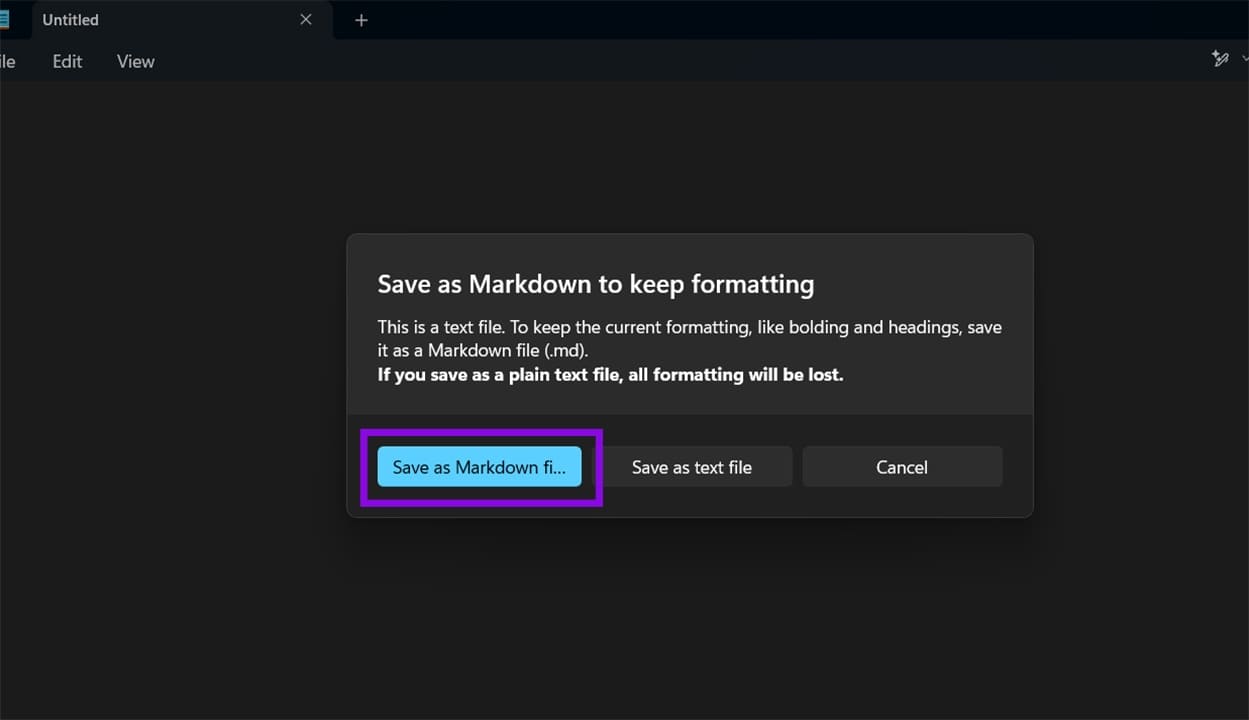
Alternatively, if you’re working in an existing tab, you can save it as a Markdown file.
Step 1. Click “File” and select “Save as.”
Step 2. Name the file with a “.md” extension (for example, notes.md) and click “Save.”
Either method puts you in Markdown mode with the full formatting toolbar active. In some cases, Notepad will even suggest to save in .md format if Formatting is enabled.
Part 3 – How to Use Markdown in Notepad
The toolbar offers the most accessible way of using Markdown in Notepad, especially if you’re not familiar with the syntax yet. It includes seven options:
- Style dropdown – choose from Title, Subtitle, and various types of Headings (note that this will apply the style to the entire box, regardless of what you select)
- Bold – wraps selected text in **double asterisks**
- Italic – wraps selected text in *single asterisks*
- Link – opens a dialog to insert a URL; inserts [text](url) syntax
- Bulleted list – adds a dash (-) at the start of each line
- Numbered list – starts the line with 1.
- Clear formatting – strips Markdown characters from selected text
If you can’t see the toolbar and Formatting is enabled, go to “View,” then select “Markdown” and click “Formatted.” The “Syntax” option allows you to manually add the aforementioned formatting to text.
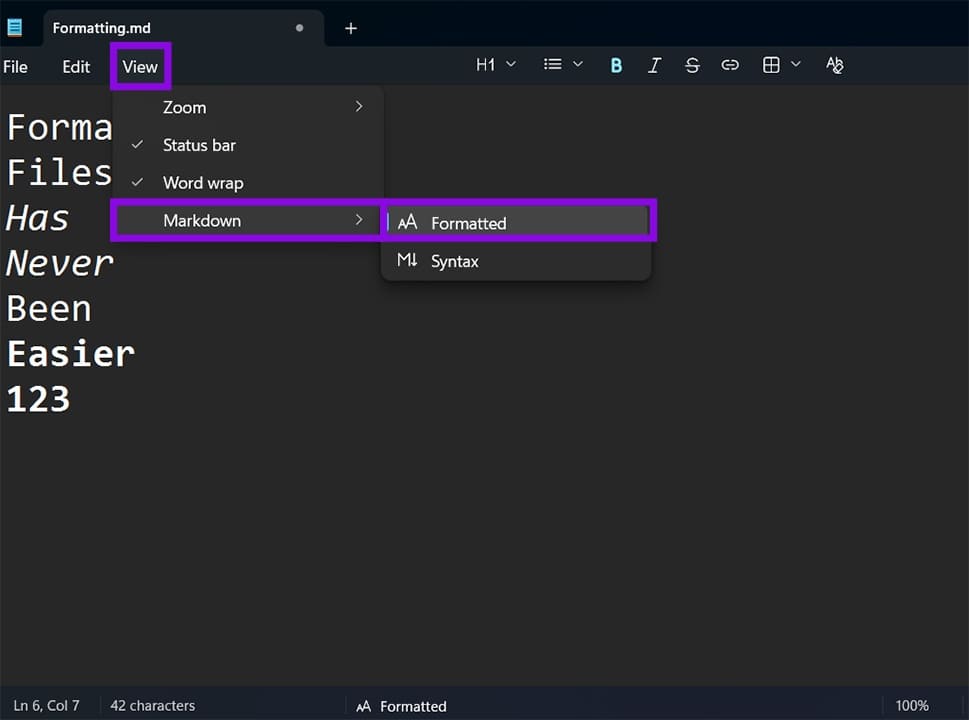
When you apply the styles, Notepad inserts the Markdown characters into the file. What you’re seeing in formatted view is the rendered preview, while the underlying file is always plain text with syntax (which is visible in “Syntax” view).
For links specifically, select the link text first, then click the link button. A small dialog will appear asking for the URL. Enter it and click “Insert.”
One of the few manual options that you’ll need to do is create the title and subheader styles. These are
- # followed by a space for H1 headings (title)
- ## for H2 (subtitle), ### for H3, #### for H4, ##### for H5 (subsequent listed styles)
How to Remove Markdown from Notepad
If you want to remove Markdown formatting from a section of text without deleting the words themselves, Notepad has a dedicated option for it.
Step 1. Select the text you want to clean up.
Step 2. Go to “Edit” in the menu bar and select “Clear All Formatting.”
This removes only the Markdown characters (the asterisks, pound signs, dashes, and so on) while leaving the actual text intact.
What Markdown in Notepad Doesn’t Support
Notepad’s Markdown support is intentionally limited. For example, fenced code blocks using triple backticks are not highlighted and may trigger an “Unsupported Syntax Detected” message. Strikethrough, footnotes, task lists, and heading anchors are also not rendered.
The primary intent behind the feature is to support developers working with .md files like README documents and changelogs, and to give users a built-in way to preview that content without needing a third-party app. If you need full Markdown support with live preview or export options, a dedicated editor is still the better choice.
How to Fix a Faulty Network Adapter in an Imported Virtual Machine
Read Next