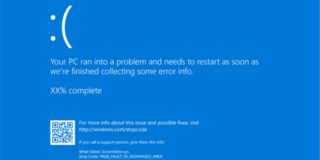
File Explorer Opens Blank After an Update? Try These Quick Fixes

PC updates in Windows can be a stressful affair. Sure, it brings a lot of improvements, but there’s also a lot that can break too. If you’ve found that File Explorer opens blank after one of these updates, you’re no doubt looking to fix it.
That’s what this article is all about.
What to Do When File Explorer Opens Blank
File Explorer opening blank or struggling to start severely hampers the Windows experience. Not to worry, we’ve got troubleshooters below to help.
Restart and Restart
Your first stop should be to restart your machine. It’s a quick fix that might solve your issue. You can also try restarting the Windows Explorer process, which can give things a fresh start. Here’s how:
Step 1. Open Task Manager (Ctrl + Shift + Esc).
Step 2. In the “Processes” tab, look for “Windows Explorer” and click it.
Step 3. Click “Restart task” at the top of Task Manager.
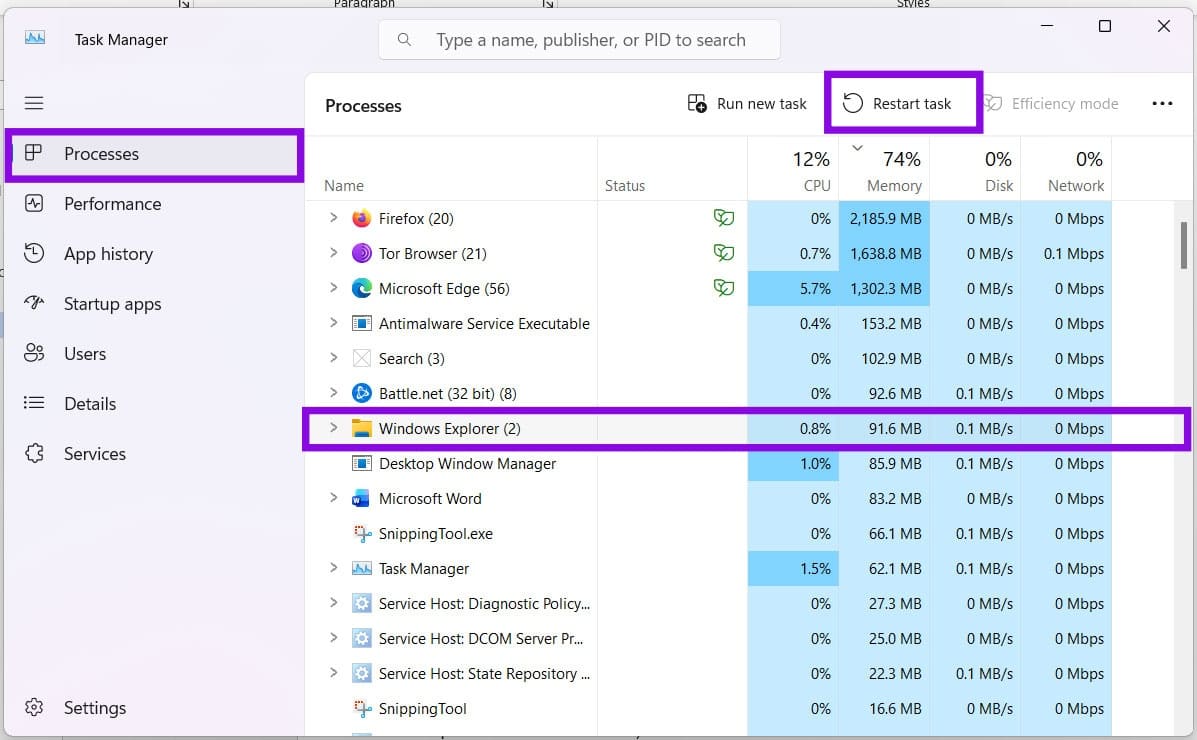
Step 4. Windows Explorer will restart. Open a new File Explorer window (Win + E) and see if it works.
Start Explorer Manually
If this doesn’t work, you can instead try starting Explorer through Task Manager manually. Here’s how:
You might not know that you can also start File Explorer manually from Task Manager. Here’s what to do:
Step 1. Open Task Manager (Ctrl + Shift + Esc).
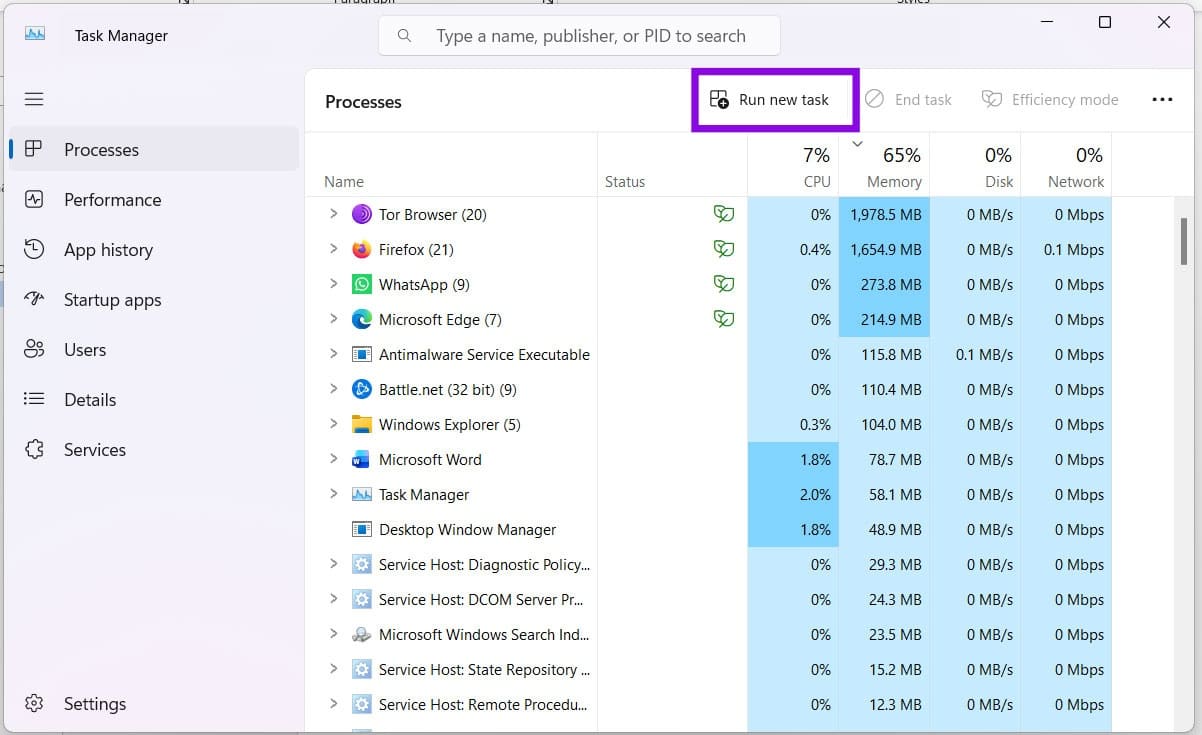
Step 2. Click “Run new task” at the top of the window.
Step 3. In the window that pops up, type “explorer.exe” and tick “Create this task with administrative privileges.”
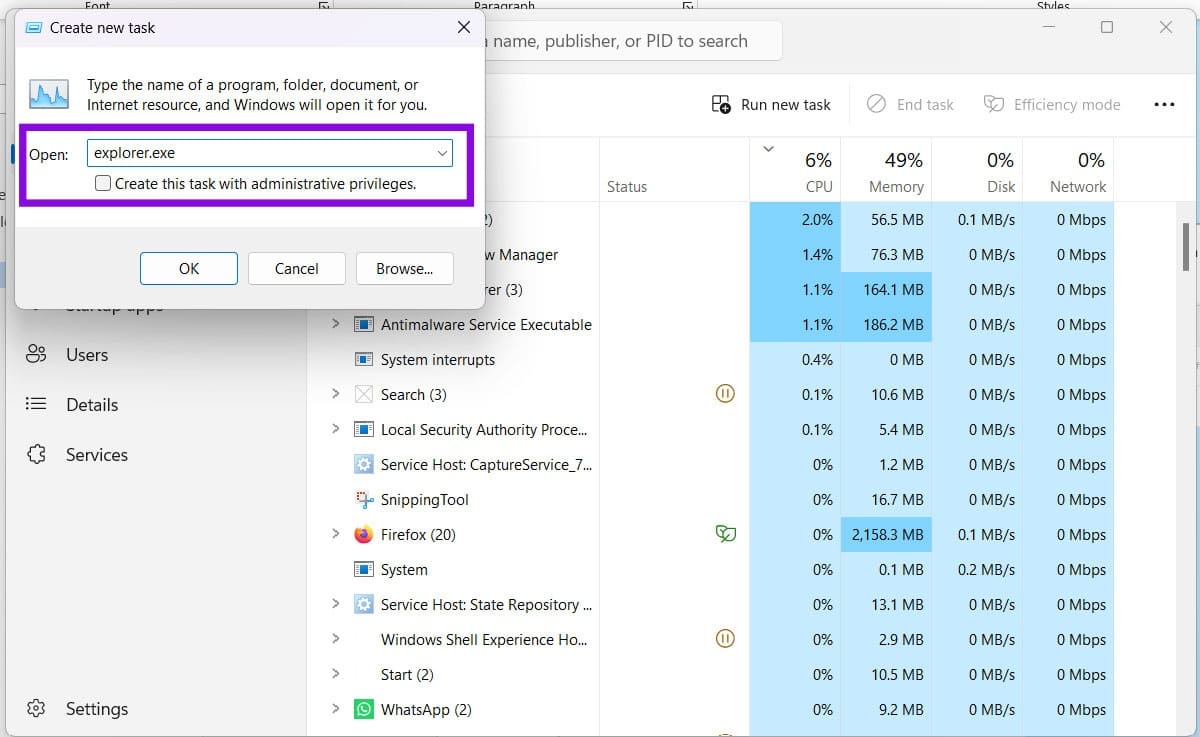
Step 4. Click “OK” to finalize and start.
Step 5. Try opening an Explorer window after this and see if it works.
Update
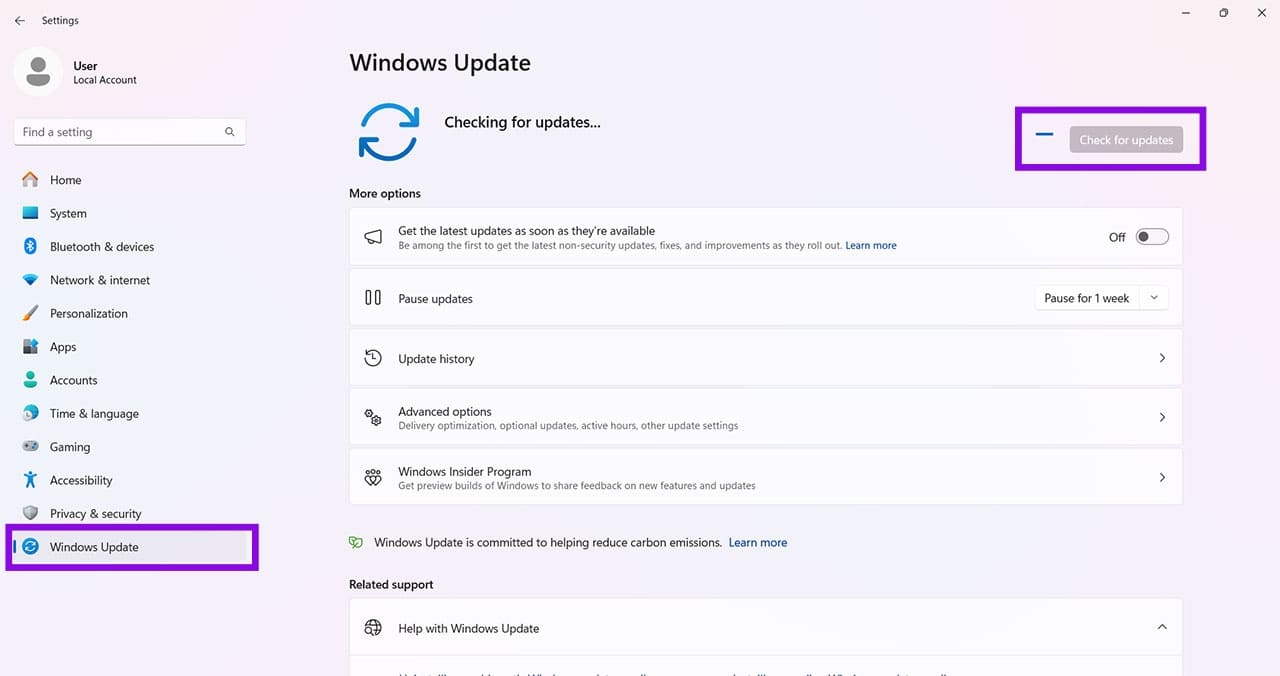
You may have just updated your machine, but try updating again. If the issue is caused by a Windows update, check for additional updates in case Microsoft has released a fix. Head to “Windows Update” in “Settings” (Win + I) and install any pending updates.
Check for Malware
It could also be that your system has been infected by malware, causing havoc with different apps and processes. Run your antivirus software or Microsoft Defender Antivirus to check your PC for malware.
Run SFC and DISM
System corruption after an update can cause different processes to stop working properly. Running DISM and System File Checker (SFC) can help repair corrupted Windows system files:
Step 1. Open the Run dialog (Win + R) and type “cmd” before hitting (Ctrl + Shift + Enter) to run as Admin.
Step 2. In Command Prompt, type DISM.exe /Online /Cleanup-image /Restorehealth and hit “Enter.” Let it run.
Step 3. Once done, type sfc /scannow and hit “Enter.” Let the process run.
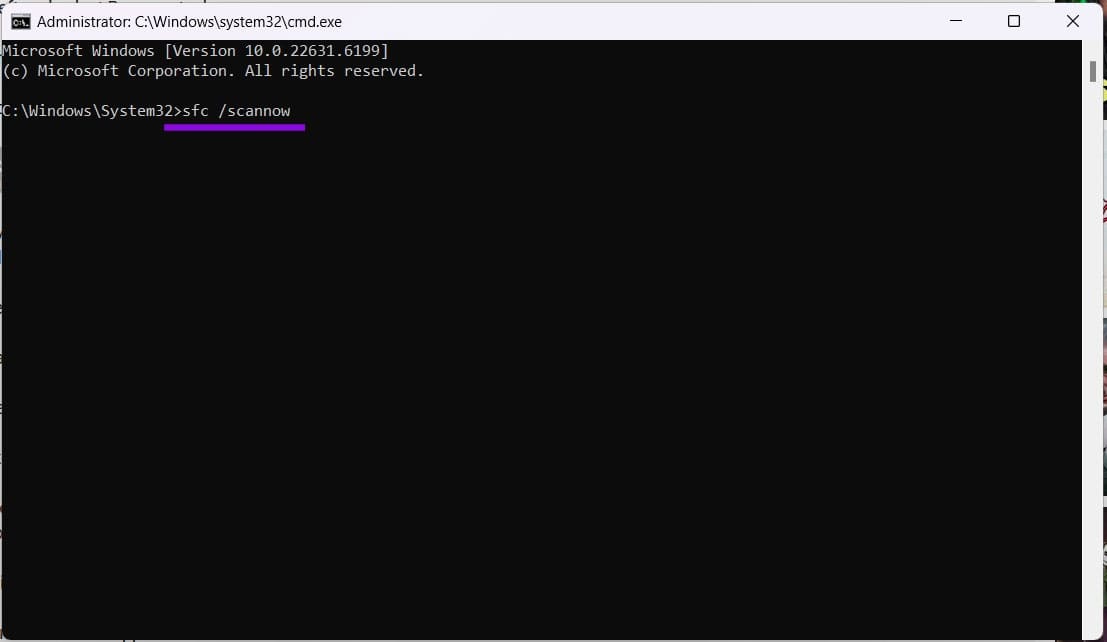
Step 4. Once both are finished, restart and try opening an Explorer window again.
Roll Back the Update
If you suspect a recent update may be to blame, you can uninstall the update or, if you recently upgraded to a new version of Windows, use the “Go back” option to return to the previous version. Here’s how:
Step 1. Open “Settings” (Win + I) and choose “System” in the sidebar.
Step 2. Navigate down to “Recovery” and click it.
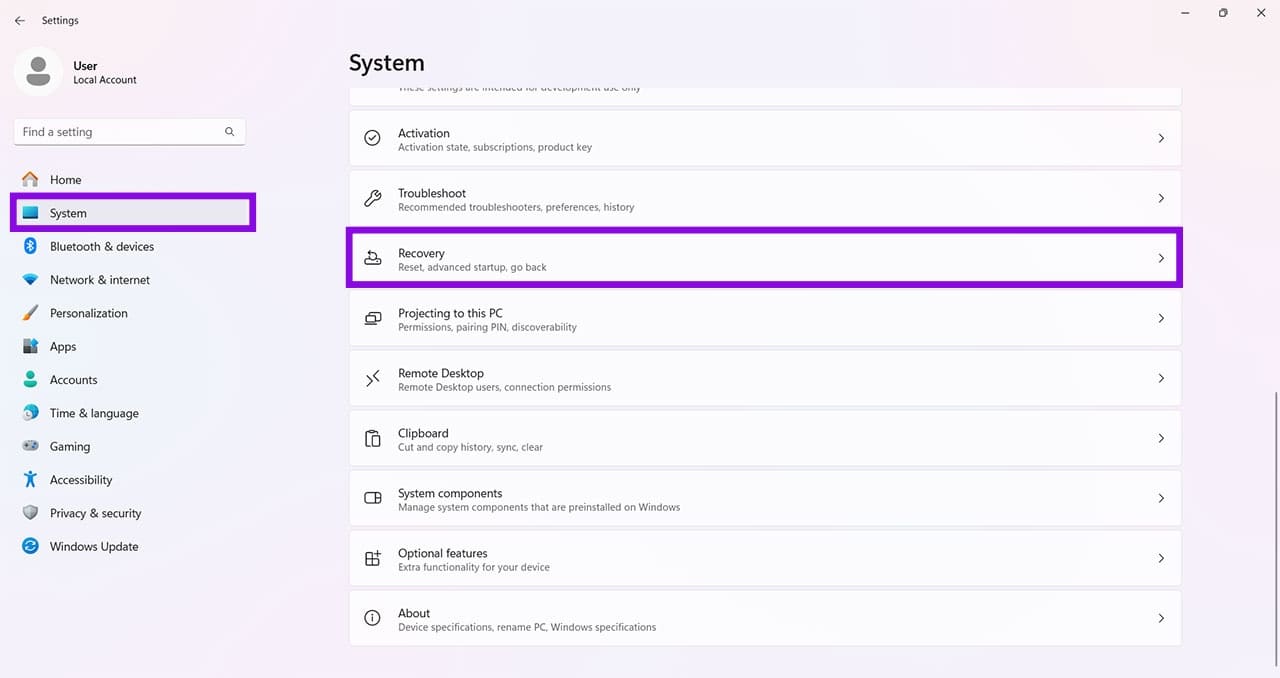
Step 3. If it’s still possible for you to roll back the update, a “Previous version of Windows” option will be visible. Click the “Go back” button next to it to begin.