How to Easily Turn a PDF into a Word Document Online using Adobe Acrobat
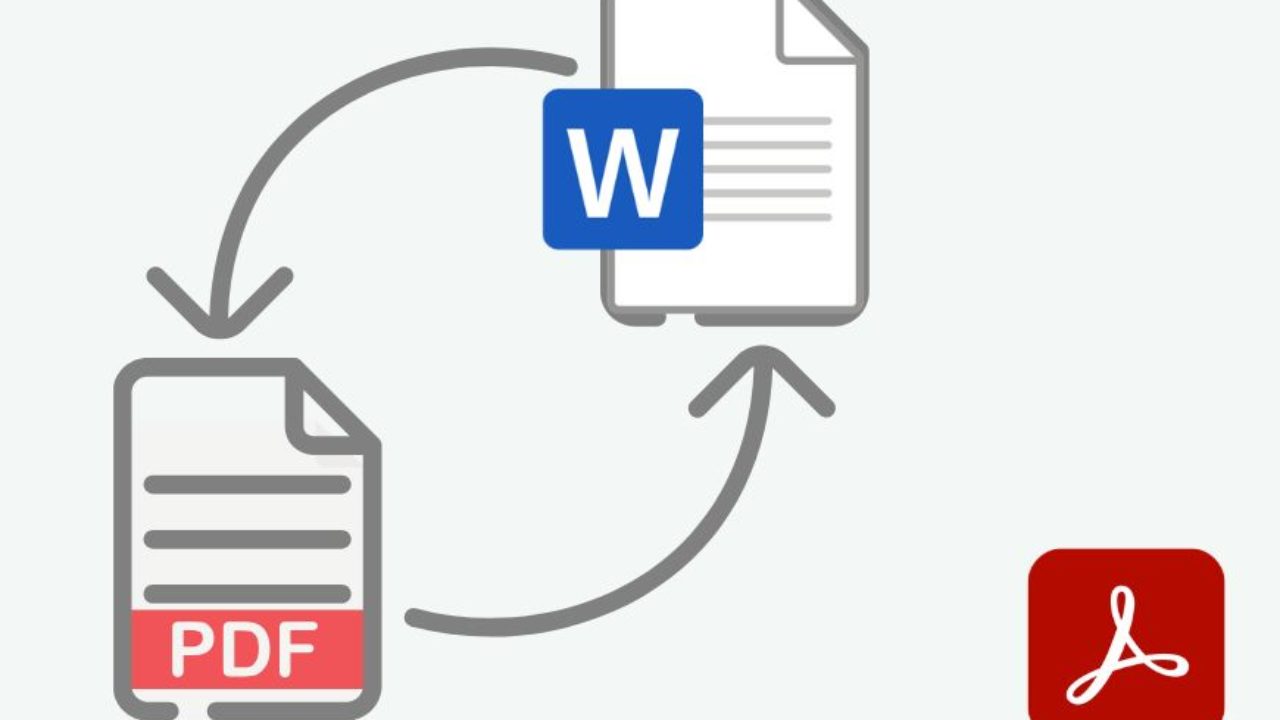
PDF files are great because you can share them and be sure the look remains consistent wherever you open them.
But what happens when you need to edit one? Maybe you’re a student revising a paper based on the teacher’s feedback, or a job seeker customizing their CV and cover letter, or you need to reuse the text from a contract to send it to a different client.
For these and other cases, a Word document is better than a PDF.
That’s where Adobe Acrobat’s online PDF-to-Word converter comes in, as it lets you turn a PDF into an editable Word file directly in your browser for free.
It’s extremely easy to use, and you don’t need to install software or sign up to make a basic conversion.
The best thing is that Adobe Acrobat also preserves important elements such as fonts, images, tables, columns, and page layout.
Acrobat is also one of the most secure apps out there, which matters because you may be working with sensitive content and don’t want to upload documents to an untrusted website.
Adobe ensures that your files are securely processed with encryption and other security measures. Then, your files are deleted from its servers within 24 hours unless you choose to sign in and save them.
So, whether you’re converting a simple text document or one with a complex layout and formatting, Acrobat offers one of the simplest ways to convert it into an editable Word document.
How to Convert a PDF File Into a Word Document Online With Adobe Acrobat
Acrobat’s PDF-to-Word converter is very easy to use. However, this step-by-step guide shows you how it works if you need help.
Step 1
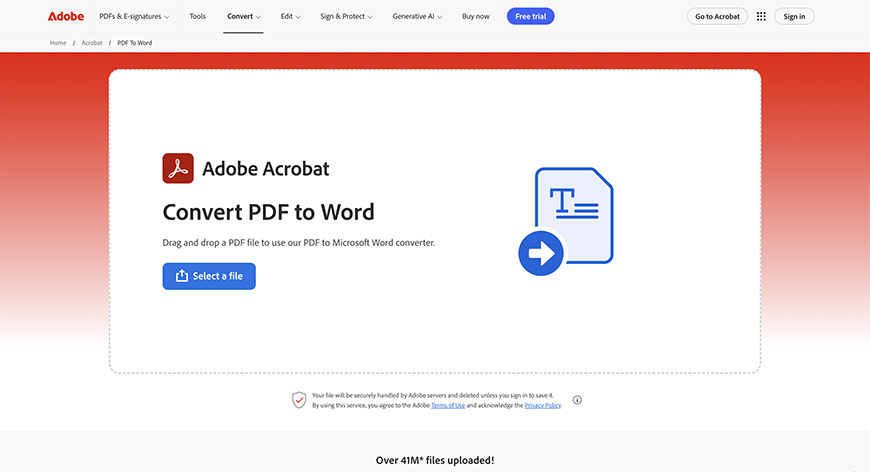
First, open your favorite browser and go to Acrobat’s PDF-to-Word converter. You can also search for it in your preferred search engine and it will quickly come up.
The page will open without asking you to sign in or subscribe to any membership. So, don’t worry.
Step 2
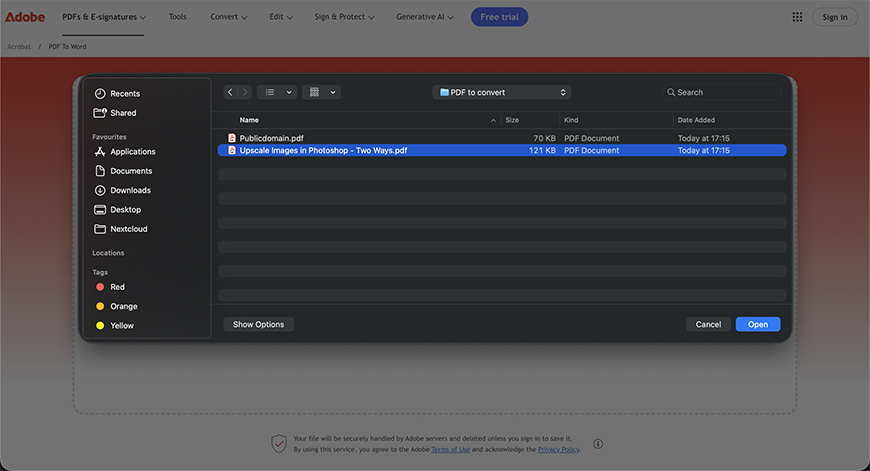
Next, click on the Select File button. This will open a browser window so you can find the PDF file on your computer and upload it.
You can also drag and drop the file into the converter.
Step 3
Just relax; Acrobat will do all the work automatically.
Depending on the document’s length and complexity, this may take a second or a few minutes. In my experience, it’s never taken too long.
Step 4
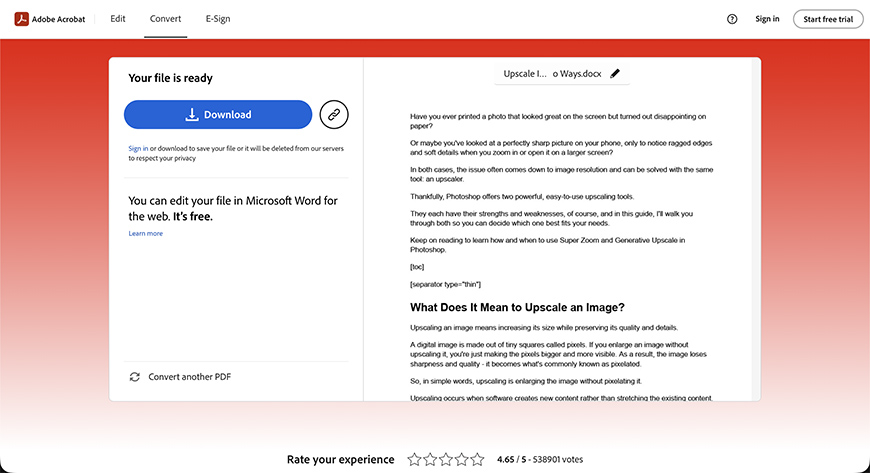
Once it’s done, you’ll see the Download button on the left side so you can save your converted document. You’ll be able to download it without signing, watermarks, or any other caveats online services often have. This is something I really like about using Adobe Acrobat.
As you click Download, another window will pop up for you to choose where you want to save your file. You can also change the file name if you want.
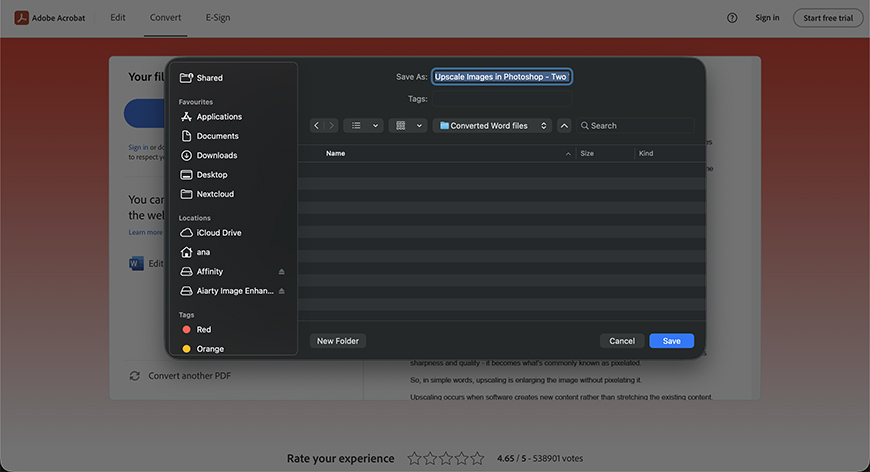
Notice how the converted document has a .docx extension now – that’s because it’s a text document you can open and edit in Word.
What if Your PDF is A Scan?
Not all PDFs contain editable text. A PDF created from a scanned document, even if it has text on it, is saved as a collection of images.
The good news is that Acrobat recognizes the text within scanned images using OCR (optical character recognition), allowing you to convert the scan into an editable Word document without retyping everything manually.
How Well Does Acrobat Preserve Formatting?
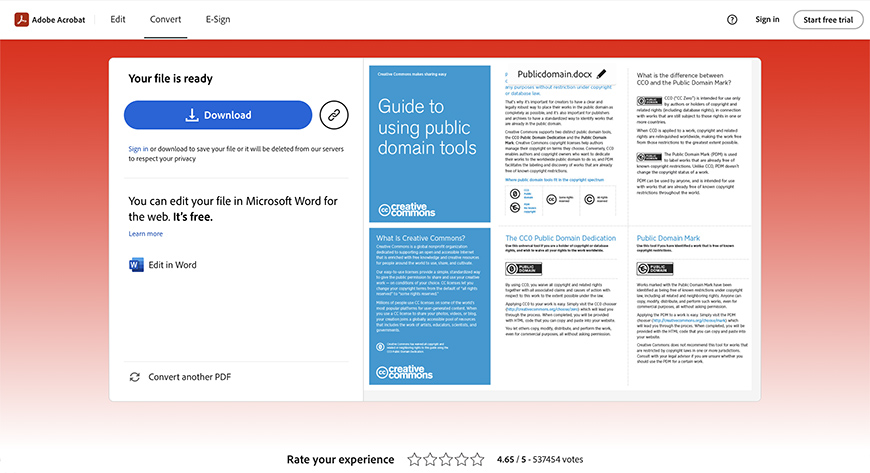
Adobe Acrobat offers one of the best ways to convert PDFs with complex formatting. It preserves fonts, images, tables, bullet points, alignment, and other formatting elements, so you shouldn’t have to rebuild the document from scratch.
In the example above, you can see how well Acrobat handled the formatting of this document. That said, no PDF-to-Word conversion is perfect, especially when a document has a complex layout
I sometimes have to fix the alignment on a couple of paragraphs or reposition an image. That’s where having access to Word online right from the converter came in handy. Fixing these issues takes only a minute, without requiring any new software.
Converting a PDF Into A Word Document Online With Adobe Acrobat – FAQs
Can you convert a PDF to Word without installing anything?
Yes, using the Acrobat PDF-to-Word converter, you can do everything online without subscribing, installing, or downloading any software. You can use it on any computer with the browser of your choice.
Why convert a PDF to Word?
Converting a PDF to Word makes it easier to edit, update, and reformat. It also lets you reuse text, tables, and images without redoing everything from scratch.
How can I open a Word document?
You can open a Word document on your computer and online using Word and other text applications that support .doc files, such as Google Docs or LibreOffice.
Can Adobe Acrobat online convert PDF files to Word documents?
Yes, the browser version of Acrobat has a free PDF-to-Word converter, so you don’t have to install Adobe Acrobat on your computer.
How do I convert a PDF to Word online?
There are multiple PDF-to-Word converters available online. I recommend using Adobe Acrobat because it’s free and accurate even with complex formatting. It also doesn’t require you to sign in unless you want to edit the Word document from inside Adobe Acrobat.
Is the Acrobat PDF-to-Word converter free?
Yes, the Acrobat PDF-to-Word converter offers a limited number of free daily conversions. If you need more than the free limit, you will need to subscribe to Adobe Acrobat.
Why won’t Acrobat let me convert my PDF to Word?
There are many reasons why you could be having problems converting a file using Adobe Acrobat’s PDF-to-Word converter. The file may be corrupted, password-protected, or too large. You may also be having Internet connection issues, or you may have exceeded the daily limit.