How to Fix Windows Audio Service That Won’t Stop
If you get your Windows Audio service stuck on “Stopping” when you try to troubleshoot it, there are only a few things you can do to try to get the service back on. Depending on the cause, the fix may involve restarting related audio services, disabling audio enhancements, or updating or reinstalling the audio driver.
Fix 1 – Make the Startup Type Automatic
Windows Audio is configured as a Manual-start service in current Windows versions, so changing its startup type to Automatic isn’t generally necessary to fix Windows audio service stuck on “Stopping.”
Step 1. Press “Win + R,” type in “services.msc,” and hit “Enter.”
Step 2. Scroll down and open “Windows Audio.”
Step 3. Open the “Startup type” drop-down menu and select “Automatic.”
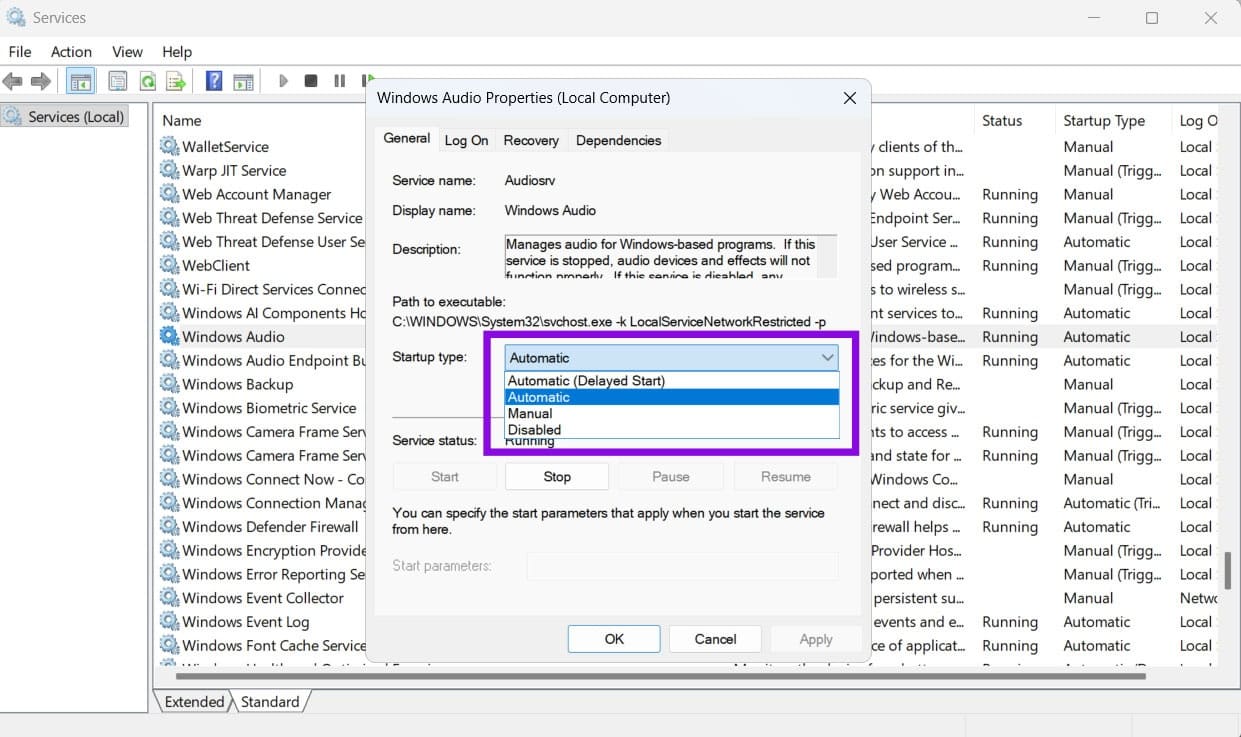
Step 4. Click “Apply,” then “OK,” and restart the PC.
Fix 2 – Restart the Dependent Services to Prevent Windows Audio Service Stuck on Stopping
Before you start, unplug any external audio hardware, such as a USB sound card or DAC, and turn off your Bluetooth speakers. You can reconnect them once the service is running again.
Step 1. Open the Services utility as in Fix 1, then right-click on “Windows Audio Endpoint Builder.”
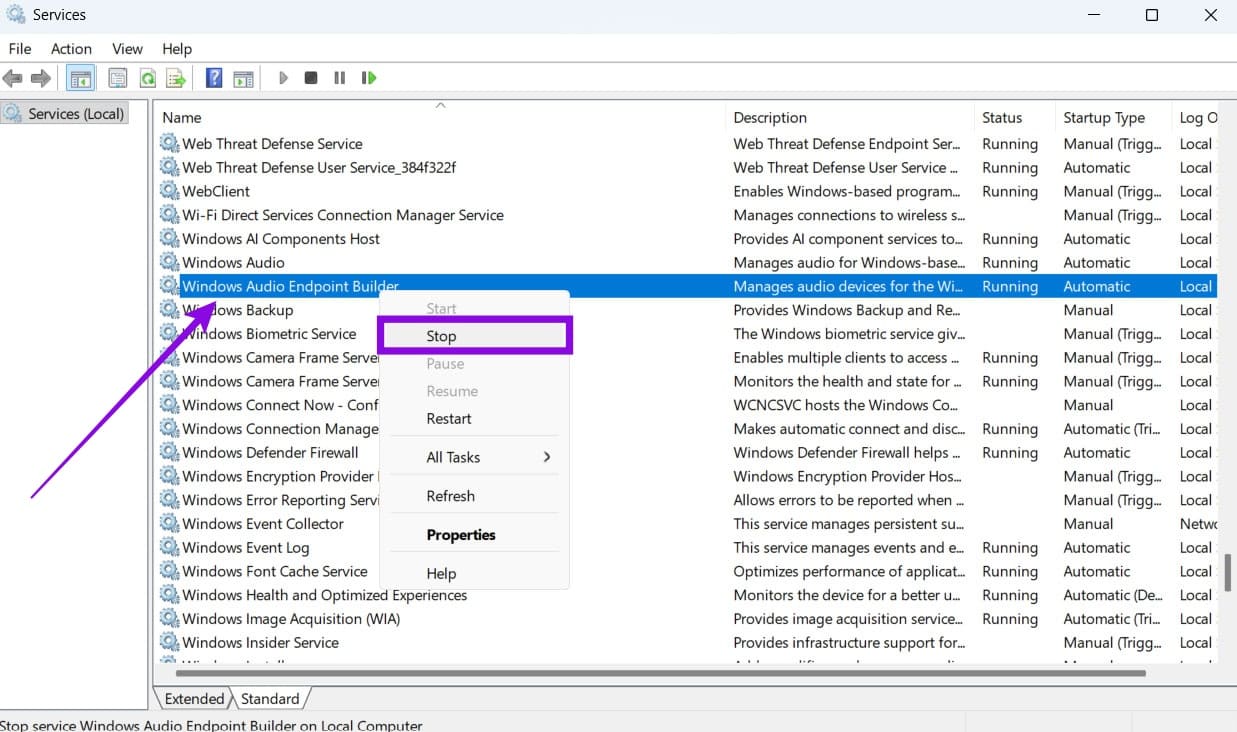
Step 2. Click “Stop.” If Windows asks you whether you want to stop the dependent services too, hit “Yes.”
Step 3. Open the settings and change its “Startup type” to “Automatic” as well.
Step 4. Find “Remote Procedure Call (RPC)” and make sure its status is “Running” and its startup type is “Automatic.” If not, right-click on it and select “Start.”
Step 5. Return to “Windows Audio” and select “Start” or “Restart,” depending on its current status.
Fix 3 – Disable Audio Enhancements
Audio enhancements can process audio before it reaches your speakers or headphones, and they can sometimes interfere with audio playback.
Step 1. Press “Win + I” to open “Settings” and go to “Sound” in the “System” tab.
Step 2. Under “Output,” click your speakers or headphones to open their properties.
Step 3. Set the “Audio enhancements” drop-down menu to “Off.”
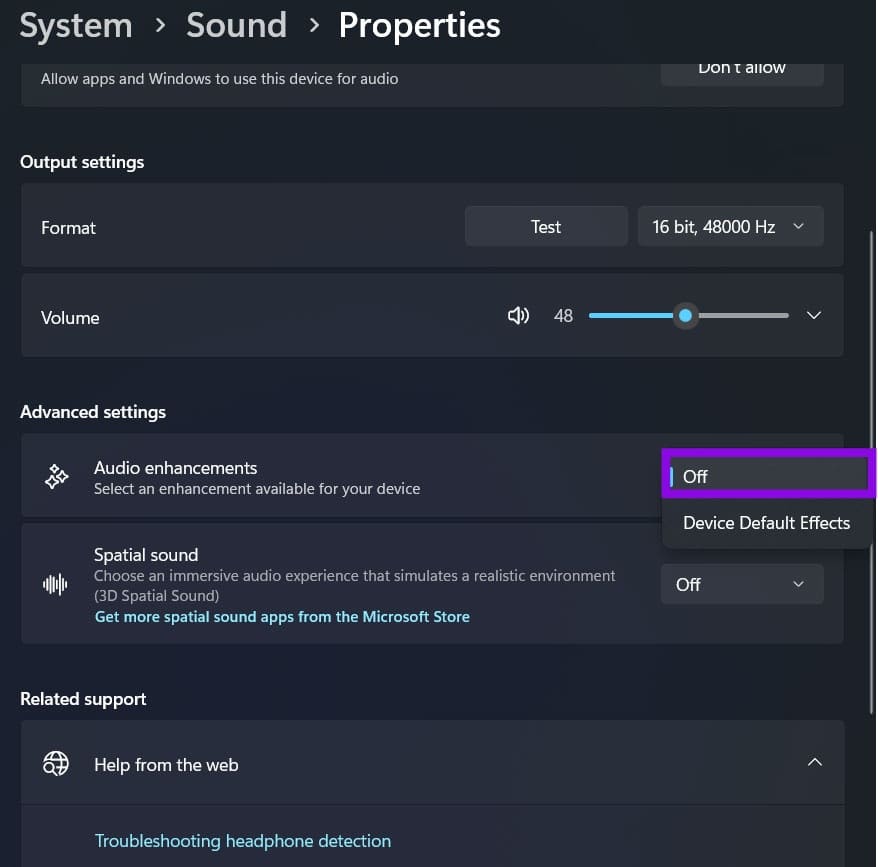
Step 4. Go back to the Services app and restart the Windows Audio service.
Fix 4 – Reinstall the Audio Driver
In some cases, a driver update might cause the entire service to stop responding. If the problem started after a driver update, you can try rolling back the driver. Otherwise, update or reinstall the latest driver from your PC or audio device manufacturer’s website.
Step 1. Right-click on the “Start” icon and select “Device Manager.”
Step 2. Expand “Sound, video and game controllers.”
Step 3. Right-click on the audio device, usually named “Realtek(R) Audio” by default. Select “Uninstall device,” then go to “Uninstall” to confirm.
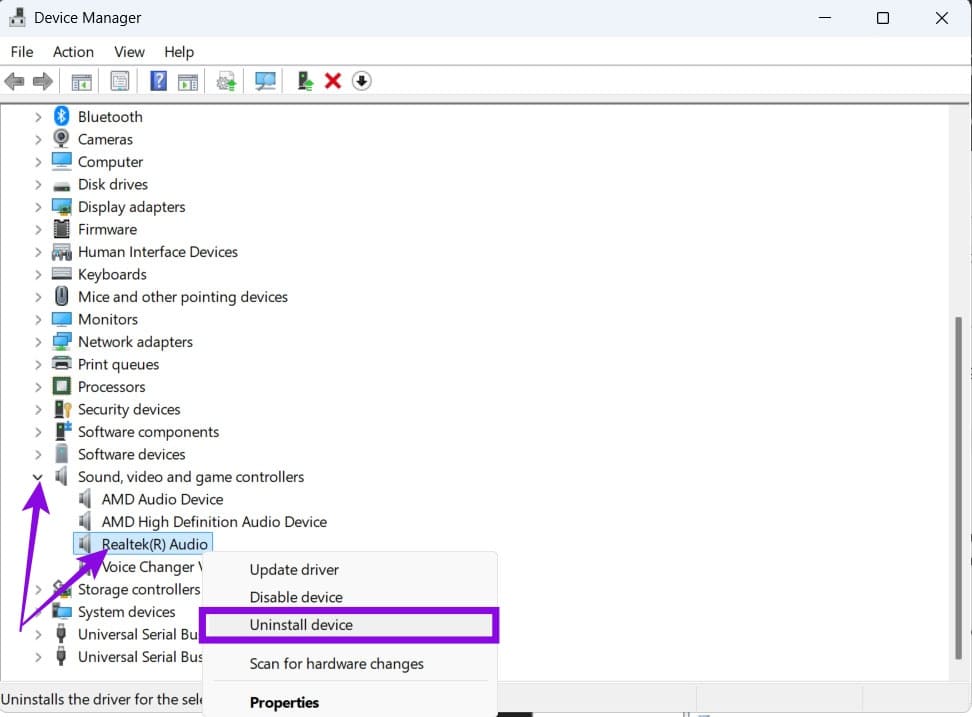
Step 4. Download the latest driver for your exact model from your PC or motherboard manufacturer’s website, checking that it supports your version of Windows.
Step 5. Install the driver and restart your PC.
If you use Bluetooth speakers, you’ll need to update the Bluetooth driver the same way.
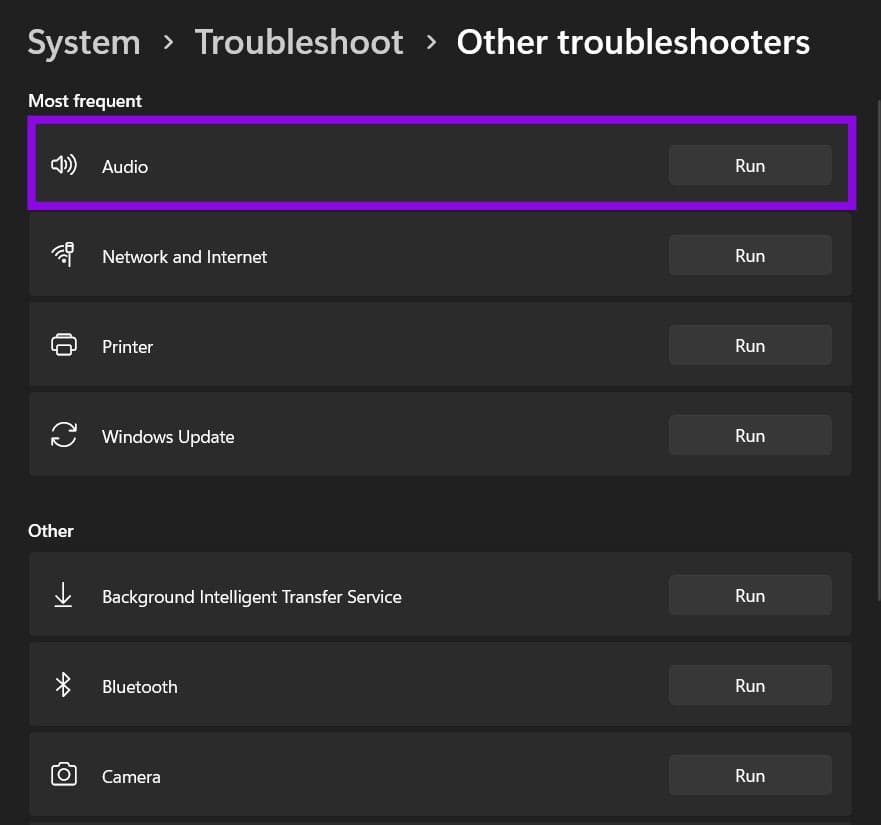
Fix 5 – Use the Built-In Troubleshooter
If your Windows Audio service stuck on “Stopping” doesn’t resolve with a driver update, there’s a troubleshooter that might go deeper.
Step 1. Open the Get Help app.
Step 2. Search for “audio troubleshooter.”
Step 3. If prompted, select “Yes” to allow the diagnostic process to run.
Step 4. Follow the on-screen instructions and apply any recommended fixes.
How to Easily Turn a PDF into a Word Document Online using Adobe Acrobat
Read Next