




What to Do if Formula Auditing Won’t Work in Excel

If you consistently see formula auditing in Excel not working, you have to narrow down the issue a bit. It can mean the tools being greyed out, missing from the ribbon entirely, or even running without showing a meaningful result. The underlying problem is usually access- or setting-based and can be fixed by trying to get the file and Excel in their “base” state again.
Fix 1 – Formula Auditing in Excel Not Working Due to Password Protection
If the sheet is password-protected, you’ll usually see formula auditing in Excel greyed out alongside a host of other features. The password protection usually happens if you download the sheet from someone, which means you do have to ask them for the password.
To remove this protection, go to the “Review” tab and click “Unprotect Sheet.” You’ll be prompted to type in the password and hit “Enter” to unlock the sheet.
Alternatively, you can go to “File,” then “Info.” For the “Protect Workbook” section, you’ll see a list of sheets that are password-protected. Click on “Unprotect” on the bottom-right of the section and enter the password.
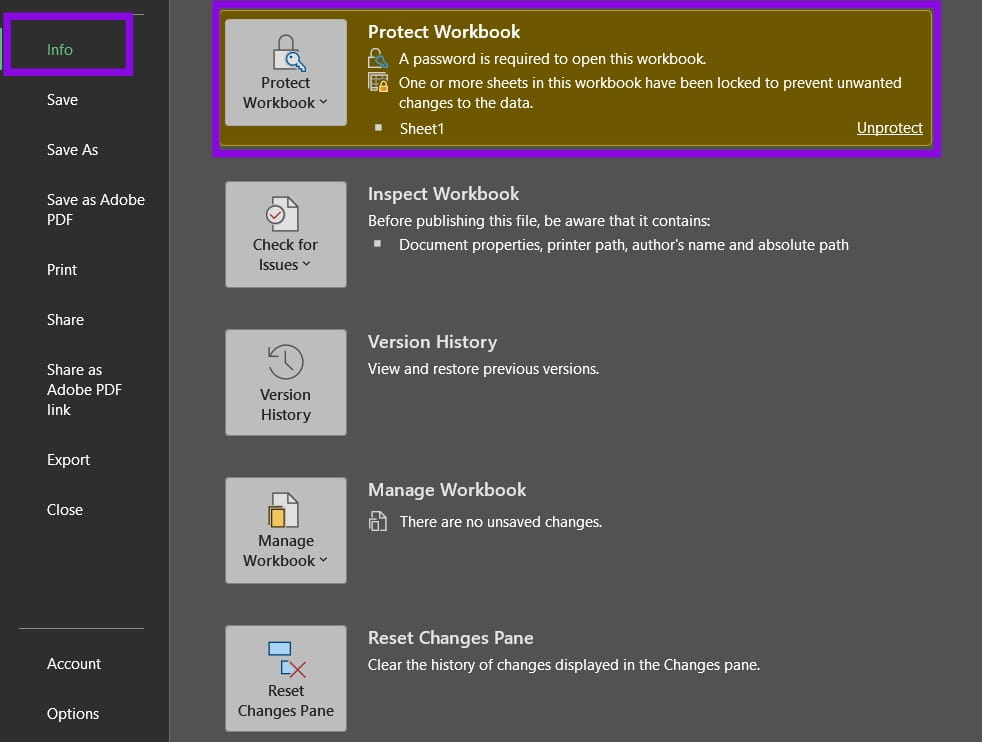
In most cases, protecting the worksheet can apply to the structure of the sheet only, but check the “Protect Workbook” section as well for any changes.
Fix 2 – Remove Read-Only Status if Formula Auditing in Excel Greyed Out
When you download a file, Excel usually opens it in Protected View, which is a fancy term for “read-only.” This blocks most of the ribbon options.
If you do see a yellow “Protected View” bar under the ribbon, click on “Enable Editing” to switch to editing, which also allows you to troubleshoot why is formula auditing in Excel not working fully.
In rare cases, the file may be set as read-only on the operating system level, which won’t show up in Excel’s title bar. You’ll need to close it, then right-click on the file in File Explorer and select “Properties.” From there, uncheck “Read-only” in the “General” tab.
Fix 3 – Use New XLSX Files if Formula Auditing in Excel Is Missing
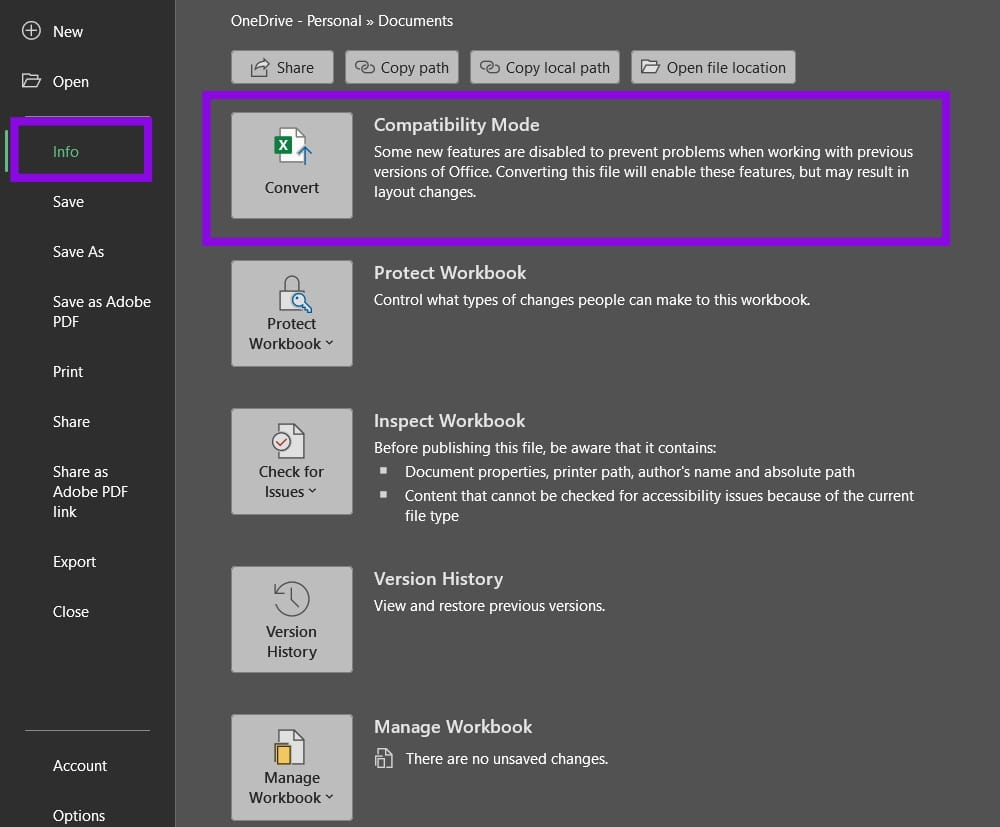
Files in the old .xls format always open in Compatibility Mode, which limits features and entirely omits new ones like function auditing. If that happens, you’ll see “Compatibility Mode” next to the file name in the title bar.
Step 1. Open the file and go to “File,” then “Info.”
Step 2. Click on “Convert” and confirm. Excel will save a copy in the .xlsx format and reload it.
Step 3. Try the Formula Auditing tools again in the converted file.
Fix 4 – Use the Excel Desktop App
Excel for the Web doesn’t fully “port over” formula auditing, and its complete features are only available on the desktop version of Excel, whether you use the Excel offline or Excel 365 versions. You’ll need to switch to the desktop app.
Step 1. Go to the “Editing” dropdown in the top-right corner. If you don’t see it, go to “File,” then “Info.”
Step 2. Choose “Open in Desktop App.”
Fix 5 – Don’t Run Excel in Safe Mode
Safe Mode starts Excel without add-ins or ribbon customizations, which can limit some features or change how you’ve reorganized the toolbar. This can lead to Excel seemingly missing formula auditing options. In most cases, you can reopen Excel or double-click on a file to make it open in “regular” mode.
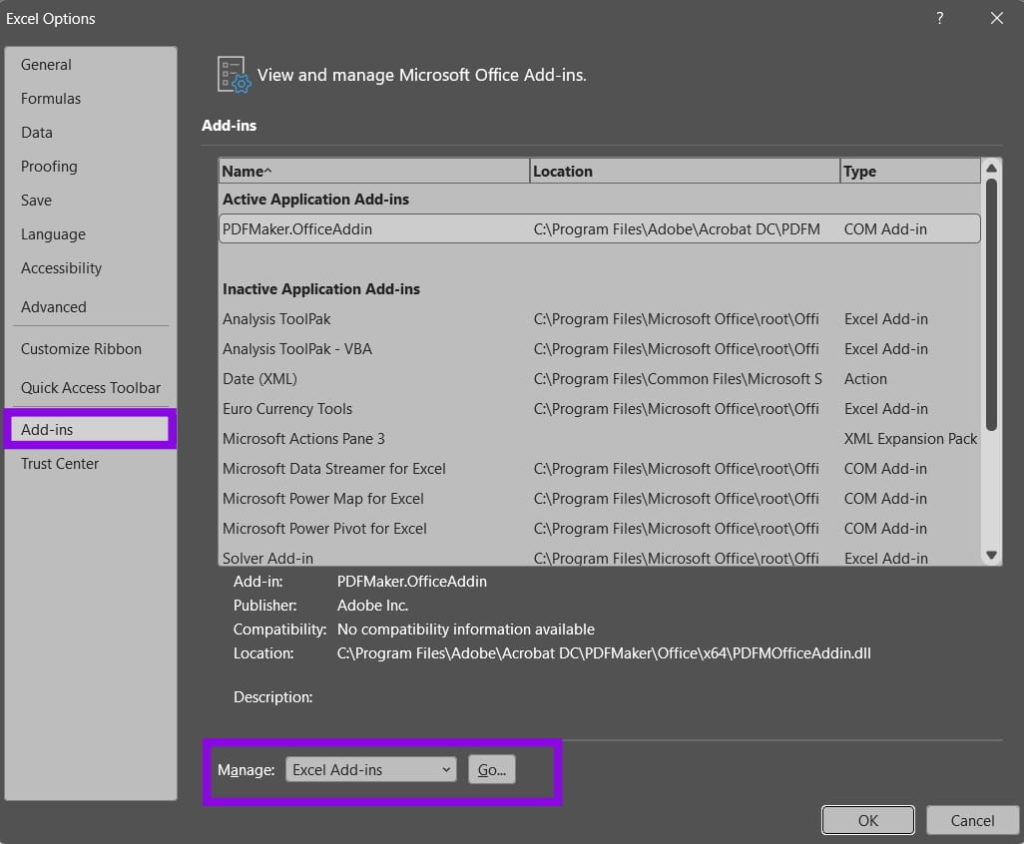
However, if Excel keeps opening in Safe Mode on its own, it’s usually because an add-in crashed it, so you’ll need to disable it. You’ll need to go to Options and then go to “COM Add-ins” to remove any that might be interfering.
Fix 6 – Re-Add Formula Auditing to the Ribbon
If the Formula Auditing group isn’t in the “Formulas” section of the Review tab, an add-in might’ve removed it from the ribbon.
Step 1. Remove all add-ins from Excel that you downloaded or updated recently, then restart Excel.
Step 2. Right-click on the ribbon and select “Customize the Ribbon.” The section is also available in “Options” under “Customize Ribbon.”
Step 3. On the right side of the panel, expand “Formulas” and check whether “Formula Auditing” is listed. If it isn’t, set the “Choose commands from:” drop-down on the left to “Main Tabs.” Expand “Formulas” on the left and select “Formula Auditing.”
Step 4. Select “Formulas” on the right side, then click on “Add >>.”
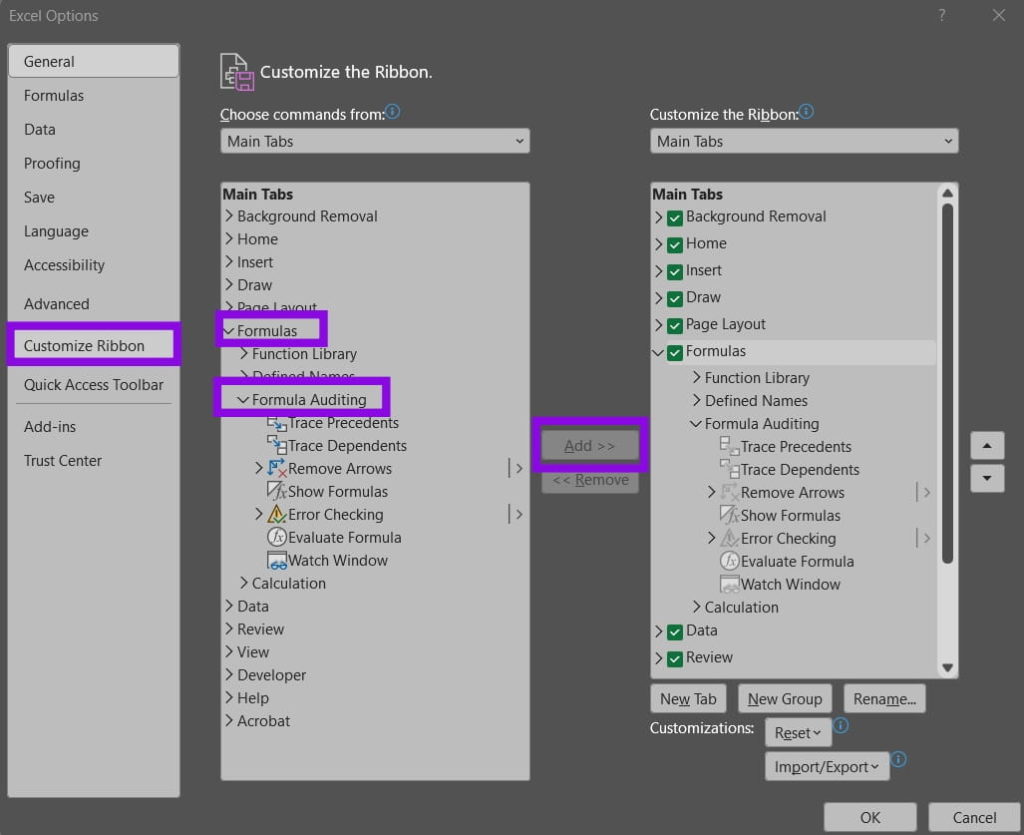
Step 5. Click “OK” and close Options.
Why Does My VPN Keep Disconnecting? 7 Common Causes And Easy Fixes
Read Next