How to Clean Up, Restore, and Repurpose Old Screen Recordings and Video Clips Without Losing Quality
We have all been there. You are digging through an old hard drive or cloud backup, looking for a clip you recorded two years ago for a tutorial, a social post, or a personal project. When you finally find it and hit play, a wave of regret hits you.
The lighting looks muddy, the compression artifacts are everywhere, and there is a massive, glowing watermark from some free mobile app you downloaded in 2022 baked right into the corner.
Most people take one look at that mess, delete the file, and decide to record everything from scratch. But when you are dealing with dozens of old screen recordings, device captures, or legacy footage, re-shooting is a massive time sink.
The good news is that you do not need a degree in post-production or a high-end desktop workstation to rescue those forgotten files. With a few smart techniques and the right web tools, you can clean up and repurpose your old video library in minutes.
The Hidden Friction of Reusing Old Video Assets
Reusing legacy content sounds great on paper because it saves you hours of setup time, but older video formats rarely match modern platform standards. Standards shift quickly, and videos recorded on older phones or early screen capture utilities often suffer from low resolutions, shaky frames, and awkward aspect ratios.
When you try to drop raw, unedited footage straight into a modern project, the mismatch becomes glaringly obvious. Understanding the difference between video and audio tracks in your container files helps you realize that cleaning up visual issues often requires separating your assets before applying any corrective filters.
Sorting Out Your Project Files and Notes

Furthermore, you might find yourself juggling multiple document types while gathering notes or scripts for your video edit. If you need to convert reference paperwork or project outlines on the fly, knowing how to turn a PDF into a Word document keeps your preparation phase moving smoothly without slowing down your computer. Keeping your research tidy prevents you from wasting valuable hours trying to locate key talking points while your editing timeline sits idle.
Stripping Out Burned-In Text and Distractions
One of the most frustrating parts of recycling old video clips is dealing with permanent artifacts. If you used a legacy mobile editor or a basic recording app back in the day, chances are your footage has a brand logo, a date stamp, or an exported app watermark stamped across the frame.
Trying to crop these elements out usually ruins your composition or cuts off important visual data near the edges. If you want to clean up your video frames properly, using a reliable free video watermark remover is the best first step.
Crucially, order matters here. You should always strip away unwanted text and watermarks before you attempt to upscale or sharpen the clip. If you sharpen first, your editing software or enhancement tool will treat the edges of that old watermark as high-priority detail, making it harder to scrub away cleanly and leaving a weird, blurry ghost outline behind.
Fixing Compression Blur and Recovering Visual Clarity
Once your video is free of unwanted text and distracting watermarks, you will likely notice that the overall image still looks a bit soft. Years of repeated cloud uploads, messaging app compression, and low bitrate exports tend to strip away micro-contrast and fine textures.
While professional editors used to spend hours masking and applying complex unsharp masks, modern web utilities make this process effortless. Running your cleaned clips through a specialized video enhancer allows you to automatically upscale resolution, reduce background noise, and recover lost edge definition at the pixel level.
Choosing the Right Editing Environment
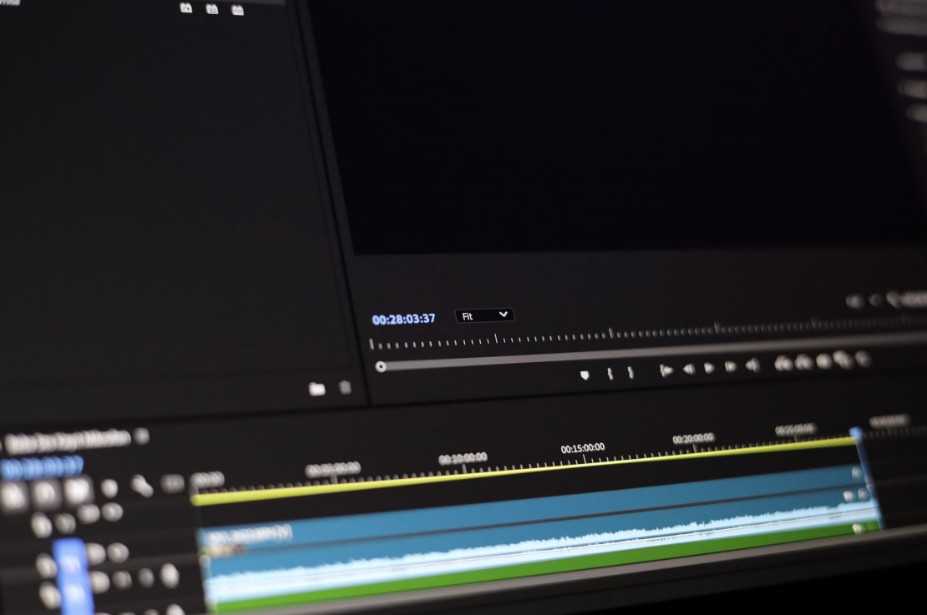
If you prefer working with dedicated software suites on your desktop for heavier projects, pairing your enhanced clips with one of the best open-source video editors gives you complete control over your timeline without locking you into expensive proprietary subscriptions.
On the other hand, if you want something fast and frictionless without steep learning curves, exploring tools listed in a guide on the easiest video editing software can save you from getting bogged down in complex keyframes and overwhelming menus.
A Simple Workflow for Breathing New Life Into Old Files
To keep your video restoration process organized and efficient, follow a straightforward step-by-step pipeline:
- Audit and Select: Review your old archives and pull only the clips that feature genuinely useful content, such as a timeless product demonstration or a solid tutorial walkthrough.
- De-Watermark: Strip out any legacy app tags, old timestamps, or burned-in subtitles first while the pixel data is still uncompromised.
- Enhance and Upscale: Run a clarity and resolution pass to rescue soft textures and combat compression blur.
- Reframe and Export: Adjust the aspect ratio to fit modern vertical or horizontal feeds, then export your refreshed asset for your current channel.
Final Thoughts
Digging through old archives does not have to feel like an exercise in frustration. By tackling clean-up tasks in the right order and utilizing modern browser-based utilities to handle heavy restoration work, you can turn forgotten recordings into polished assets ready for any platform. Keeping your digital media pipeline organized ensures that your best content keeps working for you long after the initial recording day has passed.