



Best AI Video Editors in 2026: Comparing Editing Tools for Professional Creators

Adobe Premiere Pro is my pick for professional creators looking for an AI video editor with tools inside a full editing workflow. DaVinci Resolve is my pick for finishing and color, even in its free edition. Wondershare Filmora is the one I would reach for first if I only had a finished video and needed to break it back into editable shots.
I used the same 18-second skatepark promo by EDME (children’s jewelry brand) in all three editors. Premiere found shots by visual description, made a vertical cut and handled a Firefly-generated cutaway. Filmora found shot boundaries in the finished MP4, and Resolve gave me a first-pass color adjustment. I also tried the timeline scene detector in Resolve to see whether I could repeat the Filmora test on the installed edition.
Tested on 26 November 2026 with Adobe Premiere 27.0.0, DaVinci Resolve 21.0.3 (free edition) and Wondershare Filmora 15.6.4 on macOS 26.5.1.
The source file was a 1920 × 1080 landscape MP4 with an existing soundtrack. I judged the usefulness of each result in the edit. The tests covered different tasks, so the results support workflow recommendations rather than a speed or accuracy ranking.
Adobe Premiere Pro: Best for Mixing Generated Footage With a Real Edit
Premiere gave me two practical ways to reuse the EDME shoot. I could find the right footage by describing what was in the frame, then build a separate vertical cut from the landscape timeline. I also checked what the transcript tools could do with the promo’s soundtrack and used Firefly to add a new shot.
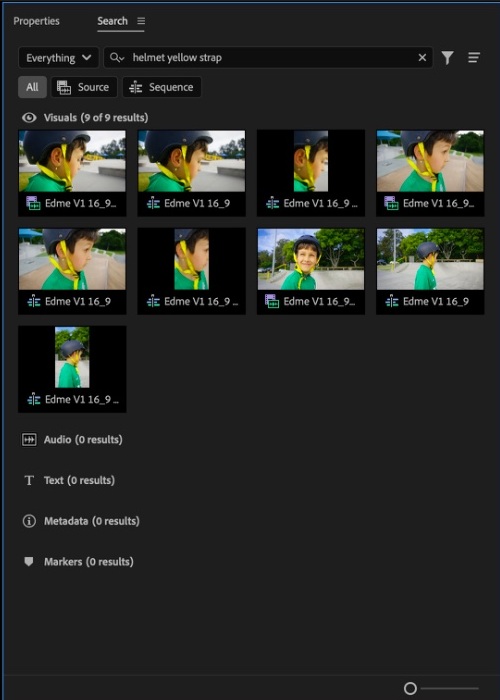
Media Intelligence finds shots by what is in the frame
I opened Premiere’s Search panel and typed helmet yellow strap. Under Visuals, the search returned nine results across the EDME source MP4, the landscape sequence and the vertical copy. The same source moments can appear in more than one of those places. For a project with several versions of the same edit, the Source filter is the first thing I’d use to narrow the list to original media.
Auto Reframe makes a vertical version from a landscape edit
I chose Sequence > Auto Reframe Sequence, set the target to Vertical 9:16 at 1080 × 1920 and left motion tracking on Default. Premiere created a separate vertical sequence with the original edit’s 00:00:17:23 duration. In the opening shot, the crop favored the skater’s face and torso. It kept the action legible, though it lost some of the width of the skateboard and the skatepark around him.
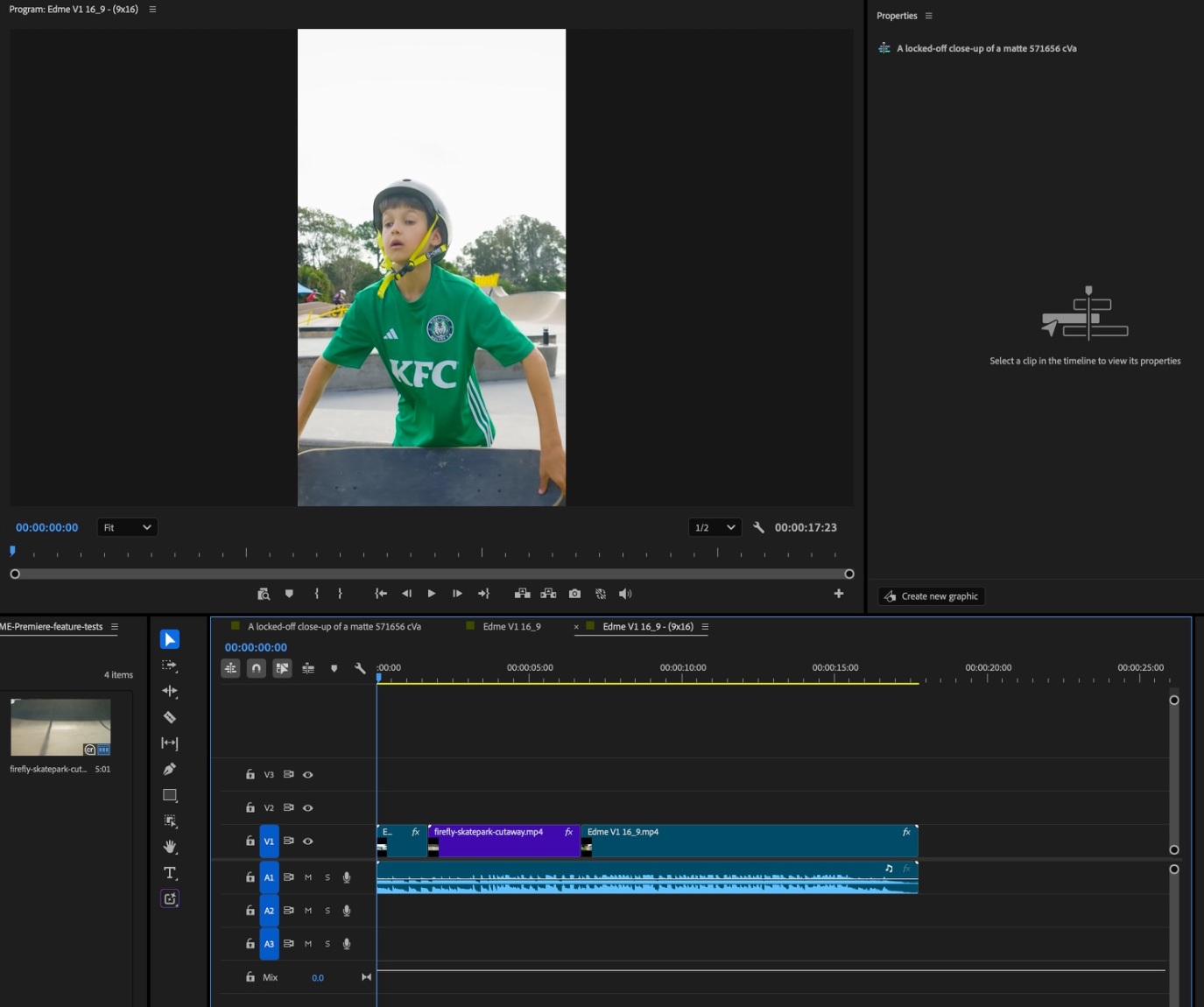
I’d use the automatic pass to get a social version started, then check fast movement, product close-ups and the end card. Those are the places where an otherwise usable crop can lose the reason for the shot.
Text-Based Editing needs a spoken track
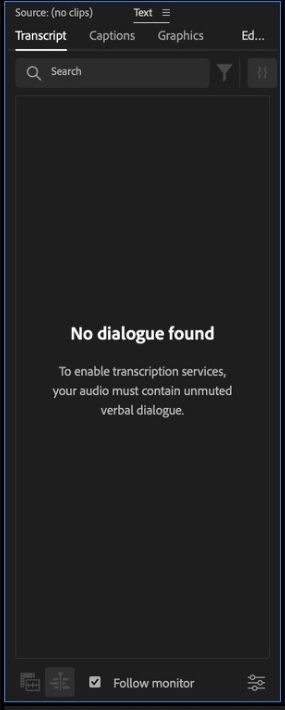
I opened Window > Text > Transcript on the EDME sequence and ran Transcribe on the source clip. Premiere reported No dialogue found, so the promo’s soundtrack gave the transcript workflow no words to cut. For an interview or voice-over, open the source transcript in the Text-Based Editing workspace, select the spoken passage you want and insert it into the rough cut. Review the resulting edit against the waveform and listen through the joins.
Generative Extend adds frames to an existing shot
When a shot ends just before an edit point, select Generative Extend in the Tools panel and drag the clip edge past the original media. Premiere marks the generated frames separately so you can review the join in the sequence.
Adobe lists a maximum extension of two seconds for video. I’d start with a few frames on a low-motion shot and check for jumps in shadows, edges or camera movement before using the result.
Generative Extend was not part of the verified results in this comparison. I instead tested the separate Firefly cutaway workflow described below.
How I used Firefly footage in Premiere Pro
In Adobe Firefly, I used Adobe’s Firefly Video model to generate a five-second 16:9 skatepark cutaway at 1080p. I asked for late-afternoon light across pale concrete, a slow sideways camera move and an empty frame with no people, products, logos or text.
I downloaded the MP4, imported it into the Premiere project and placed it between two sections of the EDME promo on V1. I kept the original audio on A1 so it ran continuously under the generated picture.
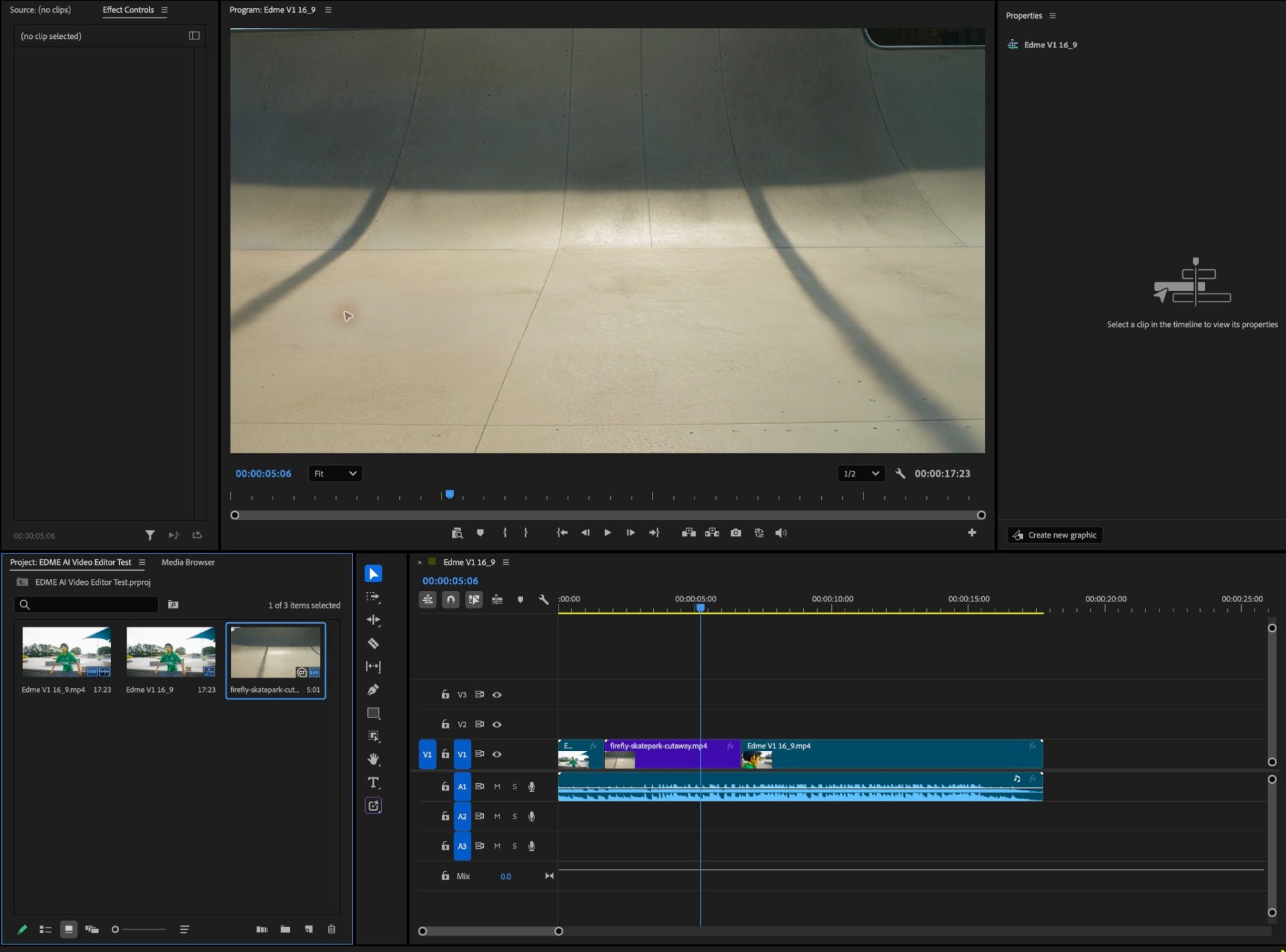
What I noticed: The concrete and curved shadows made the shot read as part of a skatepark without inventing unnecessary details. The separate audio track made it easy to use the generated image without breaking the soundtrack. A full five seconds takes up a substantial part of an 18-second promo. I would start with a shorter excerpt for a fast social cut, then watch both joins to see whether the lighting and movement feel continuous.
Where I would use it: Short establishing shots or transitions where I need more footage and still want control of the final cut. The smaller the role of the generated shot, the easier it is to spot when it clashes with the recorded footage.
With more than 40 years of experience developing creative technology, Adobe continues to build tools around the needs of professional creators. Features such as Media Intelligence and Auto Reframe, alongside the ability to incorporate Firefly-generated footage into Premiere Pro, demonstrate how AI can complement established editing workflows.
Rather than replacing the editor’s creative decisions, these tools provide additional ways to find footage, explore ideas and prepare content for different delivery formats while maintaining control over the final production.
DaVinci Resolve: Best for an Automatic Color Starting Point and Manual Finishing
DaVinci Resolve prompted me to match the source frame rate when I imported the EDME clip. Its timeline-level Detect Scene Cuts command then opened a Studio upgrade prompt in the installed free edition. That is a meaningful difference if you are choosing Resolve specifically to split a finished video or use Studio’s Smart Reframe and automatic subtitles.
I moved to the Color page, scrubbed to a skateboarding shot about five seconds into the promo and applied Auto Balance. The resulting frame showed deep green trees behind the skater, a bright concrete ramp and visible detail across the moving subject. I could see the corrected frame, the node and the RGB parade in one workspace. The scopes made it easy to review what the automatic pass had done without guessing from the preview alone.
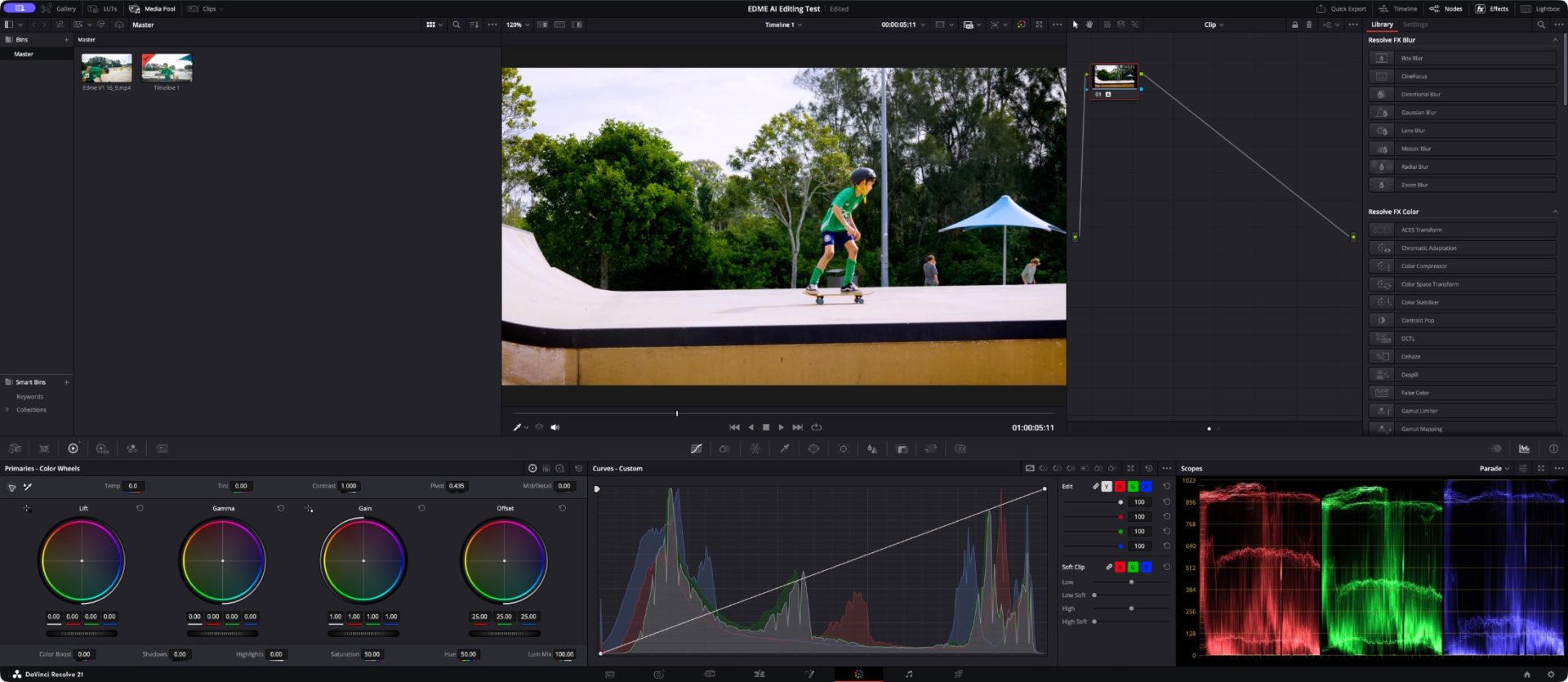
What I noticed: The biggest advantage was how readily I could inspect and refine the automatic result. This was already an edited montage with bright action shots, closer angles and a dark end card. I would use Auto Balance as a starting point on an individual shot, then check adjoining shots and the brand colors before applying a correction more widely. I would choose Studio if I needed the specific AI features gated behind that license.
Wondershare Filmora: Best for Turning a Finished Video Back Into Editable Shots
In Wondershare Filmora, I added the same flat EDME MP4 to the timeline and opened Tools > Scene Detection. Filmora analyzed the clip and displayed candidate scenes with thumbnails, durations and exact timecodes. The results panel also gave me the option to remove a detection before adding the scenes to the timeline.
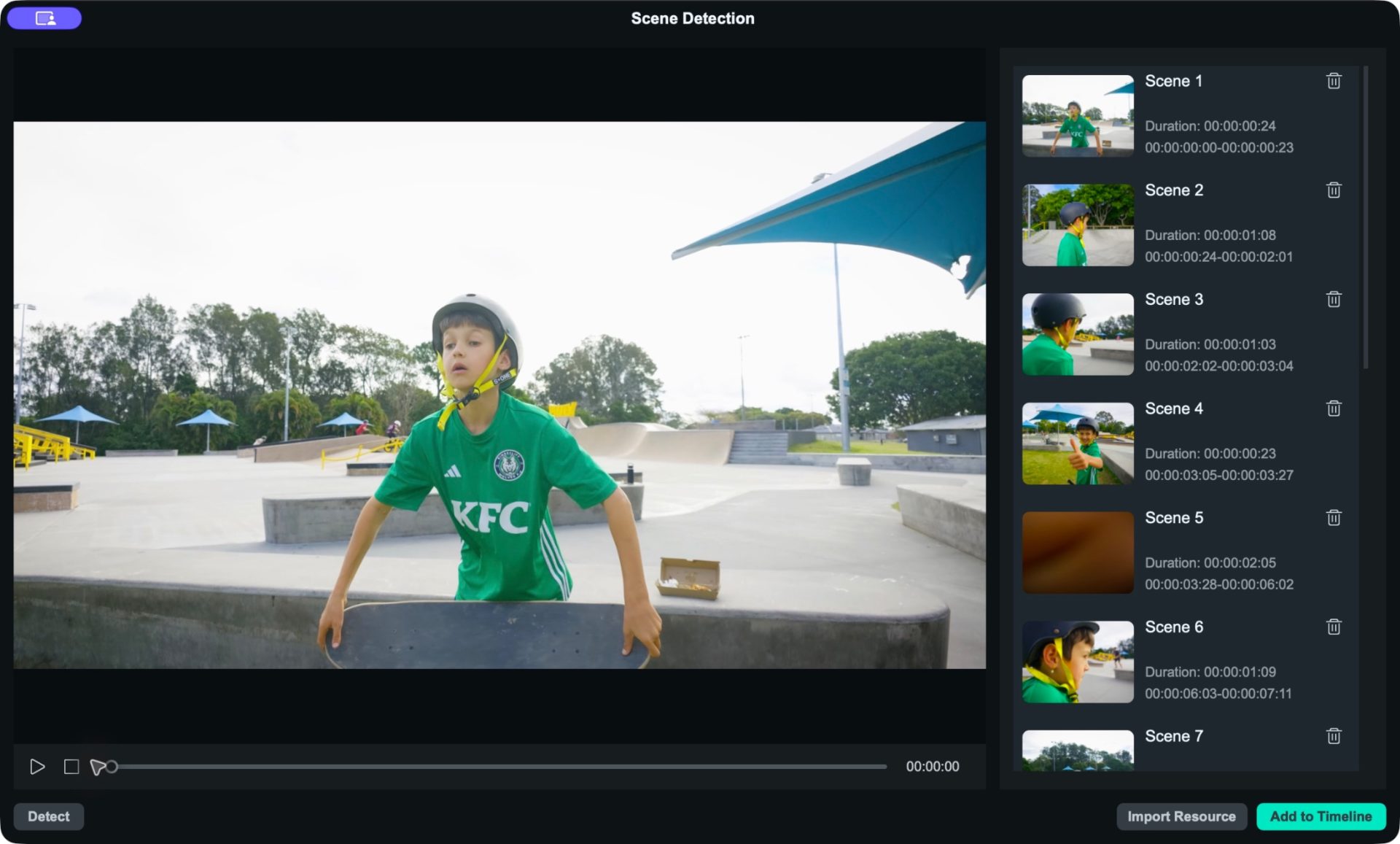
What I noticed: Filmora found distinct cuts within the first few seconds, including the switch to the side angle at 00:00:00:24 and the next angle at 00:00:02:02. Scene 5, beginning at 00:00:03:28, had a blurred thumbnail. I would play through that detection before keeping it as an edit point. The thumbnails and timecodes gave me a quick way to find review points without stepping through the whole file frame by frame.
Where I would use it: Repurposing a finished ad when the original edit project is unavailable. Once the cut points are checked, Filmora’s documented Auto Reframe and AI captions are relevant for a vertical version.
Premiere Pro vs DaVinci Resolve vs Filmora
The following table compares the three video editors based on the workflows tested, available creative controls, pricing and commercial use considerations.
| Editor | What I verified | Price and compatibility | Resolution and creative controls | Commercial use |
|---|---|---|---|---|
| Premiere Pro | Visual search matches, a 1080 × 1920 Auto Reframe sequence and a five-second 1080p Firefly cutaway with the soundtrack intact. | US$22.99/month on an annual plan billed monthly when checked. Mac and Windows. Adobe plans. | 4K workflows, adjustable tracking keyframes and custom sequence sizes. Generated clips have separate limits. | Adobe says Firefly outputs can generally be used commercially. Check exceptions shown in the product and terms for the chosen model. |
| DaVinci Resolve | Auto Balance on the free edition. Timeline scene detection requested Studio. | Free edition and a one-time Studio license. Mac, Windows and Linux. Blackmagic pricing. | Free supports up to UHD at 60 fps for supported formats. Studio adds higher-resolution workflows and AI tools including Smart Reframe. Node grading and scopes give room for manual adjustments. | Clear any footage, music or third-party assets you add to the edit. |
| Wondershare Filmora | Timestamped scene detections with editable selections. | Free download and paid plans. Mac and Windows. Prices and AI credit allowances vary by plan. Filmora Mac plans. | 4K export is listed on paid Mac plans. Scene candidates can be reviewed individually before insertion. | Check each asset and AI output before using it commercially. Wondershare places restrictions on many AI-generated assets. |
How to Choose the Best AI Video Editor for Your Workflow
The right AI video editor depends on the type of projects you produce and which parts of the editing process you want to simplify.
- Choose Adobe Premiere Pro if you need a full professional editing workflow that combines visual media search, automated reframing, transcript-based editing and the ability to incorporate generated footage from Firefly.
- Choose DaVinci Resolve if color grading, finishing and detailed manual adjustments are central to your production workflow.
- Choose Wondershare Filmora if you regularly repurpose existing videos and want an accessible way to identify individual shots within finished footage.
For professional creators working on commercial projects, also consider supported export formats, licensing requirements, compatibility with existing production tools and how much manual control you retain over automated results.
FAQs
Is Premiere Pro or DaVinci Resolve better for AI video editing?
Choose Premiere Pro if you want to bring generated footage into a project, edit dialogue from a transcript, or create vertical versions of a sequence. Choose DaVinci Resolve if your priority is color grading and finishing. In my test, Resolve’s Auto Balance gave me a starting point I could check against the RGB scopes and refine by hand.
Does the free version of DaVinci Resolve have AI editing tools?
The free version includes automatic tools such as Auto Balance, which I used on the EDME footage. The timeline’s Detect Scene Cuts command prompted me to upgrade to Resolve Studio. Studio also adds tools such as Smart Reframe and automatic subtitles from audio.
Is Filmora good for editing short videos and social media clips?
Filmora is a good fit if you regularly turn finished videos into shorter edits. In my test, Scene Detection identified several shot changes in a single exported MP4 and listed them with thumbnails and timecodes. One blurred segment was worth checking by hand. Filmora also offers Auto Reframe and AI captions for preparing vertical versions.
Can you use Adobe Firefly video in Premiere Pro?
Yes. Download the Firefly video as an MP4, import it into Premiere Pro and place it on a video track. In my test, a five-second 1080p skatepark cutaway went between two sections of the original promo. Keeping the source audio on its own track let me change the picture while preserving the soundtrack.
Can you use AI-generated video in commercial projects?
It depends on the tool, model and assets used. Adobe generally allows commercial use of Firefly outputs, subject to any restrictions stated in the product. Filmora applies separate terms to many generated assets. For client work, check the terms for the specific model or asset and confirm you have the rights to any footage, music or reference material you supply.
Can AI video editors replace professional video editors?
AI video editing tools can simplify tasks such as finding footage, reframing sequences, identifying scene changes and generating supporting visuals. However, professional editors still need to make decisions about pacing, storytelling, visual continuity, color and final delivery.
Final Thoughts
Adobe Premiere Pro, DaVinci Resolve and Wondershare Filmora each offer useful tools for different stages of video production.
In my testing, Premiere Pro helped me locate footage, create a vertical version of an existing edit and incorporate a Firefly-generated cutaway without interrupting the original soundtrack. DaVinci Resolve provided an automatic starting point for color correction, while Filmora made it easier to identify individual shots within a finished video.
For professional creators looking to incorporate AI into an established editing workflow, Premiere Pro is my preferred option. Its combination of traditional editing tools, AI-assisted features and compatibility with Firefly-generated footage provides flexibility while keeping creative decisions in the editor’s hands.
Explore Adobe Premiere Pro to discover how AI-assisted editing tools can support your next professional video production.
This article is sponsored by Adobe and contains affiliate links. We may earn a commission if you make a purchase through these links, at no additional cost to you. All opinions and testing observations are our own.