




How to Redact Sensitive Information From PDFs Using Adobe Acrobat
To redact sensitive information from a PDF, open it in Adobe Acrobat Pro and choose All tools → Redact a PDF. Mark the text or images you want to remove, select Redact all, then confirm and save a separate copy. Enable Remove metadata and hidden document info to remove potentially sensitive hidden information. Before sharing the PDF, reopen the saved copy and verify that all intended redactions have been applied.
Before sharing a PDF, you may need to remove sensitive information such as client addresses, payment details, signatures or private contact information.
For this test, we created a fictional call sheet for Harbour Light, a coffee brand film. The vendor needed access to the shoot schedule and production office number, but the producer’s direct email address was intended for internal crew use only.
We also added the sample email address to the document’s subject field and an embedded crew-notes file to test how Acrobat handles hidden information during the redaction process.
Tested in November 2026 with Adobe Acrobat Pro 26.003.22110 on macOS Tahoe 26.5.1.
How to Redact Sensitive Information From PDFs Using Adobe Acrobat
Follow the steps below to permanently remove sensitive text, images and hidden information from a PDF using Adobe Acrobat Pro, while retaining the information your recipient needs.
1. Open a working copy and mark what to remove
Open the PDF in Acrobat Pro. Save a working copy and keep the original private. Select All tools → Redact a PDF → Redact text and images. Select the text you want to remove, or drag a rectangle around an image or a larger area.
Review the edges of each redaction mark to ensure it covers the entire item without removing nearby call times, captions or contact details you want to retain.
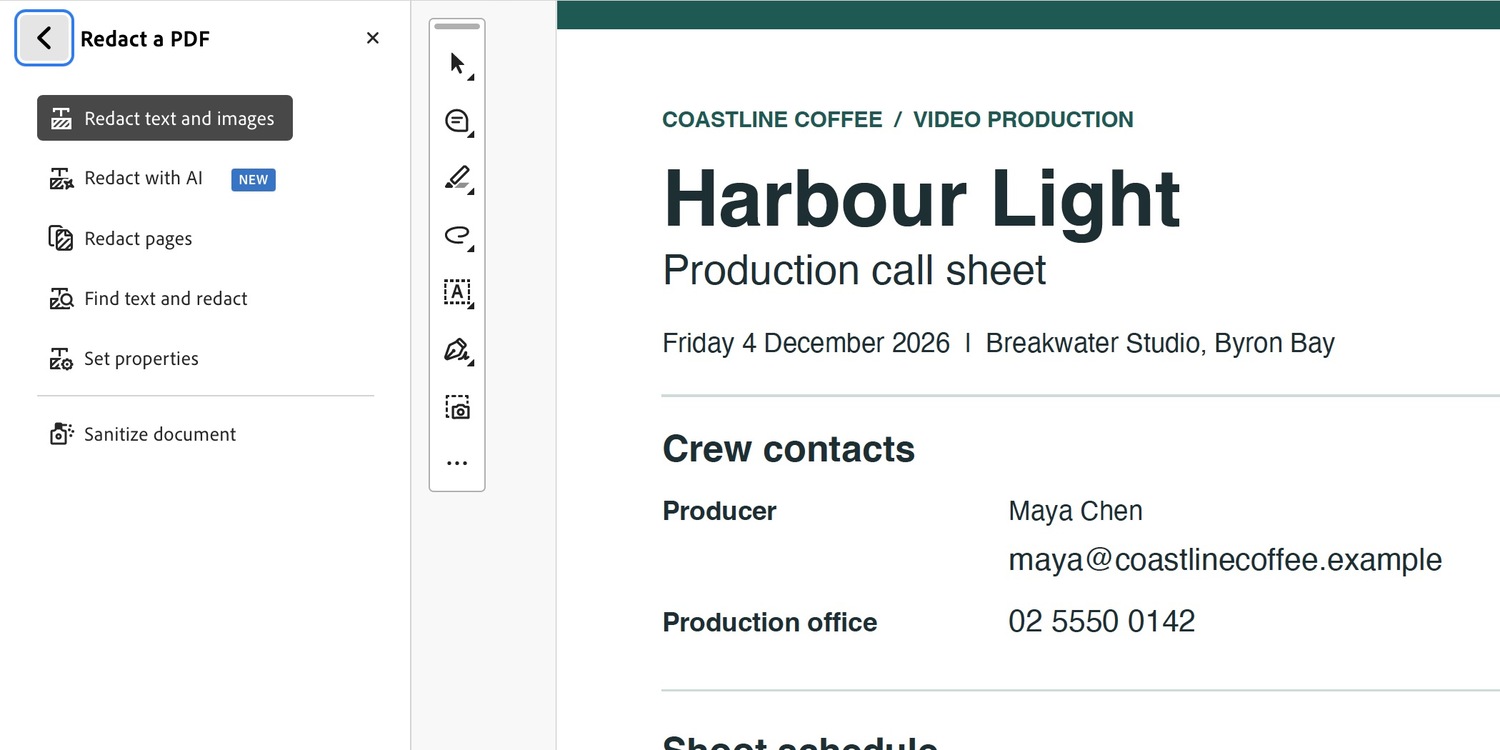
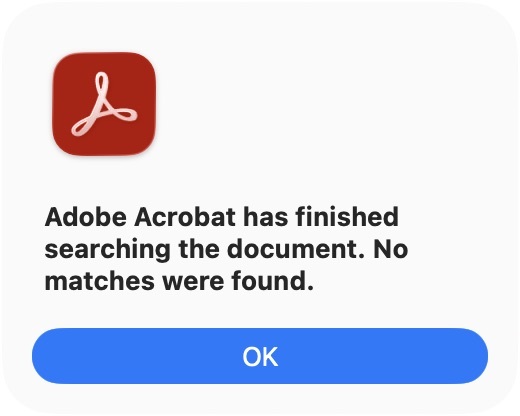
For details that recur across a production packet, choose Find text and redact. Enter the name, email or phrase and choose Search & Remove Text. Review the matches, check the ones to remove and choose Mark Checked Results for Redaction. In our test, this search found one on-page instance of the email. Review each page visually as well, especially where a storyboard panel or screenshot contains text.
2. Apply the redactions and remove hidden information
Review the marks, then click Redact all. In the confirmation dialog, leave Remove metadata and hidden document info enabled for a copy you plan to share. Click Confirm and save with a clear name, such as Harbour-Light-Call-Sheet-Vendor-Redacted.pdf. Some Acrobat interfaces label these buttons Apply and Continue. Saving the applied redactions makes the removal permanent in that copy.
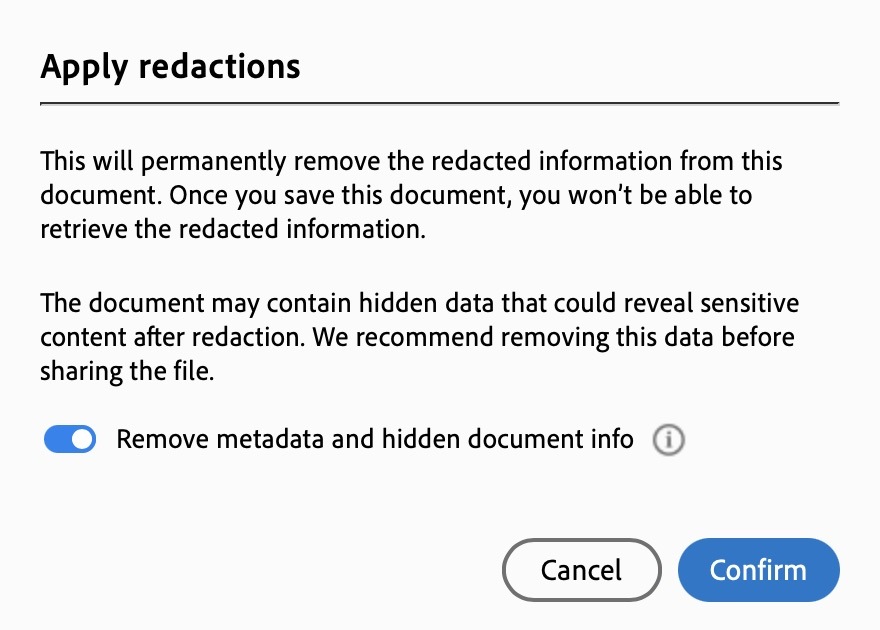
We applied Acrobat’s redaction to a working copy with the fictional email already marked. With hidden-data removal enabled, the saved copy’s author and subject fields were cleared and the embedded crew-notes attachment was gone. The production office number and shoot schedule stayed in place. Use Sanitize document in the Redact a PDF pane if you need to review or remove hidden information separately. On a production job, check embedded files and review comments as well as the page you can see.
3. Reopen and verify the file you plan to send
- Inspect every page. Zoom in on each redaction. Check that everything you meant to remove is covered and the details the recipient needs are readable.
- Search for the removed information. Look for the full value and a distinctive fragment, such as part of an email address. Search for a word you left in the PDF as a control. Where there is searchable text, try selecting and copying the area around a redaction into a local text editor.
- Check beyond the page. Inspect document properties, comments and attachments. Verify the exact saved file you plan to share and keep it separate from the internal copy.
For a call sheet, I’d send the vendor the schedule, location and a shared production number. I’d keep direct crew contacts and internal notes in the crew copy. Name both versions for their audience so they’re easy to distinguish in a busy production folder.
Why Covering Text With a Black Box Isn’t Enough
We made a second copy with a black rectangle drawn over the same email. At normal zoom, both copies looked similar. Acrobat could still find the email under the rectangle, and text extraction recovered the full address. On the copy saved after applying redaction, Acrobat found no match and text extraction no longer contained the address. The appearance of the box alone tells you very little about what remains in the file.

How to Redact a Scanned PDF With OCR
If the PDF is a scan, the words may be pixels with no searchable text. To find repeated details, choose All tools → Scan & OCR → In this file, set the page range and language, then select Recognize Text. Acrobat adds a searchable text layer. Check the recognized text against the page before relying on exact searches. We tested a rasterized copy of the call sheet with no text layer. After OCR, Acrobat found and highlighted the email domain on the page.
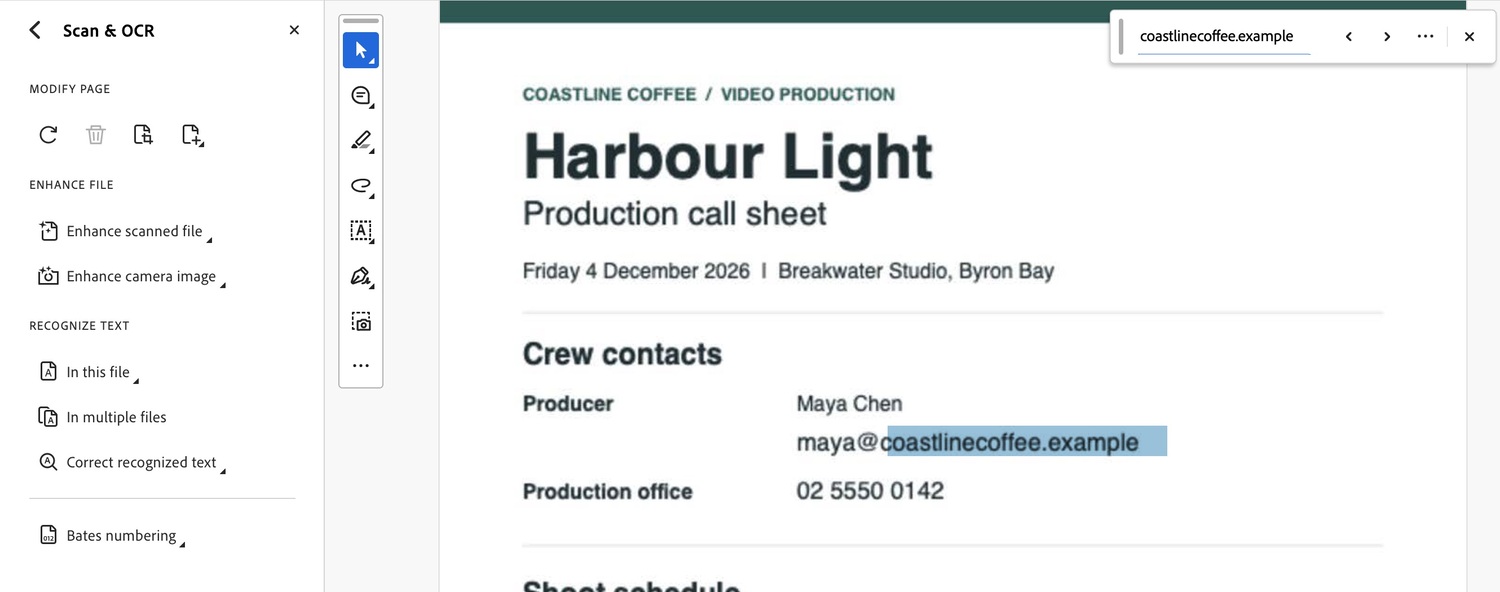
For a signature, handwritten note or poorly recognized text, use Redact text and images to mark the whole region and apply the redaction. Zoom in and check the full area after saving. A zero-result search on a scan can mean the words were never recognized, which makes visual inspection essential.
Using Adobe Acrobat in Professional Video Production Workflows
Professional video production involves more than editing footage. Call sheets, production schedules, client briefs, storyboards and talent release forms often contain information that needs to be shared selectively with crew members, clients and external vendors.
Adobe Acrobat Pro allows production teams to prepare different versions of these documents without exposing confidential information.
For creators working in Premiere Pro, managing production documentation alongside video assets can help keep projects organized throughout pre-production, editing and final delivery.
With more than 40 years of experience developing creative technology, Adobe understands that professional creative workflows extend beyond the editing process itself.
From managing production documents in Acrobat to editing footage in Premiere Pro, Adobe’s tools support different stages of creative production, helping teams maintain control over both their creative assets and the information they share.
FAQs
Does redacting a PDF permanently remove information?
Yes. When redactions are applied and the PDF is saved, the marked content is permanently removed from that copy. Simply placing a black rectangle over sensitive information does not remove the underlying content.
Can Adobe Acrobat redact scanned PDFs?
Yes. Adobe Acrobat Pro can redact areas of scanned PDFs directly. Its OCR feature can also make scanned text searchable, helping you locate repeated sensitive information.
Does redacting a PDF remove metadata?
Not necessarily. Acrobat Pro provides options to remove metadata and hidden document information when applying redactions. You should also check document properties, comments and attachments before sharing the file.
Can I undo a redaction after saving a PDF?
Once a redaction has been applied and the file saved, the removed information cannot be restored from that redacted copy. Always retain a secure copy of the original document.
Final Thoughts
Redacting sensitive information from a PDF involves more than simply covering text or images. Applying permanent redactions, removing hidden document information and verifying the saved file are important steps when sharing confidential documents.
For professional creators and production teams, Adobe Acrobat Pro provides a practical way to prepare call sheets, production schedules, client briefs and other documents for different audiences while protecting sensitive information.
Explore Adobe Acrobat Pro to securely prepare and manage your production documents.
This article is sponsored by Adobe and contains affiliate links. We may earn a commission if you make a purchase through these links, at no additional cost to you. All opinions and testing observations are our own.
Best AI Photo-to-Video Tools for Professional Creators in 2026
Read Next