




How to Create Fillable PDF Forms Using Adobe Acrobat

To create a fillable PDF in Adobe Acrobat Pro, open your blank PDF and choose All tools → Prepare a form. Select the file and choose Create form. Acrobat detects likely fields. Review what it adds, build any missing checkboxes or dropdowns, then use Preview to test the form before saving it.
For professional creators and video production teams, fillable PDFs can simplify the process of collecting client requirements, creative direction, delivery specifications and project approvals before production begins.
For this walkthrough, we’re making a client intake form for Harbour Light, a fictional coffee brand film. A one-page brief gives the producer the information that affects the shoot and edit, from visual references and aspect ratios to the first-cut approver.
Tested in November 2026 with Adobe Acrobat Pro 26.003.22110 on macOS Tahoe 26.5.1.
How to Create Fillable PDF Forms Using Adobe Acrobat
Follow the steps below to turn a standard PDF into an interactive, fillable form that clients can complete and return digitally.
1. Start with a blank production brief
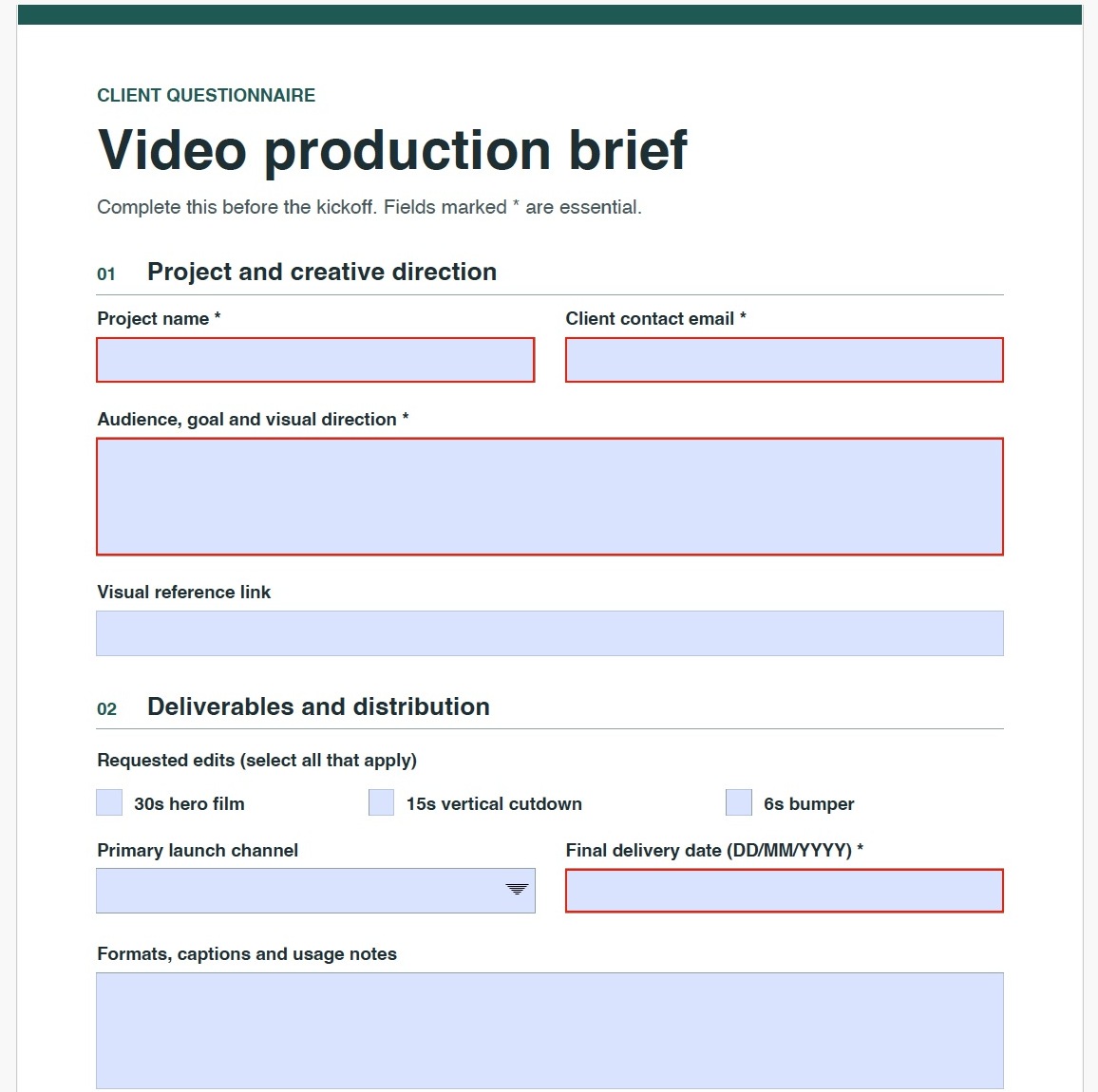
Lay out your brief in InDesign or another design app, then export it to PDF. Give each answer a clear label and leave a box large enough for a realistic response. In our example, the client’s email needs one line. Their creative direction needs space for the audience, the mood and a few concrete details the director can use.
| What you’re asking for | Field to use |
|---|---|
| Project name, contact email, reference link and dates | Single-line text fields |
| Audience, goal and visual direction | Multiline text field |
| Requested edits | One checkbox per deliverable |
| Primary launch channel | Dropdown with one selection |
| Formats, captions and usage notes | Multiline text field |
Keep the deliverables and the launch channel separate. A client can request a hero film and a vertical cutdown, while still choosing Instagram Reels as the priority for launch. That tells the crew to plan vertical framing on set and tells the editor which version needs to be ready first.
2. Turn the layout into a form
- In Acrobat Pro on desktop, open the flat brief and select All tools → Prepare a form.
- Choose Select a file if Acrobat asks for a source. Select the brief, then choose Create form.
- Review the detected fields in the Fields pane. Resize anything that overlaps a label and delete any fields Acrobat placed in the wrong spot. Pay particular attention to the three small deliverable boxes and the two large notes areas.
- Use Add form components to place anything Acrobat missed. If it put a text field over a checkbox or the launch channel box, remove that field before adding the appropriate control.
3. Set up the fields your client will use
Double-click a field to open Properties. Under General, give it a unique name and a descriptive Tooltip, such as “Client contact email”. Mark fields Required when the information is essential to your workflow. For this brief, the required fields include the project name, contact email, creative direction, final delivery date, designated approver and first-cut review date. Check these on the returned copy if you’re collecting PDFs by email.
- Creative direction and delivery notes. In each text field’s Options tab, select Multi-Line. Use a box tall enough to show a typical answer at a readable size.
- Requested edits. Add independent checkboxes for the 30-second hero film, 15-second vertical cutdown and 6-second bumper. Give them distinct field names so the client can select any combination.
- Primary launch channel. Add a Dropdown, then enter the choices under Options. The sample uses Instagram Reels, YouTube, Client website, TikTok and Other.
- Final delivery date. The sample uses a text field labeled DD/MM/YYYY. Acrobat also offers a Date field if you want to set a specific date format in the form.
4. Preview it, then save and reopen a test copy
Select Preview in the Prepare a form pane. Press Tab through the brief as if you were the client. On a layout like this one, it should move left to right, then down to the next row. If the order feels wrong, open the Fields pane in form editing mode, sort by Tab order, then choose Order tabs by row or arrange the fields manually.
Type a two- or three-line creative direction, check two deliverables and choose a launch channel. Save a test copy under a different name, then reopen it in Acrobat Reader to check that the entries remain visible and legible. Keep a separate blank master for each new client.
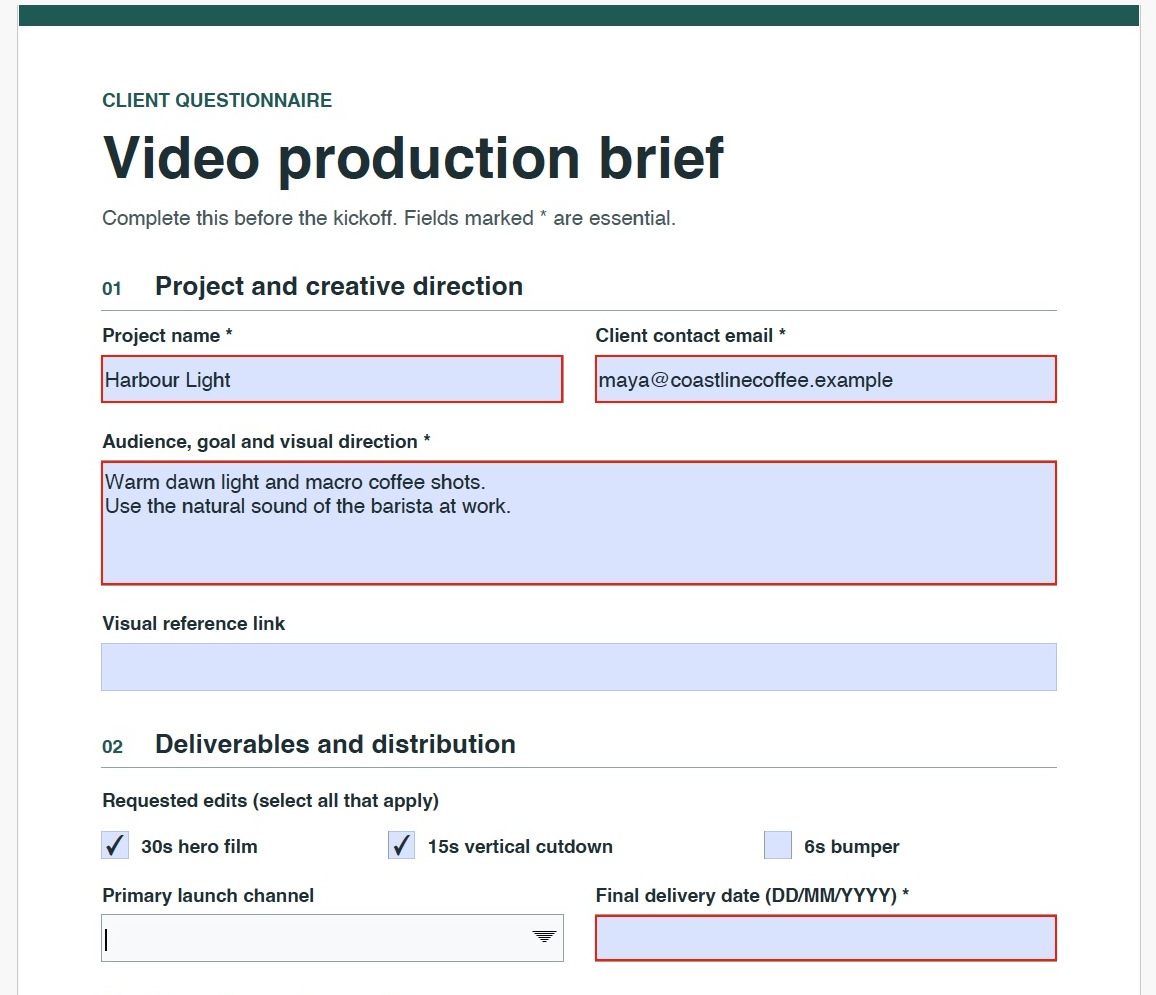
I pressed Tab from the project name to the contact email, then into the creative direction box. I entered two lines of notes, checked both the hero film and the vertical cutdown, and left the 6-second bumper unchecked. Both selections stayed in place when I tabbed to the launch channel.
What the Completed Brief Looks Like
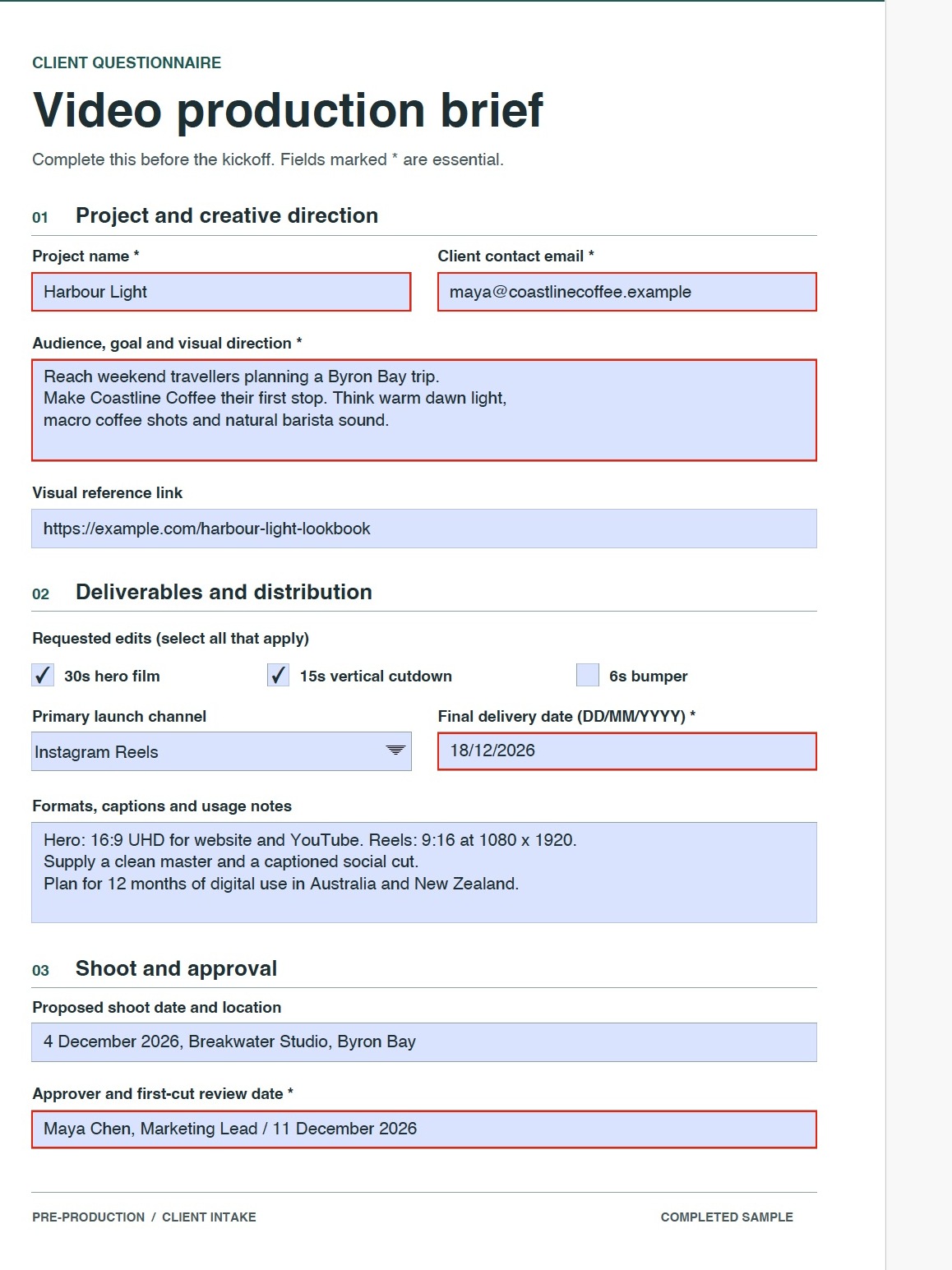
The brief gives the director a look and sound to plan around. For Harbour Light, that means warm dawn light, coffee close-ups and natural sound from the barista. It also gives the editor specs for a 16:9 UHD master and a 9:16 social export, plus a first-cut review date with a named approver. A producer can use those answers to build a shot list, flag frames that need to work in both aspect ratios and confirm the post-production schedule at kickoff.
When the Client Sends It Back
Ask the client to open the brief in Acrobat Reader, fill in the highlighted fields and use File → Save As on a Mac or the menu → Save As on Windows. When it comes back, check that the visual reference opens, the requested edits match the formats listed, and the approver can make the proposed review date. Those are the details most likely to affect what you shoot and when you can deliver it.
Using Fillable PDFs in Professional Video Production Workflows
Collecting accurate client requirements before production begins can help creative teams avoid unnecessary revisions, missed deadlines and confusion over deliverables.
Adobe Acrobat Pro allows producers and professional creators to build reusable client intake forms that capture the information needed to plan a shoot and prepare an edit in Premiere Pro.
For example, confirming aspect ratios, video durations, caption requirements and launch platforms in advance can help editors establish the appropriate sequence settings and plan their delivery workflow in Premiere Pro.
With more than 40 years of experience developing creative technology, Adobe continues to build tools that support professional creators throughout the production process. From collecting client requirements in Acrobat to editing and delivering video in Premiere Pro, Adobe’s tools help creative teams maintain control over their workflows and creative decisions.
FAQs
Can I turn an existing PDF into a fillable form?
Yes. Adobe Acrobat Pro can detect potential form fields in an existing PDF using its Prepare a form tool. You can then edit the detected fields or manually add text fields, checkboxes and dropdown menus.
Do clients need Adobe Acrobat Pro to complete a fillable PDF?
No. Clients can use the free Adobe Acrobat Reader application to complete and save standard interactive PDF forms.
Can I make certain fields mandatory in a fillable PDF?
Yes. Adobe Acrobat Pro allows you to mark individual form fields as Required in their field properties. However, you should still check returned forms to ensure all essential information has been completed, particularly when collecting PDFs by email.
Can I reuse a fillable PDF for multiple clients?
Yes. Save a blank master copy of your fillable PDF and distribute a separate copy to each client. This is particularly useful for recurring production briefs, client questionnaires and project intake forms.
Can I add checkboxes and dropdown menus to a PDF?
Yes. Adobe Acrobat Pro allows you to add interactive form components, including checkboxes, dropdown menus, text fields and radio buttons, to collect different types of information.
Final Thoughts
Adobe Acrobat Pro makes it straightforward to turn a standard PDF into an interactive form without having to recreate the original document.
For professional creators and video production teams, reusable fillable PDFs can help standardize client onboarding, collect production requirements and confirm delivery specifications before editing begins in Premiere Pro.
Taking the time to test your form, check field settings and review completed responses can help prevent missing information and unnecessary revisions later in the production process.
Explore Adobe Acrobat Pro to create reusable fillable PDF forms for your next creative project.
This article is sponsored by Adobe and contains affiliate links. We may earn a commission if you make a purchase through these links, at no additional cost to you. All opinions and testing observations are our own.
How to Redact Sensitive Information From PDFs Using Adobe Acrobat
Read Next