



USB-C vs. Thunderbolt: How to Tell What Your PC Port Supports
Your laptop most likely has a USB-C port already, but depending on the exact make and model, this port can have more or fewer functions. It can either handle only basic data transfer or be able to connect multiple devices like a monitor, external GPU, or an SSD. This is where the question of USB-C vs. Thunderbolt standards comes in and how to tell exactly what you have.
USB-C vs. Thunderbolt Explained
While they’re most commonly considered different types of connectors, in actuality it’s more accurate to say that Thunderbolt is a connection standard that uses the USB-C connector.
With that in mind, what is a USB-C port? Unlike a traditional rectangular USB-A port you might see on most laptops and desktop PCs, a USB-type C or USB-C is a reversible connector (meaning it doesn’t matter which side of the cable you put in). Thunderbolt adds higher data-transfer speeds and support for features such as connecting monitors and external GPUs.
In short, if a device specifically asks for a Thunderbolt connection (and a generation like 4 or 5), you’re unlikely going to be able to use a “regular” USB-C for that. Otherwise, both types can be used to charge a phone from a PC or send over files.
Identify Thunderbolt Port Windows Laptops Have
One of the basic ways to determine which type of connector you have is to look at the laptop case. Here are the most common symbols:
- Lightning bolt (often with an arrow) indicates a Thunderbolt port. Some manufacturers add a “4” or “5” to indicate the version.
- “USB 40Gbps” or “USB 80Gbps” are used for USB4, which is still USB-C.
- “SS” or “SS 10” with the USB trident is a Standard USB 3.x at 5Gbps or 10Gbps.
- D-shaped DisplayPort icon means the port can output video to a monitor.
- If there’s nothing at all, it usually means the port supports only basic USB data transfers.
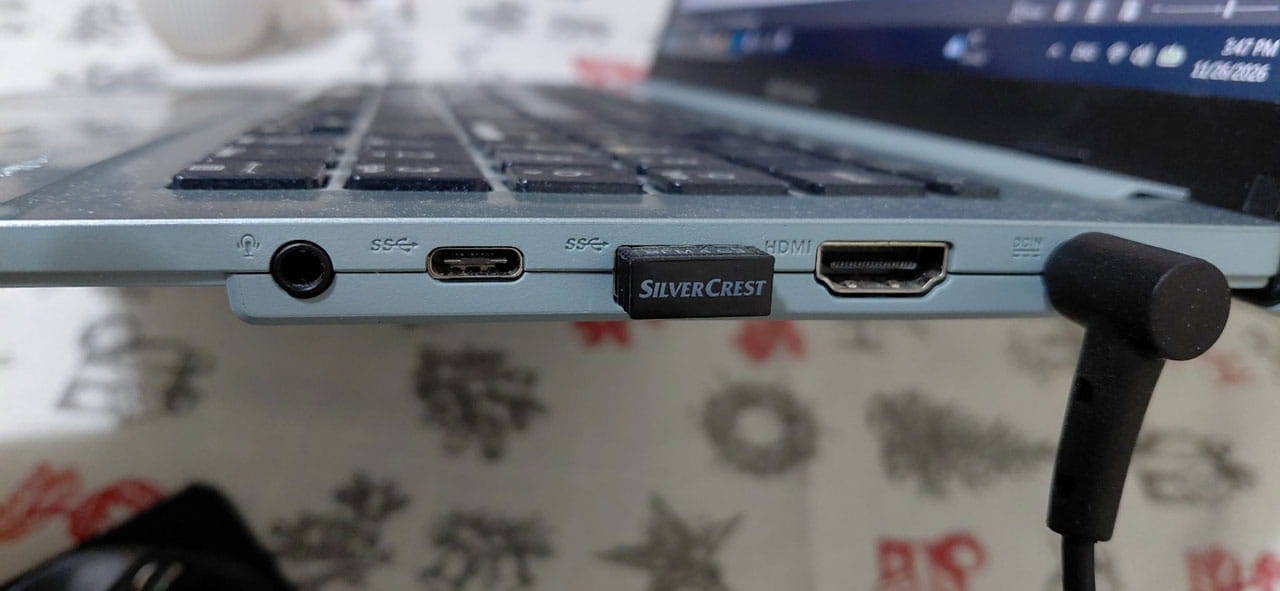
Identify Thunderbolt Port From Settings
In some cases, Windows Settings can detect USB4-capable hardware even when no USB4 device is connected, allowing you to check whether your PC supports it.
Step 1. Open “Settings” with “Win + I.”
Step 2. Go to “Bluetooth and devices.”
Step 3. Scroll down and select “USB.”
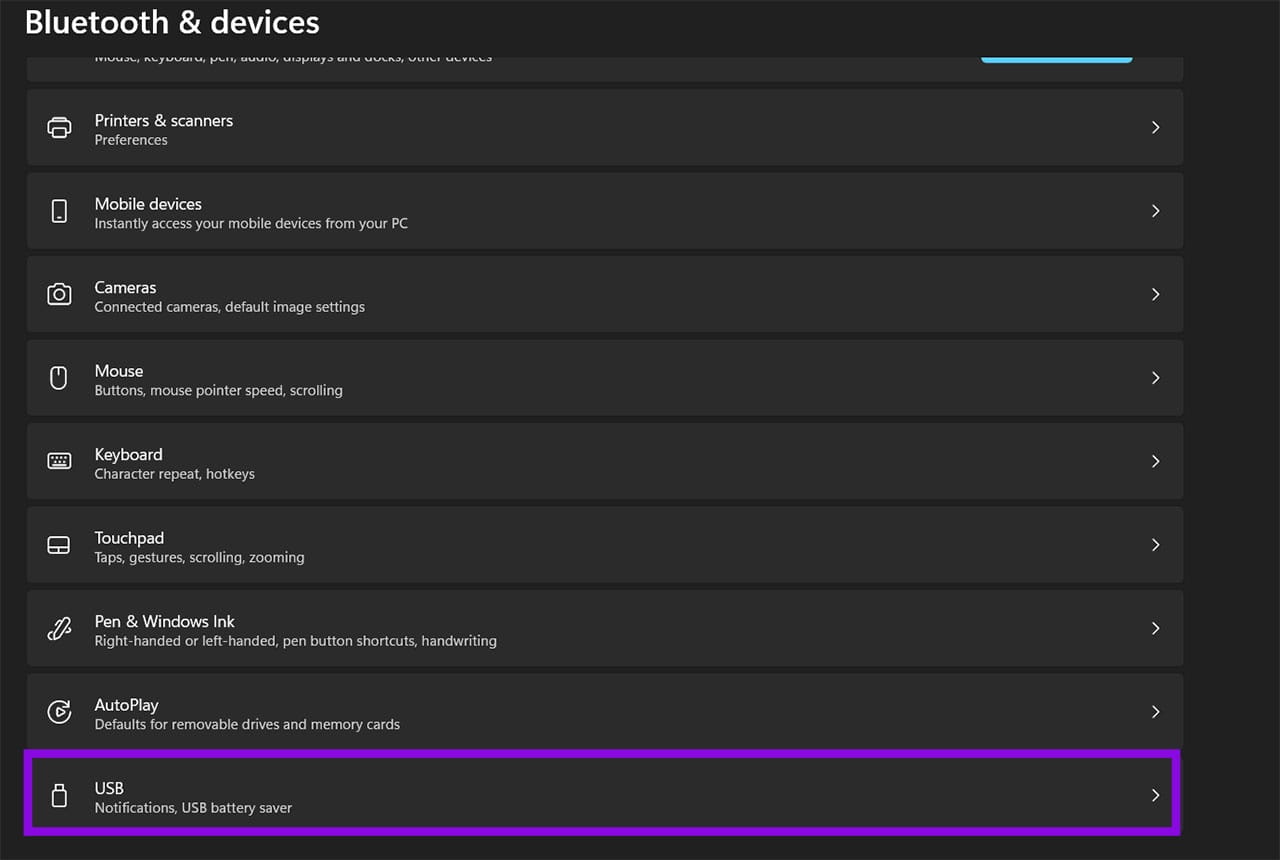
If you see the “USB4 Hubs and Devices” section, that means Windows has detected USB4-capable hardware. However, this doesn’t necessarily tell you how many physical Thunderbolt ports your PC has.
Check Thunderbolt Port via Device Manager
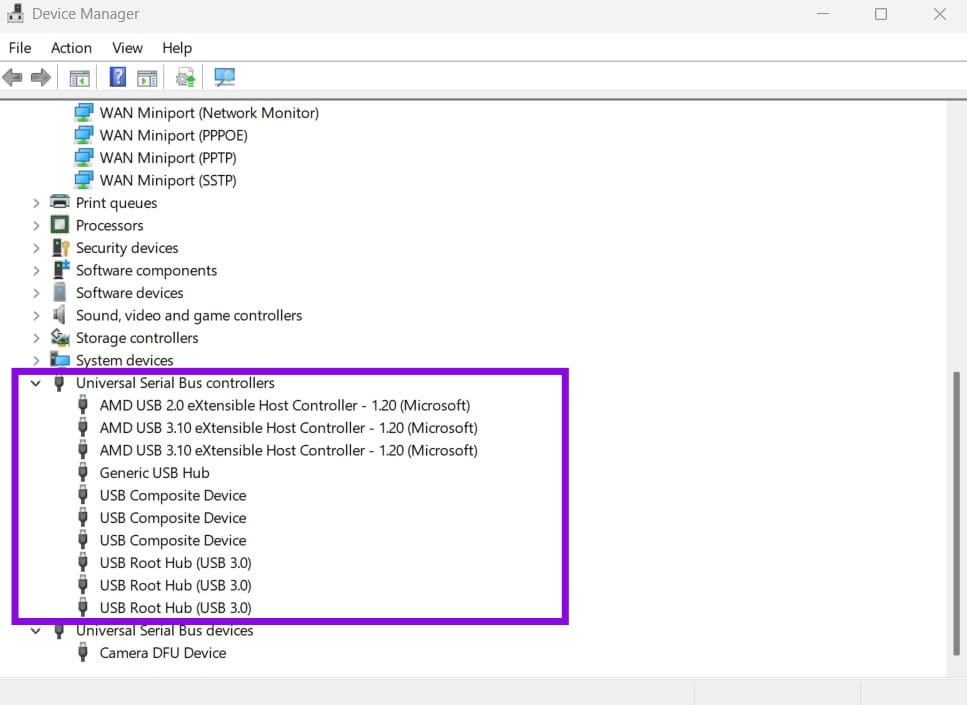
The Device Manager lists USB controllers, which will often state what types of ports they have.
Step 1. Right-click on the Start icon and select “Device Manager.”
Step 2. Expand the sections “Universal Serial Bus controllers” and “Universal Serial Bus devices.”
If you see a USB4 Host Router entry, that indicates USB4 support. However, Device Manager doesn’t always identify the exact capabilities of each physical port. Also, entries such as USB 2.0 or USB 3.x identify USB standards rather than Thunderbolt generations.
Check USB Ports via Manufacturer Website
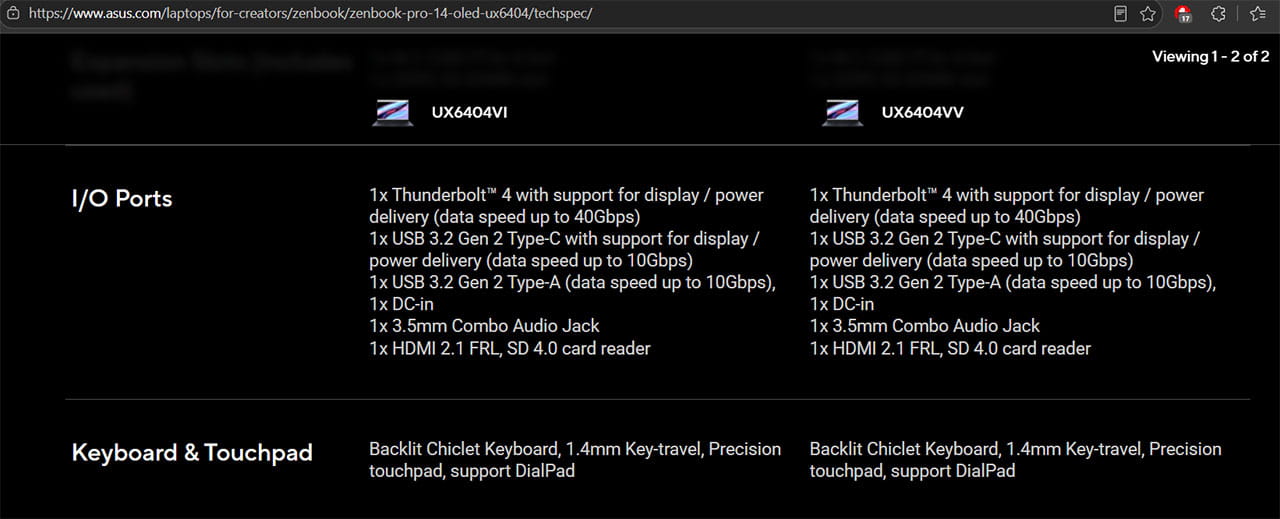
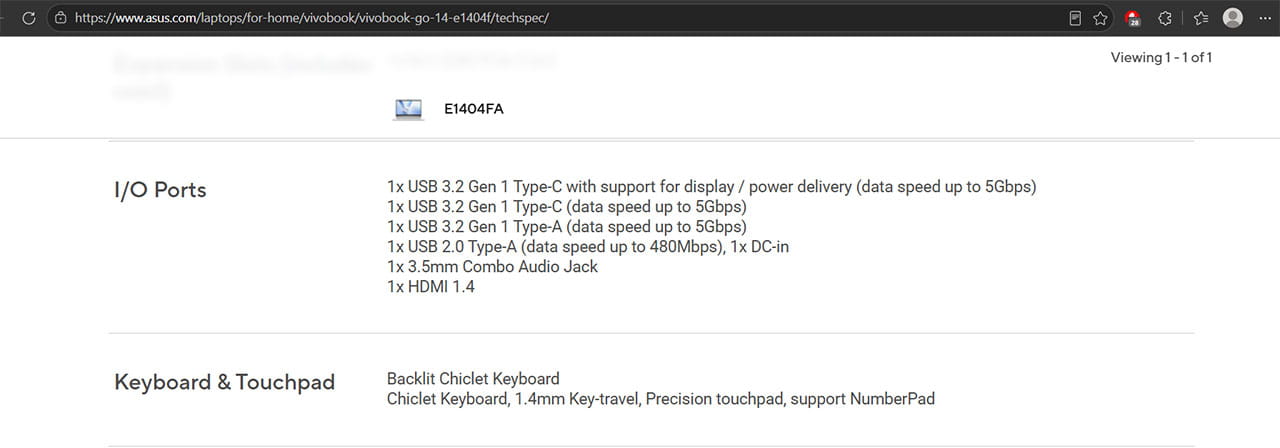
If you’re looking for a new laptop and need a specific Thunderbolt version for your accessories, most manufacturers list all the ports on a device and their speed (usually under “I/O ports”).
For that, you need to enter the exact model of the device and search for it, which will usually bring up the manufacturer’s website among the top results.
Here are examples for ASUS Zenbook models, which have Thunderbolt, and the ASUS Vivobook Go (which doesn’t).
Best AI PDF-to-Podcast Tools in 2026
Read Next