Is Your Pixel’s Battery Draining Too Fast? Here’s Why and What to Do
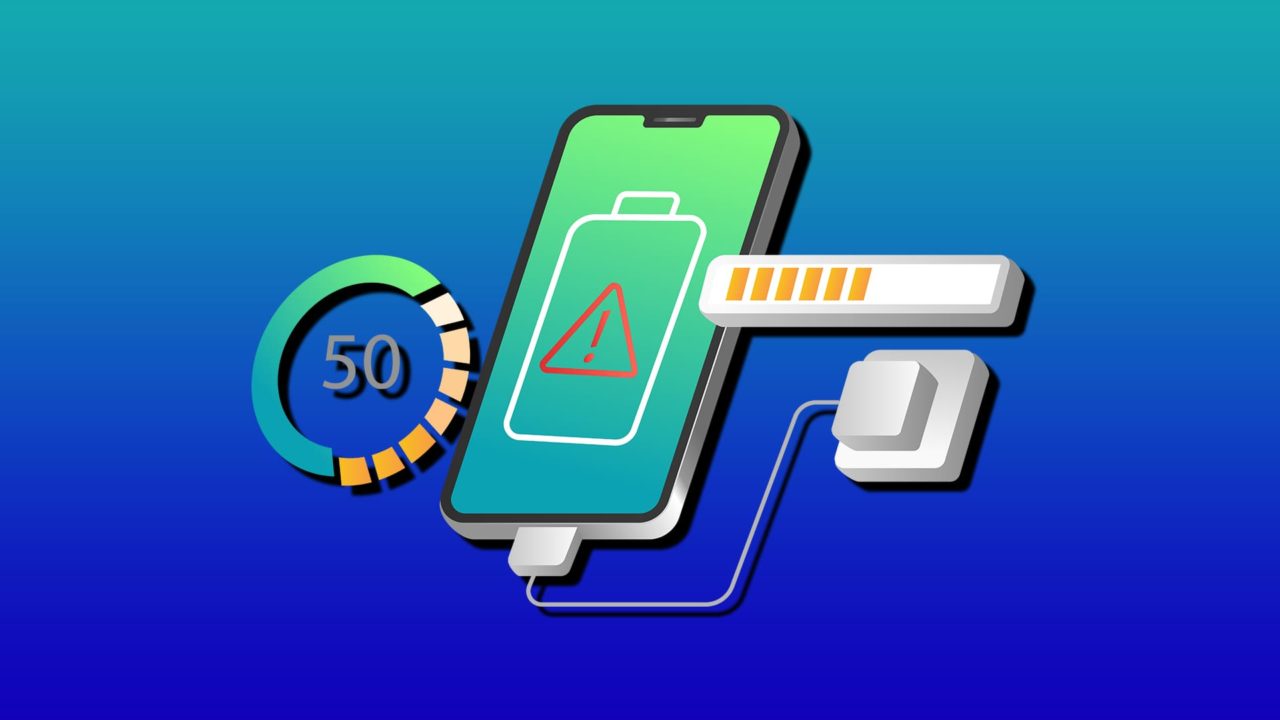
A Google Pixel should last all day on a single charge, but if you’re reaching for the charger too often, you might have a problem. Here are the most common reasons behind a Pixel’s battery draining too fast and what you can do to mitigate them.
Fix 1: Pixel’s Battery Draining Too Fast Due to New Apps
One of the most common reasons for a Google Pixel battery drain issue is not actually related to the phone, but to the software you download. Maybe you recently installed a new app, or an existing app started running poorly after an update. Apps can continuously run in the background, pulling data, accessing location services, or performing tasks that drain your battery far faster than normal usage would.
Luckily, Android makes it easy to see exactly which apps are consuming the most battery power.
Step 1. Open the Settings app and tap on “Battery” or “Battery and device care.”
Step 2. Look for “Battery usage” or “App battery usage.” This shows you a list of all apps and how much battery each has used in the past 24 hours.
Step 3. Check the apps at the top of the list, and see if any of them are using unusual amount of battery. Tap on an app for more details.
Step 4. For apps using high battery power, you can restrict their background activity. Tap the app and select “Restrict” or disable “Allow background usage.” Alternatively, if you don’t use the app, uninstall it completely.
Keep in mind that restricting background access for some apps might affect their functionality or delay notifications. However, it’s worth the trade-off if the app was draining your battery. Google Play Services and Android System typically show high usage, which is normal and shouldn’t be restricted.
Fix 2: Disable Location Services to Stop Pixel Phone Battery Draining Fast
GPS is also one of the biggest battery drains on any smartphone. Your device’s location hardware is constantly working, which can be a nuisance in areas with poor reception where the phone constantly needs to “ping” servers.
Step 1. Open Settings and navigate to “Location” or “Location services.”
Step 2. Review which apps have permission to access your location. You should see options like “Allow all the time,” “Allow only while using the app,” or “Don’t allow.”
Step 3. For apps that don’t absolutely need constant location access, change the permission to “Allow only while using the app.” This way, the app can still use your location when you’re actively using it, but won’t drain battery when it’s running in the background.
Step 4. Also disable “Wi-Fi scanning” and “Bluetooth scanning” in the Location settings, as these features constantly search for networks and can drain battery. You can re-enable them if needed, but most users don’t notice a difference when they’re off.
If you spend time in areas with poor cell signal, location services will actually drain battery even faster because your phone has to work harder to get a GPS lock. In these situations, turning off location services temporarily can save significant battery power.
Fix 3: Reduce Screen Brightness
The screen is usually by far the largest consumer of battery power on any smartphone, and if you’re running brightness at maximum levels, you’re essentially throwing battery life away. Adjusting screen brightness is one of the simplest and most effective ways to stop a Pixel’s battery draining too fast.
Step 1. Open Settings and go to “Display” or “Screen and brightness.”
Step 2. Look for the brightness slider and lower it to a comfortable level. You don’t need maximum brightness for everyday use. A setting around 40-50% is comfortable for most lighting conditions.
Step 3. Enable “Adaptive Brightness” or “Adaptive brightness” (the name varies by Android version). This feature automatically adjusts your brightness based on ambient light, using less power when you’re in low-light situations.
Step 4. Consider enabling “Dark Mode” or “Dark theme,” especially if you have an OLED screen. OLED displays are significantly more efficient when displaying dark colors because pixels don’t have to light up as brightly.
The combination of lower brightness, adaptive adjustment, and dark mode can extend your battery life by several hours per day. It might take a day or two to adjust to lower brightness, but most users quickly adapt and wonder how they ever used maximum brightness.
Fix 4: Close Background Apps and Limit Notifications
Every time an app receives a notification, your phone wakes up the screen, processes the notification, and performs the associated background tasks. Each of these small actions consumes battery power. You need to be selective about which apps get to send notifications and run in the background makes a measurable difference.
Step 1. Open Settings and navigate to “Apps” or “Application Manager.”
Step 2. Tap on individual apps you don’t need running in the background. Look for a “Battery” option or “Notifications.” You can either restrict background activity or disable notifications entirely.
Step 3. For essential apps like messaging, you can leave notifications on but disable vibration. Vibration uses slightly more battery than sound alone.
Step 4. If you have multiple email accounts, consider disabling push notifications for accounts that don’t need real-time alerts. You can still check them manually.
Fix 5: Check for a Failing Battery
All batteries degrade over time. If you’ve had your Pixel for two or more years, the battery’s chemical composition has naturally degraded, and it simply can’t hold as much charge anymore. If you’ve tried all the troubleshooting steps above and nothing has improved the situation, the battery itself might be the problem. Google provides a built-in battery diagnostics tool to help determine if your battery is failing.
Step 1. Open Settings and go to “Battery” or “Battery and device care.”
Step 2. Look for “Battery diagnostics” or “Battery status” (available on Pixel 6 and later). Tap on it.
Step 3. The system will analyze your battery health and report its status. If the battery is healthy, it will show “Good” or “Normal.” If it’s degraded, you might see “Fair,” “Poor,” or receive a notification that the battery needs service.
Step 4. You should also check for physical signs of battery failure. Look for the battery swelling inside the phone (with a bump or bulge on one side). If this happens, you may need to replace the phone.
As a last resort, you should contact a professional phone repair service, as they might be able to get to the bottom of the issue.
Redefine the Way You Work in Word in 2026 With These Add-Ins
Read Next