What to Do if Windows 11 Won’t Detect a Third Monitor
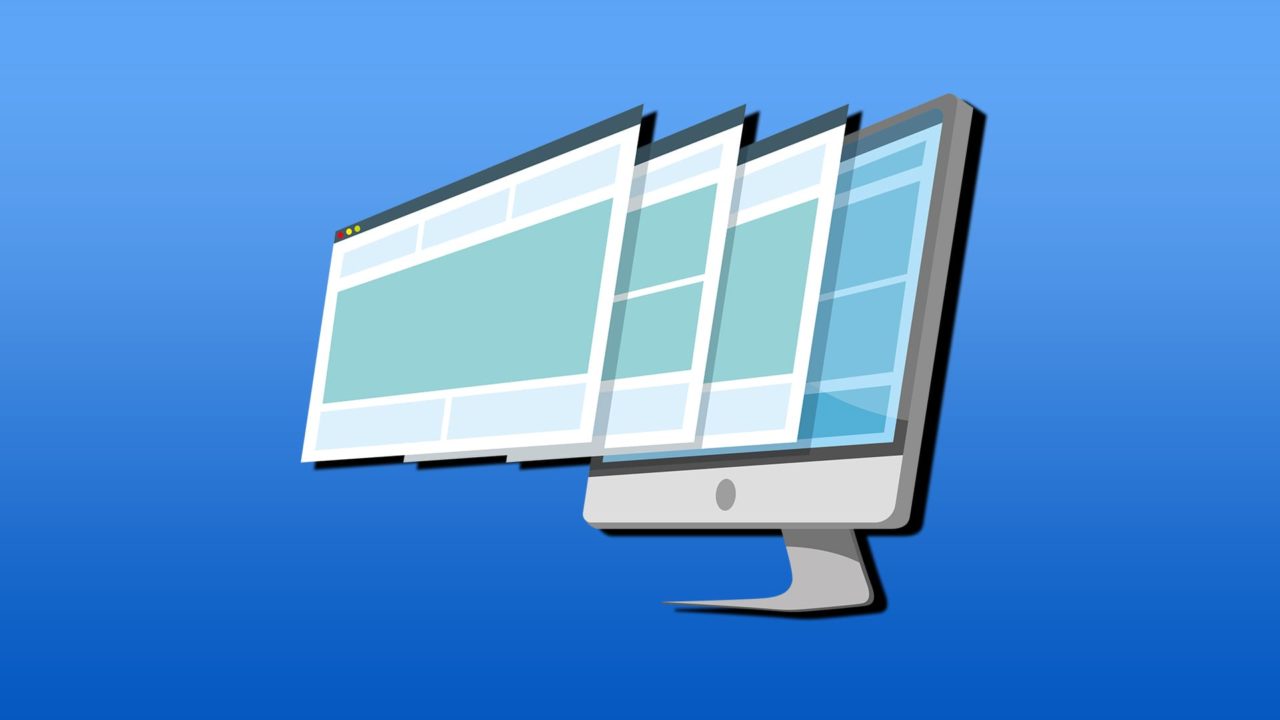
Usually, Windows doesn’t have a problem when you connect a second monitor. The added screen should be detected and automatically extend your desktop. It’s connecting a third monitor where some issues might start. Here’s what to do if Windows 11 won’t detect third monitor setups.
Basic Troubleshooting for Windows 11 Third Monitor Not Detected Issues
Before changing any settings or rolling back drivers, you should ensure that the monitor is connected and working properly.
- Check if the monitor is receiving power.
- Recheck the connections between the monitor and the PC. If you have a laptop that has only one additional output, you can daisy chain monitors using a Thunderbolt or DisplayPort cable, starting with the highest-resolution secondary monitor first.
- Make sure that the monitor’s input stream matches the connection used.
- Check the cables used. If swapping the cables around to different monitors alters which one is detected, you need to use different cables.
- Test the “faulty” monitor with a different PC as a primary or secondary display.
- Run Windows Update and install all available updates.
Fix 1 – Force Windows to Detect Additional Monitors
If the automated system doesn’t detect a monitor, you can force the update.
Step 1. Right-click on the desktop and select “Display settings.”
Step 2. Scroll to “Scale & layout,” expand the “Multiple displays” section, and hit “Detect.”
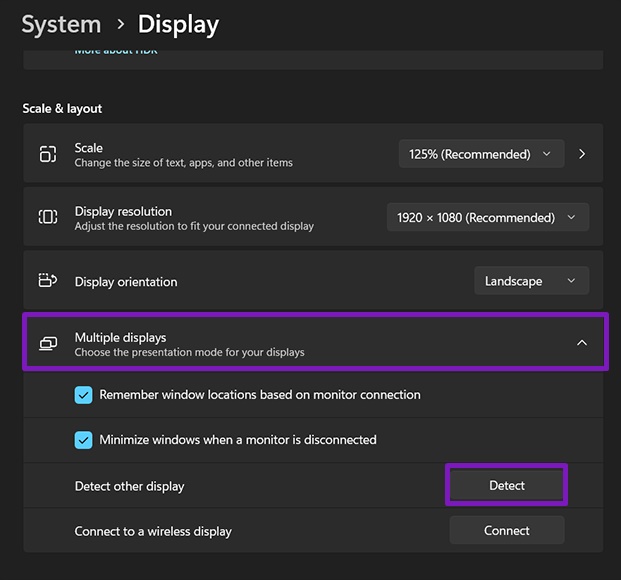
If Windows detects additional monitors, the menu will expand to let you rearrange them.
Fix 2 – Check Graphics Drivers if Windows 11 Won’t Detect Third Monitor
Usually, the graphics driver should automatically be kept to the most recent version, and modern drivers should have support for four monitors. If you’ve recently rolled back an update or installed a fresh operating system, Windows may still be using a generic display driver.
Step 1. Open the Device Manager (right-click on the Start icon and select it).
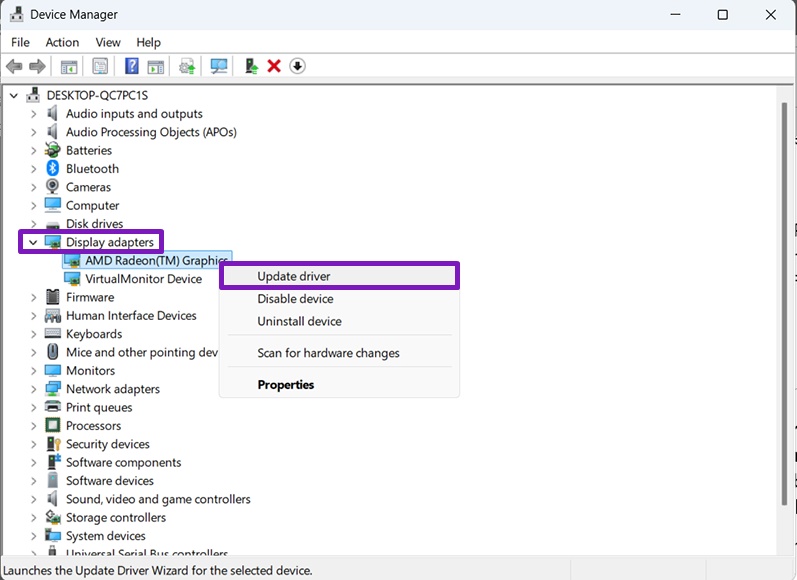
Step 2. Expand the “Display adapters” section and right-click on the option that lists the name of your main graphics card (Intel Graphics, AMD Radeon Graphics, or a specific model).
Step 3. Select “Update Driver” and go through the update wizard.
Step 4. If you have dedicated graphics, open the third-party driver manager software (the Nvidia Graphics app or AMD Adrenalin). Then, update the driver from there.
Fix 3 – Change Projection Mode if Windows 11 Won’t Detect Third Monitor
If you’ve connected a second monitor but subsequently turned it off, Windows may still be set to “PC screen only,” preventing additional displays from being used.
Step 1. Click on the action bar on the bottom-right (the icons with the network, audio, and battery settings), then choose “Project.” Alternatively, hit “Win + P.”
Step 2. Change the setting to “Extend” or “Duplicate.”
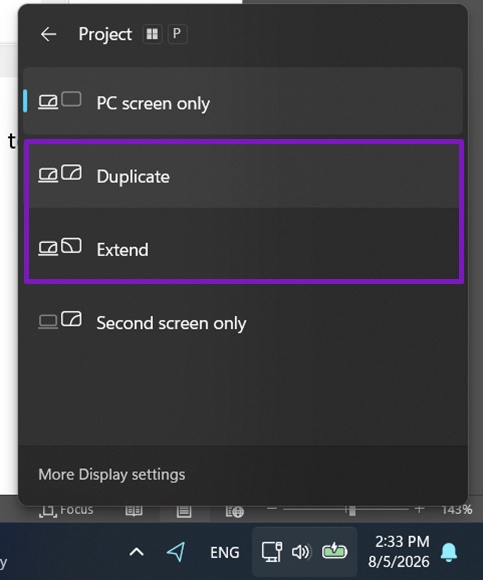
If this doesn’t work, switch the setting back to “Main screen only,” then disconnect all secondary monitors, restart the PC, reconnect the secondary monitors, and change it back.
Fix 4 – Use the Troubleshooter
Windows 11 still keeps the old troubleshooters, which might help diagnose connection issues. This isn’t available through “Settings,” but the underlying utility is there.
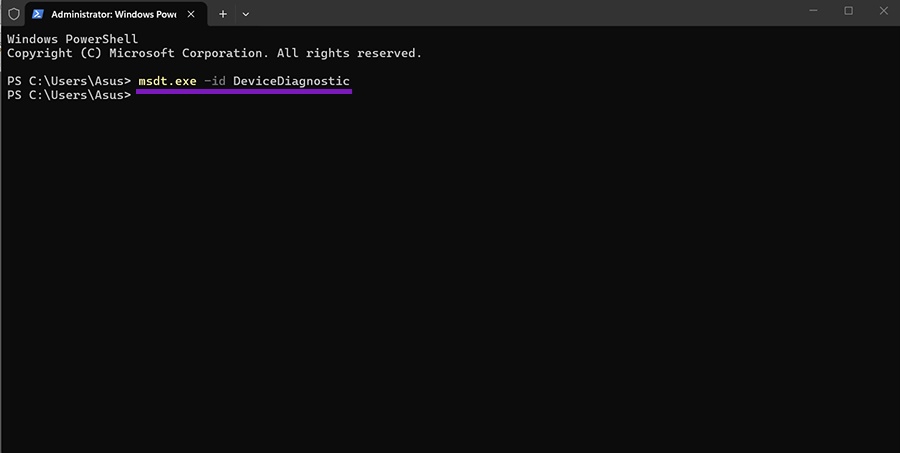
Step 1. Right-click on the Start icon and select “Terminal (Admin),” then confirm the User Account Control prompt.
Step 2. Run the following command:
msdt.exe -id DeviceDiagnostic
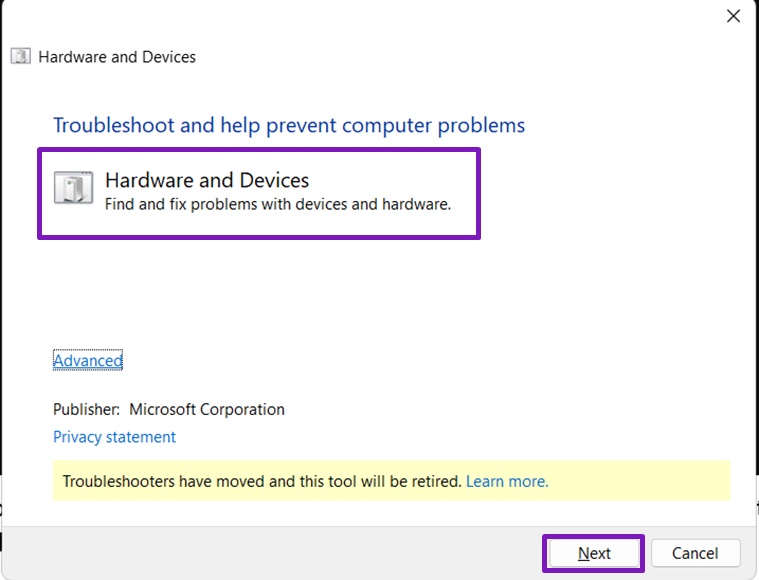
Step 3. You should get a pop-up for the “Hardware and Devices” troubleshooter. If nothing appears, your version of Windows has likely removed the legacy Hardware and Devices troubleshooter.
Step 4. Hit “Next” and follow the on-screen prompts.
How to Control Camera Access on Windows 11
Read Next