How to Control Camera Access on Windows 11

Almost all modern laptops and all-in-one computers come with integrated cameras built into their displays, which can be helpful for the likes of video calls. However, users may have legitimate concerns about apps accessing the camera when they don’t expect it.
Fortunately, by adjusting your camera controls, Windows 11 lets you determine exactly when your camera comes on.
How to Adjust Camera Controls Windows 11
You can access camera settings Windows 11 via “Settings” and make some simple changes to control which apps can use your camera, as follows:
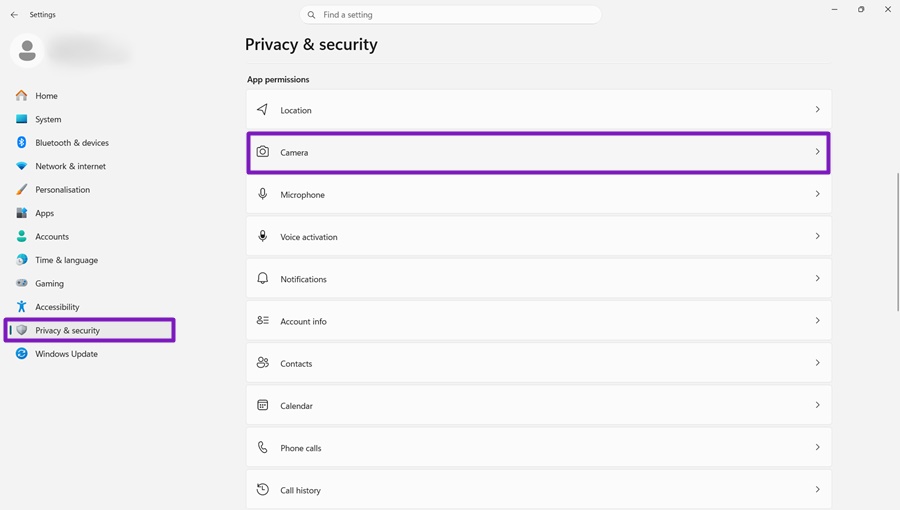
Step 1. Press the “Windows” and “I” keys to access the “Settings” menu. You can also find it via the “Start” menu.
Step 2. Go to “Privacy & security,” scroll down to the “App permissions” section, and click on “Camera.”
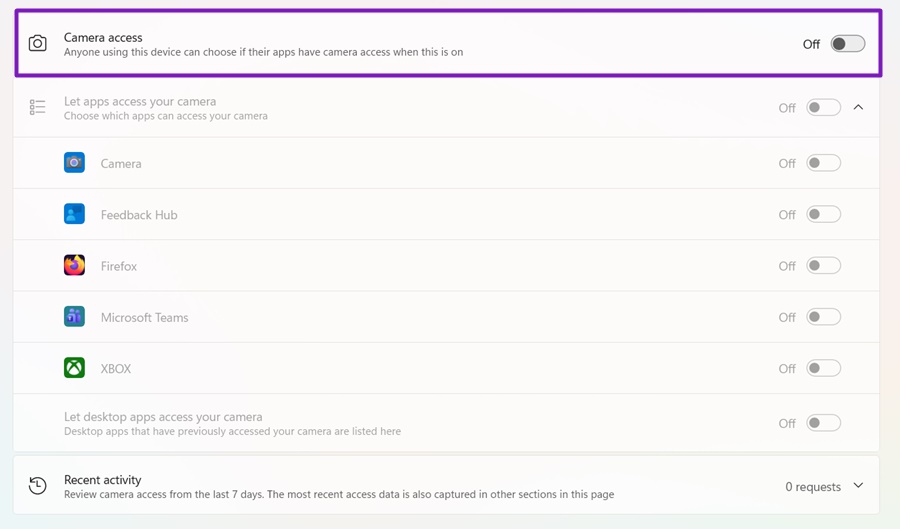
Step 3. At this stage, you can choose between turning off camera access entirely or adjusting camera permissions for individual apps. If you want to stop any apps from being able to access your camera, simply toggle the “Camera access” setting to the “Off” position.
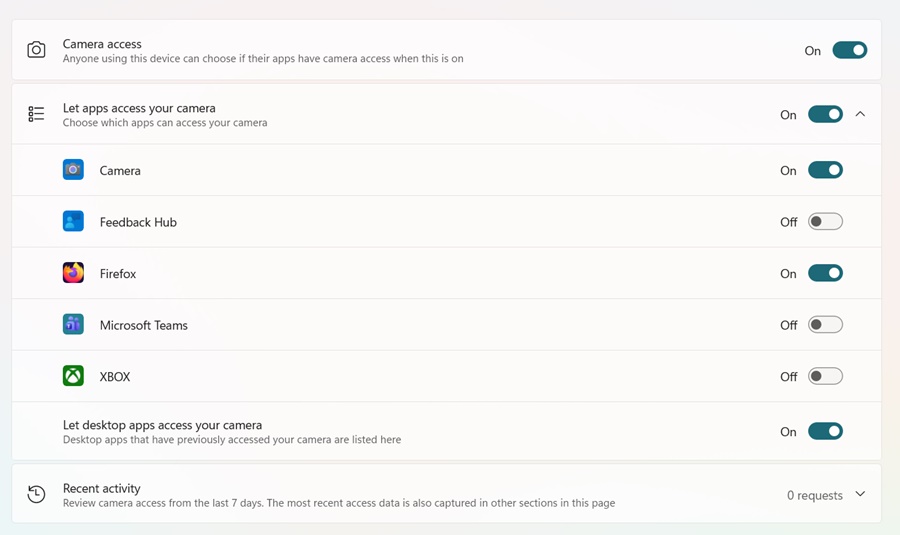
Step 4. If, however, you want to allow some apps to access your camera, leave “Camera access” on and scroll through the list of apps, adjusting the switch to the “On” or “Off” position, as you prefer. Any changes you make will be saved automatically, so you can close down the “Settings” app once you’re finished making changes to your camera controls Windows 11.
Bonus Tips for Webcam Security on Windows Devices
As well as adjusting app permissions, users may want to consider the following additional measures related to webcam security on Windows laptops and PCs:
- Consider covering up your webcam’s lens with a piece of tape or an actual camera cover, which you can purchase from various online marketplaces and tech stores. This ensures that even if an app or hacker was able to access your camera without your knowledge or permission, they wouldn’t actually be able to see anything through it.
- If you’re concerned about your webcam being used maliciously or accessed without authorization, and you don’t intend to use it yourself, you can simply disable it. To do this, open the “Device Manager” via the “Start” menu, find your camera in the list of devices, right-click on it, and then select the “Disable device” option.
- Keep your webcam up to date by downloading relevant device drivers and system updates. These updates may contain helpful security patches to fix any vulnerabilities that might emerge in your camera’s firmware and could be exploited by cybercriminals.
It’s also recommended to regularly review your camera’s settings and permissions, especially after downloading and installing new apps, to ensure that you remain in full control of how and when your computer’s camera can be used.
Google Chrome Beefs Up Security With Session Credentials on Windows 11
Read Next