SD Card Won’t Format on PC – What to Do
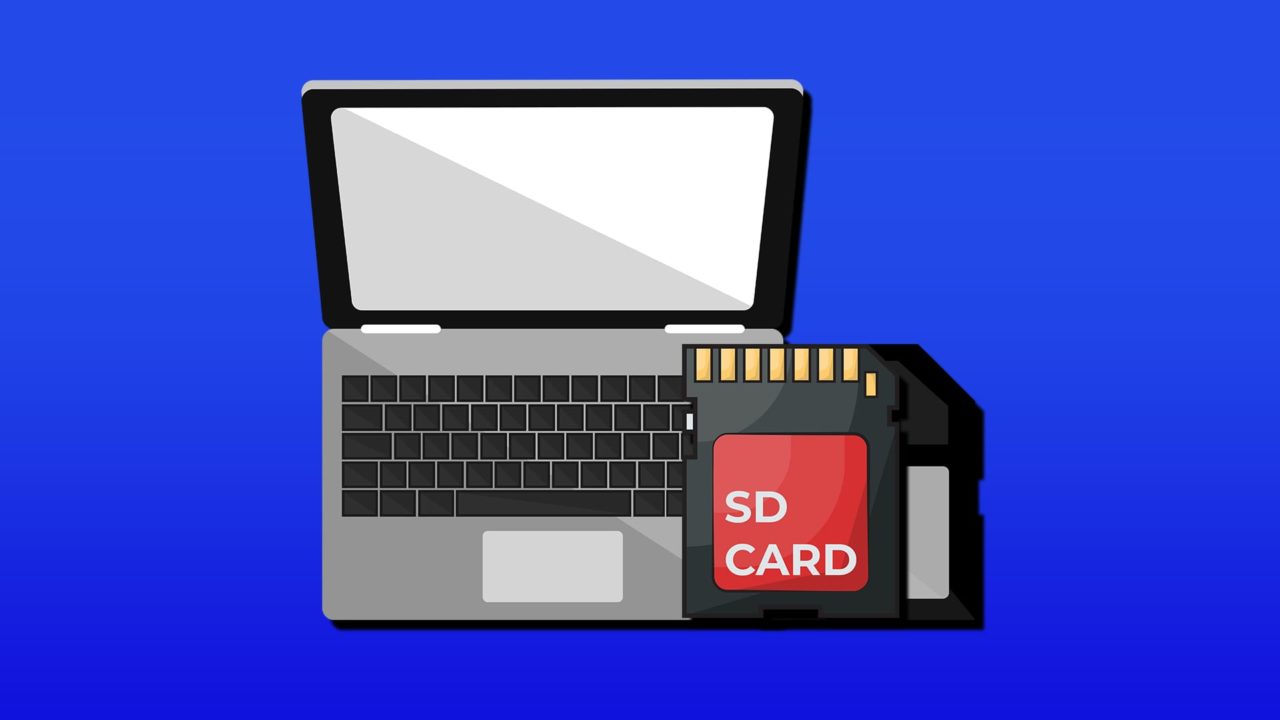
SD cards are hard to work with on a PC, even at the best of times, considering the extra slots or add-ons you need to read them. But things can be even more frustrating if the card refuses to format at all. Not to worry, though. In this article, we’ll be showing you what to do when your SD card won’t format on PC.
What Causes This Error?
Your SD card is a storage device, much like a USB or external hard drive. If your SD card won’t format on Windows, odds are good there is a partition problem or corruption on your card. Another major error is write protection, which can prevent any sort of reformatting. We’ll be showing you how to resolve both issues.
What to Do When Your SD Card Won’t Format on PC
If you can’t format SD card on Windows, here are some troubleshooting tips to try. Keep in mind that any reformatting will delete all content on your card, so back up what’s important first.
Repartition the Card
DiskPart is Microsoft’s command-line solution for quickly partitioning drives. It also has the bonus of clearing corruption on your card. If you know the code, it’s easy to repartition your SD card:
Step 1. Type “DiskPart” into the search bar and choose the first option that pops up. Right-click it and choose “Run as Administrator”.
Step 2. In Command Prompt, type “list disk” to see all available drives.

Step 3. To choose your SD Card, type “Select Disk [Your drive number]” and hit “Enter.”
Step 4. Type “clean” and press “Enter” to wipe the drive, then “Create partition primary” and “Enter” to repartition.
Step 5. Type “select partition 1” to select the new partition and hit “Enter.”
Step 6. Activate the partition by typing “active” followed by hitting “Enter.”
Step 7. You can format the drive by typing “format fs=ntfs label=[Name]” and pressing “Enter.” NTFS is a good format for Windows storage devices.
Step 8. Once the process is done, assign a drive letter with “assign letter=[letter]” and hit “Enter.”
Step 9. Close Command Prompt and see if your SD card is showing in Explorer.
Reformat With Disk Management
If you prefer a more graphical approach, the Disk Management Utility can also reformat your SD card. Here’s how:
Step 1. Type “Create and format hard disk partitions” into the search bar and click the option that pops up.
Step 2. In Disk Management, you should see your SD card listed along with other drives. Your card should be listed as “Unallocated.” Right-click the disk.
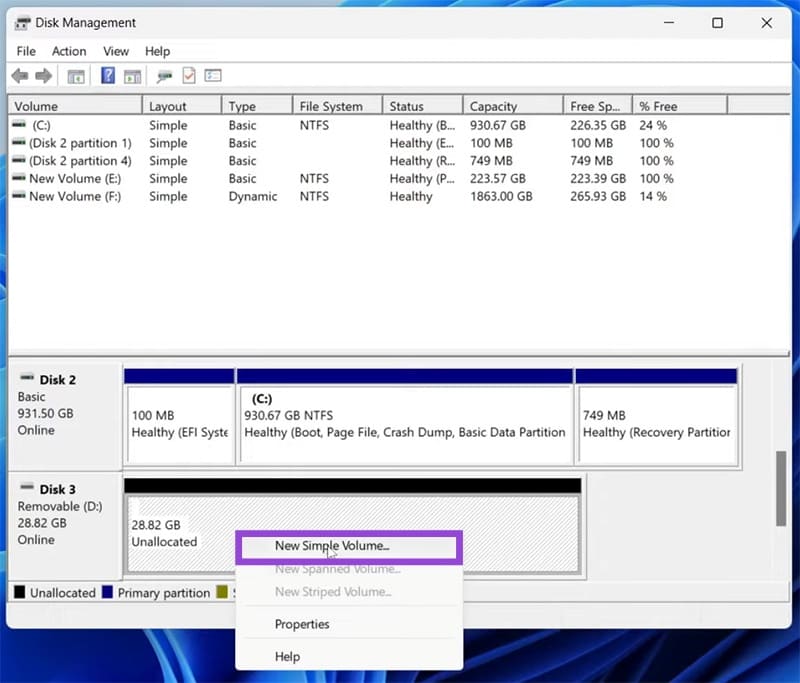
Step 3. Select “New Simple Volume” from the context menu.
Step 4. Go step-by-step through the wizard and designate format, drive letter, and all other specifics.
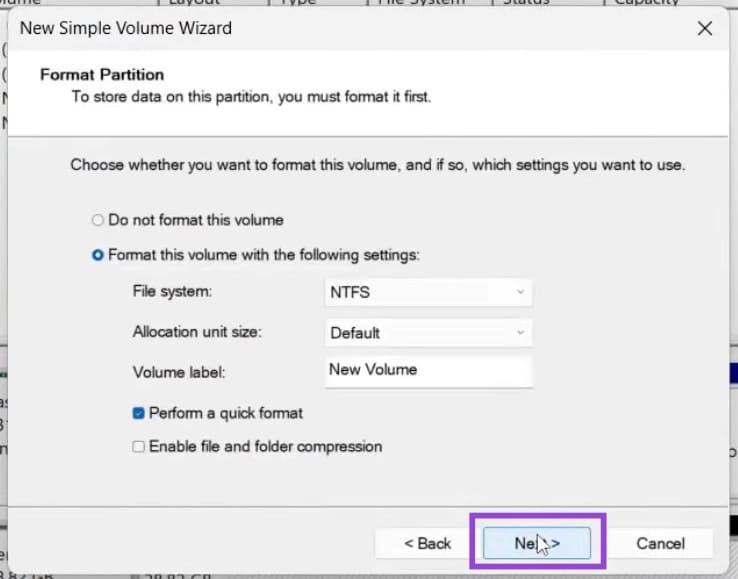
Step 5. Click “Finish” to finalize.
Disable Write Protection
Another essential check is to ensure the SD card’s write protection has been disabled, and, if not, do so. Here’s how:
Step 1. Open up DiskPart in the same way mentioned above. Be sure to run as Administrator.
Step 2. In Command Prompt, type “list disk” to see all available drives and select your SD card by typing “select disk [number]” and hitting “Enter” after both commands.
Step 3. To disable any write protection, type “attributes disk clear read-only” and press “Enter.”
Step 4. Close the Command Prompt and try to format your card again.
My Headphones Are Plugged in But Speakers Still Play – How to Fix
Read Next